Switch views
Show your workspace as a Canvas, as Windows with tabs and panes, or as a view you install from HiveHub.
Pick how your workspace looks. Switching viewsA way of drawing the workspace: Canvas, Windows, or one you install. ⌘E / Ctrl+E switches.Glossary → keeps every terminal, agent and unsaved edit.
Paste this into your coding agent to install a view from HiveHub and check it loads.
Show the prompt
Install a Hivemind view from HiveHub and make sure it loads.

1. Check Hivemind is installed: `hive --version` prints a version.
2. Ask me which view I want. Offer these, all on HiveHub: @dip497/constellation (agents in 3D), @dip497/timeline (today's work per agent), @dip497/agents-by-state, @dip497/workspace-map, @dip497/agent-board (notes agents pin), @dip497/code (the workspace as VS Code's workbench, with each frame's code beside its agent).
3. Install it: `hive plugins install <id>`.
4. Check: `hive plugins list --kind view` shows it with no load error. If it shows an error, tell me the error word for word.
5. Tell me to switch to it in the app with ⌘E / Ctrl+E.

At the end, say which view was installed and that `hive plugins remove <id>` removes it.

REFERENCE https://hivemind.griiken.com/guide/views.md
Switch views
- Press ⌘E / Ctrl+E, or use the view switch in the toolbar.
- Pick a view.
- Check: the workspace redraws, and every tile is still running.
You can also pick a view with Show as in the Layers panel's title menu.
The view switch's list starts with the workspace you are in. Switch workspace… under its name opens Open recent, where you pick another. A view that draws its own toolbar opens the same list.
Canvas or Windows
| View | Best for |
|---|---|
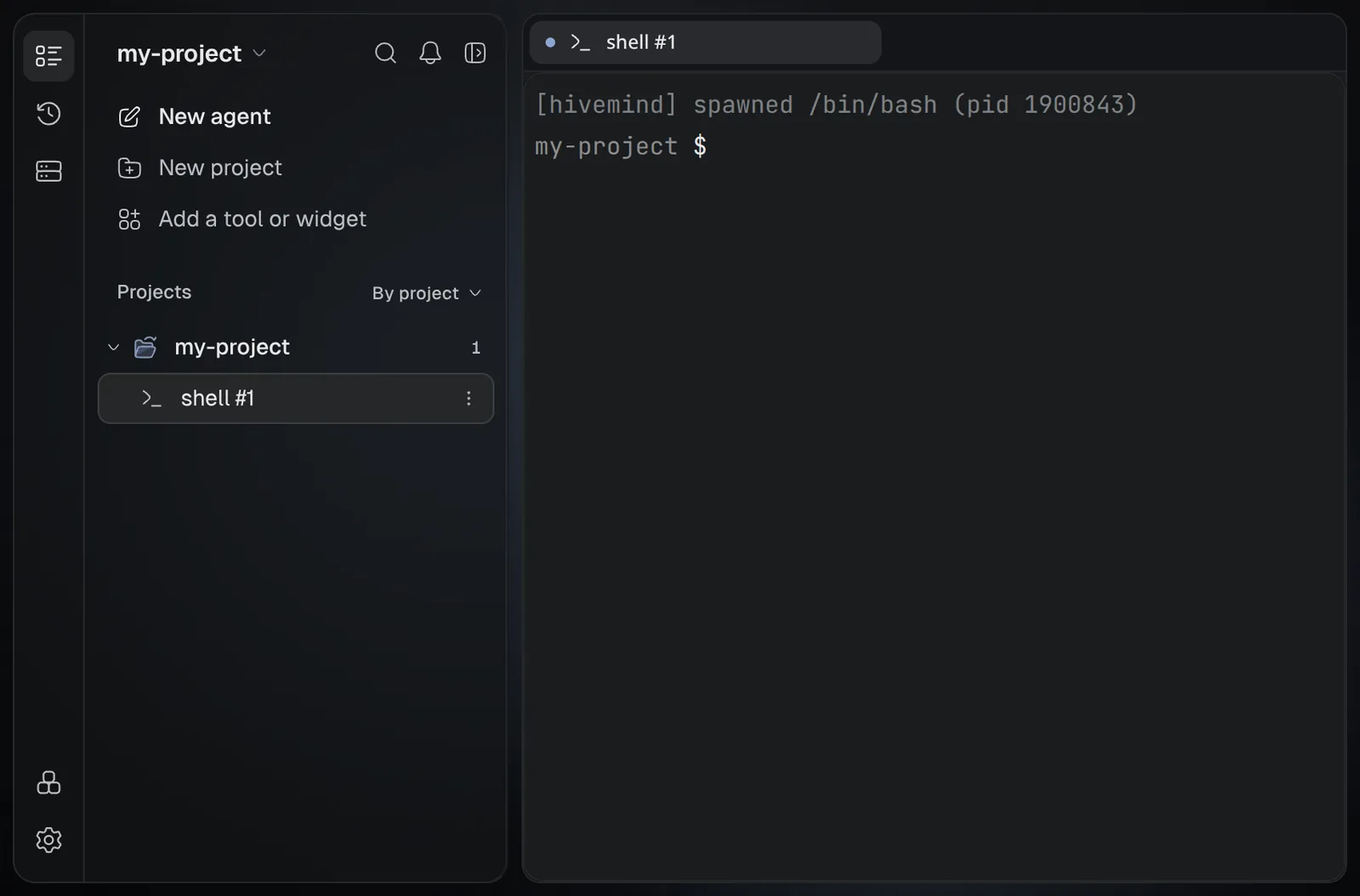
| Canvas | seeing everything at once. Frames are coloured areas on one endless surface, and tiles sit inside them. |
| Windows | working in one or two tiles at a time. Tiles are tabs in panes you split, with the Layers panel beside them. Each person keeps their own layout. |
To split a pane in Windows, drag a tab onto a pane's edge, or press ⌘\ / Ctrl+\. Every Windows key
is on Keyboard shortcuts.
A Browser tile reloads its page once each time you switch views. Its tabs and history stay.
Install a view
- Open Settings → Plugins and choose the HiveHub tab.
- Find the view and press Install.
- Check: press ⌘E / Ctrl+E and the view is in the list.
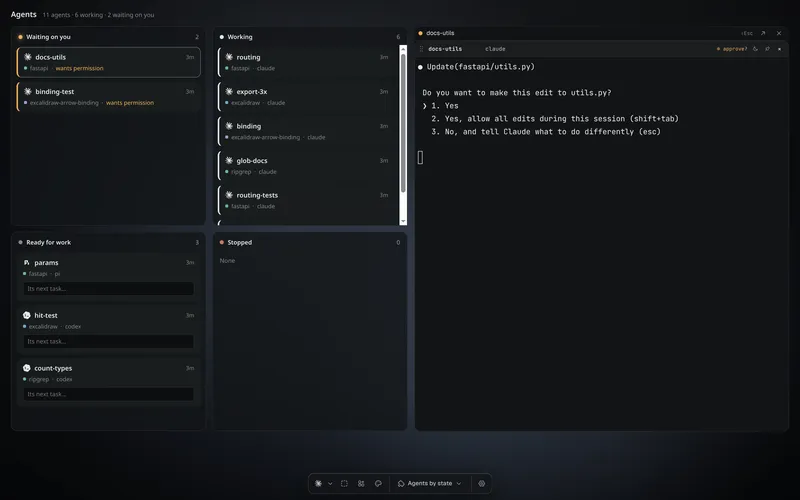
These views are on HiveHub, as @dip497/<name>:
constellation (your agents in 3D), timeline (today's work per agent), agents-by-state,
workspace-map, agent-board (notes agents pin) and code (your workspace as VS Code's
workbench: an explorer, tabs and split editors with live terminals, and each frame's code and
changes watched beside the agent writing them).
A view cannot read your files or use the network. It sees only what its permissions allow. The
app switches it off for the session if it misbehaves. To remove one, run
hive plugins remove <id>. To write your own, see Write a view.
Set the toolbar
The toolbar sits over the view. Each view's page in Settings → Plugins sets Toolbar → Display: Automatic, Top, Bottom, Collapsed or Off. Customize actions picks its buttons. With no toolbar, Settings is at the foot of the Layers panel.
If it didn't
| You see | Do |
|---|---|
| The view is missing from the switch | Run hive plugins list --kind view and read its load error. |
| The view shows nothing | It may need a permission. Open its page in Settings → Plugins. |
Related
Last validated for Hivemind 2026.10.3.