Answer agents from your phone
Pair your phone's browser, then answer, start, stop and watch your agents from anywhere.
This needs your own network server with HTTPS: about 15 minutes, once. Then your phone's browser answers your agents from anywhere.
Paste this into your coding agent to check your phone can reach this computer, then pair it.
Show the prompt
Get my phone ready to answer my Hivemind agents from its browser.

1. Check this computer is on a network server of mine: `hive network show`. If its first line ends with `(built in: local)`, stop and tell me a network server comes first: in the app, Settings → Servers → Set up my server with an agent.
2. Run `hive network doctor`. Every relay must print a line starting with ✓.
3. Ask me for the server's public address. Check that `https://<address>/phone/manifest.webmanifest` answers 200: `curl -sS -o /dev/null -w '%{http_code}' https://<address>/phone/manifest.webmanifest`. A phone's browser needs HTTPS with a trusted certificate. If it does not answer 200, tell me what is wrong and stop.
4. Walk me through pairing, which only I can do. In the app: Settings → Connect → Connect, then the Phone browser tab. I scan the QR code with the phone and tap Connect. If both screens show the same three words, I press "It's me — the words match" on the computer, then Yes on the phone.

At the end, ask me to check the phone shows Home with my agents. Suggest adding the page to the phone's home screen.

REFERENCE https://hivemind.griiken.com/guide/phone.mdHow the phone page reaches your computer, and what a phone may do: The phone page.
Before you start
- Your own network server, with a public name and a trusted certificate. The Docker setup serves the page at
/phone/. - This computer is on that server:
hive network doctorprints a✓line for every relay.
If the server does not serve the page yet, the Phone browser tab says so and offers Set it up with an agent.
Pair your phone
Show the code
On the computer, open Settings → Connect, press Connect, and pick the Phone browser tab.
Check: a QR code shows, with the server's name under it.
Scan it
Scan the QR code with the phone's camera. Tap Connect on the page that opens.
Check: both screens show the same three words.
Confirm it is you
Press It's me — the words match on the computer, then Yes on the phone.
Check: the phone shows Home, with your agents.
Add the page to your home screen. It then opens at once, offline too, and updates itself.
Check it worked
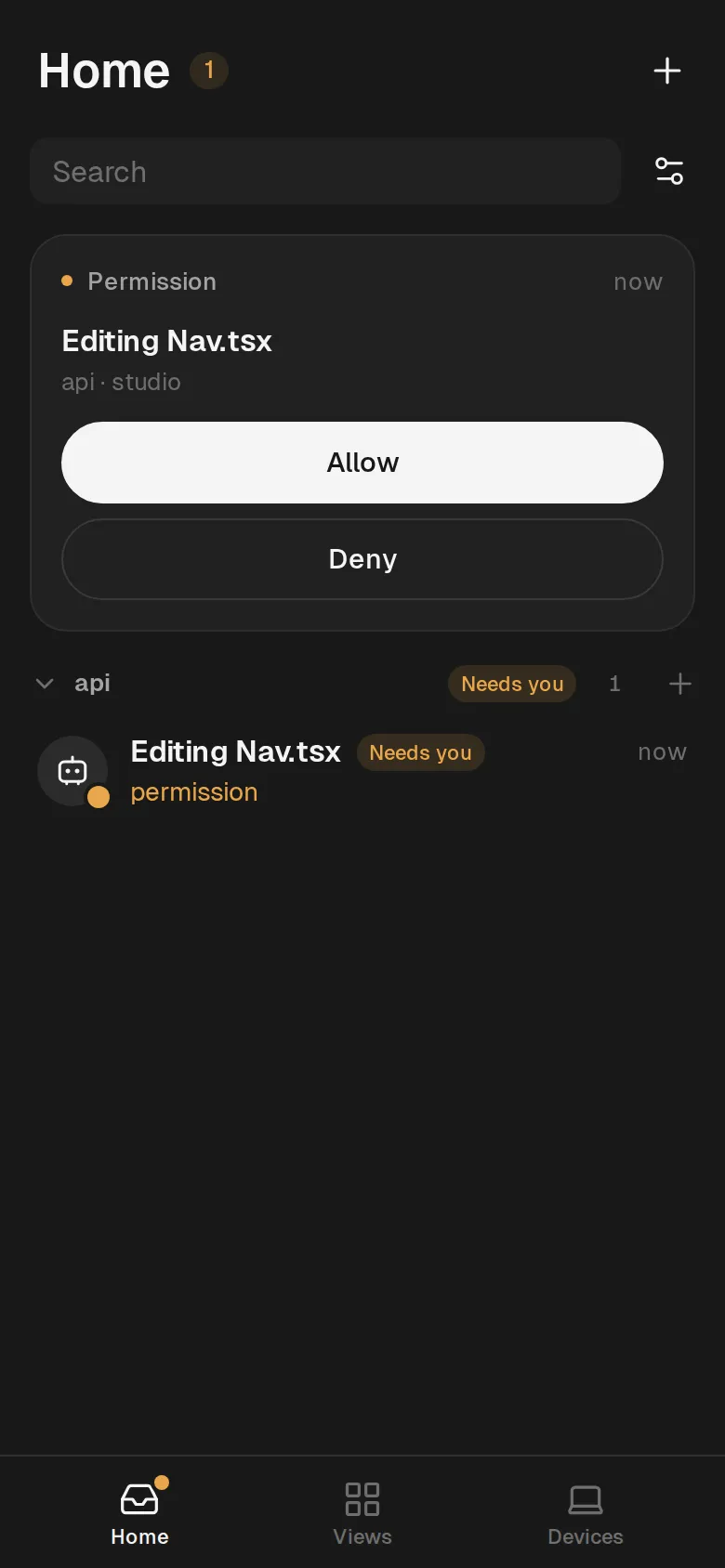
Home lists what needs you first. Ask an agent something that needs your permission, and it appears there.
Answer an agent
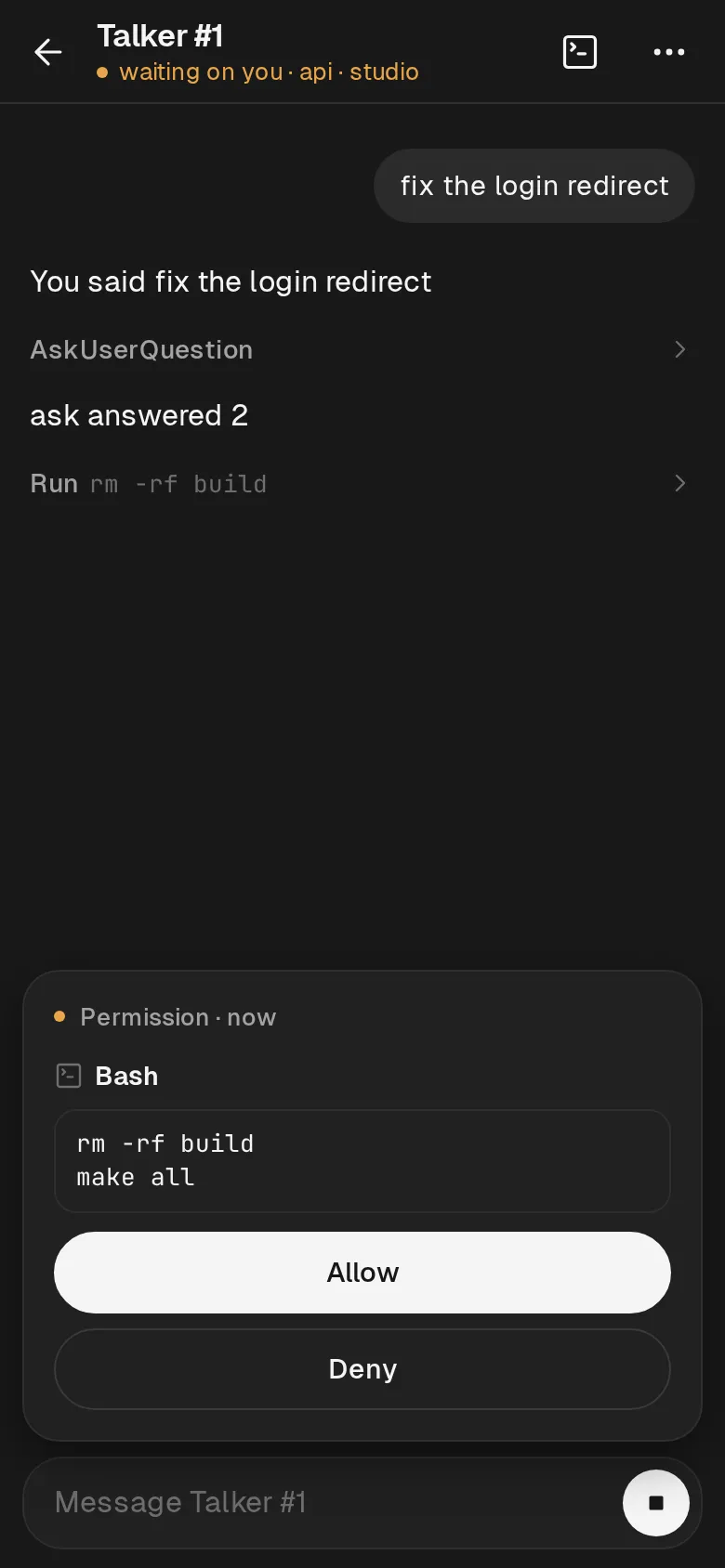
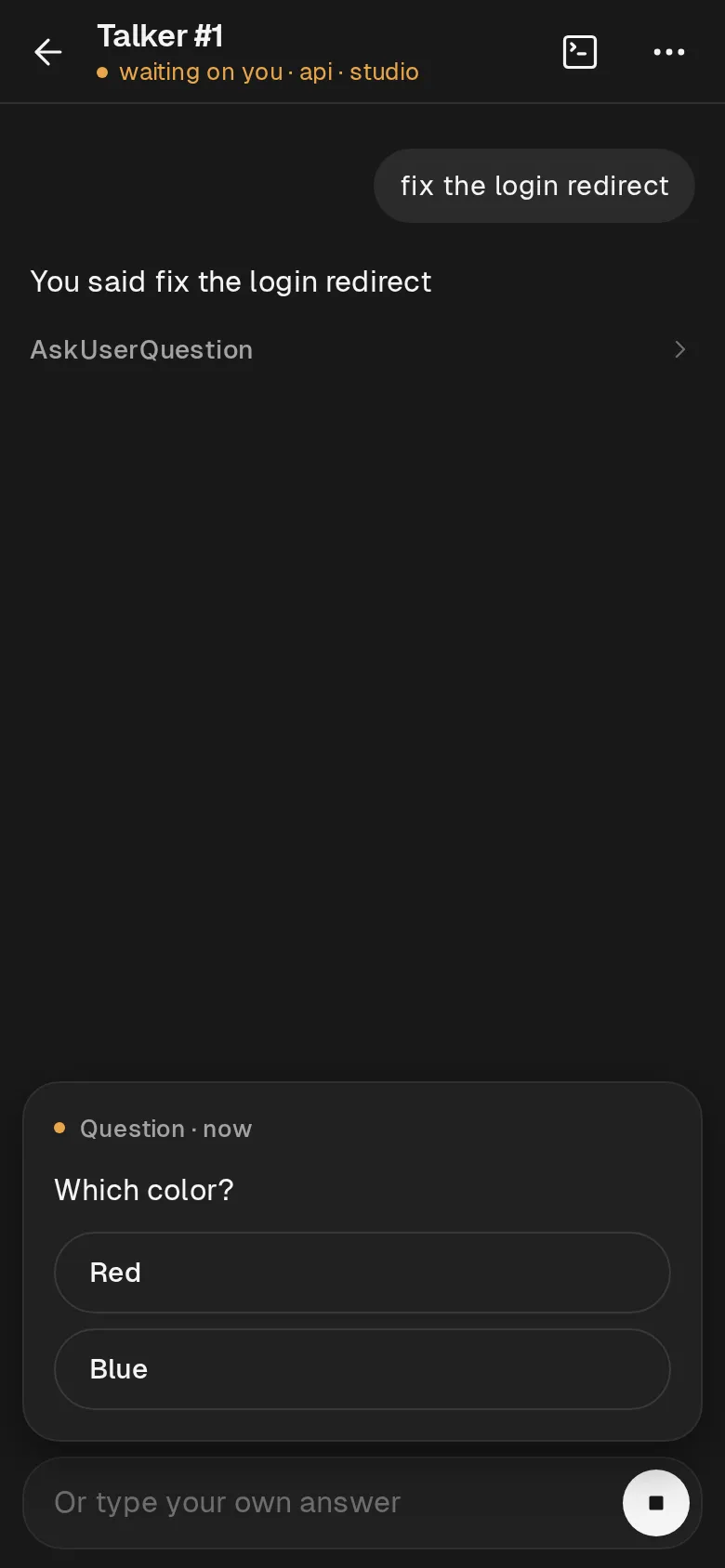
| Screen | Does |
|---|---|
| Home | What needs you first, then working agents, pinned tiles, then every project. Hold or swipe a row to Stop or Close. + starts an agent, with up to four photos. |
| An agent's chat | The conversation, with each tool use folded into one line. The round button sends, or stops the agent's reply. |
| A question | Allow / Deny, the options to tap, or Approve for a plan. Or type your own answer. |
| Terminal | Fitted to the phone, with Esc, Tab, arrows, ^C and Fit. |
| Views | Installed views marked for phones, including ones that show your widgets. |
The first answer counts, from the phone or the computer.
Who sizes a terminal
- Opened on the phone → phone size.
- Phone size → desktop size: a key typed on the desktop, Fit turned off, the terminal closed, or the page hidden.
- Desktop size → phone size: a phone key while Fit is on, pressing Fit, or showing the page again.
- Whoever typed last sets the size. Allow, Deny and choosing an option are not typing.
If it didn't
| You see | Do |
|---|---|
| The Phone browser tab offers Set it up with an agent | The server does not serve the page yet. Set it up: network server. |
| The page does not open on the phone | https://<address>/phone/manifest.webmanifest must answer 200, with a trusted certificate. |
| The three words differ | Press Deny. Someone else used the code. Make a new one. |
More in Troubleshooting.
Related
- To unpair, press Unpair under Your devices, or Devices → Forget this computer on the phone.
- Open the app in a browser tab, on this computer.
- The iOS and Android apps are development previews and not published.
Last validated for Hivemind 2026.10.3.