Connect your devices
Pair your phone or another computer, or let a person in, with one invite from Settings → Connect.
Use one inviteA link, QR code or code that lets one device or person in.Glossary → from Settings → Connect to pair your phone or another computer, or to let a person in. You decide which when the other device uses it.
Paste this into your coding agent to check two of your computers can connect, then pair them.
Show the prompt
Help me pair another computer of mine with this one in Hivemind, so my workspaces are on both.

1. Check Hivemind is installed here: `hive --version`. Ask me whether the other computer has it. If not, give me the install command: `bash <(curl -fsSL https://hivemind.griiken.com/install.sh)` on Linux and macOS, `irm https://hivemind.griiken.com/install.ps1 | iex` in PowerShell on Windows.
2. Run `hive network show` here. If its first line ends with `(built in: local)`, the six words work only when both computers are on the same network. Ask me whether they are. If not, tell me a network server comes first (the "Set up your own network server" page) and stop.
3. If this computer is on a network server, run `hive network doctor`: every relay must print a line starting with ✓. Ask me to run `hive network show` on the other computer and check it names the same network.
4. Walk me through pairing, which only I can do. On this computer: Settings → Connect → Connect. On the other: Have a code? Join, then paste the link or type the six words, and press Connect. Both screens show three words. If they match, I press "It's me — the words match" here, then Yes on the other computer.

At the end, ask me to check the other computer is listed under Connected → Your devices on Settings → Connect. Tell me Unpair there cuts it off.

REFERENCE https://hivemind.griiken.com/guide/connect.md
- An invite from Settings → Connect → the other device uses it: both show three words.
- On your computer you answer: Deny (nothing is kept), Someone else (they join at the role you pick), or It's me.
- After It's me, the other device asks whether the words match. Yes: paired as you. No: nothing is kept.
- A request unanswered for about three minutes counts as Deny.
Before you start
- On the same network, you need nothing else.
- From another network, you need your own network server.
- To let a person into a workspace, open that workspace's window first.
Pair a device or let someone in
Make the invite
Open Settings → Connect and press Connect.
Check: you see a QR code, six words and Copy the link. The invite lasts a day, or until one device uses it, or until you make another.
The six words work on the same network only. From elsewhere, send the link.
Use it on the other device
| Device | Do |
|---|---|
| Another computer | Press Have a code? Join, on Home or in Settings → Connect. Paste the link or type the words, and press Connect. |
| A phone | Pick the Phone browser tab first, then scan the code. See Answer agents from your phone. |
Check: both screens show the same three words.
Answer on your computer
Answer only if the three words match.
| Answer | Result |
|---|---|
| Deny | Nothing is kept. Closing the notice, or waiting about three minutes, is the same. |
| Someone else, with a role | That person joins this workspace at Can view, Can edit board or Can use terminals. |
| It's me — the words match | After Yes on the other device, it is paired as you. Your workspaces are its workspaces. |
Someone else is not offered for a phone, or for an invite made from Home. It's me is not offered for a computer that already shares a workspace with someone.
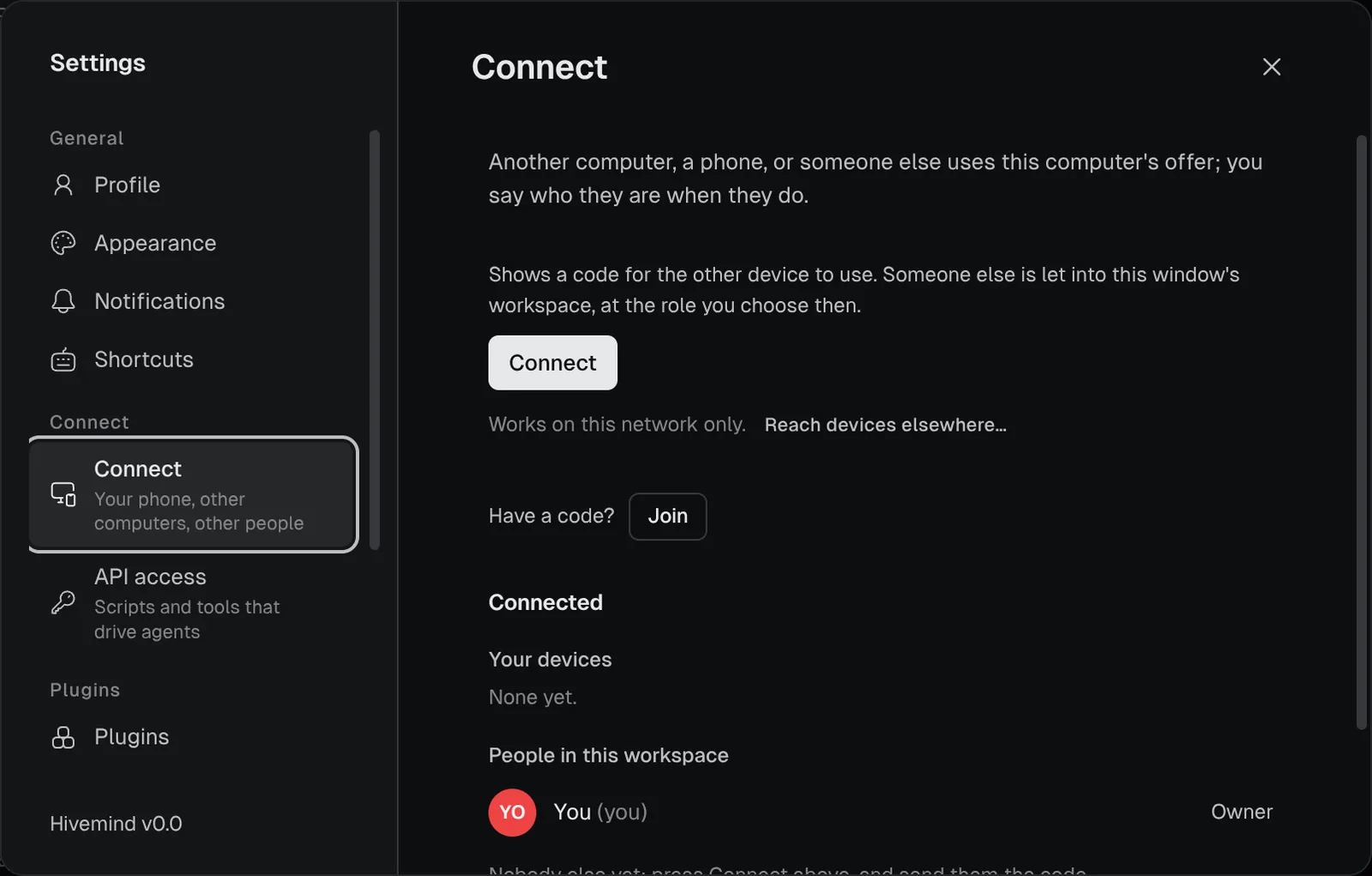
Check it worked
Settings → Connect → Connected → Your devices lists each paired device as Always on (a host), A computer, or Phone or browser. A person you let in shows under People in this workspace.
If it didn't
| You see | Do |
|---|---|
This invite has expired or was used. Ask for a new one. | Press Connect again for a new invite. |
This invite was not made for this device. | Make a new invite and use it on this device. |
| The six words are refused from another network | Send the link instead. It needs your own network server. |
More in Troubleshooting.
Related
- Unpair, next to a device under Your devices, cuts it off from this computer.
- A host pairs from its own terminal with
hive host pair: see Keep agents running while your laptop sleeps. - Share a workspace for roles and invite links from a terminal.
- Devices and hive-net
Last validated for Hivemind 2026.10.3.