# Connect your devices
> Pair your phone or another computer, or let a person in, with one invite from Settings → Connect.
Source: https://hivemind.griiken.com/guide/connect/
Use one invite from **Settings → Connect** to pair your phone or another computer, or to let a person in. You decide which when the other device uses it.
{`Help me pair another computer of mine with this one in Hivemind, so my workspaces are on both.
1. Check Hivemind is installed here: \`hive --version\`. Ask me whether the other computer has it. If not, give me the install command: \`bash <(curl -fsSL https://hivemind.griiken.com/install.sh)\` on Linux and macOS, \`irm https://hivemind.griiken.com/install.ps1 | iex\` in PowerShell on Windows.
2. Run \`hive network show\` here. If its first line ends with \`(built in: local)\`, the six words work only when both computers are on the same network. Ask me whether they are. If not, tell me a network server comes first (the "Set up your own network server" page) and stop.
3. If this computer is on a network server, run \`hive network doctor\`: every relay must print a line starting with ✓. Ask me to run \`hive network show\` on the other computer and check it names the same network.
4. Walk me through pairing, which only I can do. On this computer: Settings → Connect → Connect. On the other: Have a code? Join, then paste the link or type the six words, and press Connect. Both screens show three words. If they match, I press "It's me — the words match" here, then Yes on the other computer.
At the end, ask me to check the other computer is listed under Connected → Your devices on Settings → Connect. Tell me Unpair there cuts it off.`}

- **An invite** from **Settings → Connect** → **the other device uses it**: both show three words.
- On your computer you answer: **Deny** (nothing is kept), **Someone else** (they join at the role you pick), or **It's me**.
- After **It's me**, the other device asks whether the words match. **Yes**: paired as you. **No**: nothing is kept.
- A request unanswered for about three minutes counts as **Deny**.
## Before you start [#before-you-start]
- On the same network, you need nothing else.
- From another network, you need your own [network server](https://hivemind.griiken.com/guide/self-hosting/).
- To let a person into a workspace, open that workspace's window first.
## Pair a device or let someone in [#pair-a-device-or-let-someone-in]
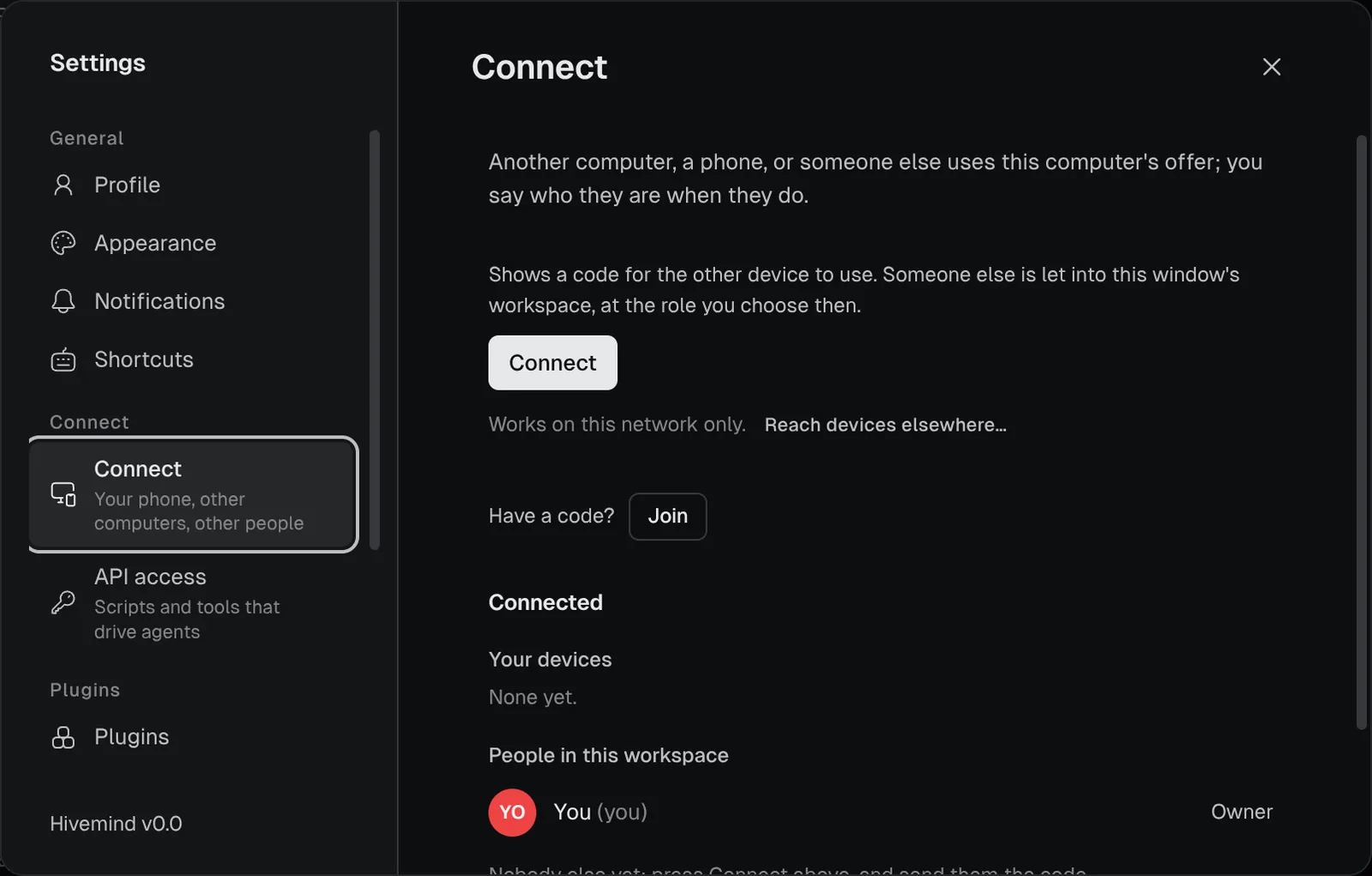
Open **Settings → Connect** and press **Connect**.
Check: you see a QR code, six words and **Copy the link**. The invite lasts a day, or until one device uses it, or until you make another.
The six words work on the same network only. From elsewhere, send the link.
| Device | Do |
|---|---|
| Another computer | Press **Have a code? Join**, on Home or in **Settings → Connect**. Paste the link or type the words, and press **Connect**. |
| A phone | Pick the **Phone browser** tab first, then scan the code. See [Answer agents from your phone](https://hivemind.griiken.com/guide/phone/). |
Check: both screens show the same three words.
Answer only if the three words match.
| Answer | Result |
|---|---|
| **Deny** | Nothing is kept. Closing the notice, or waiting about three minutes, is the same. |
| **Someone else**, with a role | That person joins this workspace at **Can view**, **Can edit board** or **Can use terminals**. |
| **It's me — the words match** | After **Yes** on the other device, it is paired as you. Your workspaces are its workspaces. |
**Someone else** is not offered for a phone, or for an invite made from Home. **It's me** is not offered for a computer that already shares a workspace with someone.
 ## Check it worked [#check-it-worked]
**Settings → Connect → Connected → Your devices** lists each paired device as **Always on** (a host), **A computer**, or **Phone or browser**. A person you let in shows under **People in this workspace**.
## If it didn't [#if-it-didnt]
| You see | Do |
|---|---|
| `This invite has expired or was used. Ask for a new one.` | Press **Connect** again for a new invite. |
| `This invite was not made for this device.` | Make a new invite and use it on this device. |
| The six words are refused from another network | Send the link instead. It needs your own [network server](https://hivemind.griiken.com/guide/self-hosting/). |
More in [Troubleshooting](https://hivemind.griiken.com/guide/troubleshooting/).
## Related [#related]
- **Unpair**, next to a device under **Your devices**, cuts it off from this computer.
- A host pairs from its own terminal with `hive host pair`: see [Keep agents running while your laptop sleeps](https://hivemind.griiken.com/guide/host/).
- [Share a workspace](https://hivemind.griiken.com/guide/multiplayer/) for roles and invite links from a terminal.
- [Devices and hive-net](https://hivemind.griiken.com/guide/how-devices-connect/)
## Check it worked [#check-it-worked]
**Settings → Connect → Connected → Your devices** lists each paired device as **Always on** (a host), **A computer**, or **Phone or browser**. A person you let in shows under **People in this workspace**.
## If it didn't [#if-it-didnt]
| You see | Do |
|---|---|
| `This invite has expired or was used. Ask for a new one.` | Press **Connect** again for a new invite. |
| `This invite was not made for this device.` | Make a new invite and use it on this device. |
| The six words are refused from another network | Send the link instead. It needs your own [network server](https://hivemind.griiken.com/guide/self-hosting/). |
More in [Troubleshooting](https://hivemind.griiken.com/guide/troubleshooting/).
## Related [#related]
- **Unpair**, next to a device under **Your devices**, cuts it off from this computer.
- A host pairs from its own terminal with `hive host pair`: see [Keep agents running while your laptop sleeps](https://hivemind.griiken.com/guide/host/).
- [Share a workspace](https://hivemind.griiken.com/guide/multiplayer/) for roles and invite links from a terminal.
- [Devices and hive-net](https://hivemind.griiken.com/guide/how-devices-connect/)