Change how Hivemind looks
Pick a preset or a theme from a package, choose any accent colour, set corners and fonts, the wallpaper, frosted glass and overlays, and share your look as a file.
Change the look when you want other colours, a calmer background, or more contrast. Every change applies at once and is saved for you.
Paste this into your coding agent to change Hivemind's look from the terminal.
Show the prompt
Change how Hivemind looks, from the terminal, with the `hive theme` and `hive config` commands.

1. Show me the looks: `hive theme list` prints the presets and the themes my installed packages hold (`@owner/package/theme`). Ask me which one I want, then run `hive theme use <id>`. After a theme, `hive theme revert` goes back to the look before it.
2. Before changing anything else, save the current settings, with the look's photo, video, overlays and accent colour: `hive config get > ~/hivemind-look-backup.json`.
3. For anything else I ask (blur, wallpaper, glass), read the value first with `hive config get <dotted.path>`, for example `hive config get appearance.glass.blur`. Then set it with `hive config set <dotted.path> '<JSON value>'`. The value is JSON: a number as is (`12`), text in double quotes inside single quotes (`'"ice"'`), `true` or `false`.
4. If `hive config set` refuses a path or a value, show me its message. Do not edit the settings file by hand.

At the end, show the new values with `hive config get appearance`, and tell me that `hive theme import ~/hivemind-look-backup.json` puts the look back.

REFERENCE https://hivemind.griiken.com/guide/appearance.md
Open Appearance
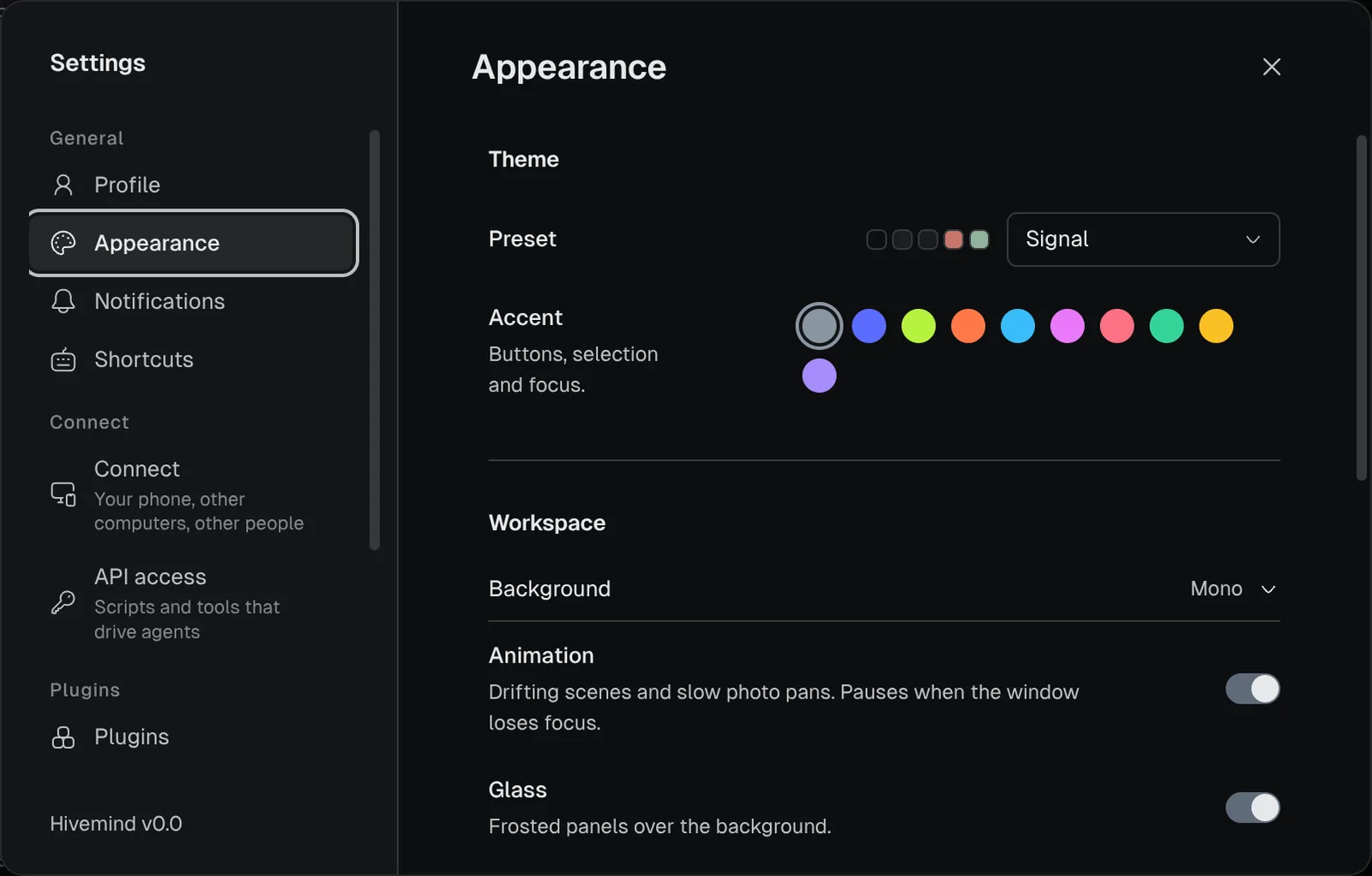
Open Settings → Appearance. Settings is the gear at the right end of the toolbar.
Pick a theme
Under Theme, pick a Preset. Clean and Clean Light are flat and quiet: they also turn glass and the background off. Clean Light is the light one. Pick another preset after them and your glass, background and corners come back. Then pick an Accent: the colour of the selected tile, sliders and the text cursor. A theme from a package sits under Themes: see Themes.
Check: the whole window changes colour at once.
Set corners and fonts
Corners rounds tiles, panels and controls, from square (0) to round (24). Interface font is for menus, panels and Settings; Code font is for terminals, code and diffs. Pick System for your computer's own font, or Custom… and type any font you have installed. A theme's font shows by name, with the theme's, such as Nunito · Harbour.
Check: the corners of a tile change as you drag, and terminals redraw in the new font.
Set the background
Under Workspace, pick a Background: a moving wallpaper, a Photo, a Video, or None. Media brightness dims a photo or video. Turn off Animate the background for a still one. Over a background, the tile count, a frame's name and the selected tile's mark sit on the panel colour, so they read whatever the picture shows there.
A live wallpaper is a scene that moves behind your tiles, from a package you install. The Live scenes package holds four, drawn in characters: Shoal (sharks hunting fish over a reef), Koi Pond, Jellyfish and Fireflies (a meadow at night). Install it from Settings → Plugins, under HiveHub, then pick a scene under Background. A scene, a video or a photo keeps moving while you rest your hands or work in another window; it stops only while Hivemind is minimised or hidden, or Settings covers it. Move the pointer over a scene and it answers; click open canvas to stir it. See-through frosts the panels and tiles so the scene shows behind them. When the scene you picked comes in a package that is not installed, Settings names the package and offers Install.
A package can offer its own wallpaper as your background once it is installed; nothing changes until you say so. Some draw your agents, one creature for each: point at one to see its agent's name, and click it to go to that agent's tile. One with colours of its own has a Colour switch.
To make your own, press Make your own under Background, say what you want, and an agent builds it: see Make a live wallpaper.
Check: the background shows behind your tiles.
Set the glass
Glass makes panels frosted, so the background shows through them. Set Panel opacity and Blur. Turn on Frost tool content to let the background show through terminals, editors and the chat on your phone too, and set its Content tint.
Check: the Layers panel and toolbar look frosted over the background.
Add an overlay, if you like
Open Overlays and press Add overlay. Pick an image or video to place over the workspace. Transparent WebM, GIF and PNG files work.
Themes
A theme is a whole look that a package brings: colours, an accent, and often terminal colours,
corners, fonts and a wallpaper. Install a package that holds one from Settings → Plugins, on
the HiveHub tab, or with hive plugins install @owner/package. A package of only themes,
views and widgets arrives switched on.
Its themes then show under Settings → Appearance → Themes, each with five colours (its background, text, accent, done and failed, as a preset shows), its package and version, and Apply. Press Apply and the theme is written over your look:
- What the theme leaves out stays yours. Glass is always yours.
- Its fonts and wallpaper are copied beside your settings, so the look keeps working without the package.
- A theme's wallpaper shows even with glass off.
- Your look before it is kept. Revert to previous look puts back what the theme set, and nothing else: corners, fonts or a wallpaper the theme left out and you changed since stay.
hive theme list                   # presets, and themes as @owner/package/theme
hive theme use @owner/kit/harbour
hive theme revert                 # back to the look before it
When a newer version of the package is installed, the row says so:
"Harbour 1.2 is installed; you have 1.1 applied." Press Apply 1.2, or run hive theme use
again. Revert to previous look still goes back to the look before the theme.
Removing the package keeps the look. The row then reads "Using Harbour 1.1 (its package was removed)", and Revert to previous look still works. Picking a Preset leaves the theme: Revert goes, and so does a theme's own accent colour.
A guest in your shared workspace sees the theme's colours and accent, but not its fonts or its picture wallpaper.
An accent of your own
Under Accent, the last circle opens a colour picker: pick any colour. The accent marks the selected tile, sliders and the text cursor. A colour of your own, or a theme's, also fills the main button, a switch that is on and the focus ring. Words are never drawn in it (a link is your text colour, underlined), so any accent leaves them readable. If it is hard to see on your background or on the panels, the row says so with its contrast. Picking a built-in accent or a Preset drops your own colour.
To set it from a terminal, with a second colour for the accent's lighter uses:
hive config set appearanceExtra.accent '{"brand":"#c08552","accent":"#d9a273"}'To make a theme of your own, see Packages.
On your phone
The phone page looks like your computer: its colours, light or dark, the terminal's colours and the background behind your workspace. A photo or video goes to the phone once and is kept there. A live wallpaper runs there too, closed off as on the computer, and holds still while the page is hidden or your phone asks for less motion. Change the look here and an open phone follows within a second or two. A guest's phone never gets your photo, video or live wallpaper.
With more than one account on the page, it looks like the account shown. Forgetting an account removes its look and files from the phone.
Words on this page
| Word | Means |
|---|---|
| Glass | Frosted, see-through panels over the background. |
| Overlays | Images or videos placed over the whole workspace, such as a transparent animation. |
| Tools in scene views | How terminals and editors look inside a view you installed: Use my theme draws them as on the canvas; Opaque gives them a solid background. |
The background, glass and overlays show under the Canvas and Windows views. A view you installed paints its own background.
Share or keep your theme
Under Advanced, Theme file has Copy JSON and Import…. Terminal colours sets the 16 terminal colours, the background, text, cursor and selection.
hive theme export my-theme.json
hive theme import my-theme.json
The file holds no media: your photo, video and overlays stay on this computer, and the export says what it left out. Importing a file keeps the ones you have. If the theme used a photo or video, pick your own under Background.
Import… and hive theme import also take a whole settings.json, and read only the look from
any file. What a file leaves out, such as light or dark, stays as you have it. A file with none of
the look in it, such as a package.json, is refused and changes nothing. The file carries your own
accent colour; importing one over a theme leaves the theme, so Revert to previous look does not undo it. To
keep a copy of your look with its photo, video and overlays, save hive config get > my-look.json:
importing that file puts them back.
A guest who joins your workspace sees your colours and accent, your own accent colour too, but not your photo, video, overlays, fonts or a package's live wallpaper: the default background shows in its place.
Check it worked
- The window shows the theme you picked.
hive config get appearance.presetprints its name.
If it didn't
| You see | Do this |
|---|---|
hive config set refuses a value | The value must be JSON: text in double quotes inside single quotes ('"ice"'). Its range is in the Settings reference. |
hive config set says this version has no such setting | Check the path. The message lists the settings in that group, and the one you may mean (appearance.glass.blur for appearance.blur). |
| The text is hard to read over a photo | Lower Media brightness, or raise Panel opacity. |
| An agent keeps its dark colours after you switch to a light terminal | An agent that asks to hear of the change (Claude Code does) switches at once. Others, such as Codex and Gemini CLI, read the background when they start: restart them in that tile. |
| Something else | Troubleshooting |
Related
- Settings reference: every page and every setting in the file.
- Keyboard shortcuts.
Last validated for Hivemind 2026.10.3.