# Write a tool
> Add a new kind of tile, such as a pull request panel or a commit browser, drawn by your own code.
Source: https://hivemind.griiken.com/guide/tool-plugins/
A tool adds a kind of tile. Write one when you want a panel beside your agents that shows something from your project.
{`
Build a Hivemind tool plugin, a new kind of tile drawn by React code inside the app, and, if I want, publish it on HiveHub.
1. Ask me what the tile should show and do, and its name (lowercase letters, digits and dashes).
2. Start it: \`hive plugins new tool \`. It takes the owner from the GitHub account \`gh\` is signed in as. If \`gh\` is not signed in, ask me for my GitHub login and pass \`--owner \`. Check the folder has \`hivemind-tool.json\`, \`index.js\`, \`README.md\` and \`PROMPT.md\`.
3. Read \`PROMPT.md\` in full: it is the whole contract (manifest, what a tile gets, the \`hm-plugin://host/\` modules, commands). Write what I asked for under its "What I want". Build only from it; never use \`window.hive\`.
4. Check it, then install it, again after each change: \`hive plugins check \` must say ok (it names the file and line of each problem), then \`hive plugins install \`. A tool runs with my access, so new or changed code arrives switched off; the same code stays as it was. Ask me before you switch it on with \`hive plugins enable tool:@owner/name\`.
5. Open it: \`hive ctl open-tool @owner/name\`. Look at it with \`hive ctl tile look \`: check the picture shows what I asked for and its console has no error.
6. Give it one command in the manifest's "commands", answered with \`hm.onCommand\`, that reports what the tile shows. Check it with \`hive ctl plugin call @owner/name \`.
7. Done means: \`hive plugins list\` shows it on with no problem, it reads well in the light and the dark theme, the manifest has a one-line description, a "category" and only the permissions it uses, and \`README.md\` says what it does and what it runs.
8. Publish only if I say so. Follow the "Publish a plugin" page (https://hivemind.griiken.com/guide/publish-to-hivehub.md): push the folder to a GitHub repository I name, then \`hivehub publish \`. If I must sign in, ask me to open the link and type the code myself.
At the end, tell me the tool's id, the command that installs it (\`hive plugins install @owner/name\`), and anything you could not check.
`}
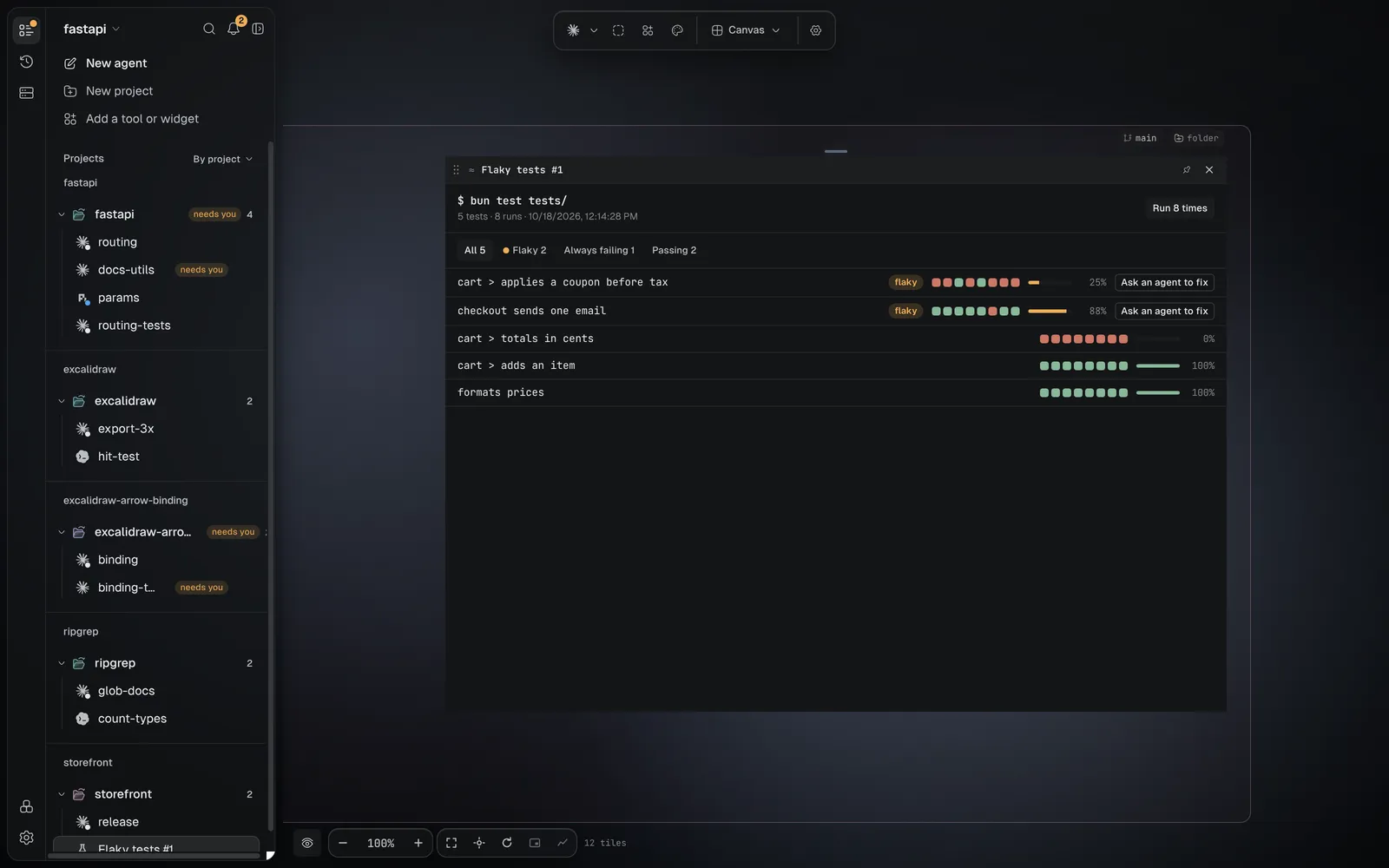 The Browser, Issues and the Code tile are tools that come with the app.
**A tool runs with your access.** It runs inside the app with your files, programs and logins.
So a tool you add starts switched off, and you turn it on yourself. Turn on only tools whose author
you trust. If one breaks the app, start it with `HIVEMIND_SAFE_MODE=1 hivemind`: no added tool
loads.
## Try one [#try-one]
1. Install a tool from HiveHub:
```bash
hive plugins install @dip497/worktrees
```
Check: it prints `installed @dip497/worktrees` and says it is off.
2. Switch it on:
```bash
hive plugins enable tool:@dip497/worktrees
```
3. Open its tile:
```bash
hive ctl plugin open tool:@dip497/worktrees
```
Check: a tile opens that lists every git worktree of the project.
Or do it in **Settings → Plugins**, on the **HiveHub** tab: pick a tool, install it, and turn it on
on its page.
The HTTP endpoints your code declares, and a panel to call one.
Follows a log file, with errors handed to an agent.
Known vulnerabilities in your lockfiles.
Clean tree, tests, changelog: each checked, each fixable by an agent.
Every tool on HiveHub is listed on the **HiveHub** tab; pick **Tools** to see only tools.
## Write one [#write-one]
### Before you start [#before-you-start]
- Hivemind is installed and open on a project that is a git repository.
- You know a little JavaScript and React.
```bash
hive plugins new tool branch
```
Check: it prints `started tool plugin @/branch`. If it asks whose it is, add
`--owner `.
```bash
cd branch && hive plugins install . && hive plugins enable tool:@/branch
```
Check: `hive plugins list` shows `tool:@/branch` as on.
Open it from the frame's **Open** menu, or run `hive ctl open-tool @/branch`.
Check: a tile shows **Branch:** and the project's current git branch, with a **Refresh** button.
The starter's `index.js` draws the tile with the app's own React. It runs `git` through
`host.run`, in the tile's folder:
```js index.js
import React, { useEffect, useState } from "hm-plugin://host/react.js";
import { Button } from "hm-plugin://host/sdk.js";
const h = React.createElement;
function Tile({ tile, host }) {
const [branch, setBranch] = useState("…");
const refresh = () => host.run("git", ["branch", "--show-current"]).then((r) => setBranch(r.stdout.trim() || "(no branch)"));
useEffect(() => { void refresh(); }, []);
return h("div", { style: { padding: 16, display: "grid", gap: 8 } },
h("h3", { style: { margin: 0 } }, tile.name),
h("p", null, "Branch: ", h("code", null, branch)),
h(Button, { size: "sm", variant: "outline", onClick: refresh }, "Refresh"));
}
export default { tiles: { "you-branch": Tile } };
```
The default export maps each tile kind in `hivemind-tool.json` to the component that draws it.
Make the button show the last commit too. Replace the `refresh` line with:
```js
const refresh = () => host.run("git", ["log", "-1", "--format=%D: %s"]).then((r) => setBranch(r.stdout.trim()));
```
Install it again with `hive plugins install .`. Changed code arrives switched off, so switch it
on again with `hive plugins enable tool:@/branch`, then press **Refresh** in the tile.
Check: the tile shows the branch and the last commit's subject.
### Check it worked [#check-it-worked]
- `hive plugins list` shows the tool on, with no problem.
- Its tile opens from the frame's **Open** menu.
### If it didn't [#if-it-didnt]
| You see | Do this |
|---|---|
| The tile is missing from **Open** | `hive plugins enable tool:`; a tool you add starts off. A tool with `needsRepo` only shows in a frame with a git repository. |
| The app misbehaves after you turned a tool on | Start it with `HIVEMIND_SAFE_MODE=1 hivemind`, then switch the tool off on its page. |
| Something else | [Troubleshooting](https://hivemind.griiken.com/guide/troubleshooting/) |
Next: [Publish a plugin](https://hivemind.griiken.com/guide/publish-to-hivehub/) on HiveHub, or ship it with your widgets and views as one: [Packages](https://hivemind.griiken.com/guide/packages/).
## Tool reference [#tool-reference]
### The manifest [#the-manifest]
```json hivemind-tool.json
{
"id": "@acme/prs",
"name": "Pull requests",
"version": "1.0.0",
"apiVersion": 1,
"description": "One line, shown in Settings.",
"category": "git",
"entry": "index.js",
"permissions": ["workspace:spawn"],
"settings": [
{ "id": "state", "label": "Show", "type": "choice", "values": ["open", "all"], "default": "open" }
],
"tools": [
{
"key": "prs", "label": "Pull requests", "description": "What its tile shows.",
"tileKind": "acme-prs", "size": { "width": 1100, "height": 760 },
"needsRepo": true, "singleton": true, "glyph": "⇅", "icon": "icon.svg"
}
]
}
```
| Field | Means |
|---|---|
| `id` | `@owner/name`; `@hivemind/` is kept for the app's own |
| `tools[]` | one entry per kind of tile. `needsRepo` hides it in a frame with no repository. `singleton` focuses the open one instead of opening another. |
| `icon` | an `.svg` in the folder (32 KB at most); without one, `glyph` is shown |
| `permissions`, `settings` | the same as a view's ([Write a view](https://hivemind.griiken.com/guide/extension-authoring/#permissions)) |
| `"commands"` | what an agent can run while a tile of the tool is open |
| `"category"` | where it is grouped in the Add menu and on HiveHub |
### What a tile gets [#what-a-tile-gets]
| Prop | What it is |
|---|---|
| `tile` | `{ id, kind, name, frameId }` |
| `hm` | the client a view has (`@hivemind/view-sdk`): frames, tiles, agents' status and events, commands, its settings, and its saved state, kept per tile (`hm.hello.layout`, `hm.setLayout`). Each is held to the permissions the manifest declares. |
| `host` | what only a tile has: `repoPath`, `cwd`, `run(bin, args, { maxAgeMs, stdin })` (see [Running programs](#running-programs)), `openFile(path)` in the frame's Code tile, `openUrl(url)` in the frame's browser |
| `selected` | it has the person's focus |
A tile imports the app's own React and parts from `hm-plugin://host/`: `react.js`,
`react-jsx-runtime.js`, `sdk.js` and `ui.js`. It bundles none of them.
`sdk.js` has `Button`, `PatchView` (a diff), `Markdown`, `Loading`, `Frame` (a page from a server
on this machine) and `useTileState(hm, key, initial)`, which keeps a value with the tile across
restarts. `ui.js` is the
app's whole UI kit (`Button`, `Input`, `Dialog…`, `DropdownMenu…`, `Switch`, `toast`, …). The
built-in Issues tile (`apps/desktop/tools/issues` in the repository) is the fullest example of
how a tile is built. Its colours are not one to copy: it also paints with app variables outside
the 11 below, which may change.
Reach the app only through these, never `window.hive`.
### Colours and type [#colours-and-type]
A tile paints with the app's own CSS variables, so it follows every theme, dark and light. These
11 are the ones a tile may rely on: each keeps its name and has a value in every theme. Any other
`--color-*` or `--font-*` in the app may change without notice.
| Variable | What it is |
|---|---|
| `--color-bg` | the page |
| `--color-bg3` | a card or a raised row |
| `--color-fg` | text |
| `--color-fg3` | quiet text: hints, counts, dates |
| `--color-line` | borders and dividers |
| `--color-select` | a selected row or text |
| `--color-ok` | done, passed, added |
| `--color-warn` | needs a look |
| `--color-err` | failed, removed |
| `--color-info` | a neutral mark, never words: it can be the person's accent, which is held to 3:1 only. Draw a link in `--color-fg`, underlined |
| `--font-mono` | the code font |
A release that removes or renames one says so with **Breaking:** in the CHANGELOG.
A tile's code runs in the app's own page, so it gets the browser rights the app uses and no
others: notifications and writing to the clipboard. The camera, the microphone, the location and
reading the clipboard are refused. A page that needs them goes in a Browser tile, which asks you:
`host.openUrl(url)`.
### Ids, opening and reinstalling [#ids-opening-and-reinstalling]
A tool package's id is `@owner/name`. Each tool in it has a full id, `@owner/name/`:
`hive plugins list --kind tool` prints it.
```bash
hive ctl open-tool @acme/prs # the package's tool, when it has one
hive ctl open-tool @acme/prs/prs # by its full id; needed when it has several
hive ctl open-tool @acme/prs --state '{"tab":"open"}' # the tile's first state
```
`--state` is a JSON object: each key is what `useTileState(hm, key, initial)` reads when the tile
first draws.
Installing a tool again with the same code, byte for byte, keeps it on or off as it was. Changed
code is switched off, since turning it on trusted the code that was there: switch it on again
with `hive plugins enable tool:`. The install says which.
### Running programs [#running-programs]
`host.run(bin, args, { maxAgeMs, stdin })` runs a program and answers `{ code, stdout, stderr }`.
- `bin` is a program's name, found on the app's `PATH`, which comes from your login shell. A
folder on `PATH` inside the tile's own folder is skipped.
- It runs in the tile's folder, without a shell: `args` reach it as they are, with no globs or
pipes. On Windows a `.cmd` or `.bat` shim is refused, since only a shell can run one.
- It is stopped after 60 seconds, and when it writes more than 10 MB.
- `maxAgeMs` (up to 5 minutes) answers the same call from a cache while it is that fresh.
- `stdin` is text written to its input.
### Show a server on this machine [#show-a-server-on-this-machine]
A tool can show a page its own local server serves, such as a dev server or a dashboard. Use
`Frame` from `sdk.js`:
```js
import { Frame } from "hm-plugin://host/sdk.js";
h(Frame, { src: "http://127.0.0.1:5173/", title: "Dev server" });
```
Only `http://127.0.0.1:` and `http://localhost:` can be shown; any other address is
blocked, and the tile stops and says so. `Frame` runs the page's scripts, forms and popups, and
never lets it move the app's window. It gets no camera, microphone, location or notifications: a
page that needs them goes in a Browser tile, which asks you.
### Look at it, and see what broke [#look-at-it-and-see-what-broke]
```bash
hive ctl tile look --json # a picture of the tile, its state and its console
hive ctl plugin list --json # each plugin's state: starting, ready or failed, with why
```
`tile look` brings the tile into view, waits until its code has drawn, and saves a PNG of it. It
answers the tool's state, whether it drew, and the last 100 lines its code wrote to the console.
When something is drawn over the tile, such as a pinned tile, a dialog or a notification, it
refuses with `OCCLUDED` and names it; move it, or wait for the notification, and look again.
When the tool's code throws an error nothing catches, a promise of its fails unheard, or the app
blocks something it loads, its tile stops and shows why, and `plugin list` reads it as `failed`
with that reason.
### Pointer and keys in a tile [#pointer-and-keys-in-a-tile]
What the canvas does with input over a tool's tile, so your tile can count on it:
| Input | What happens |
|---|---|
| Left click and drag | Yours. The tile moves only by the bar the app draws on it. |
| Right click | Yours: `contextmenu` reaches your tile, and the app shows no menu of its own. On a tile that is not selected, dragging with the right button pans the canvas instead. |
| Middle button | Pans the canvas, always. Your tile does not see it. |
| Wheel | Yours first. When the tile is not selected and nothing under the pointer scrolls, it also pans the canvas. Ctrl or ⌘ with the wheel zooms the canvas and never reaches your tile. |
| Keys | Yours while focus is in your tile, but for the app's own shortcuts (such as Ctrl+Tab, Ctrl+1 to 9 and Ctrl+,), which the app takes first. |
| Cursor | Yours: set `cursor` on any element you draw, inside a shadow root too. Where you set none, it is the normal pointer. |
### Commands agents can run [#commands-agents-can-run]
Declare them in `hivemind-tool.json`, and answer them in the tile:
```json
"commands": [{ "name": "list", "description": "Every worktree, with its branch and what is not committed." }]
```
```js
useEffect(() => hm.onCommand("list", () => trees), [hm, trees]);
```
`hive ctl plugin call @dip497/worktrees list` prints what the handler returns. It works while a tile
of the tool is open. With two open, name one with `--tile`.
### A service that keeps running [#a-service-that-keeps-running]
A tool can bring a program the app keeps running while the tool is on: an orchestrator, a
dashboard, a watcher. It drives workspaces through the [API](https://hivemind.griiken.com/guide/api/), with its own token.
```json
"service": { "command": ["node", "service.js"], "role": "agents" }
```
`role` is one of the [roles](https://hivemind.griiken.com/guide/api-tokens/). Once switched on, the service waits until you
pick the workspaces it may drive, on the tool's page. Where `hive host` runs it, use
`hive plugins workspaces tool: `. It then starts with these variables:
| Variable | What it holds |
|---|---|
| `HIVE_DRIVE_SOCK` | where it connects |
| `HIVE_DRIVE_TOKEN` | its token: the first line it sends is `{"hello": {"token": …, "workspace": …}}` |
| `HIVE_WORKSPACES` | the folders it may drive, separated as in `PATH` |
It restarts after a crash (after 1 s, then 2, 4… up to a minute). It stays stopped after a clean
exit, or when its token is revoked. It should exit when its standard input closes. Its output is
on its page.
### On a shared canvas [#on-a-shared-canvas]
A guest sees a tool's tile if they have the same tool switched on. A tile's programs run on the
computer of the person looking at it.
### Commands [#commands]
```bash
hive plugins new tool [--dir folder] # a starter, with PROMPT.md and its types
hive plugins check # its types, its manifest, and each tile drawn once, with file:line
hive plugins api --kind tool # tile, host and hm, as declared
hive plugins install |@owner/name # new or changed code off: hive plugins enable @owner/name
hive plugins list --kind tool # each tool, and the full id of each of its tiles
hive plugins remove @owner/name
```
The Browser, Issues and the Code tile are tools that come with the app.
**A tool runs with your access.** It runs inside the app with your files, programs and logins.
So a tool you add starts switched off, and you turn it on yourself. Turn on only tools whose author
you trust. If one breaks the app, start it with `HIVEMIND_SAFE_MODE=1 hivemind`: no added tool
loads.
## Try one [#try-one]
1. Install a tool from HiveHub:
```bash
hive plugins install @dip497/worktrees
```
Check: it prints `installed @dip497/worktrees` and says it is off.
2. Switch it on:
```bash
hive plugins enable tool:@dip497/worktrees
```
3. Open its tile:
```bash
hive ctl plugin open tool:@dip497/worktrees
```
Check: a tile opens that lists every git worktree of the project.
Or do it in **Settings → Plugins**, on the **HiveHub** tab: pick a tool, install it, and turn it on
on its page.
The HTTP endpoints your code declares, and a panel to call one.
Follows a log file, with errors handed to an agent.
Known vulnerabilities in your lockfiles.
Clean tree, tests, changelog: each checked, each fixable by an agent.
Every tool on HiveHub is listed on the **HiveHub** tab; pick **Tools** to see only tools.
## Write one [#write-one]
### Before you start [#before-you-start]
- Hivemind is installed and open on a project that is a git repository.
- You know a little JavaScript and React.
```bash
hive plugins new tool branch
```
Check: it prints `started tool plugin @/branch`. If it asks whose it is, add
`--owner `.
```bash
cd branch && hive plugins install . && hive plugins enable tool:@/branch
```
Check: `hive plugins list` shows `tool:@/branch` as on.
Open it from the frame's **Open** menu, or run `hive ctl open-tool @/branch`.
Check: a tile shows **Branch:** and the project's current git branch, with a **Refresh** button.
The starter's `index.js` draws the tile with the app's own React. It runs `git` through
`host.run`, in the tile's folder:
```js index.js
import React, { useEffect, useState } from "hm-plugin://host/react.js";
import { Button } from "hm-plugin://host/sdk.js";
const h = React.createElement;
function Tile({ tile, host }) {
const [branch, setBranch] = useState("…");
const refresh = () => host.run("git", ["branch", "--show-current"]).then((r) => setBranch(r.stdout.trim() || "(no branch)"));
useEffect(() => { void refresh(); }, []);
return h("div", { style: { padding: 16, display: "grid", gap: 8 } },
h("h3", { style: { margin: 0 } }, tile.name),
h("p", null, "Branch: ", h("code", null, branch)),
h(Button, { size: "sm", variant: "outline", onClick: refresh }, "Refresh"));
}
export default { tiles: { "you-branch": Tile } };
```
The default export maps each tile kind in `hivemind-tool.json` to the component that draws it.
Make the button show the last commit too. Replace the `refresh` line with:
```js
const refresh = () => host.run("git", ["log", "-1", "--format=%D: %s"]).then((r) => setBranch(r.stdout.trim()));
```
Install it again with `hive plugins install .`. Changed code arrives switched off, so switch it
on again with `hive plugins enable tool:@/branch`, then press **Refresh** in the tile.
Check: the tile shows the branch and the last commit's subject.
### Check it worked [#check-it-worked]
- `hive plugins list` shows the tool on, with no problem.
- Its tile opens from the frame's **Open** menu.
### If it didn't [#if-it-didnt]
| You see | Do this |
|---|---|
| The tile is missing from **Open** | `hive plugins enable tool:`; a tool you add starts off. A tool with `needsRepo` only shows in a frame with a git repository. |
| The app misbehaves after you turned a tool on | Start it with `HIVEMIND_SAFE_MODE=1 hivemind`, then switch the tool off on its page. |
| Something else | [Troubleshooting](https://hivemind.griiken.com/guide/troubleshooting/) |
Next: [Publish a plugin](https://hivemind.griiken.com/guide/publish-to-hivehub/) on HiveHub, or ship it with your widgets and views as one: [Packages](https://hivemind.griiken.com/guide/packages/).
## Tool reference [#tool-reference]
### The manifest [#the-manifest]
```json hivemind-tool.json
{
"id": "@acme/prs",
"name": "Pull requests",
"version": "1.0.0",
"apiVersion": 1,
"description": "One line, shown in Settings.",
"category": "git",
"entry": "index.js",
"permissions": ["workspace:spawn"],
"settings": [
{ "id": "state", "label": "Show", "type": "choice", "values": ["open", "all"], "default": "open" }
],
"tools": [
{
"key": "prs", "label": "Pull requests", "description": "What its tile shows.",
"tileKind": "acme-prs", "size": { "width": 1100, "height": 760 },
"needsRepo": true, "singleton": true, "glyph": "⇅", "icon": "icon.svg"
}
]
}
```
| Field | Means |
|---|---|
| `id` | `@owner/name`; `@hivemind/` is kept for the app's own |
| `tools[]` | one entry per kind of tile. `needsRepo` hides it in a frame with no repository. `singleton` focuses the open one instead of opening another. |
| `icon` | an `.svg` in the folder (32 KB at most); without one, `glyph` is shown |
| `permissions`, `settings` | the same as a view's ([Write a view](https://hivemind.griiken.com/guide/extension-authoring/#permissions)) |
| `"commands"` | what an agent can run while a tile of the tool is open |
| `"category"` | where it is grouped in the Add menu and on HiveHub |
### What a tile gets [#what-a-tile-gets]
| Prop | What it is |
|---|---|
| `tile` | `{ id, kind, name, frameId }` |
| `hm` | the client a view has (`@hivemind/view-sdk`): frames, tiles, agents' status and events, commands, its settings, and its saved state, kept per tile (`hm.hello.layout`, `hm.setLayout`). Each is held to the permissions the manifest declares. |
| `host` | what only a tile has: `repoPath`, `cwd`, `run(bin, args, { maxAgeMs, stdin })` (see [Running programs](#running-programs)), `openFile(path)` in the frame's Code tile, `openUrl(url)` in the frame's browser |
| `selected` | it has the person's focus |
A tile imports the app's own React and parts from `hm-plugin://host/`: `react.js`,
`react-jsx-runtime.js`, `sdk.js` and `ui.js`. It bundles none of them.
`sdk.js` has `Button`, `PatchView` (a diff), `Markdown`, `Loading`, `Frame` (a page from a server
on this machine) and `useTileState(hm, key, initial)`, which keeps a value with the tile across
restarts. `ui.js` is the
app's whole UI kit (`Button`, `Input`, `Dialog…`, `DropdownMenu…`, `Switch`, `toast`, …). The
built-in Issues tile (`apps/desktop/tools/issues` in the repository) is the fullest example of
how a tile is built. Its colours are not one to copy: it also paints with app variables outside
the 11 below, which may change.
Reach the app only through these, never `window.hive`.
### Colours and type [#colours-and-type]
A tile paints with the app's own CSS variables, so it follows every theme, dark and light. These
11 are the ones a tile may rely on: each keeps its name and has a value in every theme. Any other
`--color-*` or `--font-*` in the app may change without notice.
| Variable | What it is |
|---|---|
| `--color-bg` | the page |
| `--color-bg3` | a card or a raised row |
| `--color-fg` | text |
| `--color-fg3` | quiet text: hints, counts, dates |
| `--color-line` | borders and dividers |
| `--color-select` | a selected row or text |
| `--color-ok` | done, passed, added |
| `--color-warn` | needs a look |
| `--color-err` | failed, removed |
| `--color-info` | a neutral mark, never words: it can be the person's accent, which is held to 3:1 only. Draw a link in `--color-fg`, underlined |
| `--font-mono` | the code font |
A release that removes or renames one says so with **Breaking:** in the CHANGELOG.
A tile's code runs in the app's own page, so it gets the browser rights the app uses and no
others: notifications and writing to the clipboard. The camera, the microphone, the location and
reading the clipboard are refused. A page that needs them goes in a Browser tile, which asks you:
`host.openUrl(url)`.
### Ids, opening and reinstalling [#ids-opening-and-reinstalling]
A tool package's id is `@owner/name`. Each tool in it has a full id, `@owner/name/`:
`hive plugins list --kind tool` prints it.
```bash
hive ctl open-tool @acme/prs # the package's tool, when it has one
hive ctl open-tool @acme/prs/prs # by its full id; needed when it has several
hive ctl open-tool @acme/prs --state '{"tab":"open"}' # the tile's first state
```
`--state` is a JSON object: each key is what `useTileState(hm, key, initial)` reads when the tile
first draws.
Installing a tool again with the same code, byte for byte, keeps it on or off as it was. Changed
code is switched off, since turning it on trusted the code that was there: switch it on again
with `hive plugins enable tool:`. The install says which.
### Running programs [#running-programs]
`host.run(bin, args, { maxAgeMs, stdin })` runs a program and answers `{ code, stdout, stderr }`.
- `bin` is a program's name, found on the app's `PATH`, which comes from your login shell. A
folder on `PATH` inside the tile's own folder is skipped.
- It runs in the tile's folder, without a shell: `args` reach it as they are, with no globs or
pipes. On Windows a `.cmd` or `.bat` shim is refused, since only a shell can run one.
- It is stopped after 60 seconds, and when it writes more than 10 MB.
- `maxAgeMs` (up to 5 minutes) answers the same call from a cache while it is that fresh.
- `stdin` is text written to its input.
### Show a server on this machine [#show-a-server-on-this-machine]
A tool can show a page its own local server serves, such as a dev server or a dashboard. Use
`Frame` from `sdk.js`:
```js
import { Frame } from "hm-plugin://host/sdk.js";
h(Frame, { src: "http://127.0.0.1:5173/", title: "Dev server" });
```
Only `http://127.0.0.1:` and `http://localhost:` can be shown; any other address is
blocked, and the tile stops and says so. `Frame` runs the page's scripts, forms and popups, and
never lets it move the app's window. It gets no camera, microphone, location or notifications: a
page that needs them goes in a Browser tile, which asks you.
### Look at it, and see what broke [#look-at-it-and-see-what-broke]
```bash
hive ctl tile look --json # a picture of the tile, its state and its console
hive ctl plugin list --json # each plugin's state: starting, ready or failed, with why
```
`tile look` brings the tile into view, waits until its code has drawn, and saves a PNG of it. It
answers the tool's state, whether it drew, and the last 100 lines its code wrote to the console.
When something is drawn over the tile, such as a pinned tile, a dialog or a notification, it
refuses with `OCCLUDED` and names it; move it, or wait for the notification, and look again.
When the tool's code throws an error nothing catches, a promise of its fails unheard, or the app
blocks something it loads, its tile stops and shows why, and `plugin list` reads it as `failed`
with that reason.
### Pointer and keys in a tile [#pointer-and-keys-in-a-tile]
What the canvas does with input over a tool's tile, so your tile can count on it:
| Input | What happens |
|---|---|
| Left click and drag | Yours. The tile moves only by the bar the app draws on it. |
| Right click | Yours: `contextmenu` reaches your tile, and the app shows no menu of its own. On a tile that is not selected, dragging with the right button pans the canvas instead. |
| Middle button | Pans the canvas, always. Your tile does not see it. |
| Wheel | Yours first. When the tile is not selected and nothing under the pointer scrolls, it also pans the canvas. Ctrl or ⌘ with the wheel zooms the canvas and never reaches your tile. |
| Keys | Yours while focus is in your tile, but for the app's own shortcuts (such as Ctrl+Tab, Ctrl+1 to 9 and Ctrl+,), which the app takes first. |
| Cursor | Yours: set `cursor` on any element you draw, inside a shadow root too. Where you set none, it is the normal pointer. |
### Commands agents can run [#commands-agents-can-run]
Declare them in `hivemind-tool.json`, and answer them in the tile:
```json
"commands": [{ "name": "list", "description": "Every worktree, with its branch and what is not committed." }]
```
```js
useEffect(() => hm.onCommand("list", () => trees), [hm, trees]);
```
`hive ctl plugin call @dip497/worktrees list` prints what the handler returns. It works while a tile
of the tool is open. With two open, name one with `--tile`.
### A service that keeps running [#a-service-that-keeps-running]
A tool can bring a program the app keeps running while the tool is on: an orchestrator, a
dashboard, a watcher. It drives workspaces through the [API](https://hivemind.griiken.com/guide/api/), with its own token.
```json
"service": { "command": ["node", "service.js"], "role": "agents" }
```
`role` is one of the [roles](https://hivemind.griiken.com/guide/api-tokens/). Once switched on, the service waits until you
pick the workspaces it may drive, on the tool's page. Where `hive host` runs it, use
`hive plugins workspaces tool: `. It then starts with these variables:
| Variable | What it holds |
|---|---|
| `HIVE_DRIVE_SOCK` | where it connects |
| `HIVE_DRIVE_TOKEN` | its token: the first line it sends is `{"hello": {"token": …, "workspace": …}}` |
| `HIVE_WORKSPACES` | the folders it may drive, separated as in `PATH` |
It restarts after a crash (after 1 s, then 2, 4… up to a minute). It stays stopped after a clean
exit, or when its token is revoked. It should exit when its standard input closes. Its output is
on its page.
### On a shared canvas [#on-a-shared-canvas]
A guest sees a tool's tile if they have the same tool switched on. A tile's programs run on the
computer of the person looking at it.
### Commands [#commands]
```bash
hive plugins new tool [--dir folder] # a starter, with PROMPT.md and its types
hive plugins check # its types, its manifest, and each tile drawn once, with file:line
hive plugins api --kind tool # tile, host and hm, as declared
hive plugins install |@owner/name # new or changed code off: hive plugins enable @owner/name
hive plugins list --kind tool # each tool, and the full id of each of its tiles
hive plugins remove @owner/name
```