# Set up your own network server
> Run hive-net so your devices, guests and phone reach each other from different networks.
Source: https://hivemind.griiken.com/guide/self-hosting/
To reach your devices from anywhere, you run a small server of your own. If every device sits on one home or office network, you don't need it.
{`Set up my own Hivemind network server on this computer, so my other devices reach it from anywhere and a phone can open hivemind in its browser.
First ask me how my devices should reach this computer, offering what fits this machine: a VPN such as Tailscale (if it is installed), a domain of mine pointing at a public address, a tunnel, or a port forwarded on my router. Then set it up:
- The server is \`hive-net serve --all --url --data ~/hive-network --phone\`, kept running in the background and started again after a restart (a user service); it serves the phone page of its own release, and an upgrade of hive-net starts the new one in its place; \`--bind\` where the HTTPS in front of it reaches it, or \`--domain\` (or \`--cert\` and \`--key\`) for it to serve HTTPS itself. hive-net is beside hive (\`~/.hivemind-app/hive-net\`, or on PATH).
- A phone's browser runs the page only over HTTPS with a trusted certificate: check that https:///phone/manifest.webmanifest answers 200. Use a port nothing else on this machine listens on.
- Put this computer on the network: \`hive network enrol-link --data ~/hive-network --uses 1\`, then \`hive network use \`; \`hive network show\` says enrolled.
- Finish only when \`hive network doctor\` says every relay answers; Settings → Servers then shows the new network and checks it by itself.
- What only I can do (a sudo, a DNS record, a setting in an admin console or on my router), ask me and wait. Never type a password.
Then tell me the phone link and how to stop the server.`}
## Who needs this [#who-needs-this]
| You want to | Network server |
|---|---|
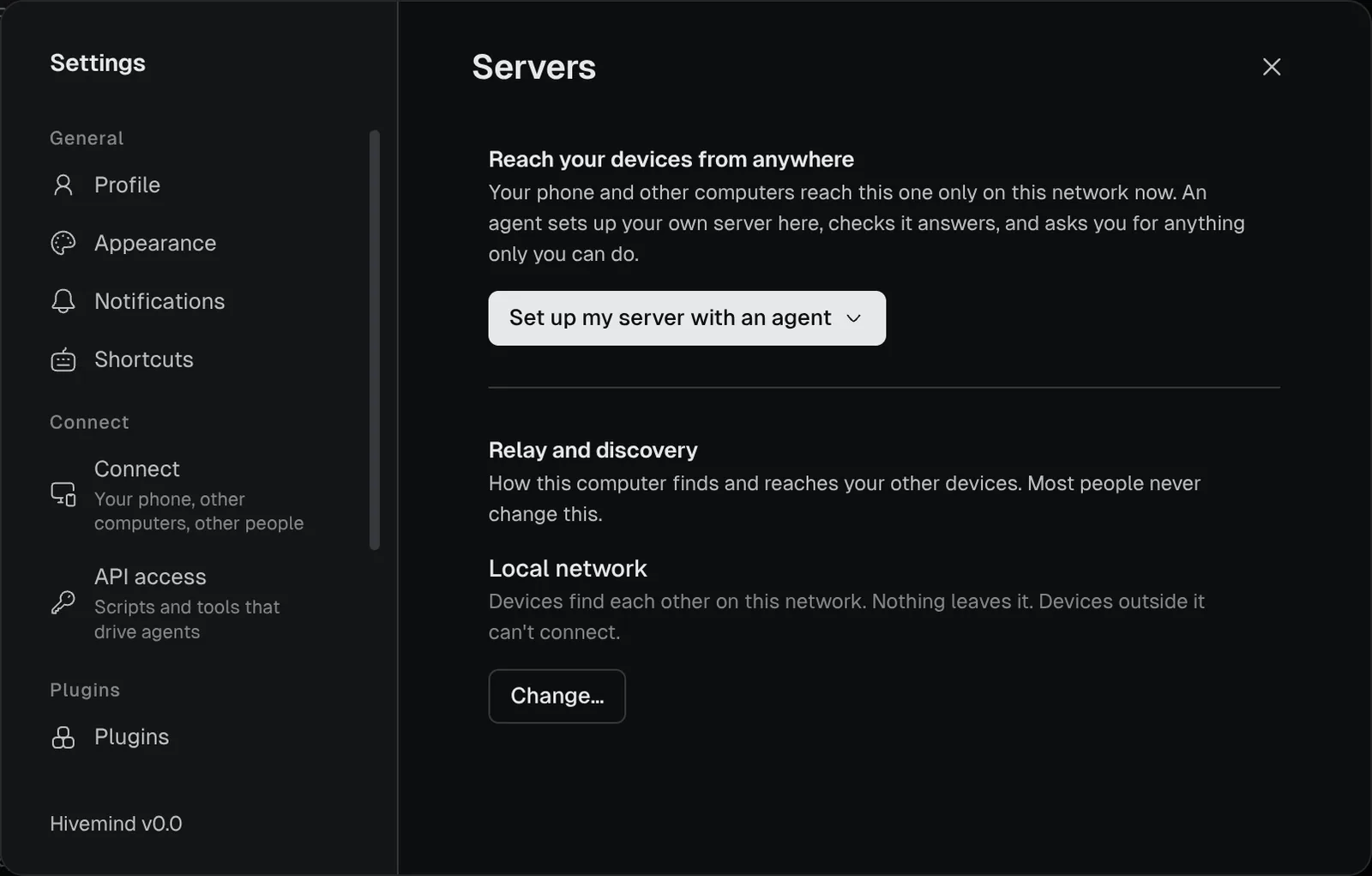
| Pair devices on the same home or office network | Not needed. **Settings → Servers** reads *Local network*. |
| Pair a device or invite a person on another network | Needed |
| [Answer agents from your phone](https://hivemind.griiken.com/guide/phone/) | Needed, with a public name and HTTPS |
| [Keep agents running while your laptop sleeps](https://hivemind.griiken.com/guide/host/) | Needed |
There is no hosted server. The `hive-net` program comes with Hivemind, beside `hive`.
Where your server sits among your devices: [Architecture overview](https://hivemind.griiken.com/guide/architecture/). What it does: [Devices and hive-net](https://hivemind.griiken.com/guide/how-devices-connect/#across-networks).
**Words on this page.** The **relay** and the **lookup** are two of your server's [parts](https://hivemind.griiken.com/guide/how-devices-connect/#across-networks). To **enrol** a device is to let it use your server. **Proof of work** is a small puzzle a device solves to get in, on a server open to anyone.
## Before you start [#before-you-start]
- A computer that stays on: a small server, a VM or a desktop.
- For a phone, a public name for it (such as `hive.example.com`) and ports 80 and 443 open to the internet.
- About 15 minutes.
## Let an agent set it up [#let-an-agent-set-it-up]
1. Open **Settings → Servers**.
2. Press **Set up my server with an agent**.
An agent starts with the brief above. It asks how your devices reach this computer. It asks you for anything only you can do.
## Set it up yourself [#set-it-up-yourself]
This opens 443/tcp, 80/tcp, 7842/udp and 8443/tcp, and gets a certificate from Let's Encrypt.
Add a DNS record for `hive.example.com` that points at the server's public address.
```bash
git clone https://github.com/dip497/hivemind && cd hivemind
HIVE_DOMAIN=hive.example.com HIVE_CONTACT=you@example.com \
docker compose -f infra/compose.yml -f infra/compose.public.yml up -d
```
Check: the container's log prints the network's link, `hivemind://network/…`.
```bash
hive-net serve --all --domain hive.example.com --contact you@example.com --data /var/lib/hive-net
```
Run it under systemd with `CAP_NET_BIND_SERVICE`, so it can listen on ports 80 and 443.
No certificate. A phone's browser cannot use this one.
```bash
hive-net serve --all --data ~/hive-net --url http://192.168.1.10:3340
```
```bash
hive-net serve --all --data ~/hive-net --url http://:3340 --bind :3340
```
On first start, the server makes the network's admin key, `admin.key`, in its data folder. Keep it safe: see [Back up](https://hivemind.griiken.com/guide/hive-net/#back-up).
## Put your devices on it [#put-your-devices-on-it]
1. On the server, make one link per device:
```bash
hive network enrol-link --data /var/lib/hive-net --uses 1
```
2. On each device, open **Settings → Servers → Change…**, paste the link and press **Use**. Or run `hive network use ''`.
People you invite need no link of their own. Your invite carries it.
## Check it worked [#check-it-worked]
```bash
hive network doctor
```
Each relay prints a line starting with `✓`. **Settings → Servers** shows the new network and checks it by itself.
## If it didn't [#if-it-didnt]
| You see | Do |
|---|---|
| `no answer from https://…` | The server is down, or a firewall blocks its port. Check the [ports](https://hivemind.griiken.com/guide/hive-net/#ports). |
| The phone page does not open | `https:///phone/manifest.webmanifest` must answer 200, with a trusted certificate. |
| A device is refused | Its enrol link was used up or has expired. Make a new one. |
More in [Troubleshooting](https://hivemind.griiken.com/guide/troubleshooting/).
## Related [#related]
- [hive-net reference](https://hivemind.griiken.com/guide/hive-net/): every flag, port, certificate option, push key and backup.
- [Devices and hive-net](https://hivemind.griiken.com/guide/how-devices-connect/)
- To leave a network: **Settings → Servers → Change… → Local network**.
 ## Set it up yourself [#set-it-up-yourself]