# Plugins
> The four kinds of plugin, where each sits on screen, where HiveHub fits, and how to add or make one.
Source: https://hivemind.griiken.com/guide/plugins/
A plugin adds something to Hivemind. Your agents can make one, install one and open one while they work. The **Windows** view and the **Issues** tool ship with the app as plugins too.
{`
Tell me about the Hivemind plugins on this computer. Do not change anything.
1. Run \`hive plugins list --json\`. For each plugin, say its kind (agent, view, widget or tool), whether it is on, and any problem it reports.
2. Say which ones can read my files or run programs (agents and tools can), and which run with no files and no network (views and widgets).
3. If I said what I want to add, find a match: get the \`hivehub\` command with \`curl -fsSL https://hivehub.griiken.workers.dev/hivehub.mjs -o ~/.local/bin/hivehub && chmod +x ~/.local/bin/hivehub\` (it needs Node), run \`hivehub search\` with a few words, and \`hivehub info\` with the best id. Show me what it asks for. Do not install it.
At the end, list what I have, what each may touch, and the command that would install your suggestion.
`}

- **View**: draws the whole workspace, in place of **Canvas** or **Windows**.
- **Tiles** inside it: an **agent tile** started from an agent file, a **terminal**, and a **tool tile** drawn by a tool.
- Each tile is lent to the view. Switching views keeps it running.
- **Widget**: a small card that floats above every view.
## The four kinds [#the-four-kinds]
| Kind | What it adds | Its file |
|---|---|---|
| **Agent** | a coding agent's own program, which Hivemind starts and reads | `agent.yaml` |
| **View** | a way of drawing the whole workspace | `hivemind-view.json` |
| **Widget** | a small live card on the canvas, in every view | `widget.json` |
| **Tool** | a new kind of tile | `hivemind-tool.json` |
What each kind can reach, and why a tool you install starts switched off:
[Trust, permissions and privacy](https://hivemind.griiken.com/guide/security-and-privacy/).
Your agents as stars, grouped by project. Amber ones wait on you.
A card that lists the agents waiting on you.
A tile that runs your tests several times and shows which fail only sometimes.
One `agent.yaml` file tells Hivemind how to start an agent and read its screen.
## Add one [#add-one]
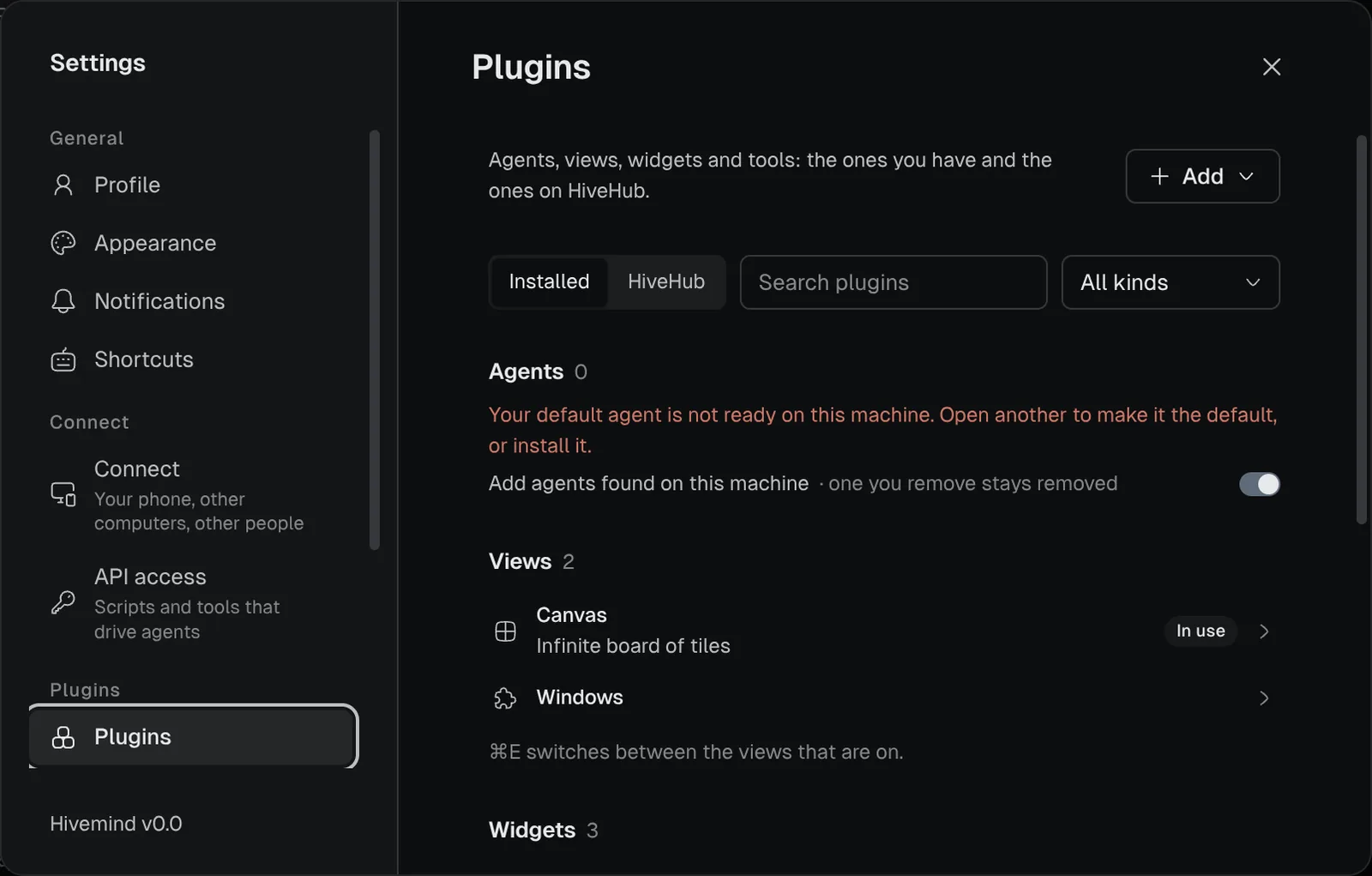
Install one from **Settings → Plugins**, on the **HiveHub** tab. What HiveHub lists, how each file
is checked, and what you review first: [What HiveHub is](https://hivemind.griiken.com/guide/hivehub/).
From a terminal:
```bash
hive plugins list # every plugin here, on or off
hive plugins install @dip497/worktrees # a tool, widget or view, from HiveHub or a folder
hive plugins enable @dip497/worktrees # a tool arrives switched off
hive plugins set @you/board columns all # a setting the plugin declares
hive agents install claude # agents have their own command
```
Each plugin's page in **Settings → Plugins** has **Settings**, **Read me** and **What it can do**.
## Packages [#packages]
Everything you install is a package, and goes in and out as one. A folder that holds one plugin
is a package of one. Removing a plugin you installed removes its package. What you set a plugin
to stays in your settings, so installing it again finds it.
A package's files are copied in and checked before anything you use changes. If an install
fails halfway, the version you had stays in use.
A package that holds several is a folder with a `hivemind-package.json`. It names a folder for
each tool, widget, view and [theme](https://hivemind.griiken.com/guide/packages/#themes), each with its own manifest, and the agent
presets it brings:
```json
{
"apiVersion": 2,
"id": "@you/kit",
"name": "Kit",
"version": "1.0.0",
"tools": [{ "path": "tools/prs" }],
"widgets": [{ "path": "widgets/dog" }],
"views": [{ "path": "views/island" }],
"themes": [{ "path": "themes/harbour" }],
"agents": [{ "id": "@you/reviewer", "name": "Reviewer", "provider": "claude", "prompt": "Review the diff." }]
}
```
Every member's id has the package's owner (`@you/…`). Installing checks each member as its kind
is checked, and refuses one whose id another installed package holds.
In **Settings → Plugins**, the **Packages** tab lists each package that holds several plugins as
one row with one switch. Open it to see its members: what kind each is, whether it is sandboxed or
runs in the app, its own switch, and its own page for its settings. Each member is also listed in
its kind's tab, marked **Part of** its package. To add one from your computer, choose
**Add → Add from a folder**; the review shows what it holds before anything is installed.
A plugin that is part of a package changes only with it. Installing it, removing it or switching
it on apart from its package is refused, naming the package. You can switch one off on its own,
and on again while its package is on. A plugin you installed on its own before is taken over
only by a package that lists it in `"replaces": ["@you/name"]`; what you set it to is kept. `hive plugins list` shows which package each
plugin belongs to.
A package published on HiveHub installs by its id, like a single plugin. Its HiveHub page and
the review in **Settings → Plugins** list each member, whether its code is sandboxed or runs in
the app, and what it asks for.
### Updates and rollback [#updates-and-rollback]
Views, widgets and [live wallpapers](https://hivemind.griiken.com/guide/live-wallpapers/) run in a sandbox that holds them to the
permissions they ask for (a live wallpaper asks for none). A theme is data, with no code. Tools run
in the app, and an agent preset is instructions an agent follows. So a new package that holds a
tool or an agent preset arrives switched off, and one of only views, widgets, themes and live
wallpapers arrives on.
Installing a newer version of a package keeps its switch, unless something in it needs you to
trust it again: a view or widget that asks for a permission it did not have, or a tool or agent
preset that is new or changed. Then the package goes off until you switch it on.
```bash
hive plugins install ./kit --dry-run # what would change, member by member; installs nothing
hive plugins install ./kit # the update, with the same list of changes
hive plugins rollback @you/kit # back to the version before, on or off as it was
```
In the app, the same review lists what changed in each member and why the package will switch
off, and an opened package has **Roll back to** the version before.
The version before the one in use is kept, so a rollback needs no download. Rolling back again
returns to the newer one.
 ## Make one [#make-one]
To make your own, use **Add → Make your own…** in the toolbar, or **Add → Make your own** in
**Settings → Plugins**. Both write a prompt you hand to a coding agent.
From a terminal, start one of any kind:
```bash
hive plugins new widget my-widget # or: tool, view
```
Each starter includes `PROMPT.md`: the whole contract for that kind in one file. Write what you
want at the top, then hand the file to a coding agent.
## Agents can run a plugin's commands [#agents-can-run-a-plugins-commands]
A view, widget or tool can declare `"commands"` in its file and answer them in its code. An agent
lists and runs them while the plugin is open:
```bash
hive ctl plugin commands
hive ctl plugin call @dip497/worktrees list
```
## What to do next [#what-to-do-next]
- [Build a widget](https://hivemind.griiken.com/guide/widgets/), the quickest way to start.
- [Write a view](https://hivemind.griiken.com/guide/extension-authoring/) or [Write a tool](https://hivemind.griiken.com/guide/tool-plugins/).
- [Add your own agent](https://hivemind.griiken.com/guide/agent-providers/).
- [Publish a plugin](https://hivemind.griiken.com/guide/publish-to-hivehub/) on HiveHub, so others can install it.
- What a plugin can reach: [Trust, permissions and privacy](https://hivemind.griiken.com/guide/security-and-privacy/).
## Make one [#make-one]
To make your own, use **Add → Make your own…** in the toolbar, or **Add → Make your own** in
**Settings → Plugins**. Both write a prompt you hand to a coding agent.
From a terminal, start one of any kind:
```bash
hive plugins new widget my-widget # or: tool, view
```
Each starter includes `PROMPT.md`: the whole contract for that kind in one file. Write what you
want at the top, then hand the file to a coding agent.
## Agents can run a plugin's commands [#agents-can-run-a-plugins-commands]
A view, widget or tool can declare `"commands"` in its file and answer them in its code. An agent
lists and runs them while the plugin is open:
```bash
hive ctl plugin commands
hive ctl plugin call @dip497/worktrees list
```
## What to do next [#what-to-do-next]
- [Build a widget](https://hivemind.griiken.com/guide/widgets/), the quickest way to start.
- [Write a view](https://hivemind.griiken.com/guide/extension-authoring/) or [Write a tool](https://hivemind.griiken.com/guide/tool-plugins/).
- [Add your own agent](https://hivemind.griiken.com/guide/agent-providers/).
- [Publish a plugin](https://hivemind.griiken.com/guide/publish-to-hivehub/) on HiveHub, so others can install it.
- What a plugin can reach: [Trust, permissions and privacy](https://hivemind.griiken.com/guide/security-and-privacy/).