# Connect and call
> Build a small client with the TypeScript or Python SDK: connect with your token, start an agent, read its reply, answer it, and hear events.
Source: https://hivemind.griiken.com/guide/api-connect/
In this tutorial you build a client that lists your agents, starts one, reads its reply, answers its questions and follows what happens. It takes about ten minutes.
{`
Make a Hivemind API token and write a small client with the \`hivemind-api\` SDK that connects to my workspace, starts an agent, reads its reply and prints the events it hears.
1. Ask me which workspace folder to drive, whether I prefer TypeScript (Node 20 or newer, or Bun) or Python (3.9 or newer), and whether the client only reads (\`view\`) or also starts agents (\`agents\`).
2. Check Hivemind runs with the folder open: \`hive ctl agents\` must not exit 3. If it does, ask me to run \`hivemind \`.
3. Make the token: \`hive grant create api-client -w --role --expires 7d --json\`. Keep the token out of this chat and out of git: write \`HIVE_DRIVE_TOKEN\`, \`HIVE_DRIVE_SOCK\` (the \`socket\` field) and \`HIVE_WORKSPACE\` (the folder) to a git-ignored \`.env\`.
4. Install the SDK that comes with the app. On macOS or Linux: \`npm install ~/.hivemind-app/sdk/hivemind-api.tgz\` or \`pip install ~/.hivemind-app/sdk/python\`. On Windows: \`npm install %LOCALAPPDATA%\\hivemind\\sdk\\hivemind-api.tgz\` or \`pip install %LOCALAPPDATA%\\hivemind\\sdk\\python\`. Only on a computer without Hivemind, install it from the release, where is the version of the app my program talks to: \`npm install https://github.com/dip497/hivemind/releases/download/v/hivemind-api-.tgz\` or \`pip install https://github.com/dip497/hivemind/releases/download/v/hivemind_api--py3-none-any.whl\`.
5. Write the client. \`connect()\` reads the token, workspace and socket from those variables. Print \`hive.as\` (Python: \`hive.as_\`), then \`hive.agents.list()\`.
6. With an \`agents\` token: \`hive.agents.start\` with program set to an agent from \`hive agents list\` and prompt "Say hello", then \`hive.agents.read\` the tile. If \`finalStatus\` is \`waiting\`, show me what it asks and answer only after I say so, with \`hive.agents.answer(tile, reply.waiting.since, ...)\`.
7. Print \`agent.event\` events with \`hive.on\`. Catch \`ApiError\` and print its \`code\`.
8. Run it for 30 seconds and show me what it printed.
At the end, tell me the token's id from \`hive grant list\` and how to revoke it: \`hive grant revoke \`.
`}
## What you'll learn [#what-youll-learn]
- How a program says who it is, with a token.
- How to start an agent, read its reply and answer it.
- How to follow what your agents do, as it happens.
## Before you start [#before-you-start]
- Hivemind is running with your project open.
- Node 20 or newer (or Bun), or Python 3.9 or newer.
- A token for that project, made as in [Make an API token](https://hivemind.griiken.com/guide/api-tokens/). Use `agents` to follow every step here; `view` reads only.
- The token in your environment, never in your code:
```bash
export HIVE_DRIVE_TOKEN=hgr_… # from hive grant create
export HIVE_WORKSPACE=~/work/api # the project folder
export HIVE_DRIVE_SOCK=~/.config/hivemind/drive.sock # the socket it printed
```
The Python package uses only the standard library.
`connect()` reads the token, the workspace and the socket from the variables above. Without them, it uses this computer's app.
```ts TypeScript
import { connect, ApiError } from "hivemind-api";
const hive = await connect();
// or: await connect({ token: "hgr_…", workspace: "/home/you/work/api", socket: "…/drive.sock" })
console.log(hive.as);
```
```python Python
from hivemind_api import connect, ApiError
with connect() as hive:
# or: connect(token="hgr_…", workspace="/home/you/work/api", socket="…/drive.sock")
print(hive.as_)
```
Check it worked: it prints your token's name, role and workspace:
```text
{ client: "dashboard", role: "agents", workspace: "/home/you/work/api" }
```
```ts TypeScript
const { agents } = await hive.agents.list();
console.log(agents);
const { tile } = await hive.agents.start({ program: "claude", prompt: "Run the tests" });
```
```python Python
print(hive.agents.list()["agents"])
tile = hive.agents.start({"program": "claude", "prompt": "Run the tests"})["tile"]
```
Check it worked: a new agent tile opens in the app. `program` is an agent from `hive agents list`.
`agents.read` waits for the agent to finish replying. If it stops to ask you something, answer it.
```ts TypeScript
const reply = await hive.agents.read(tile, { timeoutMs: 600_000 });
if (reply.finalStatus === "waiting") {
await hive.agents.answer(tile, reply.waiting!.since, { decision: "allow" });
}
console.log(reply.text);
```
```python Python
reply = hive.agents.read(tile, timeout_ms=600_000)
if reply["finalStatus"] == "waiting":
hive.agents.answer(tile, reply["waiting"]["since"], {"decision": "allow"})
print(reply["text"])
```
| `finalStatus` | Means |
|---|---|
| `turn` | The reply is in `text`. |
| `timeout` | It is still working. Read again. |
| `working` | Read with `timeoutMs` 0: it is still working. |
| `idle` | It was sent nothing since you last read it, and is not working. Send it a task. |
| `waiting` | It asks you something. Answer with `agents.answer`: `allow` or `deny` a permission, or `{text}` for a question. |
| `closed` | Its tile was closed. |
Check it worked: the agent's tile turns amber while it waits, then goes back to work after your answer.
```ts TypeScript
const off = hive.on("agent.event", (repo, event) => console.log(event.kind, event.tile));
// later: off();
```
```python Python
off = hive.on("agent.event", lambda repo, event: print(event["kind"], event["tile"]))
# later: off()
```
| Event | Tells you |
|---|---|
| `agent.changed` | An agent appeared, changed or went. |
| `agent.event` | An agent finished replying (`turnEnded`), started waiting on you (`waiting`), was answered, or reported. |
| `status.changed` | An agent's status changed. |
Check it worked: start an agent in the app. Your client prints `came`.
Every refusal is one `ApiError` with a `code`. `call` runs any method by name.
```ts TypeScript
try {
await hive.call("agent.start", [hive.workspace!, { program: "claude" }]);
} catch (e) {
if (e instanceof ApiError && e.code === "FORBIDDEN") console.log("this role may not start agents");
}
hive.close();
```
```python Python
try:
hive.call("agent.start", [hive.workspace, {"program": "claude"}])
except ApiError as e:
print(e.code) # "FORBIDDEN"
```
Check it worked: with a `view` token, it prints the refusal. The codes are listed on [Protocol](https://hivemind.griiken.com/guide/api-protocol/#error-codes).
For Python with `asyncio`, import from `hivemind_api.aio`: `async with await connect() as hive:`. The methods are the same, awaited.
## What the SDK gives you [#what-the-sdk-gives-you]
Both SDKs have the same shape: `as` (Python `as_`), `workspace`, `call(method, params, timeout)`, `notice`, `on(event, fn)` that returns `off`, `closed` and `close()`. Helpers:
| Helper | Methods |
|---|---|
| `agents` | `list`, `since`, `start`, `read`, `send`, `answer`, `output`, `interrupt`, `close` |
| `frames` | `open`, `close` |
| `terminals` | `write`, `close` |
Everything else is on [Methods by role](https://hivemind.griiken.com/guide/api-methods/), through `call`.
**Other languages:** see [Protocol](https://hivemind.griiken.com/guide/api-protocol/) for the raw messages.
## What you did [#what-you-did]
- Your program proved who it is with a token, at one role.
- It started an agent, read its reply and answered its question.
- It followed your agents through events, and handled a refusal.
## Next [#next]
- [Methods by role](https://hivemind.griiken.com/guide/api-methods/): everything else you can call.
- Revoke the token when you are done: `hive grant revoke `.
---
# Methods by role
> Every method a program's token can call, grouped by the smallest role that allows it, with its params and an example.
Source: https://hivemind.griiken.com/guide/api-methods/
Every method a token can call, from workspace API version `0.30`. A role allows its own methods and those of every role above it on this page.
{`
Using the methods on this page, write a script that watches my Hivemind workspace and tells me when an agent waits on me.
1. Ask me which workspace folder to watch. The script needs only the \`view\` role. Check Hivemind runs with the folder open: \`hive ctl agents\` must not exit 3.
2. Make a token: \`hive grant create waiting-watcher -w --role view --expires 30d --json\`. Keep the token out of this chat and out of git: put \`HIVE_DRIVE_TOKEN\`, \`HIVE_DRIVE_SOCK\` (the \`socket\` field) and \`HIVE_WORKSPACE\` in a git-ignored \`.env\`.
3. Connect and say hello as the Protocol page shows. Call \`agent.list\` with \`[""]\` and print each agent with its state and what it waits on.
4. Listen for \`agent.event\` events. When one has kind \`waiting\`, call \`agent.output\` with \`["", 20]\` and print those lines.
5. Use only methods this page lists under view; any other is refused with \`FORBIDDEN\`.
6. Run it, start an agent in the app that asks a question, and show me the script's output.
At the end, tell me how to stop the script and how to revoke the token: \`hive grant revoke \`, the id from \`hive grant list\`.
`}
`repo` is the workspace's folder. `tile` is a tile's id from `agent.list` or `agent.start`. Each call is sent as `{"id": 1, "method": "…", "params": [...]}` ([Protocol](https://hivemind.griiken.com/guide/api-protocol/)). The example column shows `params`.
## view [#view]
### Agents [#agents]
| Method | Params | Returns | Example params |
|---|---|---|---|
| `agent.list` | `repo` | `{seq, agents}`: every agent now, its state and what it waits on | `["/home/you/work/api"]` |
| `agent.since` | `repo`, `seq` | the changes and events after `seq`, or null: list again | `["/home/you/work/api", 41]` |
| `agent.read` | `tile`, `timeoutMs`? | its reply when it finishes: `{text, finalStatus, truncated}` | `["t-3f2a", 600000]` |
| `agent.output` | `tile`, `lines`? | the last lines it printed (40 by default), as plain text | `["t-3f2a", 20]` |
| `agent.diff` | `tile` | `{files, patch, truncated}`: what it changed since its last commit | `["t-3f2a"]` |
| `agent.sessions` | `place`, `program`, `limit`? | past sessions of that agent in a folder, to resume | `["/home/you/work/api", "claude", 10]` |
| `agent.startable` | `repo` | the agents that can start, their models and modes, and the frames | `["/home/you/work/api"]` |
| `agent.conversation` | `tile`, `cursor`? | what the agent and you said, from its session file | `["t-3f2a"]` |
| `agent.tool` | `tile`, `use` | one tool use from that conversation, in full | `["t-3f2a", "toolu_01"]` |
| `status.all` | | every agent's status | `[]` |
| `link.list` | | which agent pipes into which, and which started which | `[]` |
### Files, git and issues [#files-git-and-issues]
| Method | Params | Returns | Example params |
|---|---|---|---|
| `git.status` | `repo` | branch, ahead and behind, changed files | `["/home/you/work/api"]` |
| `git.diff` | `repo`, `scope`, `file`? | `{patch}` | `["/home/you/work/api", {"kind": "working"}]` |
| `git.listFiles` | `repo` | tracked and untracked files | `["/home/you/work/api"]` |
| `git.listBranches` | `repo` | `{current, local, remote}` | `["/home/you/work/api"]` |
| `git.fileContents` | `repo`, `file`, `rev` | a file at `HEAD`, `INDEX` or `WORKING` | `["/home/you/work/api", "README.md", "HEAD"]` |
| `worktree.list` | `repo` | the repository's worktrees | `["/home/you/work/api"]` |
| `file.read` | `repo`, `file` | a file's text, inside the workspace | `["/home/you/work/api", "package.json"]` |
| `issue.list` | `root` | issues; `root` is the workspace's `.hivemind` folder | `["/home/you/work/api/.hivemind"]` |
| `issue.read` | `root`, `id` | one issue, with its sections | `["/home/you/work/api/.hivemind", "API-4"]` |
| `review.list` | `repo` | comments left on diffs | `["/home/you/work/api"]` |
### Canvas, widgets, terminals and views [#canvas-widgets-terminals-and-views]
| Method | Returns or does | Example params |
|---|---|---|
| `store.open`, `store.core`, `store.view`, `store.objects`, `store.objectsWithIds` | the canvas layout and objects | `["/home/you/work/api"]` |
| `widget.all`, `widget.packages`, `widget.asset` | what widgets draw, which are installed, their images | `["/home/you/work/api"]` |
| `terminal.open` with `attachOnly` | watch a running terminal; output comes as `terminal.data` | `[{"tileId": "t-3f2a", "attachOnly": true, "cols": 120, "rows": 40}]` |
| `terminal.show`, `terminal.history`, `terminal.flow`, `terminal.ack`, `terminal.detach`, `terminal.watchActivity` | follow terminals; these get no answer | `["t-3f2a", true]` |
| `tile.watchLines` | the last line each named terminal shows, such as `214 tests passed`, or for an agent that keeps a conversation what it last said (from 0.35); it replaces the terminals you watched, `[]` stops, and changes come as `tile.lines`. From 0.34 | `[["t-3f2a", "t-9b1c"]]` |
| `tile.readLines` | the same lines once, without watching. From 0.35 | `[["t-3f2a"]]` |
| `terminal.saved` | what a sleeping agent last showed | `["t-3f2a"]` |
| `presence.set` | where your pointer is, for others in the workspace | `["/home/you/work/api", null]` |
| `appearance.get` | the app's theme; a colour of the person's own for the accent comes as `accentCustom` (`{ brand, accent, working? }`, from 0.35), which wins over `accent` while set | `[]` |
| `view.list`, `view.file`, `view.open`, `view.post`, `view.screen`, `view.close` | open an installed view that is ready for phones | `[]` |
## edit [#edit]
| Method | Params | Does | Example params |
|---|---|---|---|
| `widget.press` | `repo`, `id`, `{action}` or `{click: true}` | press a widget's button or card | `["/home/you/work/api", "w-1", {"click": true}]` |
| `tool.open` | `repo`, `{tool, frame?, url?}` | place a tool's tile; returns `{tile}` | `["/home/you/work/api", {"tool": "@dip497/worktrees"}]` |
| `git.handOff` | `repo`, `branch`, `bundle` | hand over a branch of your own; it lands as `handoff//` | `["/home/you/work/api", "fix", ""]` |
## terminals [#terminals]
| Method | Params | Does | Example params |
|---|---|---|---|
| `terminal.write` | `tile`, `data` | type into a terminal, while you hold its keyboard | `["t-3f2a", "ls\r"]` |
| `terminal.resize`, `terminal.fit` | `tile`, `cols`, `rows` | size it | `["t-3f2a", 120, 40]` |
| `terminal.keyboard.ask`, `terminal.keyboard.give` | `tile`, … | ask for its keyboard, or hand it on | `["t-3f2a"]` |
## agents [#agents-1]
| Method | Params | Does | Example params |
|---|---|---|---|
| `agent.start` | `repo`, `{program, frame?, prompt?, model?, mode?, name?, resume?, supervise?, report?}` | start an agent; returns `{tile}`. With `supervise`, its permission questions come to you. | `["/home/you/work/api", {"program": "claude", "prompt": "Run the tests"}]` |
| `agent.send` | `tile`, `text` | a message, typed in as its next prompt | `["t-3f2a", "Now fix the failing test"]` |
| `agent.answer` | `tile`, `since`, `{text}`, `{decision, feedback?, always?}` or `{answers}` | answer what it waits on: a question, a permission, a plan. `since` is the `waiting.since` that `agent.list` shows; `decision` is `allow` or `deny`. | `["t-3f2a", 1760000000000, {"decision": "allow"}]` |
| `agent.interrupt` | `tile` | stop its current reply | `["t-3f2a"]` |
| `agent.keys` | `tile`, `keys` | type keys: `Enter`, `Escape`, `Up`, `C-c`, … | `["t-3f2a", ["Down", "Enter"]]` |
| `agent.rename` | `tile`, `name` | rename it; empty goes back to its own name | `["t-3f2a", "tests"]` |
| `agent.sleep`, `agent.wake` | `repo`, `target`?, `force`? | put to sleep or wake a tile, a frame, or every agent | `["/home/you/work/api", "t-3f2a"]` |
| `agent.close` | `tile` | end it and take its tile off the canvas | `["t-3f2a"]` |
| `agent.places`, `agent.folders` | `repo`, `folder`? | where in the workspace an agent may start | `["/home/you/work/api"]` |
| `frame.open` | `repo`, `{path}` or `{worktree: {branch, base?}}` | a frame on a folder, or on a new worktree | `["/home/you/work/api", {"worktree": {"branch": "fix-login"}}]` |
| `frame.close` | `repo`, `frame`, `{closeTiles?, removeWorktree?, force?}`? | close a frame | `["/home/you/work/api", "f-2", {"closeTiles": true}]` |
| `terminal.open`, `terminal.close` | | start or end a terminal | |
| `link.connect`, `link.disconnect` | `src`, `dst`? | pipe one agent's replies into another as prompts | `["t-3f2a", "t-9c1b"]` |
## No role [#no-role]
No token can call the methods that commit, push, pull, stage or discard; write files; create or change issues and review comments; create or remove worktrees; let people in or change their roles; or make or revoke tokens.
That does not keep a program away from your files. With `terminals` it types into a shell, and with `agents` it starts agents. Either can run any command there.
Full parameters and results are in [`spec/workspace-api.md`](https://github.com/dip497/hivemind/blob/main/spec/workspace-api.md).
---
# Protocol
> The raw messages a program sends and receives on the workspace API: the hello line, calls, answers, events and error codes, for any language.
Source: https://hivemind.griiken.com/guide/api-protocol/
The messages behind the SDKs, for writing a client in any language. This page reflects workspace API version `0.30`.
{`
Using the messages on this page, write a client for the Hivemind workspace API in the language I name.
1. Ask me for the language and the workspace folder. Make a token with the smallest role it needs: \`hive grant create -w --role view --expires 7d --json\`. Keep the token out of this chat and out of git: read it from the environment variable \`HIVE_DRIVE_TOKEN\`, with \`HIVE_DRIVE_SOCK\` and \`HIVE_WORKSPACE\`.
2. Connect to \`HIVE_DRIVE_SOCK\` (a Unix socket on Linux and macOS, a named pipe on Windows). Within 10 seconds send one line: \`{"hello": {"token": "", "workspace": ""}}\`.
3. Send calls as one JSON line each, \`{"id": n, "method": "...", "params": [...]}\`. Match answers by \`id\`; they can come out of order. A line without an \`id\` is an event, or a JSON list of events.
4. Handle every error code in the table on this page.
5. Call \`agent.list\` for the folder, print the result, then print events for 30 seconds. Show me the output.
`}
## Find the socket [#find-the-socket]
`hive grant create` prints the socket's path (`socket` with `--json`). By default it is:
| System | Socket |
|---|---|
| Linux | `~/.config/hivemind/drive.sock`, or `$XDG_CONFIG_HOME/hivemind/drive.sock` |
| macOS | `~/Library/Application Support/hivemind/drive.sock` |
| Windows | A named pipe. Use the path `hive grant create` prints. |
The app or `hive host` must be running, with the workspace open.
## Messages [#messages]
Every message is one line of JSON, both ways.
### Hello [#hello]
Send this within 10 seconds of connecting:
```json
{"hello": {"token": "hgr_…", "workspace": "/home/you/work/api"}}
```
`workspace` is the workspace's folder. Leave it out when the token reaches only one workspace.
| You get back | Means |
|---|---|
| `{"hello": {"api": "0.30", "as": {"client": "dashboard", "role": "view", "workspace": "/home/you/work/api"}}}` | You are in. `role` is what you may do. |
| `{"error": {"code": "FORBIDDEN", "message": "…"}}` | Wrong, revoked or expired token, or a workspace it does not reach. The connection closes. |
| `{"error": {"code": "BAD_REQUEST", "message": "…"}}` | No hello, no workspace named, or the workspace is not open. The connection closes. |
### Calls and answers [#calls-and-answers]
A call has an `id` you choose, a `method` and a list of `params`. Its answer has the same `id`, and either a `result` or an `error`:
```json
{"id": 1, "method": "agent.list", "params": ["/home/you/work/api"]}
{"id": 1, "result": {"seq": 0, "agents": []}}
```
```json
{"id": 2, "method": "agent.start", "params": ["/home/you/work/api", {"program": "claude", "prompt": "Run the tests"}]}
{"id": 2, "error": {"code": "FORBIDDEN", "message": "agent.start is not open to your role on this workspace"}}
```
Where a method takes a folder (`repo`), give the workspace's folder. Answers can come out of order, so match them by `id`.
### Events [#events]
A line without an `id` is an event, `{"event": "…", "params": [...]}`, about the workspace's tiles. Several events from one moment may arrive as a JSON list on one line.
- `agent.changed`: an agent appeared, changed or went.
- `agent.event`: an agent finished replying (`turnEnded`), started waiting on you (`waiting`), was answered (`answered`), came, went, or reported.
- `status.changed`: an agent's status changed.
- `terminal.data`: output of a terminal you opened.
- `tile.lines`: the last line of terminals you watch (`tile.watchLines`) changed, at most every 250 ms.
- `file.changed`: files changed in the workspace.
## Error codes [#error-codes]
| Code | Means |
|---|---|
| `FORBIDDEN` | The role does not allow it. Nothing ran. |
| `BAD_REQUEST` | Wrong params, or a path outside the workspace. Nothing ran. |
| `UNKNOWN_METHOD` | No method by that name. |
| `NOT_FOUND` | No such tile, frame or workspace. |
| `ASLEEP` | The agent is asleep: wake it first. |
| `NO_AGENT` | The tile runs no agent (a tool, a browser, a shell), and the method asks an agent's reply. |
| `UNSUPPORTED` | The agent cannot do that: it does not tell Hivemind when it finishes replying, or keeps no sessions. |
| `TIMEOUT` | What it waited on did not come in time. |
| `UNAVAILABLE` | It needs one of your windows open. |
| `RATE_LIMITED` | Too many started at once. Ask again later. |
| `DEPTH_EXCEEDED` | Agents started by agents, too many levels deep. Start it from higher up. |
| `OCCLUDED` | Something is drawn over the tile `tile.look` would picture; the message names it. Nothing was pictured. |
| `FAILED` | It ran and failed. `message` says why. |
## A whole example [#a-whole-example]
This connects, lists the agents and tries to start one. With a `view` token the start is refused. Both run on Linux and macOS, over a Unix socket.
```python Python
import json, os, socket
SOCK = os.environ["HIVE_DRIVE_SOCK"]
TOKEN = os.environ["HIVE_DRIVE_TOKEN"]
FOLDER = os.environ["HIVE_WORKSPACE"]
s = socket.socket(socket.AF_UNIX)
s.connect(SOCK)
f = s.makefile("rw")
def send(msg):
f.write(json.dumps(msg) + "\n")
f.flush()
def call(id, method, *params):
send({"id": id, "method": method, "params": list(params)})
while True:
msg = json.loads(f.readline())
if isinstance(msg, dict) and msg.get("id") == id: # not an event
return msg
send({"hello": {"token": TOKEN, "workspace": FOLDER}})
print(f.readline()) # {"hello": {"api": "0.30", "as": {…}}}
print(call(1, "agent.list", FOLDER)) # {'id': 1, 'result': {'seq': 0, …}}
print(call(2, "agent.start", FOLDER, {"program": "claude", "prompt": "Run the tests"}))
```
```js Node
import net from "node:net";
import readline from "node:readline";
const { HIVE_DRIVE_SOCK, HIVE_DRIVE_TOKEN, HIVE_WORKSPACE } = process.env;
const socket = net.connect(HIVE_DRIVE_SOCK);
const waiting = new Map();
let next = 1;
const call = (method, ...params) => new Promise((resolve) => {
const id = next++;
waiting.set(id, resolve);
socket.write(JSON.stringify({ id, method, params }) + "\n");
});
readline.createInterface({ input: socket }).on("line", (line) => {
const msg = JSON.parse(line);
if (waiting.has(msg.id)) { waiting.get(msg.id)(msg); waiting.delete(msg.id); }
else console.log(line); // the hello, then events
});
socket.write(JSON.stringify({ hello: { token: HIVE_DRIVE_TOKEN, workspace: HIVE_WORKSPACE } }) + "\n");
console.log(await call("agent.list", HIVE_WORKSPACE));
console.log(await call("agent.start", HIVE_WORKSPACE, { program: "claude", prompt: "Run the tests" }));
socket.end();
```
## Start an agent and wait for its reply [#start-an-agent-and-wait-for-its-reply]
With an `agents` token:
```json
{"id": 3, "method": "agent.start", "params": ["/home/you/work/api", {"program": "claude", "prompt": "Run the tests"}]}
{"id": 3, "result": {"tile": "…"}}
{"id": 4, "method": "agent.read", "params": ["", 600000]}
{"id": 4, "result": {"text": "…", "finalStatus": "turn", "truncated": false}}
```
`agent.read` waits up to the milliseconds you give for the agent to finish replying. `finalStatus` is `turn`, `timeout`, `working`, `idle`, `closed` or `waiting`. A tile that runs no agent is refused `NO_AGENT`, and an agent asleep `ASLEEP`.
The full protocol is [`spec/workspace-api.md`](https://github.com/dip497/hivemind/blob/main/spec/workspace-api.md) in the repository.
---
# Make an API token
> Make a token so one of your programs can drive a workspace, choose its role, and revoke it when you are done.
Source: https://hivemind.griiken.com/guide/api-tokens/
Make a token when a program of yours should drive a workspace: a dashboard, a script, an orchestrator.
{`
Make a Hivemind API token for one of my programs, at the smallest role it needs, and store it safely.
1. Ask me what the program is called, which workspace folder it drives, and what it does. Choose the role from that: \`view\` only reads; \`edit\` also presses widgets and opens tool tiles; \`terminals\` also types into terminals; \`agents\` also starts, answers and closes agents. Tell me the role you chose and why.
2. Check Hivemind runs with that folder open: \`hive ctl agents\` must not exit 3. If it does, ask me to open the folder with \`hivemind \`.
3. Make it, with an expiry unless I ask otherwise: \`hive grant create -w --role --expires 30d --json\`. The output holds \`token\` (shown only this once) and \`socket\`.
4. Never show the token in this chat and never put it in a file git tracks. Write it to a git-ignored \`.env\` beside the program as \`HIVE_DRIVE_TOKEN=…\`, with \`HIVE_DRIVE_SOCK=\` and \`HIVE_WORKSPACE=\`. Check \`git check-ignore .env\` confirms it is ignored; add it to \`.gitignore\` if not.
5. Check it works: with those variables loaded, \`hive ctl agents --json\` prints the workspace's agents.
At the end, tell me the token's id and role from \`hive grant list\`, where the token is stored, and that \`hive grant revoke \` takes it back.
`}
## Before you start [#before-you-start]
- Hivemind is running with the workspace open, or `hive host` serves it.
- You know what the program does, so you can pick the smallest role. See [Choose a role](#choose-a-role).
## Make the token [#make-the-token]
Open the workspace, then **Settings → API access**.
Under **New token**, name what uses it, for example *my dashboard*. Pick what it may do.
Press **Create token**, then **Copy**. The token is shown this once.
A token made in Settings reaches the workspace in that window and never expires.
To make a read-only token that lasts 30 days, run:
```bash
hive grant create dashboard -w ~/work/api --role view --expires 30d
```
It prints the token first, shown once (long lines wrapped here):
```text
hgr_…
dashboard may view in api, until 2026-11-17T09:00:00Z
(`hive grant revoke 1a2b3c4d5e6f`).
It connects to ~/.config/hivemind/drive.sock and says
{"hello": {"token": "", "workspace": ""}}.
```
| Option | Means |
|---|---|
| `` | What the program is called. It shows in the token list and the audit log. |
| `-w`, `--workspace` | A workspace it may drive: its folder, name or id. Repeat it for more. |
| `--role` | `view`, `edit`, `terminals` or `agents`. Without it, `agents`. |
| `--expires` | How long it lasts: `12h`, `30d`. Without it, until you revoke it. |
| `--json` | Prints `{grant, token, socket}`. |
Hivemind keeps only a hash of each token. A lost token cannot be shown again, so make a new one.
## Choose a role [#choose-a-role]
Each role can do everything the roles above it can. People and programs get the same four roles.
| Role | For a person, the app says | For a token, **API access** says | Can |
|---|---|---|---|
| `view` | **Can view** | **View** | see the canvas, terminals, agents and their replies, files, diffs, issues and review comments |
| `edit` | **Can edit board** | **Edit** | also move, add and close tiles, press widgets, open a tool's tile |
| `terminals` | **Can use terminals** | **Use terminals** | also type into terminals (a person once given the keyboard) |
| `agents` | **Can drive agents** | **Drive agents** | also start, answer, message, put to sleep and close agents, which means running commands on your computer. A person gets it only while they are here, after a warning. |
A dashboard needs `view`; an orchestrator that starts agents needs `agents`. A call the role does not allow is answered `FORBIDDEN` and never runs. The full list is on [Methods by role](https://hivemind.griiken.com/guide/api-methods/).
## Check it worked [#check-it-worked]
To see your tokens, run:
```bash
hive grant list
```
```text
1a2b3c4d5e6f dashboard view /home/you/work/api expires 2026-11-17T09:00:00Z last used never
```
**Settings → API access** shows the same list, with when each token was last used.
## Revoke a token [#revoke-a-token]
Press **Revoke** in **Settings → API access**, or run it with the id from `hive grant list`:
```bash
hive grant revoke 1a2b3c4d5e6f
```
Revoking closes the program's connections at once. An expired token closes them at that moment too.
## If it didn't work [#if-it-didnt-work]
| What you see | Fix |
|---|---|
| `hive ctl` exits 3 | Neither the app nor `hive host` is running. Open the workspace with `hivemind `. |
| `FORBIDDEN` on hello | The token is wrong, revoked or expired, or does not reach that workspace. Make a new one. |
| `BAD_REQUEST` on hello | Name the workspace's folder, and open it in the app first. |
More in [Troubleshooting](https://hivemind.griiken.com/guide/troubleshooting/).
## Related [#related]
- [API overview](https://hivemind.griiken.com/guide/api/): how tokens and roles fit together.
- [Connect and call](https://hivemind.griiken.com/guide/api-connect/): use the token from a program.
---
# API overview
> Let a program of your own drive a workspace: start agents, read their replies, follow who is waiting, all with a token you can revoke.
Source: https://hivemind.griiken.com/guide/api/
The API lets a program on your computer drive a workspace the way you do. Think of an orchestrator that hands work to agents, a dashboard of who is waiting, or a script your CI calls.
{`
Write me a small script that lists the agents in my Hivemind workspace that are waiting on me, using a read-only API token.
1. Ask me which project folder is the workspace. Check Hivemind runs with it open: \`hive ctl agents\` must not exit 3. If it does, ask me to open it with \`hivemind \`.
2. Make a token with the smallest role, \`view\`: \`hive grant create waiting-list -w --role view --expires 30d --json\`. The output holds \`token\` and \`socket\`. Never print the token in this chat and never write it to a file git tracks. Put it in a git-ignored \`.env\` as \`HIVE_DRIVE_TOKEN\`, with \`HIVE_DRIVE_SOCK\` (the socket) and \`HIVE_WORKSPACE\` (the folder).
3. Check the token works: with those variables set, \`hive ctl agents --json\` prints the workspace's agents.
4. Write the script in TypeScript or Python with the \`hivemind-api\` SDK (it comes with the app: \`npm install ~/.hivemind-app/sdk/hivemind-api.tgz\` or \`pip install ~/.hivemind-app/sdk/python\`; on Windows the folder is \`%LOCALAPPDATA%\\hivemind\\sdk\`). \`connect()\` reads the token, workspace and socket from those variables. Call \`hive.agents.list()\` and print each agent whose \`waiting\` field is set, with its name and what it waits on.
5. Run it and show me the output.
At the end, tell me the token's id from \`hive grant list\` and that \`hive grant revoke \` takes it back.
`}

- **Your program** → **drive socket**: a hello with its token.
- Each call → the token's **role**. Allowed: it reaches **the workspace**, its agents, terminals and board. Not allowed: refused with `FORBIDDEN`.
## How it works [#how-it-works]
Your program talks to the app through a local connection that only your user can open (`drive.sock`, a named pipe on Windows). The app serves it, or `hive host` when that runs instead.
| Piece | What it is |
|---|---|
| **Token** | A secret your program sends first. You make it in **Settings → API access** or with `hive grant create`. It is shown once. |
| **Role** | What the token may do: `view`, `edit`, `terminals` or `agents`. These are the same roles people get when you [share a workspace](https://hivemind.griiken.com/guide/multiplayer/). |
| **Messages** | One line of JSON per message, both ways. You send calls; the app sends answers and events. |
## Why it works this way [#why-it-works-this-way]
A token reaches only the workspaces you name, at one role. A call the role does not allow is refused before it runs. Revoking a token closes its connections at once. So a program never does more than you chose, and never for longer than you allow.
Whatever its role, a program cannot share the workspace, let people in, change their roles, or make or revoke tokens. Those stay with you.
The `terminals` and `agents` roles can still change files and run any command, `git push` included. They do it through a shell they type into, or an agent they start.
## Write a client [#write-a-client]
Use the `hivemind-api` SDK for TypeScript or Python: [Connect and call](https://hivemind.griiken.com/guide/api-connect/) walks through it. For any other language, the [Protocol](https://hivemind.griiken.com/guide/api-protocol/) page has the raw messages.
## What to do with it [#what-to-do-with-it]
Pick the smallest role that does the job.Say hello, call a method, hear events.Every method, and the role it needs.The raw messages, for any language.
## Without writing a client [#without-writing-a-client]
`hive ctl` speaks the same API. To act as the program, give it the token:
```bash
export HIVE_DRIVE_TOKEN=hgr_…
export HIVE_WORKSPACE=~/work/api # only when the token reaches several workspaces
hive ctl agents --json
hive ctl spawn --agent claude --prompt "Run the tests" # needs the agents role
```
A [tool's service](https://hivemind.griiken.com/guide/tool-plugins/#a-service-that-keeps-running) gets its own token this way. It is made when the service starts and revoked when it stops.
---
# Agent states
> What working, needs you, idle, exited and asleep mean on an agent's tile, and how Hivemind knows.
Source: https://hivemind.griiken.com/guide/agent-states/
Every agent's tile shows one state: what the agent is doing, and whether it waits on you. The same
state shows on its row in the Layers panel, its frame, and in your notifications.
{`
Tell me what each of my Hivemind agents is doing right now. Do not change anything.
1. Run \`hive ctl agents --json\`. If it exits 3, tell me Hivemind is not open on this project and stop.
2. Group the agents by state: needs you first, then working, then idle, then exited and asleep.
3. For each agent that needs me, say what it is waiting on, in one line.
4. Suggest which one I should answer first, and why.
`}
## The states [#the-states]
| State | Colour | Means |
|---|---|---|
| **working** | white | busy on its task |
| **needs you** | amber | waiting for a person: a permission question or a question with options |
| **blocked** | amber | waiting on a person for another reason |
| **review?** | amber | waiting for you to approve its plan |
| **approval?** | amber | a supervised worker, waiting for its lead to approve a tool. Its lead answers, so the app does not tell you |
| **idle** | grey | at its prompt, ready for a task |
| **exited** | grey, red if it failed | its program has stopped |
| asleep | — | put to sleep: its program stopped, its conversation kept, with **Resume** |
A dot on a row means the agent finished since you last looked. **Mark as read** in the row's ⋮
menu clears it.
Amber always means a person is being waited on. When a frame is collapsed, its dot shows the most
urgent state inside it, so needs you wins.

- Start → **idle**.
- idle → **working**: a turn starts. working → idle: the turn ends, and a dot shows until you look.
- working → **needs you**: it asks you. needs you → working: you answer.
- idle → **asleep**: **Sleep**. asleep → idle: **Resume**.
- Any state → **exited**: its program stops.
## How it works [#how-it-works]

- **Hooks** → **background process**: the agent tells Hivemind when it starts working, stops to ask, or finishes replying. Exact and immediate.
- **Screen rules** → background process: for an agent that sends nothing, rules in its agent file read its screen for its prompt, its questions and its spinner.
- The screen decides until the agent's first hook arrives. From then on, the hooks do.
- Background process → **everywhere it shows**: the tile, the Layers panel, notifications and your phone.
- The computer that runs an agent works out its state. Other devices show what it says.
Which of the two an agent uses is in its agent file. See [Add your own agent](https://hivemind.griiken.com/guide/agent-providers/).
## Why it works this way [#why-it-works-this-way]
An agent's own messages are the only exact source, but not every agent sends them. Reading the
screen covers the rest, so every agent shows a state. Only agents that tell Hivemind when they
finish replying can work for another agent: the lead needs to know when a reply is complete.
## What to do with it [#what-to-do-with-it]
- [Know who is waiting](https://hivemind.griiken.com/guide/know-who-is-waiting/): the bell, notifications and push.
- [Run agents](https://hivemind.griiken.com/guide/agents/): sleep and resume.
- [Coordinate agents](https://hivemind.griiken.com/guide/agent-workflows/): which agents can be workers.
---
# Architecture overview
> What runs on your computer, on your server, on other machines and on your phone, how the parts talk, and what stays on your computer.
Source: https://hivemind.griiken.com/guide/architecture/
Your agents build the workspace they work in. They start other agents, open views, add widgets
and run tools with the same `hive` command you use. This page shows the parts behind that, and
where each one runs.
{`
Map my Hivemind setup onto the parts on the "Architecture overview" page. Do not change anything.
1. Run \`hive --version\` and \`hive daemon status\`: is the background process running?
2. Run \`hive ctl agents --json\`. If it exits 3, the app is not open on this project; say so and go on.
3. Run \`hive network show\`, \`hive machine list\` and \`hive host status\` (it may say no host runs here).
4. For each part on the page (desktop app, background process, hive command, network server, phone page, machines, host, HiveHub), tell me whether it runs or is set up here, and what links to it.
`}

- **Desktop app**, on your computer: the windows, the canvas and views. It starts the background process and hive-net.
- **Background process**, on your computer: runs every terminal and agent, and works out each agent's state. It talks to the app over a local socket.
- **Your agents** run in terminals of the background process. Their hooks tell it what they do.
- **hive command**: you, your agents and your programs drive the app through `drive.sock`.
- Desktop app → **HiveHub**: https, to install plugins.
- Desktop app → **network server**: encrypted end to end. Your server relays it, and serves the **phone page** over https.
- Desktop app → **machine**: ssh. Network server ↔ **host**: relay.
- Stays on this computer: your keys, settings, API tokens and saved screens.
## The parts [#the-parts]
Windows, the main process, and the sockets it serves.What keeps your agents running when the app closes.How you and your agents drive the app.Agents, views, widgets and tools, and HiveHub.Keys, the relay, and your own server.What your phone sees, and how.Agents on another computer.Every file Hivemind keeps.
## For agents [#for-agents]
Everything an agent does goes through `hive ctl` on the drive socket, or the same methods from
your own program with a token ([API](https://hivemind.griiken.com/guide/api/)). Which part each one touches:
| Part | `hive ctl` | API methods |
|---|---|---|
| Agents in the background process | `agents`, `spawn`, `send`, `keys`, `read`, `stream`, `sessions`, `sleep`, `wake`, `rename`, `close` | `agent.*`, `status.all`, `terminal.*` |
| Agents working together | `workflow`, `approve`, `approval`, `report`, `inbox`, `connect`, `disconnect` | `link.connect`, `link.disconnect` |
| Workspace and frames | `frames`, `frame add`, `list-workspaces` | `frame.open`, `frame.close`, `worktree.list`, `store.*` |
| Desktop app windows | `focus`, `open-review` | `presence.set`, `appearance.get` |
| Plugins | `plugin list`, `plugin open`, `plugin commands`, `plugin call`, `plugin close`, `open-tool`, `view emit` | `widget.*`, `tool.open`, `view.*` |
| Issues | `set-state`, `add-comment`, `mark-acceptance`, `delete-issue` | `issue.list`, `issue.read` |
| hive-net, phone, machines, hosts | none: use `hive network`, `hive machine`, `hive host` | none |
`hive ctl` needs the app or `hive host` running for the workspace; it exits 3 when neither is.
Every command is in the [CLI reference](https://hivemind.griiken.com/guide/cli/), every method in [Methods](https://hivemind.griiken.com/guide/api-methods/).
---
# Terminals and the background process
> How the background process runs every terminal and agent, keeps their screens, and keeps them running when the app closes.
Source: https://hivemind.griiken.com/guide/background-process/
Every terminal and agent runs in the
background process,
not in the window. The window only shows them. So closing the app, or updating it, stops nothing
unless you choose **Stop everything** as you quit.
{`
Check the Hivemind background process on this computer. Do not change anything.
1. Run \`hive daemon status\` and tell me whether it runs.
2. Run \`hive ps\` and list the sessions it keeps, with their folders.
3. If the app is open, run \`hive ctl agents --json\` and match each agent to its session.
Tell me anything that runs with no tile, and any tile whose program has stopped.
`}

- **Agent program** → **background process**: what it prints. Your keys go the other way.
- Background process → **desktop app**: the output, live. The app draws it in the tile.
- Desktop app → background process: attach. The screen is replayed first, then output goes on live.
- Background process → **saved screens**: a copy of each screen on disk, kept 30 days.
## What is kept [#what-is-kept]
| When | What happens |
|---|---|
| You quit (⌘Q on a Mac, Ctrl+Q elsewhere, or closing the last window) while something runs | The app asks: **Keep them running**, **Stop everything** or **Cancel**. With nothing running it quits at once. |
| You quit and choose Keep them running | Terminals and agents keep running. |
| You quit and choose Stop everything | The background process stops, as `hive daemon stop` does. Each session's screen is saved, and the next start brings it back: agents that can resume continue their conversation. Agents on other machines keep running. |
| The background process restarts, or the computer reboots | Agents that can resume continue their conversation; others start fresh. Screens replay from disk. |
| You close a tile (×) | Its program ends. |
| You put an agent to sleep | Its program ends. Its tile keeps its name and conversation, with **Resume**. |
Tick **Don't ask again** in that question to keep your choice. Change it back in
Settings → About and updates → **When you quit while agents run**. **Quit and stop agents**, in the
Open Recent menu (Ctrl+R), stops everything without asking. A quit started by an update, by
`hive`, or by any program rather than you never asks and stops nothing.
## It also works out agent states [#it-also-works-out-agent-states]
Each agent's hooks and screen reach the background process, which decides the agent's state.
See [Agent states](https://hivemind.griiken.com/guide/agent-states/).
## Without the app [#without-the-app]
On a computer without the app, `hive daemon start` runs the same background process.
[Machines and hosts](https://hivemind.griiken.com/guide/remote-machines/) use this.
---
# Data and where it is stored
> Every file Hivemind keeps, which folder it is in, and what is never written down.
Source: https://hivemind.griiken.com/guide/data-and-storage/
Hivemind keeps your data on your own computers: in two folders, and in your project's own
`.hivemind/` folder.
{`
List what Hivemind keeps on this computer, using the "Data and where it is stored" page. Do not change or print the contents of any key or token file.
1. Find the app data folder for this system from the page (or \`$HIVEMIND_APP_DATA\` if set) and the config folder (\`$XDG_CONFIG_HOME/hivemind\`, else \`~/.config/hivemind\`).
2. For each row of the page's tables, say whether the file or folder exists here and how big it is.
3. Say which ones I would back up, and which a reinstall would make again.
`}
## The two folders [#the-two-folders]
| Folder | Linux | macOS | Windows |
|---|---|---|---|
| Config folder | `~/.config/hivemind` | `~/.config/hivemind` | `~/.config/hivemind` |
| App data folder | `~/.config/hivemind` | `~/Library/Application Support/hivemind` | `%APPDATA%\hivemind` |
`XDG_CONFIG_HOME`, when set, replaces `~/.config`. `HIVEMIND_APP_DATA` names another app data
folder.
## What is where [#what-is-where]
| What | Where | Note |
|---|---|---|
| Settings | config folder, `settings.json` | shared by the app and `hive`. Every setting: [Settings](https://hivemind.griiken.com/guide/settings/) |
| Agent files | config folder, `agents/` | a project may add its own in `.hivemind/agents/` |
| Views, widgets and tools you install | config folder, `packages/` | each version's files in `packages/store/`, never changed; which version is in use and whether it is on in `packages/installed.json`. A project may add its own views in `.hivemind/views/` |
| Saved machines | config folder, `machines.json` | |
| Each workspace's layout: frames, tiles, viewport | app data folder, `workspaces/` | one file per project; shared workspaces in `shared/` |
| Window sizes and places | app data folder, `window-state.json` | |
| Saved screens | app data folder, `sessions/` | kept 30 days, so a screen survives a reboot |
| This device's keys | app data folder, `identity/` | never leave this computer |
| API tokens | app data folder, `grants.json` | only a hash of each token |
| Issues | your project, `.hivemind/` | Markdown, in your repository |
| Logs | app data folder | which file for what: [Logs and bug reports](https://hivemind.griiken.com/guide/logs-and-bug-reports/) |
| What updates changed in your data | each folder's `migrations/`: `ledger.json` and `backups/` | [When an update changes your data](https://hivemind.griiken.com/guide/data-updates/) |
A host keeps the same files in its own data folder on the server.
What a widget draws is never saved: it is drawn again each time.
---
# When an update changes your data
> How a new version moves the files on your computer to the shape it reads, once, with a backup, and how to put them back.
Source: https://hivemind.griiken.com/guide/data-updates/
Sometimes a new version keeps your data in a new shape: the views, widgets and tools you
installed moved into packages, for example. The first time the new version starts, it moves your
data to that shape, once. Nothing for you to do.
{`
Show me what Hivemind updates changed in my data on this computer, using the "When an update changes your data" page.
1. Run \`hive migrations --json\` and list, for each data folder, the changes that ran, which version ran each and when, and whether its backup is still kept.
2. If anything is still to run or failed, say what and why, and what the page says to do about it.
3. Do not run \`hive migrations restore\` unless I ask for it.
`}
## What happens on the first start [#what-happens-on-the-first-start]
The app, a `hive` command or `hive host`, whichever starts first, runs each change this version
has that your data has not had yet, in order:
1. It copies the files that change will touch into `migrations/backups//`.
2. It makes the change.
3. It writes the change into `migrations/ledger.json`, with the version that made it and when.
Each data folder keeps its own ledger: the config folder and the app data folder
([Data and where it is stored](https://hivemind.griiken.com/guide/data-and-storage/)), which are one folder on Linux. If a second
Hivemind process starts meanwhile, it waits up to two minutes for the first to finish, and says so.
A change that was cut off (a crash, a power cut) runs again on the next start, from where it was.
A `hive` command started while an older app still runs leaves the files that app reads where they
are, and says `quit Hivemind to finish updating your data`. Quit the app and start it again.
## See what changed [#see-what-changed]
```bash
hive migrations
```
It lists each change that ran, by which version, how long it took and where its backup is; any
change still to run; and the last one that failed, with why. `--json` gives the same for a script
or an agent. A plugin a change could not keep (its files no longer pass the checks) is named in
that change's result, and its folder stays in the backup.
## Put it back [#put-it-back]
```bash
hive migrations restore 0001-adopt-plugins-as-packages
```
This puts back the files as they were before that change, and before every change after it, and
takes them out of the ledger. Quit the app and stop `hive host` first: it refuses while either
runs, and changes nothing. The next start makes the changes again, so use it with the version you
want to stay on (see [Update and roll back](https://hivemind.griiken.com/guide/update-and-roll-back/)).
The backups of the last three changes, and of any made in the last 90 days, are kept. A change is
dropped from Hivemind six months after it shipped.
## A version older than your data [#a-version-older-than-your-data]
If you go back to an older version after a newer one changed your data, the older one says once
that your data was updated by the newer one, and starts anyway. `hive migrations restore` names
the change to put back.
---
# The desktop app
> What a window, the main process and its helpers each do, and the sockets the app listens on.
Source: https://hivemind.griiken.com/guide/desktop-app/
The desktop app is one program. Each window draws a workspace. One main process does the rest:
it keeps your settings and workspaces, and starts the helpers that run your agents and reach
your other devices.

- **Window** ↔ **main process**: the app's own messages (IPC). A window draws the canvas, tiles and views. It opens no file and no connection itself.
- **hive ctl, programs** → main process: `drive.sock`, with a token. See [The hive command](https://hivemind.griiken.com/guide/hive-cli/).
- **Browser tab** → main process: a WebSocket on 127.0.0.1. See [Open the app in a browser tab](https://hivemind.griiken.com/guide/browser-tab/).
- Main process ↔ **background process**: a local socket. See [Terminals and the background process](https://hivemind.griiken.com/guide/background-process/).
- Main process ↔ **hive-net**: a local socket. See [Devices and hive-net](https://hivemind.griiken.com/guide/how-devices-connect/).
- Close every window: the background process keeps your terminals and agents running.
## Windows and workspaces [#windows-and-workspaces]
Each window shows one workspace. Open a second window for a second project; both share the one
main process and the one background process. The main process saves each workspace's layout as
you change it, and each window's size and place. Where: [Data and where it is stored](https://hivemind.griiken.com/guide/data-and-storage/).
## Plugins in a window [#plugins-in-a-window]
A window runs views, widgets and tools, each in a different place. What each can reach:
[Trust, permissions and privacy](https://hivemind.griiken.com/guide/security-and-privacy/).
---
# The hive command and its sockets
> What hive does on its own, how hive ctl reaches the app or a host, and the two local sockets behind it.
Source: https://hivemind.griiken.com/guide/hive-cli/
`hive` is one command for you and your agents. Most of it works alone: issues, plugins,
machines, your network. `hive ctl` drives a running workspace: the app, or `hive host` on a
server. An agent in a tile uses the same `hive ctl` you type.
{`
Check that the hive command can drive my Hivemind workspace. Do not change anything.
1. Run \`hive --version\`.
2. Run \`hive ctl agents --json\` in this project. If it exits 3, the app is not open here and no host runs; tell me and stop. Otherwise summarise what it lists.
3. Run \`hive ctl list-workspaces\` and tell me which workspaces this computer knows.
4. If \`$HIVEMIND_TILE\` is set, tell me I am an agent in a tile, and which one.
`}

- **hive ctl** and **your program** → **drive socket** (`drive.sock`): a hello with a token, then calls. The app or `hive host` checks the token's role. See [API](https://hivemind.griiken.com/guide/api/).
- **Agent hook** → **control socket** (`hcp.sock`): one `agent.event` each time the agent starts a turn, asks, or finishes.
- The background process owns the control socket, works out the agent's state, and passes each event on to the app or host (`hcp-host.sock`).
- `hive ctl report` and `hive ctl inbox` use the control socket too.
- Like the drive socket, the control socket opens only for your user: a file with mode 0600, or a named pipe on Windows.
## Inside a tile [#inside-a-tile]
Hivemind starts each agent with `HIVEMIND_TILE` set to its tile's id, and a token for that tile.
So `hive ctl` in a tile acts as that agent: a worker it spawns is its own, and `hive ctl report`
answers its lead. The variables are in [Environment variables](https://hivemind.griiken.com/guide/environment-variables/).
## Teach your agent [#teach-your-agent]
The `hive` skills teach an agent every `hive ctl` command: [Use these docs from your agent](https://hivemind.griiken.com/guide/docs-for-agents/).
Every command is in the [CLI reference](https://hivemind.griiken.com/guide/cli/).
---
# Devices and hive-net
> How your computers, phone and guests find each other and talk: directly, through your relay, always encrypted end to end.
Source: https://hivemind.griiken.com/guide/how-devices-connect/
hive-net is the part of Hivemind that reaches your other devices and the people you let in. It runs beside the app on each computer and host. Every device has its own key. Devices find each other by that key, then talk directly when they can, or through your relay when they cannot.
{`Explain how my Hivemind devices connect, using the "How devices connect" page and what this computer reports. Run only read-only commands: \`hive network show\`, \`hive network doctor\` and, if \`hive host status\` answers, that too.
Tell me: which network this computer is on, which relay, lookup and access servers it uses, whether they answer, and what a phone or a guest elsewhere would need to reach me. Do not change anything.`}

- **Your computer** ↔ **another device**: direct, when the network lets them.
- Otherwise both ↔ your **network server**, which relays between them.
- Each device has its own key, and encrypts with it.
- The server's roles are in the table under [Across networks](#across-networks).
## How it works [#how-it-works]
### On one network [#on-one-network]
With no server, **Settings → Servers** reads *Local network*. Devices find each other on that network, and nothing leaves it. The six words of an invite work only here.
### Across networks [#across-networks]
To reach a device elsewhere, you run your own [network server](https://hivemind.griiken.com/guide/self-hosting/). It has up to four parts:
| Part | Does |
|---|---|
| Relay | Passes traffic between devices that cannot reach each other directly. |
| Lookup | Lets a device find another by its id, and find which device hosts a workspace. |
| Access | Lets in only the devices you enrol, and guests they vouch for. |
| Push | Tells your phones when an agent needs you. |
### Encrypted end to end [#encrypted-end-to-end]
Traffic between two devices is encrypted with their own keys. The relay passes it on but cannot read it. Push notices are encrypted to the phone, so the server cannot read them either. What your server does know: which devices are enrolled, and which device hosts a workspace.
### Invites and the three words [#invites-and-the-three-words]
An [invite](https://hivemind.griiken.com/guide/connect/) carries a code: six words, a link or a QR code. When another device uses it, both screens show three words. They come from the code and both devices' keys. If anyone sits between the two devices, the words differ. So you answer only when they match.
### The phone page [#the-phone-page]
Your phone reaches your computer the same way, from a page your server serves. See [The phone page](https://hivemind.griiken.com/guide/phone-page/).
## Why it works this way [#why-it-works-this-way]
- **No hosted server.** Your traffic and your list of devices stay on machines you run.
- **Keys, not accounts.** A device is who its key says. Nothing to sign up for, and nothing to leak but the key.
- **The three words.** A code can be overheard. The words catch it.
## What to do with it [#what-to-do-with-it]
- [Set up your own network server](https://hivemind.griiken.com/guide/self-hosting/)
- [Connect your devices](https://hivemind.griiken.com/guide/connect/)
- [Answer agents from your phone](https://hivemind.griiken.com/guide/phone/)
- [Trust, permissions and privacy](https://hivemind.griiken.com/guide/security-and-privacy/)
- Every server option: [hive-net reference](https://hivemind.griiken.com/guide/hive-net/)
---
# The plugin index
> What a hub serves, how the app and hive read it, and what happens to an entry they cannot read.
Source: https://hivemind.griiken.com/guide/hub-index/
A hub lists its plugins in one file, `index.json`. HiveHub serves its own at `/api/v1/index.json` on its site. **Settings → Plugins** and `hive agents install`, `hive views install`, `hive widgets install` and `hive tools install` read it.
## What the index holds [#what-the-index-holds]
The index is `{ "version": 1, "plugins": [...] }`. Each entry names one plugin:
| Field | What it says |
|---|---|
| `id`, `type` | the plugin's id and its kind: `agent`, `view`, `widget`, `tool` or `package` |
| `name`, `description`, `author`, `version` | what the list shows |
| `path`, `source` | the folder of its files, and the https address they are under |
| `files` | every file, each with its SHA-256 |
| `minAppVersion` | the oldest Hivemind it runs on: an agent's or tool's own, or for a view, widget or package the release that first reads a field it uses ([since.ts](https://github.com/dip497/hivemind/blob/main/packages/hive-hub/src/since.ts)) |
| `bin`, `icon` | an agent's program and its mark |
| `category` | where it is listed |
| `members` | a package's plugins: each one's kind, id, name and permissions |
How each file is checked before it installs: [What you install from HiveHub](https://hivemind.griiken.com/guide/security-and-privacy/#what-you-install-from-hivehub).
## An entry the app cannot read [#an-entry-the-app-cannot-read]
The app reads each entry on its own. An entry it cannot read is skipped, and the rest are still listed. That happens when its id does not fit its kind, a field is missing or malformed, or its kind is one this Hivemind does not know.
- `hive views install @owner/name` and the other install commands say why, when the plugin you asked for is the one skipped.
- The app writes each skipped entry and its reason to its log.
A file that is not a version 1 index at all is refused as a whole.
## Limits [#limits]
An index lists at most 2,000 plugins and is at most 4 MB. Past 2,000, the rest are skipped and the app says how many were listed.
## The hub kit [#the-hub-kit]
The index format and its reader are one package in the Hivemind repository, the hub kit (`@hivemind/hub`). The app and `hive` read every index with it.
The kit also holds the checks a plugin folder must pass. A hub built on the kit runs them before it lists a plugin. The app runs the same checks on the files it downloaded, before it installs them:
- at most 200 files, 2 MB per file and 8 MB in all, each a plain relative path;
- one manifest Hivemind accepts: `hivemind-package.json`, `agent.yaml`, `hivemind-view.json`, `widget.json` or `hivemind-tool.json`;
- in a package, every member checked as that kind is checked alone, and owned by the package's owner;
- an id that fits its kind, and a category Hivemind knows;
- a view's entry file, a widget's code or drawing, and a version on widgets and tools.
A folder that fails, or that says it is another plugin than the one listed, is not installed, and the install says why.
A hub that cannot read a whole folder in one go, such as one on a Cloudflare Worker, reads it a few files at a time. `firstReads` names the manifests and README at the folder's top, from its paths and sizes. With their texts, `planRead` names everything else to read, which for a package is only what installs, and the few files whose text the checks read. `listedFile` keeps each file's size, SHA-256 and, for those few, its text. `checkPluginListing` then gives the answer `checkPluginFolder` gives for the same files. Give it only the files `planRead` names: it holds every file it is given to the limits, so a package's sources beside its members would count.
Each Hivemind release carries the kit as `hivemind-hub-.tgz`. Its one dependency, `zod`, comes from npm. It runs in Node, Bun and a Cloudflare Worker. A hub depends on it by its address on the release, for example:
```bash
npm install https://github.com/dip497/hivemind/releases/download/v/hivemind-hub-.tgz
```
A hub's checks are then those of one Hivemind release.
---
# The phone page
> What the phone page is, how it sees your agents through your own server, and what a phone may and may not do.
Source: https://hivemind.griiken.com/guide/phone-page/
The phone page is Hivemind on your phone: a web page your phone's browser opens. Your own
network server serves it, at `/phone/`. It reaches your computer through that server, because a
browser cannot reach a device directly.
The page comes inside hive-net, so your server always serves the page of its own release. When
hive-net is upgraded, the running server starts the new one in its place, and the phone gets the new
page on its next open. An upgrade does not sign your phone out: its key is kept by its browser, not by the server.

- **Agent** → **background process**: its hook says it asks something.
- Background process → **desktop app** (or `hive host`): the agent's new state.
- Desktop app → **network server** → **phone page**: every agent and what waits on you, relayed, encrypted end to end.
- Network server → phone: a push notice when the page is closed, encrypted to the phone.
## What a phone may do [#what-a-phone-may-do]
A paired phone acts as you, but only for what a phone is for:
| May | May not |
|---|---|
| Watch and type into a running terminal | Start, size or close a terminal |
| Answer an agent, and send it a message | Edit the canvas, or read your files |
| See what waits on you, and get a push | Host a workspace |
| Show a view made for phones | Hold your person key: it never leaves your computer |
| Unpair itself | |
To pair one, see [Answer agents from your phone](https://hivemind.griiken.com/guide/phone/).
---
# Plugins
> The four kinds of plugin, where each sits on screen, where HiveHub fits, and how to add or make one.
Source: https://hivemind.griiken.com/guide/plugins/
A plugin adds something to Hivemind. Your agents can make one, install one and open one while they work. The **Windows** view and the **Issues** tool ship with the app as plugins too.
{`
Tell me about the Hivemind plugins on this computer. Do not change anything.
1. Run \`hive plugins list --json\`. For each plugin, say its kind (agent, view, widget or tool), whether it is on, and any problem it reports.
2. Say which ones can read my files or run programs (agents and tools can), and which run with no files and no network (views and widgets).
3. If I said what I want to add, find a match: get the \`hivehub\` command with \`curl -fsSL https://hivehub.griiken.workers.dev/hivehub.mjs -o ~/.local/bin/hivehub && chmod +x ~/.local/bin/hivehub\` (it needs Node), run \`hivehub search\` with a few words, and \`hivehub info\` with the best id. Show me what it asks for. Do not install it.
At the end, list what I have, what each may touch, and the command that would install your suggestion.
`}

- **View**: draws the whole workspace, in place of **Canvas** or **Windows**.
- **Tiles** inside it: an **agent tile** started from an agent file, a **terminal**, and a **tool tile** drawn by a tool.
- Each tile is lent to the view. Switching views keeps it running.
- **Widget**: a small card that floats above every view.
## The four kinds [#the-four-kinds]
| Kind | What it adds | Its file |
|---|---|---|
| **Agent** | a coding agent's own program, which Hivemind starts and reads | `agent.yaml` |
| **View** | a way of drawing the whole workspace | `hivemind-view.json` |
| **Widget** | a small live card on the canvas, in every view | `widget.json` |
| **Tool** | a new kind of tile | `hivemind-tool.json` |
What each kind can reach, and why a tool you install starts switched off:
[Trust, permissions and privacy](https://hivemind.griiken.com/guide/security-and-privacy/).
Your agents as stars, grouped by project. Amber ones wait on you.
A card that lists the agents waiting on you.
A tile that runs your tests several times and shows which fail only sometimes.
One `agent.yaml` file tells Hivemind how to start an agent and read its screen.
## Add one [#add-one]
Install one from **Settings → Plugins**, on the **HiveHub** tab. What HiveHub lists, how each file
is checked, and what you review first: [What HiveHub is](https://hivemind.griiken.com/guide/hivehub/).
From a terminal:
```bash
hive plugins list # every plugin here, on or off
hive plugins install @dip497/worktrees # a tool, widget or view, from HiveHub or a folder
hive plugins enable @dip497/worktrees # a tool arrives switched off
hive plugins set @you/board columns all # a setting the plugin declares
hive agents install claude # agents have their own command
```
Each plugin's page in **Settings → Plugins** has **Settings**, **Read me** and **What it can do**.
## Packages [#packages]
Everything you install is a package, and goes in and out as one. A folder that holds one plugin
is a package of one. Removing a plugin you installed removes its package. What you set a plugin
to stays in your settings, so installing it again finds it.
A package's files are copied in and checked before anything you use changes. If an install
fails halfway, the version you had stays in use.
A package that holds several is a folder with a `hivemind-package.json`. It names a folder for
each tool, widget, view and [theme](https://hivemind.griiken.com/guide/packages/#themes), each with its own manifest, and the agent
presets it brings:
```json
{
"apiVersion": 2,
"id": "@you/kit",
"name": "Kit",
"version": "1.0.0",
"tools": [{ "path": "tools/prs" }],
"widgets": [{ "path": "widgets/dog" }],
"views": [{ "path": "views/island" }],
"themes": [{ "path": "themes/harbour" }],
"agents": [{ "id": "@you/reviewer", "name": "Reviewer", "provider": "claude", "prompt": "Review the diff." }]
}
```
Every member's id has the package's owner (`@you/…`). Installing checks each member as its kind
is checked, and refuses one whose id another installed package holds.
In **Settings → Plugins**, the **Packages** tab lists each package that holds several plugins as
one row with one switch. Open it to see its members: what kind each is, whether it is sandboxed or
runs in the app, its own switch, and its own page for its settings. Each member is also listed in
its kind's tab, marked **Part of** its package. To add one from your computer, choose
**Add → Add from a folder**; the review shows what it holds before anything is installed.
A plugin that is part of a package changes only with it. Installing it, removing it or switching
it on apart from its package is refused, naming the package. You can switch one off on its own,
and on again while its package is on. A plugin you installed on its own before is taken over
only by a package that lists it in `"replaces": ["@you/name"]`; what you set it to is kept. `hive plugins list` shows which package each
plugin belongs to.
A package published on HiveHub installs by its id, like a single plugin. Its HiveHub page and
the review in **Settings → Plugins** list each member, whether its code is sandboxed or runs in
the app, and what it asks for.
### Updates and rollback [#updates-and-rollback]
Views, widgets and [live wallpapers](https://hivemind.griiken.com/guide/live-wallpapers/) run in a sandbox that holds them to the
permissions they ask for (a live wallpaper asks for none). A theme is data, with no code. Tools run
in the app, and an agent preset is instructions an agent follows. So a new package that holds a
tool or an agent preset arrives switched off, and one of only views, widgets, themes and live
wallpapers arrives on.
Installing a newer version of a package keeps its switch, unless something in it needs you to
trust it again: a view or widget that asks for a permission it did not have, or a tool or agent
preset that is new or changed. Then the package goes off until you switch it on.
```bash
hive plugins install ./kit --dry-run # what would change, member by member; installs nothing
hive plugins install ./kit # the update, with the same list of changes
hive plugins rollback @you/kit # back to the version before, on or off as it was
```
In the app, the same review lists what changed in each member and why the package will switch
off, and an opened package has **Roll back to** the version before.
The version before the one in use is kept, so a rollback needs no download. Rolling back again
returns to the newer one.
## Make one [#make-one]
To make your own, use **Add → Make your own…** in the toolbar, or **Add → Make your own** in
**Settings → Plugins**. Both write a prompt you hand to a coding agent.
From a terminal, start one of any kind:
```bash
hive plugins new widget my-widget # or: tool, view
```
Each starter includes `PROMPT.md`: the whole contract for that kind in one file. Write what you
want at the top, then hand the file to a coding agent.
## Agents can run a plugin's commands [#agents-can-run-a-plugins-commands]
A view, widget or tool can declare `"commands"` in its file and answer them in its code. An agent
lists and runs them while the plugin is open:
```bash
hive ctl plugin commands
hive ctl plugin call @dip497/worktrees list
```
## What to do next [#what-to-do-next]
- [Build a widget](https://hivemind.griiken.com/guide/widgets/), the quickest way to start.
- [Write a view](https://hivemind.griiken.com/guide/extension-authoring/) or [Write a tool](https://hivemind.griiken.com/guide/tool-plugins/).
- [Add your own agent](https://hivemind.griiken.com/guide/agent-providers/).
- [Publish a plugin](https://hivemind.griiken.com/guide/publish-to-hivehub/) on HiveHub, so others can install it.
- What a plugin can reach: [Trust, permissions and privacy](https://hivemind.griiken.com/guide/security-and-privacy/).
---
# Machines and hosts
> How Hivemind runs terminals and agents on another computer: a machine over ssh, or a host over hive-net.
Source: https://hivemind.griiken.com/guide/remote-machines/
A frame can sit on another computer. Its terminals and agents then run there, in that
computer's own background process, and keep running when you disconnect. There are two ways to
reach it.

- **Your computer** → **machine**: ssh, with your own `~/.ssh/config` and keys. The app puts its own version of `hive` there and runs `hive daemon bridge`, which joins your own **background process** on that machine. Each person who logs in as the same user has their own.
- **Your computer** → **host**: hive-net, directly or through your relay. The host runs `hive host`, whose background process runs the workspace's terminals and agents.
- A machine `hive` cannot be put on gets plain ssh terminals, which end when the connection drops.
## Machine or host [#machine-or-host]
| | Machine | Host |
|---|---|---|
| Holds the workspace | no: your computer does | yes, after **Move there** |
| Reached by guests and your phone | through your computer | directly, while your computer is off |
| Set it up | [Run agents on another computer](https://hivemind.griiken.com/guide/machines/) | [Keep agents running while your laptop sleeps](https://hivemind.griiken.com/guide/host/) |
---
# Trust, permissions and privacy
> What can reach your files and network, how plugin permissions work, what leaves your computer, and what HiveHub learns.
Source: https://hivemind.griiken.com/guide/security-and-privacy/
Hivemind runs on your own computers. This page says what can reach what, and what leaves your
machine.
{`Review my Hivemind setup for what can touch my files and what leaves this computer, using the "Trust, permissions and privacy" page. Run only read-only commands: \`hive plugins list --json\`, \`hive grant list\`, \`hive network show\` and \`hive config get network\`.
Tell me: which tool plugins are switched on (they run with my access), which API tokens exist with their roles and expiry, which network and servers this computer uses, and whether the update check is on. Suggest what to switch off or revoke, but do not change anything.`}

- **Runs as you**: **agents**, in your terminals, and **tools**, inside the app. They reach your files, programs, logins and network.
- **Sandbox**: **views**, in a frame with no Node, and **widgets**, in a worker. No files, no network. They reach **the workspace** only through the permissions they asked for.
- **Guests** come in with a [role](https://hivemind.griiken.com/guide/multiplayer/#roles), **your programs** with an [API token](https://hivemind.griiken.com/guide/api-tokens/). A call the role does not allow is refused before it runs.
- **Your server** sees only encrypted traffic: see [Encrypted end to end](https://hivemind.griiken.com/guide/how-devices-connect/#encrypted-end-to-end).
- **HiveHub** files are checked before they install: see below.
## Permissions [#permissions]
- A view or widget lists its permissions in its file. You see them in words, under **What it can do**, before you install it. An unknown one is refused.
- Each message it sends is checked against them. With `workspace:prompt`, you also confirm each prompt it writes.
- What each permission allows: [Permissions](https://hivemind.griiken.com/guide/extension-authoring/#permissions). What else the sandbox stops: [The sandbox](https://hivemind.griiken.com/guide/extension-authoring/#the-sandbox).
## Sites in a Browser tile [#sites-in-a-browser-tile]
A site in a Browser tile asks before it uses your camera, microphone or location, shows
notifications, or opens a link in another program (`mailto:`, `zoommtg:`, `slack:`). The question
shows over the top of the page and names the site and what it wants, with **Block** and **Allow**.
They take a click once the question has been on screen for half a second, so a click meant for the
page cannot answer it. Your answer holds for that site until you quit the app. A question you leave
for a minute, or whose tab you close, is a no.
The **Site permissions** button by the address lists what the site you are on may use: notifications, the camera,
the microphone, the location, and anything else you answered. Choose **Allow**, **Block** or
**Ask** for each. Allow a site that only checks whether it may and never asks, or take back a
**Block**.
As in Chrome, a site does not ask to go full screen, copy, hold the pointer or the keys (holding
**Esc** gives them back), keep the screen on, or keep its data when the disk runs short. A site never
opens a link that runs code or opens files here (`file:`, `javascript:`, `search-ms:`), and never
gets your USB, serial or input devices, a speaker or your screen: the app has no chooser for them.
A view, or a page a tool shows in its tile, never gets any of these. A tool's own code runs in the
app's page and gets what the app uses: notifications and copying.
With **Agent browser control** on, an agent drives Browser tiles over the Chrome DevTools Protocol,
and through it can give a site any of these without asking you. Switch it on only for agents you
trust with your browser.
## Tools start switched off [#tools-start-switched-off]
A tool you install starts switched off, and you turn it on yourself. The tools that ship with
the app start on. If a tool breaks the app, start it with `HIVEMIND_SAFE_MODE=1 hivemind`: only
the tools that ship with the app load.
## What you install from HiveHub [#what-you-install-from-hivehub]
HiveHub lists every file of a plugin with its hash, and Hivemind checks each file before it installs: see [Files stay in the author's repository](https://hivemind.griiken.com/guide/hivehub/#files-stay-in-the-authors-repository).
- `hive agents install`, from HiveHub or from a repository, prints what the agent runs first. It installs only when you run it again with `--yes`.
- When you install from HiveHub, the app sends one request to count the install. It carries no id, no machine name and no headers of its own. HiveHub counts the same plugin from one address once a day.
- A plugin installed from a folder is never counted.
## What leaves your computer [#what-leaves-your-computer]
| What | Where to | Turn it off |
|---|---|---|
| The update check | GitHub, for new versions of the app | **Settings → About and updates → Check for new versions** |
| The plugin list | HiveHub, for new versions of the agents it adds for you | The same switch. You still reach HiveHub when you browse plugins yourself. |
| Traffic to your other devices and guests | Directly, or through the relay of your own [network server](https://hivemind.griiken.com/guide/self-hosting/) | Stay on *Local network* in **Settings → Servers** |
With the update check off, the app reaches nothing your network does not name, until you browse plugins yourself. Your agents' own programs talk to their providers as they always do.
## Before you let someone in [#before-you-let-someone-in]
Both screens show three words. If they differ, someone sits between you: press **Deny**. An
invite link gives at most `terminals`. How: [Share a workspace](https://hivemind.griiken.com/guide/multiplayer/).
## Related [#related]
- [Devices and hive-net](https://hivemind.griiken.com/guide/how-devices-connect/)
- [Make an API token](https://hivemind.griiken.com/guide/api-tokens/)
- [Open the app in a browser tab](https://hivemind.griiken.com/guide/browser-tab/): anyone with its link can use your terminals.
- [Plugins](https://hivemind.griiken.com/guide/plugins/)
---
# The view protocol
> How a view talks to the app: one message port, a hello that says what it may do, and nothing else.
Source: https://hivemind.griiken.com/guide/view-protocol/
A view is a web page that draws your workspace. It runs sandboxed and knows only what the app
tells it over one message port. Your agents can open a view, and send it data, while they work.

1. **Agent** → **main process**: `hive ctl plugin open view:` calls `plugin.open` on the drive socket.
2. Main process → **window**: show that view. The agent gets its answer once the window has it.
3. Window → **view**: load its page from `hm-view://`, in a sandboxed frame. Then hand it a message port.
4. View → window: `ready`, with the protocol version it speaks.
5. Window → view: `hello`, with what its permissions let it do. Then the workspace: `structure`, `status` and more.
6. View → window: a `command`, checked against its permissions before it runs.
## Versions [#versions]
A view says `"protocol": 1` in `hivemind-view.json`. Newer additions to version 1 are features:
`hello` lists the ones this app has, and a view checks with `hm.supports("")` before
using one.
## Widgets speak it too [#widgets-speak-it-too]
A widget's code runs in a worker, and reaches the workspace through the same client, limited to
the permissions in its `widget.json`. Tools do not: they run inside the app. See
[Trust, permissions and privacy](https://hivemind.griiken.com/guide/security-and-privacy/).
Every call a view can make, and how a script sends it data: [View reference](https://hivemind.griiken.com/guide/extension-authoring/#view-reference).
---
# Workspaces, frames and tiles
> How Hivemind arranges a project: a workspace holds frames, each frame is bound to one folder, and every tile in it runs there.
Source: https://hivemind.griiken.com/guide/workspaces/
A workspace
is one project folder and everything open for it: the place your agents work, and the place
they arrange as they go.
{`
Explain my open Hivemind workspace to me. Do not change anything.
1. Run \`hive ctl frames --json\` and \`hive ctl agents --json\`. If either exits 3, tell me Hivemind is not open on this project and stop.
2. For each frame, tell me its name, the folder it is bound to, and whether that folder is the project, a git worktree (check with \`git worktree list\`) or a folder on another machine.
3. For each agent, tell me which frame it is in and what it is doing or waiting on.
4. Point out any frame with no agent, and any agent that waits on me.
`}
## How it works [#how-it-works]

- **Workspace**: one project folder. It holds frames, each bound to one folder.
- **Frame on the project folder**: its tiles run in that folder. The default.
- **Frame on a git worktree**: its tiles run on that branch, nested under the project. See [Work in a git worktree](https://hivemind.griiken.com/guide/git-worktree/).
- **Frame on a machine**: its tiles run on another computer. See [Machines and hosts](https://hivemind.griiken.com/guide/remote-machines/).
- **Tiles**: an agent, a terminal, the Code tile, a browser or a tool. Each starts in its frame's folder.
A frame's ⋯ menu also arranges its tiles (**Arrange**), starts an agent in it, and adds a tool or
widget. Deleting a frame that holds tiles asks whether to **Keep them** or close them with it.
### The Layers panel [#the-layers-panel]
The Layers panel
lists everything open. Its rail picks what it shows:
| Pane | Lists |
|---|---|
| **Tiles** | **Pinned**, then each project with its worktrees and tiles. Agents a tile started fold under it. |
| **Recents** | past agent sessions, newest first. One click resumes one. |
| **Machines** | this computer and every machine you added, with how many agents there need you. |
Its title menu switches workspace, opens a folder, joins a shared workspace and switches views.
Its bell jumps to the next agent that needs you. A row's ⋮ menu pins, renames, closes, snoozes
or puts an agent to sleep. Its keys are on [Keyboard shortcuts](https://hivemind.griiken.com/guide/keyboard-shortcuts/).
The **View** menu over the tiles filters, groups and sorts them. Your pins, snoozes and what you
have read are yours alone, on this computer, even in a shared workspace.
### What is kept [#what-is-kept]
Closing the window stops nothing: see [What is kept](https://hivemind.griiken.com/guide/background-process/#what-is-kept). Frames,
tile positions, the viewport and open files are saved per project on this computer, not in the
repository: see [Data and where it is stored](https://hivemind.griiken.com/guide/data-and-storage/).
## Why it works this way [#why-it-works-this-way]
A frame binds a folder so that a tile never asks where to start. You choose the place once, on
the frame, and every tile follows it.
## What to do with it [#what-to-do-with-it]
- [Work in a git worktree](https://hivemind.griiken.com/guide/git-worktree/)
- [Run many agents at once](https://hivemind.griiken.com/guide/run-many-agents/)
- [Switch views](https://hivemind.griiken.com/guide/views/)
- [Run agents on another computer](https://hivemind.griiken.com/guide/machines/)
---
# Add your own agent
> Teach Hivemind a coding agent it does not know yet, with one agent.yaml file: how to start it, read its screen and answer it.
Source: https://hivemind.griiken.com/guide/agent-providers/
Add an agent when you use a coding agent's program that HiveHub does not list yet. You write one file, `agent.yaml`. No code and no rebuild.
{`
Write a Hivemind agent file (\`agent.yaml\`) for a coding-agent program on this computer, check it against the real program, and, if I want, offer it to everyone.
1. Probe the real program first. Never guess one agent from another. Ask me which program it is. Find it with \`command -v\`, then run its \`--version\` and \`--help\`, and \`--help\` on its main subcommand. Read its own docs too. For each of these, write down the answer and the line or page that says so, or "could not find it":
- how a task is passed: as an argument, or typed into its screen;
- whether it has hooks that run when it finishes replying, or before a tool runs, and whether a hook can block;
- where it keeps sessions, and how to resume one;
- what its screen shows while it works, when it asks permission, and when it asks a question;
- which keys allow, deny, or pick an option on those screens.
2. Write \`~/.config/hivemind/agents//agent.yaml\` from the "agent.yaml reference" page: \`manifestVersion: 2\`, an \`id\` equal to the folder name, \`bin\` as the bare program name (never a path), and every field under \`caps\`. Claim a capability only if step 1 proved it. \`turnSignal: true\` and \`supervise: broker\` need \`launch.hcp\` and a hook file beside the manifest. \`resume\` other than \`none\` needs \`session.resume\`. Regular expressions are not allowed in \`detect.rules\`.
3. Check it: \`hive agents validate \`, until it passes. Then \`hive agents install \`, and check \`hive agents list\` shows it with no problem.
4. If Hivemind is open, try it: \`hive ctl spawn --agent --prompt "list the files here"\`. Watch \`hive ctl agents\`: it must read working while the agent works, and waiting when it asks permission. \`hive ctl stream --snapshot\` shows its screen. If you set answer keys, check each with \`hive ctl keys\` on a real question.
5. Offer it to everyone only if I say so. New agents are listed by pull request to the GitHub repository dip497/hivemind-plugins, in \`agents//\` with a \`README.md\`. Use my GitHub account through \`gh\`; if \`gh\` is not signed in, ask me to sign in myself.
At the end, show me the file. Say which capabilities you proved and from where, which you left off and why, and the pull request link if you opened one.
`}
## Before you start [#before-you-start]
- Hivemind is installed. See [Install and run your first agent](https://hivemind.griiken.com/guide/getting-started/).
- The agent's own program is installed and on your `PATH`.
- You have read its `--help`. Everything you claim in the file must come from the real program.
An agent file starts a program in your terminal, with your permissions. There is no sandbox. Before
you install someone else's, read its `bin` and `spawn`, and install only agents whose author you
trust.
## Write the file [#write-the-file]
Run ` --help` and read its docs. Write down how it takes a task, whether it has hooks,
and where it keeps sessions. Then note what its screen shows while it works and while it waits
on you.
Check: you have an answer, with a source, for each. "Could not find it" is an answer.
The folder name is the agent's id:
```bash
mkdir -p ~/.config/hivemind/agents/acme
```
Start small. Claim only what you proved in step 1:
```yaml ~/.config/hivemind/agents/acme/agent.yaml
manifestVersion: 2
id: acme
label: Acme Coder
bin: acme-coder # the program's name on your PATH, never a path
enabled: true
caps:
promptDelivery: typed # typed into its screen; argv if it takes the task as an argument
turnSignal: false # true only with launch.hcp and a hook file
resume: none
supervise: human # it has its own permission questions
blockedDetection: true
detect:
default: idle
rules:
- when: { contains: "approve this?" }
then: blocked
- when: { line: [{ gerundAfterPrefix: ["braille"] }] } # "⠋ Reading files…"
then: working
```
Every field is described in the [agent.yaml reference](https://hivemind.griiken.com/guide/agent-yaml/).
```bash
hive agents validate ~/.config/hivemind/agents/acme
```
Check: it passes. If not, it names each field it refuses. Fix them and run it again.
```bash
hive agents install ~/.config/hivemind/agents/acme
```
Check: `hive agents list` shows `acme`, on, with no problem.
## Check it worked [#check-it-worked]
1. Start it in the open app:
```bash
hive ctl spawn --agent acme --prompt "list the files here"
```
2. Watch its tile. While it works, the tile shows **working**.
3. Give it a task that needs permission, such as editing a file.
Check: its tile turns amber and shows **needs you**, and the bell in the Layers panel counts it.
`hive ctl agents` shows the same status.
## If it didn't [#if-it-didnt]
| You see | Do this |
|---|---|
| `hive agents validate` refuses a capability | You claimed something that needs wiring. Add the block it names, or set the claim to `false` / `none`. |
| The tile stays **idle** while the agent works | Add a `detect` rule for what its screen shows while it works. Capture the real screen with `hive ctl stream --snapshot`. |
| A permission question reads as finished, not **needs you** | Add a `blocked` rule for that screen, and set `blockedDetection: true`. |
| Something else | [Troubleshooting](https://hivemind.griiken.com/guide/troubleshooting/) |
## Where agent files live [#where-agent-files-live]
| Folder | Used for |
|---|---|
| `~/.config/hivemind/agents//agent.yaml` | your agents, in every workspace |
| `/.hivemind/agents//agent.yaml` | agents a repository ships for everyone who opens it |
A repository can only add agents. It can never change what an id you already have runs.
```bash
hive agents list # every agent, where it came from, and why any is unavailable
hive agents remove acme
```
## Share it [#share-it]
Agents are listed on HiveHub by pull request: see [Publish an agent](https://hivemind.griiken.com/guide/publish-to-hivehub/#publish-an-agent).
Once it is merged, `hive agents install acme` works for everyone.
## Related [#related]
- [agent.yaml reference](https://hivemind.griiken.com/guide/agent-yaml/): every field.
- [Run agents](https://hivemind.griiken.com/guide/agents/): install, start and put agents to sleep.
- [Plugins](https://hivemind.griiken.com/guide/plugins/): the other kinds of plugin.
---
# Write a view
> Build your own way of drawing the workspace: a small web page that lists, groups or charts your agents.
Source: https://hivemind.griiken.com/guide/extension-authoring/
Build a view that lists every tile with a dot for its status, then change it. It takes about fifteen minutes.
{`
Build a Hivemind view (a sandboxed web page that draws the whole workspace its own way) and, if I want, publish it on HiveHub.
1. Ask me what the view should show and do, and its name (lowercase letters, digits and dashes).
2. Start it: \`hive plugins new view \`. It takes the owner from the GitHub account \`gh\` is signed in as. If \`gh\` is not signed in, ask me for my GitHub login and pass \`--owner \`. Then run \`npm install\` in the new folder (it needs Node).
3. Read \`PROMPT.md\` in full: it is the whole contract (the SDK, permissions, the sandbox). Write what I asked for under its "What I want", and build only from it. The view has no network, reads only its own files and has no \`window.hive\`. It uses \`@hivemind/view-sdk\`, which the app serves, so do not bundle it.
4. Check it, then build and install it, again after each change: \`hive plugins check .\` must say ok (it names the file and line of each problem), then \`npm run dev\`. Check it prints "installed @owner/name".
5. Show it: \`hive ctl plugin open view:@owner/name\`. If \`hive plugins list\` shows it off, run \`hive plugins enable view:@owner/name\` first.
6. Declare one command in \`hivemind-view.json\` under "commands", answered with \`hm.onCommand\`, that reports what the view shows. Check it with \`hive ctl plugin call @owner/name \`.
7. Done means: \`hive plugins list\` shows it on with no problem, it follows the light and the dark theme (\`applyThemeVars\`), the manifest has a one-line description, a "category" and only the permissions it uses, and \`README.md\` says what it does.
8. Publish only if I say so. Commit \`dist/\` with the source, because HiveHub publishes the pushed commit. Follow the "Publish a plugin" page (https://hivemind.griiken.com/guide/publish-to-hivehub.md) and run \`hivehub publish dist\`. If I must sign in, ask me to open the link and type the code myself.
At the end, tell me the view's id, the command others use to install it (\`hive plugins install @owner/name\`), and anything you could not check.
`}
## Views others have built [#views-others-have-built]
Each is on HiveHub as `@dip497/`.
Your agents as stars, grouped by project.Today's work, one row per agent.A board with one column per state.Frames, worktrees, agents and issues on one map.
## What you'll learn [#what-youll-learn]
- How to start a view from the starter and switch the window to it.
- How a view hears the workspace change and shows each agent's status.
- How to rebuild it and see the change.
## Before you start [#before-you-start]
- Hivemind is installed and open on a project with a few tiles. See [Install and run your first agent](https://hivemind.griiken.com/guide/getting-started/).
- Node 22 or newer, for `npm`.
- You know a little TypeScript or JavaScript.
```bash
hive plugins new view pulse
```
Check: it prints `created @/pulse`. If it asks for an owner, add
`--owner `.
```text
pulse/
hivemind-view.json the view's name, id, version and permissions
index.html the page, which loads ./main.js
src/main.ts your code
PROMPT.md the whole contract, for a coding agent
dist/ what you install and publish, once built
```
```bash
cd pulse && npm install
npm run dev
```
Check: the last line says `installed @/pulse`. `npm run dev` builds `dist/` and
installs it in one go.
Open the view menu in the toolbar (it shows **Canvas**) and pick **Pulse**.
Check: the window shows **Pulse** and one row per tile, each with a dot for its status. Press a
row and Hivemind selects that tile.
`src/main.ts` connects, follows your theme, and redraws when tiles change:
```ts src/main.ts
import { applyThemeVars, connect, statusTone } from "@hivemind/view-sdk";
const hm = await connect();
applyThemeVars(hm);
const list = document.querySelector("ul")!;
let unsubscribe: (() => void)[] = [];
hm.on("structure", ({ tiles }) => {
for (const off of unsubscribe) off();
list.replaceChildren();
unsubscribe = tiles.map((tile) => {
const dot = Object.assign(document.createElement("span"), { className: "dot" });
const button = document.createElement("button");
button.append(dot, tile.name);
button.onclick = () => hm.commands.selectTile(tile.id);
const item = document.createElement("li");
item.append(button);
list.append(item);
return hm.subscribeStatus(tile.id, (s) => { dot.dataset.tone = statusTone(s); });
});
});
```
`structure` comes again whenever frames or tiles change. The app serves `@hivemind/view-sdk`
to every view, so your bundle leaves it out. To draw a state the way the app does, a shape
per state in its colour (only "needs you" pulses), put `statusMarkSvg(statusTone(s))` in the row
instead of the dot; `STATUS_MARKS` holds each state's word and shape.
Add this line inside the `structure` handler, after `list.replaceChildren();`:
```ts
document.querySelector("h1")!.textContent = `${tiles.length} tiles`;
```
Run `npm run dev` again.
Check: the heading now counts your tiles. Open a terminal and the count goes up.
## What you did [#what-you-did]
- You started a view with `hive plugins new view` and installed it with `npm run dev`.
- You switched the window to it from the toolbar's view menu.
- You read the workspace with `hm.on("structure")` and each agent's status with `hm.subscribeStatus`.
## Next [#next]
- Want an agent to build the rest? Write your idea at the top of `PROMPT.md` and hand it the file.
- Share it: [Publish a plugin](https://hivemind.griiken.com/guide/publish-to-hivehub/) on HiveHub.
- Ship it with your other tools, widgets and views as one: [Packages](https://hivemind.griiken.com/guide/packages/).
- A real example with a saved layout and agent commands:
[`views/agent-board`](https://github.com/dip497/hivemind-plugins/tree/main/views/agent-board).
- Something wrong? See [Troubleshooting](https://hivemind.griiken.com/guide/troubleshooting/).
## View reference [#view-reference]
### What a view can use [#what-a-view-can-use]
Check `hm.supports("")` before using a newer feature.
| Need | Call |
|---|---|
| Put live terminals in your layout | `hm.setSurfaceRects(...)` (`surfaces`) |
| Show what a tile last said, or what its agent waits on, with Review | `hm.setLineRects([{ tileId, x, y, w, h }])` (`lineSlots`): the app draws it in the room you leave, at least 20px high, and its own **Review** for a permission (never Allow in your room); your view never gets the text |
| Save your layout (64 KB, per workspace) | `hm.setLayout(blob)` |
| An agent's status as it changes | `hm.subscribeStatus(tileId, (status, info) => …)` |
| Show a tile when someone asks to see it: a widget's button, a notification's **View**, `hive ctl focus` | `hm.onReveal((tileId) => …)`: move your camera to it and answer where it is drawn (`{ x, y, w, h }`), or `null` for a tile you do not draw |
| What happens: replies, waits, closes | `hm.onEvents(["turn", "needsInput"], cb)` |
| How busy a terminal is (0 to 3) | `hm.activity(tileId, cb)` |
| A day's history per tile | `await hm.history("2026-09-23")` |
| Installed agents, past sessions | `await hm.agents()`, `await hm.sessions("claude", frameId)` |
| Start an agent | `hm.commands.spawnAgent(agent, frameId, { prompt, resume })` |
| Suggest a prompt (the person confirms) | `await hm.prompt(tileId, "run the tests")` |
| Who else is here | `hm.onParticipants(cb)` (`participants`) |
| The canvas's widgets | `hm.onWidgets(cb)`, `hm.pressWidget(id, action)` (`widgets`) |
| Keep clear of the widget cards over your view | `hm.onWidgetBand(({ edge, width }) => …)` (`widgetBand`): how far the cards reach in from your widget edge, the gap beside them included, or 0 when there are none. It comes at once, then each time cards come or go, start a second column, or the window is resized |
| Issues | `hm.onIssues(cb)`, `hm.issues.read(id)`, `create`, `update`, … (`issues`) |
| Its settings | `hm.settings`, `hm.on("settings", cb)` (`settings`) |
| Draw your own toolbar | `"toolbar": "off"`, then `hm.commands.openHostMenu("views", rect)`, `"add"`, `"appearance"` or `"settings"` opens the app's own (`hostMenu`) |
| Messages from your scripts | `hm.onCustom("ci.*", cb)`, sent by `hive ctl view emit ci.build '{…}'` |
Each tile in `structure` carries its `icon` (an SVG in `currentColor`) and its `agent`. Each frame
carries its `folder`, `branch`, `parentId` (a worktree under its project) and `machine` when it
runs on another computer.
A view never reads an agent's replies or terminal text, and never answers its permission
questions. Every prompt a view writes opens a dialog showing the full text, with **Cancel** focused.
### Colours [#colours]
`applyThemeVars(hm)` sets the app's theme on your page as CSS variables, and again each time it
changes. 15 colours come from the app and the phone page, each as `--hm-color-`; what each
is for is in [the app's colours](https://hivemind.griiken.com/guide/plugin-settings/#the-apps-colours). A release that removes or
renames one says so with **Breaking:** in the CHANGELOG. A colour added later reaches only newer
apps, so give it a fallback: `var(--hm-color-new, #888)`.
### Permissions [#permissions]
A view declares its permissions in `hivemind-view.json`. An unknown one is refused at install.
Selection and focus need none.
| Permission | Allows |
|---|---|
| `workspace:spawn` | start tiles, agents and frames |
| `workspace:close` | close tiles |
| `workspace:edit` | rename tiles, pick a frame's folder |
| `workspace:prompt` | `prompt`, and `spawnAgent` with a prompt |
| `workspace:sessions` | `sessions`, and `spawnAgent` with `resume` |
| `workspace:widgets` | press and click widgets |
| `workspace:issues` | read and change issues |
### Manifest fields [#manifest-fields]
| Field | Does |
|---|---|
| `id`, `name`, `version` | its id in your GitHub scope (`@you/name`), its name, its version |
| `"description"` | one line under its name wherever views are listed, at most 200 characters |
| `"icon"` | an `.svg` in the view's folder (`"icon.svg"`), drawn in one colour like the app's icons, at most 32 KB |
| `entry` | the page to load, usually `index.html` |
| `protocol` | the view protocol it speaks: `1` |
| `permissions` | what it may do (above) |
| `"settings"` | fields the app draws on the view's Settings page: see [Plugin settings](https://hivemind.griiken.com/guide/plugin-settings/) |
| `"tokens"` | colours of its own that follow the theme and the person can change: see [A view's own colours](https://hivemind.griiken.com/guide/plugin-settings/#a-views-own-colours) |
| `"files"` | `true` when it `fetch`es its own files; without it every `fetch` is refused |
| `"commands"` | what an agent can run in it (`hm.onCommand(name, handler)`), optionally with `"keys": "mod+alt+k"` |
| `"toolbar"` | `"top"`, `"bottom"` (the default), `"hidden"` or `"off"` |
| `"widgets": "left"` | start widget cards down the left edge over the view instead of the right, for a view that keeps its own panels on the right; a card the person moved stays put. `hm.onWidgetBand` says how much room they take |
| `"layout": "personal"` | keep the layout per person instead of shared |
| `"layers": true` | show the app's Layers panel beside the view |
| `"phone": true` | offer it on the phone page; use `hm.device.compact` and `hm.device.touch` |
| `"category"` | where it is grouped in the Add menu and on HiveHub |
| `"description"` | what it shows, in one line: the line on its card on HiveHub |
### The sandbox [#the-sandbox]
The page runs on its own `hm-view://` origin with a strict content policy: no `window.hive`,
no Node, no network, no inline scripts, and no notifications, camera, microphone or location.
It loads its scripts, styles, pictures and fonts from its own files only, and may `fetch` them
when its `hivemind-view.json` says `"files": true`: `fetch("./levels.json")` works, and another
view's files or any other address are refused.
Malformed messages, floods or runaway CPU switch it off for the session and return you to the
canvas.
- Name your files relatively (`./main.js`, `fetch("./data.json")`): in a browser tab the app
serves views under a path.
- Fetching its own files needs Hivemind 2026.10.6 or newer, and works in the app and a browser
tab. Check `hm.supports("ownFiles")` before you fetch: on the phone page, and in a window that
shows another computer's view, it is refused, so bundle what those must show.
- Draw on change, and stop work while `document.hidden`.
- A form's `submit` event fires, in the app and on the phone page, and the form goes nowhere:
handle the event and call `preventDefault()`.
- Test without the app with `fakeHost()` from `@hivemind/view-sdk/testing`.
### Commands [#commands]
```bash
hive plugins new view [--dir folder] # a starter, with PROMPT.md
hive plugins check # its types, its manifest, and its page built and loaded once, with file:line
hive plugins install |@owner/name
hive plugins list --kind view # installed views, and why any fails to load
hive plugins remove
```
---
# Make a live wallpaper
> A scene behind your canvas whose creatures are your agents: build one, ship it in a package, publish it.
Source: https://hivemind.griiken.com/guide/live-wallpapers/
Make a scene of your own that runs behind your canvas, with one creature for each of your agents,
as Shoal's sharks are. You or your coding agent can take it from an idea to HiveHub with the
`hive` command.
{`
Build a Hivemind live wallpaper (a scene drawn behind the canvas in a sandboxed frame, one creature for each of my agents) and, if I want, publish it on HiveHub.
1. Ask me what the scene is: its world, what an agent's creature is, and what a creature does while its agent works, is ready, needs me, and rests. Ask its name (lowercase letters, digits and dashes).
2. Start it: \`hive plugins new wallpaper \`. It writes a package of that name holding the wallpaper in \`wallpapers/\`, with \`startup.wallpaper\` set. It takes the owner from the GitHub account \`gh\` is signed in as. If \`gh\` is not signed in, ask me for my GitHub login and pass \`--owner \`. To add the wallpaper to a package I already have, pass \`--in \` instead.
3. Read \`PROMPT.md\` in full, and the two skills it copied into the package's \`.claude/skills/\`: hivemind-live-wallpaper (the contract) and ascii-character-animation (the craft). Write the scene in \`src/main.ts\` from them. The wallpaper has no network and no permissions. It is told each agent's creature (never a name), where the tiles are, the colours, whether to run, and the pointer and clicks over empty canvas.
4. Where the starter's \`package.json\` is, run \`npm install\` once, then \`npm run build\` after each change, then \`hive plugins check \`. It must say ok. It names the file and line of each problem, and loads the wallpaper in a headless browser to check it says ready and drawn and names only creatures it was sent.
5. Install it: \`hive plugins install \`. Ask me before changing my background. On a yes, run the command the install prints for it (\`--json\` gives it as startWallpaper), or \`hive config set appearance.wallpaper.kind '""'\`. Its id is \`@owner/package/\`.
6. Done means: it draws in my theme's two colours, light and dark; its creatures keep off my tiles; the creature of an agent that needs me goes to the open side of that agent's tile; it draws nothing on its own while held and one settled frame while still; and \`README.md\` says what it is.
7. Publish only if I say so. Commit the package with the wallpaper's \`dist/\`, push it to GitHub, and run \`hivehub publish \`, as https://hivemind.griiken.com/guide/publish-to-hivehub.md says. If I must sign in, ask me to open the link and type the code myself.
At the end, tell me the wallpaper's id, the command others use to install it (\`hive plugins install @owner/package\`), and anything you could not check.
`}
## What a live wallpaper is [#what-a-live-wallpaper-is]
A live wallpaper is a small web page that the app runs behind the canvas, in a sandboxed frame,
as it runs a [view](https://hivemind.griiken.com/guide/extension-authoring/). Shoal, Koi Pond, Jellyfish and Fireflies are the ones
that come with the app ([how to pick one](https://hivemind.griiken.com/guide/appearance/)). Yours ships in a
[package](https://hivemind.griiken.com/guide/packages/), and its id is `@owner/package/`.
What it is told is less than a view is:
- Each agent's creature: an id that means nothing outside the scene, the program (`claude`,
`codex` …), a `kind` from 0 to 1 that is the same for every agent of one program, a `size`, and
what the agent is doing: `working`, `ready`, `needs-you` or `resting`.
- Where the tiles are on the screen, and whether they are see-through.
- The colours to draw in, and whether to run, keep its last frame or show one settled frame.
- The pointer and clicks over empty canvas, and a turn an agent finished well.
It is never told an agent's name, a folder, a command, a tile's own id or anything a terminal
shows. It loads and fetches nothing from the network, has no permissions, never has the keyboard,
and cannot change the workspace. The two things it says back are that its first frame is up, and
which creature is under the pointer. While the pointer is over empty canvas, the app shows that
agent's name and state beside the pointer, and a click there goes to the agent's tile.
Like a view, its frame can still open a WebRTC connection, which no page policy in Chromium
stops, and so could send what it is told elsewhere. Install live wallpapers, like views, from
people you trust.
It is not drawn behind a view you installed, which lays its tiles out itself, nor on the
[phone page](https://hivemind.griiken.com/guide/phone/).
## Before you start [#before-you-start]
- Hivemind 2026.10.8 or newer, open on a project with a few agents.
- Node 22 or newer, for `npm`.
- You know a little TypeScript or JavaScript, or your coding agent does.
```bash
hive plugins new wallpaper pond
```
It writes the package `pond/`. Its `hivemind-package.json` names the wallpaper in
`wallpapers/pond` and offers it as the background once it is installed (`startup.wallpaper`).
The wallpaper's folder holds its `hivemind-wallpaper.json` and a working scene in
`src/main.ts`. A `PROMPT.md` and two skills in the package's `.claude/skills/`, one for the
contract and one for drawing in characters, are there for your coding agent.
The owner is the GitHub login `gh` is signed in as, or the one you pass with `--owner`. To
add a wallpaper to a package you have, run `hive plugins new wallpaper pond --in kit`.
Check: `hivemind-package.json` has `"startup": { "wallpaper": "@/pond/pond" }`.
The starter draws a working scene. The smallest one that runs on the app's clock looks like
this:
```ts src/main.ts
import { connectWallpaper } from "@hivemind/view-sdk";
const wp = await connectWallpaper();
const canvas = document.body.appendChild(document.createElement("canvas"));
Object.assign(canvas.style, { position: "fixed", inset: "0" });
const g = canvas.getContext("2d")!;
const at = new Map();
// Sharp on any screen: the canvas is the viewport times its pixel ratio.
wp.on("viewport", ({ w, h, dpr }) => {
canvas.width = Math.round(w * dpr);
canvas.height = Math.round(h * dpr);
Object.assign(canvas.style, { width: `${w}px`, height: `${h}px` });
});
// An agent that closed: its creature goes.
wp.on("creatures", (cs) => {
for (const id of at.keys()) if (!cs.some((c) => c.id === id)) at.delete(id);
});
// Which creature is at a point: the app shows its agent's name, and a click opens its tile.
wp.hitTest((x, y) => {
for (const [id, p] of at) if (Math.hypot(p.x - x, p.y - y) < 12) return id;
return null;
});
wp.animate({
step(dt) {
const { w, h } = wp.viewport;
for (const c of wp.creatures) {
const p = at.get(c.id) ?? { x: Math.random() * w, y: Math.random() * h };
p.x = (p.x + (c.state === "working" ? 60 : 15) * dt) % w;
at.set(c.id, p);
}
},
draw() {
const { w, h, dpr } = wp.viewport;
const { page, text, attention, mono } = wp.look;
g.setTransform(dpr, 0, 0, dpr, 0, 0);
g.fillStyle = page;
g.fillRect(0, 0, w, h);
g.font = `16px ${mono}, monospace`;
for (const c of wp.creatures) {
const p = at.get(c.id);
if (!p) continue;
g.fillStyle = c.state === "needs-you" ? attention : text;
g.fillText("@", p.x, p.y);
}
},
});
```
This one does not yet keep off the tiles or go to its agent's tile; the sections below say
how. To have your coding agent write it, put your idea at the top of `PROMPT.md` and hand it
the file.
Where the starter's `package.json` is, run `npm install` once. Then, after each change:
```bash
npm run build # writes dist/main.js, the entry its manifest names
hive plugins check pond
```
The check reads the package and every member as the install and HiveHub do, with the file and
line of each problem. It also loads the wallpaper in a headless browser against a pretend app,
and checks that it says it is ready, draws its first frame, and names only creatures it was
sent.
Check: it ends with `ok`. `--json` gives the same report to an agent.
```bash
hive plugins install ./pond
```
A package of live wallpapers, views, widgets and themes holds no code that runs outside a
sandbox, so it arrives switched on. Because the package names its wallpaper in
`startup.wallpaper`, the app offers it as your background once, and never switches without
you. The install prints the command that switches to it; `--json` gives it as
`startWallpaper`. To switch yourself:
```bash
hive config set appearance.wallpaper.kind '"@/pond/pond"'
```
Or open **Settings → Appearance** and pick it under **Background**, after the built-in
scenes. Install again after each change.
Check: your agents swim behind the canvas. Point at one and its agent's name shows.
Commit the package with the wallpaper's `dist/`, push it to GitHub, and run
`hivehub publish pond`. A package publishes as one listing: see
[Publish a plugin](https://hivemind.griiken.com/guide/publish-to-hivehub/#publish-a-package). HiveHub lists a package that
holds a live wallpaper as needing Hivemind 2026.10.8 or newer.
## What it is told, and what it says [#what-it-is-told-and-what-it-says]
The app and the wallpaper talk over one message port. Every message is a JSON object with a
`type`, checked on both sides. `@hivemind/view-sdk` speaks it for you: `connectWallpaper()`
waits for the app and gives you the values and their changes as `wp.on(…)`.
| The app sends | Holds | When |
|---|---|---|
| `hello` | everything below, at once | once, after it says `ready` |
| `viewport` | `{ w, h, dpr }`: its size in CSS pixels, and the screen's pixel ratio | the window is resized or moves to another screen |
| `look` | `{ page, text, attention, dark, colour, mono }`: the theme's page, text and needs-you colours as `#rrggbb`, whether the theme is dark, whether to draw in its own colours, and the terminals' font as a CSS font list | the look changes |
| `mode` | `run`, `hold` or `still` | see [the clock](#the-clock) |
| `creatures` | up to 8 of `{ id, agent, kind, size, state }` | an agent comes, goes or changes state |
| `tiles` | `{ tiles, seeThrough }`: each tile, and each panel that is not glass, as `{ x0, y0, x1, y1, id? }` in CSS pixels; `id` is the creature's id on its agent's tile | once a second while it runs, and at most once a frame while the canvas moves |
| `done` | `{ id }`: that creature's agent finished a turn well | a turn ends well |
| `pointer` | `{ x, y, over }`: the pointer over empty canvas, or gone from it | at most once a frame while it moves there |
| `click` | `{ x, y, id }`: a click on empty canvas, and the creature it opened, or `null` for open water | a click |
| It sends | Holds | The SDK sends it |
|---|---|---|
| `ready` | `{ protocol: 1 }` | in `connectWallpaper()` |
| `drawn` | nothing: the first frame is up, and the app shows the layer | after the first frame of `animate`, or with `wp.drawn()` |
| `hover` | `{ id }`, the creature under the pointer, or `null` | when what `hitTest` answers changes |
A creature's `size` is the same for its agent every time, from about 0.78 to 1. Pick what kind of
creature it is from `kind`, so all of one program's agents look alike.
## The clock [#the-clock]
`wp.animate({ step, draw, settle })` runs your scene on the clock the built-in scenes use:
- `step(dt)` moves the scene on by 1/60 of a second, as many times as the time that passed needs
(at most four a frame; a busy computer drops the rest). The scene moves at the same speed
whatever the frame rate.
- `draw(dt)` draws it as it is, at most 30 times a second. Characters read smooth at 30, and it
costs half of 60. `animate(scene, { fps: 60 })` asks for more.
- `settle()`, if you give it, puts everything where it would be after a while. Without it, the
clock runs 360 steps.
The mode decides what runs:
| Mode | When | What the clock does |
|---|---|---|
| `run` | the window is in use | steps and draws |
| `hold` | the window is hidden, unfocused, idle or covered | nothing. It draws one frame again only when something it shows changes: the size, the look, the creatures or the tiles |
| `still` | the person turned off **Animate the background**, or the computer asks for reduced motion | one settled frame: `settle()` and one draw. Again only when something it shows changes |
Its first frame is drawn at once, whatever the mode. Never start a timer or a
`requestAnimationFrame` loop of your own: while held, a wallpaper that keeps drawing spends the
battery on a window nobody sees.
## Keep off the tiles [#keep-off-the-tiles]
Your agents' tiles sit over the scene, and their text must stay readable. Use `tiles`:
- Pick where a creature goes in the open water between the tiles, and a way there that does not
pass under one.
- Turn a creature away before it goes under a tile. One a tile was put down over goes out by the
nearest side, quickly.
- Draw nothing of a creature under a tile. When `seeThrough` is true the tiles are frosted glass,
and a creature under one may show through, soft and faint.
When an agent needs you, its creature goes to that agent's tile: the tile in `tiles` whose `id`
is the creature's. It holds by the open side, the side with more room clear of the other tiles,
else the other side, else above or below. When the tile is not on the screen, the creature stays
in the open water.
## Hover and click [#hover-and-click]
`wp.hitTest((x, y) => id)` answers which creature is at a point of the viewport, or `null`. While
the pointer is over empty canvas, the app shows that creature's agent's name and state beside it,
and a click there goes to the agent's tile. The wallpaper never learns the name, and the app
takes `hover` only for a creature it sent.
Every click on empty canvas comes as `click`. Its `id` is the creature the app opened, or `null`
for open water: answer a click on open water in your scene, with a ripple or a scatter.
The built-in scenes answer the pointer the same way.
## Colours [#colours]
- **Your theme's colours.** By default draw in `page` and `text` and the steps between them, so
the scene follows every theme. `dark` says which way round: light creatures on a dark page, or
ink on paper on a light one. Keep `attention`, the theme's colour for an agent that needs you,
for that alone.
- **Its own colours.** With `"colour": true` in its manifest, Settings shows the **Colour** switch
for it, and `look.colour` says when the person turned it on. Then draw in your scene's own
colours: one set for a dark theme and one for a light one.
- **Characters.** `mono` is the terminals' font, as a CSS font list. It is the person's choice and
may not be on this computer, so end it with a fallback: `` `${mono}, monospace` ``.
- **Panel text over it.** With glass on, the Layers panel and the toolbars are frosted glass, and
their text sits over your scene. Keep the scene dark enough on a dark theme, and light enough on
a light one, that the text reads over every part of it. Test it: the built-in scenes keep the
Layers panel's text at 7:1 and its secondary text at 4.5:1 over every point of their water.
## hivemind-wallpaper.json [#hivemind-wallpaperjson]
| Field | Needed | Takes |
|---|---|---|
| `protocol` | yes | `1` |
| `name` | yes | up to 60 characters: the name in **Settings → Appearance** |
| `entry` | yes | an `.html` page or a `.js` script inside the folder, usually `dist/main.js`. A script is put in a page of the app's own |
| `description` | no | one sentence, up to 200 characters, shown under its name |
| `colour` | no | `true` when it draws in colours of its own with **Colour** on |
| `preview` | no | a `.png`, `.jpg` or `.webp` inside the folder, up to 512 KB, shown in the picker |
```json
{
"protocol": 1,
"name": "Pond",
"entry": "dist/main.js",
"description": "Koi under lily pads, one for each agent.",
"colour": true,
"preview": "preview.png"
}
```
The folder's name is the last part of its id: lowercase letters, digits and single dashes.
## Ship it in a package [#ship-it-in-a-package]
A live wallpaper always comes in a package, which names it in `hivemind-package.json`:
```json
"wallpapers": [{ "path": "wallpapers/pond" }],
"startup": { "wallpaper": "@you/pond/pond" }
```
`startup.wallpaper` names one of the package's own wallpapers. Once the package is installed and
on, the app offers it as the background, once per package, as `startup.view` offers a view. The
person chooses; nothing switches without them.
A package may hold a live wallpaper alone, or beside a view and a theme that go with it.
Archipelago (`@dip497/archipelago` on HiveHub) ships its view with its widgets and a theme, and
offers the view with `startup.view`; a wallpaper is offered the same way. Give `startup` both a
view and a wallpaper, and the app offers both. The rest of what a package holds, and how to
update and roll it back: [Packages](https://hivemind.griiken.com/guide/packages/).
## What turns it off [#what-turns-it-off]
The app turns a live wallpaper off for the session, shows a notice, and draws the plain
background instead, when it:
- sends 8 messages that are malformed, or that name a creature the app did not send;
- sends more than 120 messages a second;
- asks for a newer protocol than this Hivemind speaks;
- takes the keyboard (focuses anything in its frame);
- uses 60% of a CPU core for six seconds.
The scene runs in a process of its own, so it never slows your terminals, but a busy one is still
turned off. Measure what a frame costs: the hivemind-live-wallpaper skill in your package's
`.claude/skills/` says how.
## Limits [#limits]
| What | Most |
|---|---|
| Creatures | 8. With more agents, the ones that need you come first, then the ones at work |
| Tiles in one `tiles` message | 256 |
| Live wallpapers in a package | 8 |
| A preview picture | 512 KB |
| Frames a second | 30, or what `fps` asks, up to 60 |
| Waiting for the app | `connectWallpaper()` gives up after 10 seconds |
## Commands [#commands]
```bash
hive plugins new wallpaper # a package holding a working wallpaper, with PROMPT.md
hive plugins new wallpaper --in # one more in a package you have
hive plugins check # the manifests, and the wallpaper loaded once
hive plugins install |@owner/package
hive config set appearance.wallpaper.kind '"@owner/package/name"'
hivehub publish
```
The `hive plugins` commands are in the [CLI reference](https://hivemind.griiken.com/guide/cli/#plugins).
---
# Packages
> Put your tools, widgets, views, themes and live wallpapers in one package, check it, install it and publish it on HiveHub, all from the hive command.
Source: https://hivemind.griiken.com/guide/packages/
A package puts your own tools, widgets, views, themes and live wallpapers in one box that installs,
switches on, updates and rolls back as one. You or your agent can write one from the `hive`
command alone, from the first folder to its page on HiveHub.
{`
Build a Hivemind package that does what I describe, using the hive command.
1. Run \`hive plugins new package \`. If it asks for an owner, ask me for my GitHub login and pass \`--owner \`. Read the PROMPT.md it writes in the new folder: it holds the whole guide.
2. Add each member I asked for: \`hive plugins new tool --in \`, \`hive plugins new widget --in \`, \`hive plugins new view --in \`, \`hive plugins new theme --in \` or \`hive plugins new wallpaper --in \` (a live wallpaper, described at https://hivemind.griiken.com/guide/live-wallpapers.md). Read each member's PROMPT.md before writing its code. For a view or a live wallpaper, run \`npm install\` once where its \`package.json\` is. A theme is one theme.json, described at https://hivemind.griiken.com/guide/packages.md#themes.
3. Run \`hive plugins check \` after each change, and fix every problem it reports at its file and line until it says ok.
4. Run \`hive plugins install \`. If it says the package is off, tell me and ask me to switch it on with \`hive plugins enable \`: only I decide to trust code.
5. Open each member with \`hive ctl plugin open :\`, and look at a tool's tile with \`hive ctl tile look \`. To show me a theme, ask me first, then run \`hive theme use /\`; \`hive theme revert\` puts my look back.
At the end, tell me what the package holds and what each member asks for. Do not publish it unless I ask.
`}

- A **package** is one folder. Its `hivemind-package.json` names its **tools**, **widgets**,
**views**, **agent presets** and **themes**, each tool, widget, view and theme in a folder of
its own with its own manifest. Every member's id has the package's owner: `@you/`, and a
theme's `@you/kit/`, after its folder in the package.
- Package → **this machine**: `hive plugins install` puts the whole box in, with one switch, one
version and a rollback.
- Package → **HiveHub**: `hivehub publish` lists the whole box, with every member and what it
asks for.
A package can also hold **live wallpapers**, scenes behind the canvas whose creatures are your
agents. Each is a folder with a `hivemind-wallpaper.json`, named under `wallpapers`, and its id is
`@you/kit/`, as a theme's is. How to make one: [Make a live wallpaper](https://hivemind.griiken.com/guide/live-wallpapers/).
Which packages arrive switched off, and which updates need your trust again, are in
[Plugins](https://hivemind.griiken.com/guide/plugins/#packages).
```bash
hive plugins new package kit
```
It writes `kit/` with a `hivemind-package.json` that holds nothing yet, a `README.md`, and a
`PROMPT.md` to hand your coding agent. Its owner is the GitHub login `gh` is signed in as,
or the one you pass with `--owner`.
Start each member inside the package. It is named in `hivemind-package.json` for you, with
the package's owner:
```bash
hive plugins new tool prs --in kit # kit/tools/prs
hive plugins new widget dog --in kit # kit/widgets/dog
hive plugins new view board --in kit # kit/views/board, named by its dist/
hive plugins new wallpaper pond --in kit # kit/wallpapers/pond
hive plugins add ../counter --to kit # copied to kit/widgets/counter
```
`add` takes one you already wrote. It refuses a plugin whose id is not yours (`@you/`), and changes nothing. Each new
member has its own `PROMPT.md` with the guide of its kind: [tools](https://hivemind.griiken.com/guide/tool-plugins/),
[widgets](https://hivemind.griiken.com/guide/widgets/), [views](https://hivemind.griiken.com/guide/extension-authoring/) or
[live wallpapers](https://hivemind.griiken.com/guide/live-wallpapers/). For a view or a live wallpaper, run `npm install` once
where its `package.json` is.
```bash
hive plugins check kit
```
It checks `hivemind-package.json`, then every member with that member's own check: its
types, its manifest, and its code drawn once. A view is built first. Each problem has its
file and line: a member's in its own folder, and a misspelt member path or a member with
someone else's id at the line of `hivemind-package.json` that names it.
Check: it ends with `ok: package @you/kit`. `--json` gives the same report to an agent.
```bash
hive plugins install ./kit
```
It prints the package and each member it holds, with what each asks for. Install again after
each change. `--dry-run` shows what would change, member by member, and installs nothing.
A package that holds a tool or an agent preset arrives off. Switch it on once you trust what
it runs:
```bash
hive plugins enable @you/kit
hive ctl plugin open tool:@you/prs # or widget:… or view:…
hive ctl tile look # what a tool drew, and what its code logged
```
In the app, it is one row in **Settings → Plugins**, with one switch.
To open a view as soon as the package is in, name it in `hivemind-package.json`:
`"startup": { "view": "@you/board" }`. Once the package is on, the app asks **Open Board?**,
and **Open** shows it. **Settings → Plugins** asks under each install it makes. After
`hive plugins install`, the app asks in the corner of the window, at once if it is open, or
the next time it starts. It asks there once per view: an update or a rollback to a view it
offered before does not ask again.
The app never switches the view without you, since an agent may be the one installing. To
switch at once from a terminal, run the command the install prints:
`hive ctl plugin open view:@you/board`. `--json` gives it as `startView.open`.
A package's view brings the package's widgets. The first time a workspace shows the view,
however it was opened, each of the package's widgets that is on goes down the edge the view
keeps for widgets (`"widgets": "left"` in its `hivemind-view.json`, or the right). They show
over that view alone, so the canvas and your other views stay clear. To have one over every
view, point at it, or Tab to it, and press its pin, **Show on every view**. An agent runs
`hive ctl plugin open `; `hive ctl plugin list` names each widget and the view it
shows over. **Hide widgets**, in the bottom-right corner, hides them over the view you are in,
and each view keeps its own choice.
A widget you close with its × stays closed, unless you press **Undo** on the notice that says
it was removed, before you switch workspace: the view never brings it to that workspace again,
in any window. One that a later version of the package adds comes when the view shows: at once
if it is open. A workspace where you had already put some of the package's widgets is left as
you arranged it.
So the install's `next` does not list them: `hive ctl plugin open widget:…` adds another copy,
over every view.
To offer one of its live wallpapers as the background, name it the same way:
`"startup": { "wallpaper": "@you/kit/pond" }`. It must be one of the package's own. The app
offers it once, and never switches without you; `--json` gives the command as
`startWallpaper`. See [Make a live wallpaper](https://hivemind.griiken.com/guide/live-wallpapers/#ship-it-in-a-package).
Change a member, raise `version` in `hivemind-package.json`, check, and install again. When a
change needs your trust again, the package goes off, and the install lists what changed.
```bash
hive plugins rollback @you/kit
```
It puts back the version in use before the last update, switched on or off as it was.
Commit the package folder, with each view's `dist/`, and push it to GitHub. Then:
```bash
hivehub publish kit
```
It shows the package, each member, where its code runs and what it asks for, and publishes
when you answer `y`. Anyone can then install it with `hive plugins install @you/kit`. Getting
the `hivehub` command and signing in are in [Publish to HiveHub](https://hivemind.griiken.com/guide/publish-to-hivehub/).
## Themes [#themes]
A theme is a member that changes how the app looks: colours, an accent, and if you like terminal
colours, corners, fonts and a wallpaper. It holds no code, so a package of only themes, views,
widgets and live wallpapers arrives switched on. How people apply one is in
[Change how Hivemind looks](https://hivemind.griiken.com/guide/appearance/#themes).
A theme is a folder in the package holding `theme.json`, named in `hivemind-package.json` (at most
8 in a package):
```json
"themes": [{ "path": "themes/harbour" }]
```
Its id is the package's id and its folder: `@you/kit/harbour`. Start one from the look you use now:
```bash
hive plugins new theme harbour --in kit # kit/themes/harbour/theme.json
hive plugins check kit
hive plugins install ./kit
hive theme use @you/kit/harbour # see it; hive theme revert goes back
```
Add font, wallpaper and sound files beside `theme.json`, and name them in it by their path in the
folder.
### theme.json [#themejson]
| Field | Needed | Takes |
|---|---|---|
| `format` | yes | `1` |
| `name` | yes | up to 60 characters |
| `mode` | yes | `"dark"` or `"light"` |
| `palette` | yes | all 13 colours: `bg`, `bg2`, `bg3`, `bg4`, `line`, `line2`, `fg`, `fg2`, `fg3`, `select`, `ok`, `warn`, `err` |
| `accent` | yes | a built-in accent (`graphite`, `indigo`, `volt`, `ember`, `ice`, `pulse`, `rose`, `emerald`, `violet`), or `{ "brand", "accent", "working"? }` colours. `working` is the colour of an agent at work |
| `terminal` | no | `background`, `foreground`, `cursor`, `selection` and `ansi`, the 16 terminal colours |
| `radius` | no | corners, 0 to 24 |
| `fonts` | no | `{ "ui"?, "mono"? }`, each `{ "family", "files": [{ "path", "weight"?, "style"? }] }`: 1 to 4 `.woff2` files of at most 400 KB each |
| `wallpaper` | no | `{ "kind" }`, a built-in one (`none`, `aurora`, `ember`, `ice`, `mesh`, `sunset`, `forest`, `nebula`, `mono`), or `{ "image" }` (.png, .jpg, .webp, .avif or .gif) or `{ "video" }` (.webm or .mp4) naming a file in the folder, up to 2 MB; `brightness` 0.4 to 1.1 |
| `sounds` | no | `{ "needs"?, "done"?, "error"? }`, each an `.ogg` or `.mp3` of at most 400 KB, copied with the theme |
Colours are `#rrggbb`, `rgb()` or `oklch()`, and solid: a theme's colours have no transparency.
A file may sit at most four folders deep in the theme's folder. The whole package is at most
8 MB, the [limits HiveHub takes](https://hivemind.griiken.com/guide/hivehub-api/#limits). What a theme leaves out stays as the person
has it, and **Revert to previous look** puts back only what it set. `icons`, `cursors`, `scene`, `mascot`,
`screens` and `words` are kept for a later format and are refused.
### What the check refuses [#what-the-check-refuses]
`hive plugins check`, the install and HiveHub check a theme the same way, and `hive plugins check`
sizes the package as HiveHub does. Each refusal names the field or the pair of colours.
- `fg` on `bg`, and `fg` on `bg2`, below 4.5:1.
- `fg2` on `bg` below 3:1.
- The accent's `brand` below 3:1 on `bg` or on `bg2`, the panels and menus: a switch that is on, a
slider's thumb or the selected tile's handle in it would be hard to see.
- An accent that is the colour of an agent waiting on you: `palette.warn`, the colour needs-you is drawn in for that palette (see below), or `amber`.
- Panels on which a diff cannot be read. The app works out a diff's text, syntax colours, +N/−N,
line numbers, a folded run's words and a removed line's bar from `bg2`, `bg3`, `fg`, `fg2`, `ok`
and `err`, moving each away from its panel as far as it must; when none reaches 4.5:1 (3:1 for
the bar's stripes), the refusal names the pair. A mid-grey `bg2` such as `#666666` is refused,
even with white text on it.
- A file it names that is not in the folder, has the wrong type or is too big.
- A colour CSS would draw differently: a part too many, a unit a part does not take, or text after it.
For its status chips, what a theme's `err` and `warn` need is fitted, not refused. When a failed or needs-you chip would
read under 4.5:1 for its word on its own fill or on `bg2`, or under 3:1 for its mark on `bg2`, `bg3`
or `bg4` (a row at rest, under the pointer and selected), the app draws it lighter in the same hue
on a dark theme, or darker on a light one, keeping as much of its colour as it can. A status word
drawn straight on a tile's header or a selected row is fitted to those too. A view is told the
fitted failed and needs-you colours; its `done` is the palette's `ok`, as before.
Every command on this page is in the [CLI reference](https://hivemind.griiken.com/guide/cli/#plugins).
---
# Write a tool
> Add a new kind of tile, such as a pull request panel or a commit browser, drawn by your own code.
Source: https://hivemind.griiken.com/guide/tool-plugins/
A tool adds a kind of tile. Write one when you want a panel beside your agents that shows something from your project.
{`
Build a Hivemind tool plugin, a new kind of tile drawn by React code inside the app, and, if I want, publish it on HiveHub.
1. Ask me what the tile should show and do, and its name (lowercase letters, digits and dashes).
2. Start it: \`hive plugins new tool \`. It takes the owner from the GitHub account \`gh\` is signed in as. If \`gh\` is not signed in, ask me for my GitHub login and pass \`--owner \`. Check the folder has \`hivemind-tool.json\`, \`index.js\`, \`README.md\` and \`PROMPT.md\`.
3. Read \`PROMPT.md\` in full: it is the whole contract (manifest, what a tile gets, the \`hm-plugin://host/\` modules, commands). Write what I asked for under its "What I want". Build only from it; never use \`window.hive\`.
4. Check it, then install it, again after each change: \`hive plugins check \` must say ok (it names the file and line of each problem), then \`hive plugins install \`. A tool runs with my access, so new or changed code arrives switched off; the same code stays as it was. Ask me before you switch it on with \`hive plugins enable tool:@owner/name\`.
5. Open it: \`hive ctl open-tool @owner/name\`. Look at it with \`hive ctl tile look \`: check the picture shows what I asked for and its console has no error.
6. Give it one command in the manifest's "commands", answered with \`hm.onCommand\`, that reports what the tile shows. Check it with \`hive ctl plugin call @owner/name \`.
7. Done means: \`hive plugins list\` shows it on with no problem, it reads well in the light and the dark theme, the manifest has a one-line description, a "category" and only the permissions it uses, and \`README.md\` says what it does and what it runs.
8. Publish only if I say so. Follow the "Publish a plugin" page (https://hivemind.griiken.com/guide/publish-to-hivehub.md): push the folder to a GitHub repository I name, then \`hivehub publish \`. If I must sign in, ask me to open the link and type the code myself.
At the end, tell me the tool's id, the command that installs it (\`hive plugins install @owner/name\`), and anything you could not check.
`}
The Browser, Issues and the Code tile are tools that come with the app.
**A tool runs with your access.** It runs inside the app with your files, programs and logins.
So a tool you add starts switched off, and you turn it on yourself. Turn on only tools whose author
you trust. If one breaks the app, start it with `HIVEMIND_SAFE_MODE=1 hivemind`: no added tool
loads.
## Try one [#try-one]
1. Install a tool from HiveHub:
```bash
hive plugins install @dip497/worktrees
```
Check: it prints `installed @dip497/worktrees` and says it is off.
2. Switch it on:
```bash
hive plugins enable tool:@dip497/worktrees
```
3. Open its tile:
```bash
hive ctl plugin open tool:@dip497/worktrees
```
Check: a tile opens that lists every git worktree of the project.
Or do it in **Settings → Plugins**, on the **HiveHub** tab: pick a tool, install it, and turn it on
on its page.
The HTTP endpoints your code declares, and a panel to call one.Follows a log file, with errors handed to an agent.Known vulnerabilities in your lockfiles.Clean tree, tests, changelog: each checked, each fixable by an agent.
Every tool on HiveHub is listed on the **HiveHub** tab; pick **Tools** to see only tools.
## Write one [#write-one]
### Before you start [#before-you-start]
- Hivemind is installed and open on a project that is a git repository.
- You know a little JavaScript and React.
```bash
hive plugins new tool branch
```
Check: it prints `started tool plugin @/branch`. If it asks whose it is, add
`--owner `.
```bash
cd branch && hive plugins install . && hive plugins enable tool:@/branch
```
Check: `hive plugins list` shows `tool:@/branch` as on.
Open it from the frame's **Open** menu, or run `hive ctl open-tool @/branch`.
Check: a tile shows **Branch:** and the project's current git branch, with a **Refresh** button.
The starter's `index.js` draws the tile with the app's own React. It runs `git` through
`host.run`, in the tile's folder:
```js index.js
import React, { useEffect, useState } from "hm-plugin://host/react.js";
import { Button } from "hm-plugin://host/sdk.js";
const h = React.createElement;
function Tile({ tile, host }) {
const [branch, setBranch] = useState("…");
const refresh = () => host.run("git", ["branch", "--show-current"]).then((r) => setBranch(r.stdout.trim() || "(no branch)"));
useEffect(() => { void refresh(); }, []);
return h("div", { style: { padding: 16, display: "grid", gap: 8 } },
h("h3", { style: { margin: 0 } }, tile.name),
h("p", null, "Branch: ", h("code", null, branch)),
h(Button, { size: "sm", variant: "outline", onClick: refresh }, "Refresh"));
}
export default { tiles: { "you-branch": Tile } };
```
The default export maps each tile kind in `hivemind-tool.json` to the component that draws it.
Make the button show the last commit too. Replace the `refresh` line with:
```js
const refresh = () => host.run("git", ["log", "-1", "--format=%D: %s"]).then((r) => setBranch(r.stdout.trim()));
```
Install it again with `hive plugins install .`. Changed code arrives switched off, so switch it
on again with `hive plugins enable tool:@/branch`, then press **Refresh** in the tile.
Check: the tile shows the branch and the last commit's subject.
### Check it worked [#check-it-worked]
- `hive plugins list` shows the tool on, with no problem.
- Its tile opens from the frame's **Open** menu.
### If it didn't [#if-it-didnt]
| You see | Do this |
|---|---|
| The tile is missing from **Open** | `hive plugins enable tool:`; a tool you add starts off. A tool with `needsRepo` only shows in a frame with a git repository. |
| The app misbehaves after you turned a tool on | Start it with `HIVEMIND_SAFE_MODE=1 hivemind`, then switch the tool off on its page. |
| Something else | [Troubleshooting](https://hivemind.griiken.com/guide/troubleshooting/) |
Next: [Publish a plugin](https://hivemind.griiken.com/guide/publish-to-hivehub/) on HiveHub, or ship it with your widgets and views as one: [Packages](https://hivemind.griiken.com/guide/packages/).
## Tool reference [#tool-reference]
### The manifest [#the-manifest]
```json hivemind-tool.json
{
"id": "@acme/prs",
"name": "Pull requests",
"version": "1.0.0",
"apiVersion": 1,
"description": "One line, shown in Settings.",
"category": "git",
"entry": "index.js",
"permissions": ["workspace:spawn"],
"settings": [
{ "id": "state", "label": "Show", "type": "choice", "values": ["open", "all"], "default": "open" }
],
"tools": [
{
"key": "prs", "label": "Pull requests", "description": "What its tile shows.",
"tileKind": "acme-prs", "size": { "width": 1100, "height": 760 },
"needsRepo": true, "singleton": true, "glyph": "⇅", "icon": "icon.svg"
}
]
}
```
| Field | Means |
|---|---|
| `id` | `@owner/name`; `@hivemind/` is kept for the app's own |
| `tools[]` | one entry per kind of tile. `needsRepo` hides it in a frame with no repository. `singleton` focuses the open one instead of opening another. |
| `icon` | an `.svg` in the folder (32 KB at most); without one, `glyph` is shown |
| `permissions`, `settings` | the same as a view's ([Write a view](https://hivemind.griiken.com/guide/extension-authoring/#permissions)) |
| `"commands"` | what an agent can run while a tile of the tool is open |
| `"category"` | where it is grouped in the Add menu and on HiveHub |
### What a tile gets [#what-a-tile-gets]
| Prop | What it is |
|---|---|
| `tile` | `{ id, kind, name, frameId }` |
| `hm` | the client a view has (`@hivemind/view-sdk`): frames, tiles, agents' status and events, commands, its settings, and its saved state, kept per tile (`hm.hello.layout`, `hm.setLayout`). Each is held to the permissions the manifest declares. |
| `host` | what only a tile has: `repoPath`, `cwd`, `run(bin, args, { maxAgeMs, stdin })` (see [Running programs](#running-programs)), `openFile(path)` in the frame's Code tile, `openUrl(url)` in the frame's browser |
| `selected` | it has the person's focus |
A tile imports the app's own React and parts from `hm-plugin://host/`: `react.js`,
`react-jsx-runtime.js`, `sdk.js` and `ui.js`. It bundles none of them.
`sdk.js` has `Button`, `PatchView` (a diff), `Markdown`, `Loading`, `Frame` (a page from a server
on this machine) and `useTileState(hm, key, initial)`, which keeps a value with the tile across
restarts. `ui.js` is the
app's whole UI kit (`Button`, `Input`, `Dialog…`, `DropdownMenu…`, `Switch`, `toast`, …). The
built-in Issues tile (`apps/desktop/tools/issues` in the repository) is the fullest example of
how a tile is built. Its colours are not one to copy: it also paints with app variables outside
the 11 below, which may change.
Reach the app only through these, never `window.hive`.
### Colours and type [#colours-and-type]
A tile paints with the app's own CSS variables, so it follows every theme, dark and light. These
11 are the ones a tile may rely on: each keeps its name and has a value in every theme. Any other
`--color-*` or `--font-*` in the app may change without notice.
| Variable | What it is |
|---|---|
| `--color-bg` | the page |
| `--color-bg3` | a card or a raised row |
| `--color-fg` | text |
| `--color-fg3` | quiet text: hints, counts, dates |
| `--color-line` | borders and dividers |
| `--color-select` | a selected row or text |
| `--color-ok` | done, passed, added |
| `--color-warn` | needs a look |
| `--color-err` | failed, removed |
| `--color-info` | a neutral mark, never words: it can be the person's accent, which is held to 3:1 only. Draw a link in `--color-fg`, underlined |
| `--font-mono` | the code font |
A release that removes or renames one says so with **Breaking:** in the CHANGELOG.
A tile's code runs in the app's own page, so it gets the browser rights the app uses and no
others: notifications and writing to the clipboard. The camera, the microphone, the location and
reading the clipboard are refused. A page that needs them goes in a Browser tile, which asks you:
`host.openUrl(url)`.
### Ids, opening and reinstalling [#ids-opening-and-reinstalling]
A tool package's id is `@owner/name`. Each tool in it has a full id, `@owner/name/`:
`hive plugins list --kind tool` prints it.
```bash
hive ctl open-tool @acme/prs # the package's tool, when it has one
hive ctl open-tool @acme/prs/prs # by its full id; needed when it has several
hive ctl open-tool @acme/prs --state '{"tab":"open"}' # the tile's first state
```
`--state` is a JSON object: each key is what `useTileState(hm, key, initial)` reads when the tile
first draws.
Installing a tool again with the same code, byte for byte, keeps it on or off as it was. Changed
code is switched off, since turning it on trusted the code that was there: switch it on again
with `hive plugins enable tool:`. The install says which.
### Running programs [#running-programs]
`host.run(bin, args, { maxAgeMs, stdin })` runs a program and answers `{ code, stdout, stderr }`.
- `bin` is a program's name, found on the app's `PATH`, which comes from your login shell. A
folder on `PATH` inside the tile's own folder is skipped.
- It runs in the tile's folder, without a shell: `args` reach it as they are, with no globs or
pipes. On Windows a `.cmd` or `.bat` shim is refused, since only a shell can run one.
- It is stopped after 60 seconds, and when it writes more than 10 MB.
- `maxAgeMs` (up to 5 minutes) answers the same call from a cache while it is that fresh.
- `stdin` is text written to its input.
### Show a server on this machine [#show-a-server-on-this-machine]
A tool can show a page its own local server serves, such as a dev server or a dashboard. Use
`Frame` from `sdk.js`:
```js
import { Frame } from "hm-plugin://host/sdk.js";
h(Frame, { src: "http://127.0.0.1:5173/", title: "Dev server" });
```
Only `http://127.0.0.1:` and `http://localhost:` can be shown; any other address is
blocked, and the tile stops and says so. `Frame` runs the page's scripts, forms and popups, and
never lets it move the app's window. It gets no camera, microphone, location or notifications: a
page that needs them goes in a Browser tile, which asks you.
### Look at it, and see what broke [#look-at-it-and-see-what-broke]
```bash
hive ctl tile look --json # a picture of the tile, its state and its console
hive ctl plugin list --json # each plugin's state: starting, ready or failed, with why
```
`tile look` brings the tile into view, waits until its code has drawn, and saves a PNG of it. It
answers the tool's state, whether it drew, and the last 100 lines its code wrote to the console.
When something is drawn over the tile, such as a pinned tile, a dialog or a notification, it
refuses with `OCCLUDED` and names it; move it, or wait for the notification, and look again.
When the tool's code throws an error nothing catches, a promise of its fails unheard, or the app
blocks something it loads, its tile stops and shows why, and `plugin list` reads it as `failed`
with that reason.
### Pointer and keys in a tile [#pointer-and-keys-in-a-tile]
What the canvas does with input over a tool's tile, so your tile can count on it:
| Input | What happens |
|---|---|
| Left click and drag | Yours. The tile moves only by the bar the app draws on it. |
| Right click | Yours: `contextmenu` reaches your tile, and the app shows no menu of its own. On a tile that is not selected, dragging with the right button pans the canvas instead. |
| Middle button | Pans the canvas, always. Your tile does not see it. |
| Wheel | Yours first. When the tile is not selected and nothing under the pointer scrolls, it also pans the canvas. Ctrl or ⌘ with the wheel zooms the canvas and never reaches your tile. |
| Keys | Yours while focus is in your tile, but for the app's own shortcuts (such as Ctrl+Tab, Ctrl+1 to 9 and Ctrl+,), which the app takes first. |
| Cursor | Yours: set `cursor` on any element you draw, inside a shadow root too. Where you set none, it is the normal pointer. |
### Commands agents can run [#commands-agents-can-run]
Declare them in `hivemind-tool.json`, and answer them in the tile:
```json
"commands": [{ "name": "list", "description": "Every worktree, with its branch and what is not committed." }]
```
```js
useEffect(() => hm.onCommand("list", () => trees), [hm, trees]);
```
`hive ctl plugin call @dip497/worktrees list` prints what the handler returns. It works while a tile
of the tool is open. With two open, name one with `--tile`.
### A service that keeps running [#a-service-that-keeps-running]
A tool can bring a program the app keeps running while the tool is on: an orchestrator, a
dashboard, a watcher. It drives workspaces through the [API](https://hivemind.griiken.com/guide/api/), with its own token.
```json
"service": { "command": ["node", "service.js"], "role": "agents" }
```
`role` is one of the [roles](https://hivemind.griiken.com/guide/api-tokens/). Once switched on, the service waits until you
pick the workspaces it may drive, on the tool's page. Where `hive host` runs it, use
`hive plugins workspaces tool:`. It then starts with these variables:
| Variable | What it holds |
|---|---|
| `HIVE_DRIVE_SOCK` | where it connects |
| `HIVE_DRIVE_TOKEN` | its token: the first line it sends is `{"hello": {"token": …, "workspace": …}}` |
| `HIVE_WORKSPACES` | the folders it may drive, separated as in `PATH` |
It restarts after a crash (after 1 s, then 2, 4… up to a minute). It stays stopped after a clean
exit, or when its token is revoked. It should exit when its standard input closes. Its output is
on its page.
### On a shared canvas [#on-a-shared-canvas]
A guest sees a tool's tile if they have the same tool switched on. A tile's programs run on the
computer of the person looking at it.
### Commands [#commands]
```bash
hive plugins new tool [--dir folder] # a starter, with PROMPT.md and its types
hive plugins check # its types, its manifest, and each tile drawn once, with file:line
hive plugins api --kind tool # tile, host and hm, as declared
hive plugins install |@owner/name # new or changed code off: hive plugins enable @owner/name
hive plugins list --kind tool # each tool, and the full id of each of its tiles
hive plugins remove @owner/name
```
---
# Build a widget
> Make a small live card for your canvas in a few lines of JavaScript, try it, and share it.
Source: https://hivemind.griiken.com/guide/widgets/
Build a counter widget, put it on your canvas and change it. It takes about ten minutes.
{`
Build a Hivemind widget (a small live card on the canvas, drawn by its own code in a worker) and, if I want, publish it on HiveHub.
1. Ask me what the widget should show and do, and its name (lowercase letters, digits and dashes).
2. Start it: \`hive plugins new widget \`. It takes the owner from the GitHub account \`gh\` is signed in as. If \`gh\` is not signed in, ask me for my GitHub login and pass \`--owner \`. Check the folder has \`widget.json\`, \`widget.js\`, \`hive.d.ts\`, \`README.md\` and \`PROMPT.md\`.
3. Read \`PROMPT.md\` in full: it is the whole contract. Write what I asked for under its "What I want". The widget has no network and no files. What it draws and its state are each up to 16 KB.
4. Check it, then install it, again after each change: \`hive plugins check \` must say ok (it names the file and line of each problem), then \`hive plugins install \`. Check it prints "app updated".
5. Put one on the canvas: \`hive ctl plugin open widget:@owner/name\`. If \`hive plugins list\` shows it off, run \`hive plugins enable widget:@owner/name\`.
6. Declare one command in \`widget.json\` under "commands", answered with \`hive.hm.onCommand\`, that reports what the widget shows. Check it with \`hive ctl plugin call @owner/name \`.
7. Done means: \`hive plugins list\` shows it on with no problem, it reads well in the light and the dark theme, and \`README.md\` says what it does.
8. Publish only if I say so. Follow the "Publish a plugin" page (https://hivemind.griiken.com/guide/publish-to-hivehub.md): push the folder to a GitHub repository I name, then \`hivehub publish \`. If I must sign in, ask me to open the link and type the code myself.
At the end, tell me the widget's id, the command others use to install it (\`hive plugins install @owner/name\`), and anything you could not check.
`}
## What others have built [#what-others-have-built]
Each of these is a widget on HiveHub, as `@dip497/`.
The agents waiting on you, and for how long.How many agents are busy right now.A light your CI or hooks turn green or red.Passing and failing tests, as your scripts report them.Open issues, day by day.Buttons that start agents with jobs you set.A timer for a block of focused work.What your agents report they spent today.A dog that walks the screen and barks when an agent waits on you.
## What you'll learn [#what-youll-learn]
- How to start a widget from the starter and put it on the canvas.
- How a widget draws, keeps state and answers a button.
- How to change it and see the change.
## Before you start [#before-you-start]
- Hivemind is installed and open on a project. See [Install and run your first agent](https://hivemind.griiken.com/guide/getting-started/).
- You know a little JavaScript.
Make a starter widget called `counter`:
```bash
hive plugins new widget counter
```
Check: it prints `created @/counter`. The `counter` folder holds `widget.json`,
`widget.js`, `hive.d.ts`, `README.md` and `PROMPT.md`. If it asks for an owner, add
`--owner `.
```bash
hive plugins install counter
```
Check: it prints `installed @/counter (Counter)` and `app updated`.
Open the toolbar's **Add** menu and pick **Counter**.
Check: a card shows **0** and **presses**, with a **Press** button. Press it and the number
goes up.
The starter is two files. `widget.json` names the widget and its options. `widget.js` draws
it and answers its button.
```json widget.json
{
"id": "@you/counter",
"name": "Counter",
"version": "0.1.0",
"description": "Counts presses.",
"icon": "icon.svg",
"options": [{ "id": "step", "label": "Step", "type": "number", "min": 1, "max": 100, "default": 1 }]
}
```
```js widget.js
const draw = () => hive.render({ type: "stack", children: [
{ type: "number", value: hive.state?.n ?? 0, label: "presses" },
{ type: "button", label: "Press", action: "inc" },
] });
hive.on("start", draw);
hive.on("action", (a) => {
if (a === "inc") { hive.setState({ n: (hive.state?.n ?? 0) + Number(hive.options.step ?? 1) }); draw(); }
});
```
`hive.state` is saved with the workspace, so the count survives a restart.
In `widget.js`, change `label: "presses"` to `label: "clicks"`. Then install it again:
```bash
hive plugins install counter
```
Check: the card now reads **clicks**.
Hover the card and press its gear. Set **Step** to 5.
Check: each press now adds 5. Everyone in the workspace sees the same option.
## What you did [#what-you-did]
- You started a widget with `hive plugins new widget` and installed it with `hive plugins install`.
- You drew it with `hive.render`, kept its count in `hive.state`, and answered its button.
- You changed it and gave it an option people can set.
## Next [#next]
- Want an agent to build the rest? Write your idea at the top of `PROMPT.md` and hand it the file.
- Share it: [Publish a plugin](https://hivemind.griiken.com/guide/publish-to-hivehub/) on HiveHub.
- Ship it with your other tools, widgets and views as one: [Packages](https://hivemind.griiken.com/guide/packages/).
- Something wrong? See [Troubleshooting](https://hivemind.griiken.com/guide/troubleshooting/).
## Widget reference [#widget-reference]
### What your code gets [#what-your-code-gets]
| Call | What it does |
|---|---|
| `hive.render(tree)` | draws the widget |
| `hive.state`, `hive.setState(value)` | what it keeps, saved in the workspace |
| `hive.options` | its options, as set, or else their defaults |
| `hive.on("options", fn)` | the person changed its options |
| `hive.notify(text)` | shows a desktop notification, as the person's [notification settings](https://hivemind.griiken.com/guide/know-who-is-waiting/#choose-what-notifies-you) allow (**Do Not Disturb** mutes it), its text cut to 200 characters. At most one shows every 10 seconds: what it sends in between shows once when the time is up, the latest text and how many more came ("and 2 more") |
| `hive.moveTo({ x, y }, { over })` | moves its card: `x` and `y` from 0 to 1 across the screen (`y: "bottom"`), over `over` ms |
| `hive.spot` | where it last moved to |
| `hive.reducedMotion`, `hive.on("motion", fn)` | the person asked for less motion: hold still and do not move the card. A sprite already stops on its first frame |
| `hive.on("click", fn)` | its card was clicked, not on a button |
| `hive.on("start", fn)` | it was placed, or the app opened |
| `hive.on("action", fn)` | one of its buttons was pressed; `fn` gets the button's `action` |
| `hive.on("hm", fn)` | the values in `hive.hm` arrived or changed |
| `hive.hm` | the workspace, as a view sees it (below) |
It runs in a worker: no network, no files. What it draws and its state are each up to 16 KB.
### What it can draw [#what-it-can-draw]
| Node | Fields |
|---|---|
| `stack`, `row` | `children`; on the outermost `stack`, `tint` colours the card as a note: `yellow`, `peach`, `pink`, `violet`, `blue` or `green` |
| `text` | `text`, `size: "large"`, `muted: true`, `wrap: true` |
| `number` | `value`, `label` |
| `meter` | `value`, `max`, `label` |
| `button` | `label`, `action` |
| `image` | `src` (an image in its folder), `w`, `h` |
| `sprite` | `src` (a sheet of frames), `frameW`, `frameH`, `row`, `frames`, `fps`, `scale`, `flip` |
A `text` or a button's `label` longer than the card is cut short with "…"; a button shows the whole
label when the pointer rests on it. `wrap: true` wraps a `text` onto more lines instead.
In a `row`, a `stack` or a `meter` fills the width left over, so the bars of rows drawn one under
another end together. A `meter`'s `label` is also its name for a screen reader.
Images (`.png`, `.gif`, `.webp`, `.jpg`, `.svg`, up to 1 MB) go in the widget's folder.
`"chrome": "none"` drops the card, for a pet that walks the screen.
### Options [#options]
`options` uses the settings fields every plugin uses: see [Plugin settings](https://hivemind.griiken.com/guide/plugin-settings/). What
someone sets is shared with everyone in the workspace.
### A widget without code [#a-widget-without-code]
A widget can be data and a drawing alone. The built-in Sticky note, Checklist and Text are made
this way:
```json
{
"name": "Sticky note",
"placement": "board",
"size": { "w": 220, "h": 180 },
"options": [{ "id": "color", "label": "Colour", "type": "choice",
"values": ["yellow", "pink", "blue"], "default": "yellow" }],
"draw": { "type": "stack", "fill": true, "tint": "$options.color",
"children": [{ "type": "textarea", "placeholder": "Write something" }] }
}
```
`"placement": "board"` pins it to the canvas, so it moves with its frame. `input`, `textarea` and
`list` are what people write in. Two people typing at once merge, and undo takes it back.
### Read and drive the workspace [#read-and-drive-the-workspace]
`hive.hm` is the same client a view has ([Write a view](https://hivemind.griiken.com/guide/extension-authoring/)). It is held to the
permissions `widget.json` asks for:
```json
{ "name": "Agents at work", "permissions": ["workspace:spawn", "workspace:prompt"] }
```
```js
hive.hm.onEvents(["turn", "needsInput"], (e) => hive.notify(`${e.kind} in ${e.tileId}`));
hive.on("hm", draw);
```
A button that goes to an agent calls `hive.hm.commands.focusTile(tileId)`. The view on screen shows
it: the canvas moves to the tile, and a view such as Archipelago is asked to show it (its
`hm.onReveal`).
An agent can run a command the widget declares under `"commands"`. The widget answers with
`hive.hm.onCommand(name, handler)`:
```bash
hive ctl plugin call @dip497/progress add '{"text":"Run the tests"}'
```
### Where it runs [#where-it-runs]

- **The window that runs `widget.js`**: the first of your own windows with the workspace open.
- It → **guests' windows**, **your other windows** on any device, and **your phone** through a widgets view: what it draws, live.
- Any of them → that window: a press. Guests can press only if they can edit the board.
- Nothing it draws is saved.
Nobody else's computer runs your code. On your phone, a view that shows widgets draws them
(`hive plugins install @dip497/widgets`).
### Commands [#commands]
```bash
hive plugins new widget [--dir folder] # a starter, with PROMPT.md
hive plugins check # its types, its widget.json, and its first drawing, with file:line
hive plugins install |@owner/name
hive plugins list --kind widget # the app's own widgets and the ones you added
hive plugins remove # what each placed one holds stays on its canvas
```
---
# Use these docs from your agent
> Let your coding agent read these docs through llms.txt or any page as Markdown, and teach it Hivemind with the hive skills.
Source: https://hivemind.griiken.com/guide/docs-for-agents/
Your coding agent can read these docs and drive Hivemind for you. Point it at them once, and it
looks things up instead of guessing.
{`
Remember where the Hivemind documentation is, so you read it instead of guessing.
1. Fetch https://hivemind.griiken.com/guide/llms.txt. It lists every page with a one-line description, and each page's address as Markdown.
2. Add a short note to this project's agent instructions (CLAUDE.md, AGENTS.md, or what this agent reads): "Hivemind docs: https://hivemind.griiken.com/guide/llms.txt. Read the page you need as Markdown before using a hive command."
3. Check: find the page about installing Hivemind in that list, read it as Markdown, and tell me the install command for this computer.
If writing the instructions file needs a choice only I can make, ask me and wait.
`}
## Give it the docs as text [#give-it-the-docs-as-text]
| File | Holds |
|---|---|
| [`/guide/llms.txt`](https://hivemind.griiken.com/guide/llms.txt) | every page, each with its one-line description and its address as Markdown |
| [`/guide/llms-full.txt`](https://hivemind.griiken.com/guide/llms-full.txt) | every page in one Markdown file |
To get one page as Markdown, add `.md` to its address, as in `https://hivemind.griiken.com/guide/install.md`, or press
**Copy page** at the top of the page. **Open** beside it shows the Markdown, or hands the page to Claude, ChatGPT,
Cursor or Scira AI.
**Check:** ask your agent "How do I install Hivemind?" It answers with the install command from these docs.
## Teach it Hivemind with the hive skills [#teach-it-hivemind-with-the-hive-skills]
To let an agent work in Hivemind on its own, add the hive skills to your project.
```bash
cd ~/my-project && hive add skill
```
**Check:** `.claude/skills/` now holds `hive-work`, `hive-workflow`, `hivemind` and
`hive-browser`. An agent that reads skills learns to pick up issues and to start and coordinate
other agents with `hive ctl`.
## Use the prompt on each page [#use-the-prompt-on-each-page]
A page that describes something you set up or do starts with a prompt. Paste it into Claude Code,
Codex or any coding agent, and it does the job on your computer. Each prompt says what to check at
the end. It asks you for anything only you can do, such as a password, a sudo or a DNS record.
Each one ends with a `REFERENCE` line: the page as Markdown, for the agent to read.
## Rules for agents that read these docs [#rules-for-agents-that-read-these-docs]
- Prefer `hive ctl … --json`, and check `hive --help` before using a flag.
- Never ask a person for a token's value. Tell them to make one in **Settings → API access**.
- Use the smallest role that does the job.
- Ask the person before installing anything, and never type a password.
---
# Install and run your first agent
> In about five minutes: install Hivemind, start a coding agent in your project, and answer its first question.
Source: https://hivemind.griiken.com/guide/getting-started/
In about five minutes you install Hivemind, start a coding agent in a project, and answer the first question it asks you.
{`
Install Hivemind on this computer, add my coding agent to it, and open a project.
1. Install. On Linux or macOS: \`bash <(curl -fsSL https://hivemind.griiken.com/install.sh)\`. On Windows, in PowerShell: \`irm https://hivemind.griiken.com/install.ps1 | iex\`. On an Intel Mac, stop and tell me: there is no prebuilt app.
2. Check: \`hive --version\` prints a version. If \`hive\` is not found, tell me the line that adds \`~/.local/bin\` to PATH in my shell profile.
3. Check which agent programs are on PATH: \`command -v claude codex opencode\`. Ask me which one to use. If I have none, ask before installing one.
4. Add it: \`hive agents install --yes\`. Check: \`hive agents list --found\` lists it.
5. Ask me which project folder to open, then run \`hivemind \`.
Never type a password; if a step needs sudo, ask me to run it. At the end, tell me the version installed and the agent added. Then tell me to press 2 in the app to start the agent, and to ask it to create a file, so I see its tile turn amber when it asks me.
`}
## What you'll learn [#what-youll-learn]
- How to install Hivemind and add the coding agent you already use.
- How to start that agent in a project.
- How Hivemind shows you that an agent is waiting, and how you answer it.
## Before you start [#before-you-start]
- A computer Hivemind runs on: Linux x86_64, macOS on Apple Silicon, or Windows x64. Others are in [System requirements](https://hivemind.griiken.com/guide/system-requirements/).
- A coding agent's own program, installed and signed in, such as `claude`, `codex` or `opencode`.
- A project folder, ideally a git repository.
Run the installer for your system.
```bash Linux and macOS
bash <(curl -fsSL https://hivemind.griiken.com/install.sh)
```
```powershell Windows (PowerShell)
irm https://hivemind.griiken.com/install.ps1 | iex
```
**Check:** `hive --version` prints a version. Other ways to install, such as one exact release or nightly builds, are on [Install](https://hivemind.griiken.com/guide/install/).
Start Hivemind in your project's folder.
```bash
cd ~/my-project && hivemind .
```
**Check:** the app opens, and the Layers panel on the left lists your project. On its first start, Hivemind finds the agent programs on your `PATH` and adds the matching agents from [HiveHub](https://hivehub.griiken.workers.dev/).
Skip this step if the app already added your agent. Otherwise add it by name.
```bash
hive agents install claude --yes
```
**Check:** `hive agents list --found` lists it. In the app, the agent is under **Settings → Plugins**. More in [Run agents](https://hivemind.griiken.com/guide/agents/).
Click the project's frame on the canvas, then press 2.
**Check:** a new tile opens in the frame, and your agent's prompt appears in it. 2 starts your default agent, which you choose in **Settings → Plugins**.
Type a small task into the agent's tile, such as `Create a file called hello.txt that says hi`, and press Enter.
**Check:** when the agent asks whether it may create the file, its tile turns amber, and the bell at the top of the Layers panel shows **1**. If your agent writes the file without asking, ask it to run a shell command instead.
Press the bell. It takes you to the tile that needs you. Answer the agent's question in its tile, for example by choosing **Yes**.
**Check:** the tile stops being amber, the bell shows nothing, and `hello.txt` is in your project.
## What you did [#what-you-did]
- You installed Hivemind and added your coding agent.
- You started the agent in a frame bound to your project folder.
- You saw it wait on you, in amber with a count on the bell, and you answered it.
## Next [#next]
- [Run many agents at once](https://hivemind.griiken.com/guide/run-many-agents/), each in its own git worktree.
- [Know who is waiting](https://hivemind.griiken.com/guide/know-who-is-waiting/): notifications, sounds and your phone.
- Every key is on [Keyboard shortcuts](https://hivemind.griiken.com/guide/keyboard-shortcuts/).
---
# Hivemind
> A workspace your coding agents build and work in: run them side by side, add your own views, widgets and tools, and reach them from anywhere.
Source: https://hivemind.griiken.com/guide/
Your agents build the workspace they work in. Hivemind runs your coding agents side by side, and they open views, add widgets and start other agents with the same `hive` command you use.
## Install [#install]
```bash
bash <(curl -fsSL https://hivemind.griiken.com/install.sh)
```
Then open a project: `cd ~/my-project && hivemind .`
```powershell
irm https://hivemind.griiken.com/install.ps1 | iex
```
Then open a project: `hivemind .` in its folder.
{`
Install Hivemind on this computer and start my first agent in it.
1. Run the installer. On Linux or macOS: \`bash <(curl -fsSL https://hivemind.griiken.com/install.sh)\`. On Windows, in PowerShell: \`irm https://hivemind.griiken.com/install.ps1 | iex\`. On an Intel Mac, stop and tell me: there is no prebuilt app.
2. Check: \`hive --version\` prints a version. If \`hive\` is not found, tell me the line that adds \`~/.local/bin\` to PATH in my shell profile.
3. Check which agent programs are on PATH: \`command -v claude codex opencode\`. Ask me which one to use. If I have none, ask before installing one.
4. Add it: \`hive agents install --yes\`. Check: \`hive agents list --found\` lists it.
5. Ask me which project folder to open, then run \`hivemind \`.
Never type a password; if a step needs sudo, ask me to run it. At the end, tell me the version installed and the agent added, and that pressing 2 in the app starts that agent.
`}
Linux arm64 gets the command line only, and Intel Macs build from source: see [System requirements](https://hivemind.griiken.com/guide/system-requirements/).
## Start here [#start-here]
Five minutes, from the install command to answering your agent's first question.Give each agent its own worktree and watch them all from one window.Approve, answer and stop your agents from your phone's browser.A small live card on your canvas, in a few lines of code.
## Popular [#popular]
Over ssh, from the same window.Let someone in, with a role.Drive a workspace from your own program.Every `hive` command.What runs where, and how the parts talk.Every file Hivemind keeps.
## What's new [#whats-new]
In Hivemind :
- Tool plugins install from HiveHub, and each one arrives switched off until you turn it on.
- Agents open, call and close plugins in the app with `hive ctl plugin`.
- You can remove a workspace from this computer in the Layers panel. Its folder and files stay.
Every release is in the [Changelog](https://hivemind.griiken.com/guide/changelog/). New words are in the [Glossary](https://hivemind.griiken.com/guide/glossary/). To let
your coding agent read these docs, see [Use these docs from your agent](https://hivemind.griiken.com/guide/docs-for-agents/).
---
# Run many agents at once
> A 15-minute tutorial: three agents on three branches of one project, and you answering whichever one waits.
Source: https://hivemind.griiken.com/guide/run-many-agents/
Start three agents on three tasks in one project, each on its own branch, and answer them as they
ask. It takes about 15 minutes.
{`
Set up three Hivemind agents working at once on this project, each on its own branch.
1. Check Hivemind is open on this project: \`hive ctl frames --json\` answers. If it exits 3, tell me to open Hivemind on the project with \`hivemind .\` and stop.
2. Ask me for three small tasks and which agent to use (\`hive agents list --found\` lists the ones on this computer).
3. For each task, pick a short branch name and make a worktree: \`git worktree add ../-worktrees/ -b \`. Do not delete or reset any branch.
4. Open each as a frame: \`hive ctl frame add --folder --name \`.
5. Start one agent in each: \`hive ctl spawn --frame --agent --prompt ""\`.
6. Check: \`hive ctl agents\` lists three agents, one per frame.
Then tell me to watch the bell at the top of the Layers panel and press it whenever it shows a number. Do not answer the agents' permission questions for me.
`}
## What you'll learn [#what-youll-learn]
- How to give each agent its own branch, so they never edit the same files.
- How to start an agent in a chosen frame.
- How to find and answer the agent that waits on you.
## Before you start [#before-you-start]
- Hivemind is installed and one agent works: [Install and run your first agent](https://hivemind.griiken.com/guide/getting-started/).
- Your project is a git repository with no submodules.
- You have three small tasks in mind, such as "add a test for X".
In a terminal, run `cd ~/my-project && hivemind .`.
Check: the canvas opens with one frame, named after the project.
Open the project frame's ⋯ menu, choose **Worktree**, then **Create new worktree**. Type
`task-one` and press **create**.
Check: a frame named `task-one` appears, nested under the project.
Repeat the last step for `task-two` and `task-three`.
Check: the Layers panel lists three frames under the project.
Select `task-one` and press **2**. Type its task in the agent's tile and press Enter. Do the
same in the other two frames.
Check: each frame has an agent tile marked **working**.
Keep working on something else. Sooner or later an agent asks to run a command or edit a
file. Its tile turns amber, and the bell at the top of the Layers panel shows a number.
Check: the bell shows **1** or more.
Press the bell. Hivemind selects the agent that waits. Answer its question in its tile.
Check: the tile leaves amber and shows **working** again. The bell's number drops.
## What you did [#what-you-did]
- You gave three agents three branches with git worktrees, so their edits never collide.
- You started each agent in its own frame, in its worktree's folder.
- You used the bell to find and answer the agent that waited on you.
## Next [#next]
- [Know who is waiting](https://hivemind.griiken.com/guide/know-who-is-waiting/): notifications, snooze and push to your phone.
- [Review an agent's changes](https://hivemind.griiken.com/guide/review/): comment on a line and the agent fixes it.
- [Coordinate agents](https://hivemind.griiken.com/guide/agent-workflows/): let one agent lead the others.
---
# Changelog
> What changed in each recent Hivemind release, in plain words.
Source: https://hivemind.griiken.com/guide/changelog/
The latest releases, newest first. Every change, in full, is in [CHANGELOG.md](https://github.com/dip497/hivemind/blob/main/CHANGELOG.md) on GitHub. To update, see [Update and roll back](https://hivemind.griiken.com/guide/update-and-roll-back/).
{`
Using this page and \`https://github.com/dip497/hivemind/blob/main/CHANGELOG.md\`, tell me what changed in Hivemind between the version I run and the newest release.
1. Get my version with \`hive --version\`.
2. List the changes in every release newer than mine, in plain words, breaking changes first.
3. Say which ones affect how I use it, and whether I should update. Do not update anything.
`}
- Tools install from HiveHub. **Settings → Plugins** lists them under **Tools**, and `hive tools install owner/name` installs one by its id. A tool arrives switched off, an update too.
**Added**
- Put agents to sleep and wake them: from the Layers panel, a frame's menu, or `hive ctl sleep` and `hive ctl wake`. A sleeping agent keeps its conversation.
- The full app in a browser tab, from **Settings → In a browser**.
- **Settings → Connect** pairs your phone, your other computers and people with one invite: a QR code, a link, or a code.
- `hive ctl inbox` reads what other agents sent you.
- Each machine shows what kind of computer it is: laptop, desktop, server, virtual machine or container.
- Remove a workspace from this computer from the Layers panel's title menu.
**Changed**
- Typing stays fast while other terminals print a lot, and agents changing status no longer slow every window down.
- Opening several agents at once no longer freezes the window.
- Settings is regrouped by what you do, and **Settings → Plugins** is one list.
- A machine is paused, not turned off.
**Fixed**
- A message from your phone or `hive ctl send` to an agent that does not say when it finishes replying is typed at once again.
- A question Claude asks still shows on your phone, with its options, after an hour.
- The app served to a browser opens in Safari, on an iPhone too.
- `hive ctl read` on an agent that has exited says `closed` at once.
- **Breaking:** Hivemind now needs macOS 13 or later.
- File pickers open where you last picked, not in Downloads.
- `yolo` is one launch mode for every agent: `hive ctl spawn --mode yolo`. The agent runs without asking you.
- An agent's program installed under `~/.npm-global/bin` or `~/.local/bin` is found when you start Hivemind from the desktop.
- `hive ctl` waits take units, such as `--timeout 90s` or `10m`.
- A tile waiting on a menu of its agent's own shows as needing you, and notifies you.
- Moving between tiles on the canvas is a short, straight glide.
- After an upgrade, agents the new version cannot load are repaired from HiveHub.
- **Breaking:** approving one tool use for a supervised agent covers that one use, and nothing more.
- A first Codex tile starts working instead of waiting, and Codex tiles say when they finish replying again.
- A task given to an agent waits until the agent is at its own prompt.
- A tile is named after what its agent is doing. A name you give it still wins.
- Installing and upgrading no longer fail when GitHub's request limit is used up.
---
# FAQ
> Short answers: what Hivemind costs, which agents it runs, what leaves your computer, and which systems it supports.
Source: https://hivemind.griiken.com/guide/faq/
Short answers, each with a link to the full one.
{`
Answer my question about Hivemind: .
Use this page first, then the rest of the Hivemind docs. Where the answer depends on this computer, check it read-only: \`hive --version\`, \`hive agents list\`, \`hive plugins list\`, \`hive network show\`. Quote the page you used, and say plainly when the docs do not answer it. Do not change anything.
`}
## Is Hivemind free? [#is-hivemind-free]
Yes. Hivemind is open source under the [MIT license](https://github.com/dip497/hivemind/blob/main/LICENSE). The coding agents you run in it are separate programs, with their own accounts and prices.
## Which agents does it run? [#which-agents-does-it-run]
Every agent on [HiveHub](https://hivehub.griiken.workers.dev/), such as Claude Code, Codex and opencode. Install the agent's own program, and Hivemind adds it when it starts. To run one that is not listed, [add your own agent](https://hivemind.griiken.com/guide/agent-providers/).
## Do I need an account? [#do-i-need-an-account]
No. There is no Hivemind account. Your agents may need their own accounts.
## Does my code leave my computer? [#does-my-code-leave-my-computer]
Hivemind does not send your code anywhere. What does leave your computer:
- **Your agents' own traffic.** Each agent sends what it sends to its own provider. Hivemind does not change that.
- **The update check.** The app asks GitHub whether a newer release is out.
- **HiveHub.** Hivemind downloads its list of plugins, and the files of each plugin you install.
- **Your own network server**, if you set one up. It passes traffic between your devices, encrypted end to end, and cannot read it.
More in [Trust, permissions and privacy](https://hivemind.griiken.com/guide/security-and-privacy/).
## What does HiveHub receive? [#what-does-hivehub-receive]
A request for its list, one for each file of a plugin you install, and one that counts the install. The counting request carries no id and no machine name. HiveHub counts one install per plugin, per address, per day.
## Does it run on Windows? [#does-it-run-on-windows]
The Windows app is built and checked automatically for each release, but it is not yet tested on real hardware. [Tell us what breaks](https://github.com/dip497/hivemind/issues). See [System requirements](https://hivemind.griiken.com/guide/system-requirements/).
## Does it run on an Intel Mac? [#does-it-run-on-an-intel-mac]
There is no prebuilt app for Intel Macs. Build it from source with `bash install.sh --dev`. See [Install](https://hivemind.griiken.com/guide/install/).
## Do I need a server to use my phone? [#do-i-need-a-server-to-use-my-phone]
Yes. Your phone reaches your computer through your own network server, with an https address. See [Set up your own network server](https://hivemind.griiken.com/guide/self-hosting/), then [Answer agents from your phone](https://hivemind.griiken.com/guide/phone/).
## What happens to my agents when I close the app? [#what-happens-to-my-agents-when-i-close-the-app]
They keep running. A background process keeps your terminals and agents alive while the app is closed or updating. A restart of your computer ends it.
## How do I remove it? [#how-do-i-remove-it]
Run `hivemind uninstall`. See [Uninstall](https://hivemind.griiken.com/guide/uninstall/).
---
# Install
> Install Hivemind with one command on Linux, macOS or Windows, pick a release channel or an exact version, or build it from source.
Source: https://hivemind.griiken.com/guide/install/
One command installs the app, the `hive` command and `hive-net`. Run it again at any time to upgrade.
{`
Install Hivemind on this computer and check it works.
1. Find the operating system and CPU type. Linux x86_64, macOS on Apple Silicon and Windows x64 get the app. Linux arm64 gets only the \`hive\` command. An Intel Mac has no prebuilt app: tell me, and offer \`bash install.sh --dev\`, which builds from source and needs git, node 22 or newer, pnpm and bun.
2. On Linux or macOS run \`bash <(curl -fsSL https://hivemind.griiken.com/install.sh)\`. On Windows, in PowerShell, run \`irm https://hivemind.griiken.com/install.ps1 | iex\`.
3. Check: \`hive --version\` prints a version. If \`hive\` is not found, \`~/.local/bin\` is missing from PATH: tell me the line to add to my shell profile.
4. Ask me which project folder to open, then run \`hivemind \`.
Never type a password; if a step needs sudo, ask me to run it. At the end, tell me the version installed and where its files are.
`}
## Before you start [#before-you-start]
- A supported system: see [System requirements](https://hivemind.griiken.com/guide/system-requirements/).
- `curl` and `bash` on Linux and macOS, or PowerShell 5.1 or newer on Windows. Nothing else.
- The coding agent you use, such as `claude` or `codex`, installed on its own. Hivemind finds it on your `PATH`.
## Install [#install]
```bash
bash <(curl -fsSL https://hivemind.griiken.com/install.sh)
```
In PowerShell:
```powershell
irm https://hivemind.griiken.com/install.ps1 | iex
```
## Check it worked [#check-it-worked]
```bash
hive --version
```
It prints the version you installed. If your shell says `hive: command not found`, add `~/.local/bin` to your `PATH`.
## Where the files go [#where-the-files-go]
| System | Files | Commands |
|---|---|---|
| Linux and macOS | `~/.hivemind-app/` | `hivemind`, `hive` and `hive-net`, linked into `~/.local/bin/` |
| macOS | also `~/Applications/hivemind.app`, so Spotlight and Launchpad find it | |
| Windows | `%LOCALAPPDATA%\hivemind` | `hivemind`, `hive` and `hive-net` in its `bin` folder, and a Start menu shortcut |
## What happens on first start [#what-happens-on-first-start]
Hivemind looks for coding agents' own programs on your `PATH`. For each one it finds, it downloads that agent from [HiveHub](https://hivehub.griiken.workers.dev/), checks every file against the hash HiveHub recorded, and checks the program answers `--version`. Then it adds the agent and shows a notice saying what each one can do.
HiveHub receives a request for its list, one for each file, and one that counts the install. That last request carries no id and no machine name. If you remove an agent, Hivemind does not add it again on its own.
## Choose a version [#choose-a-version]
| To | Run |
|---|---|
| Install one exact release, older ones too | `bash install.sh --version v2026.10.3` |
| Follow the nightly builds | `bash install.sh --channel nightly` |
| Go back to stable releases | `bash install.sh --channel stable` |
| Build from source (git, node 22+, pnpm, bun) | `bash install.sh --dev` |
On Windows the same options are `-Version`, `-Channel` and `-Dev`. Upgrades stay on the channel you installed. More in [Update and roll back](https://hivemind.griiken.com/guide/update-and-roll-back/).
`bash install.sh` means the downloaded script. To pass an option straight from the web, run `bash <(curl -fsSL https://hivemind.griiken.com/install.sh) --channel nightly`.
## If it didn't work [#if-it-didnt-work]
| What you see | Fix |
|---|---|
| `no Intel-mac prebuilt yet` | Use `bash install.sh --dev`, or a Mac with Apple Silicon. |
| `on Windows, install with PowerShell instead` | Run the PowerShell command above. |
| `hivemind is damaged and can't be opened` on a Mac | See [The app does not open on macOS](https://hivemind.griiken.com/guide/troubleshooting/#the-app-does-not-open-on-macos). |
## Next [#next]
- [Install and run your first agent](https://hivemind.griiken.com/guide/getting-started/).
- [Uninstall](https://hivemind.griiken.com/guide/uninstall/), when you need to.
---
# Logs and bug reports
> Where Hivemind writes what it does on each system, what to collect when something breaks, and how to report a bug.
Source: https://hivemind.griiken.com/guide/logs-and-bug-reports/
When something breaks, collect what Hivemind printed, then report it with the steps that cause it.
{`
Collect what a Hivemind bug report needs from this computer, and draft the report.
1. Ask me what went wrong and the steps that cause it.
2. Record \`hive --version\`, the operating system and its version, and the CPU type (\`uname -sm\` on Linux and macOS).
3. Run \`hive ctl agents --json; echo "exit $?"\`, \`hive agents list\` and \`hive daemon status\`, and keep their output.
4. Read the log files listed on this page for my system, if they exist. Keep only the lines near the time it went wrong.
5. Remove anything secret before showing me: tokens (they start with \`hgr_\`), passwords, private hostnames, and my home folder's name if I ask.
6. Draft an issue for \`https://github.com/dip497/hivemind/issues/new\`: what happened, what I expected, the steps, the version, and the output above in code blocks. Show me the draft; do not post it.
`}
## Where the logs are [#where-the-logs-are]
The app writes no log file of its own. It prints to the terminal it was started from. These files exist once the part that writes them has run.
| What | Linux | macOS | Windows |
|---|---|---|---|
| The app's output | Start it with `hivemind` in a terminal and watch that terminal. | Start it with `hivemind` in a terminal and watch that terminal. | Not shown: `hivemind` starts it detached. |
| The background process, when `hive` started it | `~/.config/hivemind/pty-daemon.log` | `~/Library/Application Support/hivemind/pty-daemon.log` | none |
| A tool's service | `~/.config/hivemind/services/--.log` | `~/Library/Application Support/hivemind/services/--.log` | `%APPDATA%\hivemind\services\--.log` |
| Text that looks blurry | `~/.config/hivemind/render-diag.log` | `~/Library/Application Support/hivemind/render-diag.log` | `%APPDATA%\hivemind\render-diag.log` |
| `hive host`, run as a service | `journalctl --user -u hive-host.service` | none | none |
On Linux, `$XDG_CONFIG_HOME/hivemind` replaces `~/.config/hivemind` when you set it. `HIVEMIND_APP_DATA` names another folder for all of them.
## What to collect [#what-to-collect]
1. To get your version, run `hive --version`.
2. To see what the app holds, run `hive ctl agents --json`. Exit 3 means the app is not running.
3. To see each agent and why any failed to load, run `hive agents list`.
4. To see whether the background process runs, run `hive daemon status`.
5. For a machine, run `hive machine check `. For other devices, run `hive network doctor`.
Remove tokens before you share anything. A token starts with `hgr_` and lets a program drive your workspace.
## Report a bug [#report-a-bug]
Open an issue at [github.com/dip497/hivemind/issues](https://github.com/dip497/hivemind/issues). Include:
- what happened, and what you expected;
- the steps that make it happen again;
- your system, and the output of `hive --version`;
- the commands' output and the log lines from above.
For a security problem, follow [SECURITY.md](https://github.com/dip497/hivemind/blob/main/SECURITY.md) instead of opening a public issue.
## Related [#related]
- [Troubleshooting](https://hivemind.griiken.com/guide/troubleshooting/): fixes by what you see.
- [Changelog](https://hivemind.griiken.com/guide/changelog/): a newer release may already fix it.
---
# System requirements
> Which systems Hivemind runs on, and what each one gets: the app, the hive command, or both.
Source: https://hivemind.griiken.com/guide/system-requirements/
The systems each release is built for, and what you get on each.
{`
Using the table on this page, check whether this computer can run Hivemind, and what it would get.
1. Find the operating system, its version and the CPU type (\`uname -sm\` and \`sw_vers\` on macOS; \`[System.Environment]::OSVersion\` and \`$env:PROCESSOR_ARCHITECTURE\` on Windows).
2. Check \`curl\` and \`bash\` exist on Linux and macOS, or the PowerShell version on Windows.
3. List which coding-agent programs are on PATH, for example \`command -v claude codex opencode\`.
4. Tell me what this computer gets (the app, or only the hive command), anything missing, and the install command to run. Do not install anything.
`}
| System | You get | Notes |
|---|---|---|
| Linux x86_64 | the app, `hive` and `hive-net` | The installer unpacks the app, so it needs no `libfuse2`. |
| macOS on Apple Silicon | the app, `hive` and `hive-net` | macOS 13 or later. The app is not signed by Apple; the installer clears the quarantine mark. |
| Windows x64 | the app, `hive` and `hive-net` | Built and checked automatically for each release, but not yet tested on real hardware. [Report what breaks](https://github.com/dip497/hivemind/issues). |
| Linux arm64 | `hive` and `hive-net` only | No app. Use it as a [machine](https://hivemind.griiken.com/guide/machines/) that another computer drives. |
| macOS on Intel | nothing prebuilt | Build from source with `bash install.sh --dev`. |
## What else you need [#what-else-you-need]
- **To install:** `curl` and `bash` on Linux and macOS, or PowerShell 5.1 or newer on Windows.
- **To run agents:** each coding agent's own program, such as `claude` or `codex`, on your `PATH`. No agent ships in the app.
- **To build from source:** git, node 22 or newer, pnpm 12 or newer, and bun.
- **To reach other machines:** `ssh`, with access to each machine.
- **For your phone, or devices on other networks:** your own [network server](https://hivemind.griiken.com/guide/self-hosting/).
## Related [#related]
- [Install](https://hivemind.griiken.com/guide/install/)
- [FAQ](https://hivemind.griiken.com/guide/faq/)
---
# Troubleshooting
> Find your problem by what you see, and fix it: agents that never show as waiting, an app that won't open, agents stopped after an upgrade, and more.
Source: https://hivemind.griiken.com/guide/troubleshooting/
Find what you see in the table, then follow its fix. Each fix says how to check it worked.
{`
Hivemind problem: . Diagnose it on this computer.
1. Gather facts without changing anything: \`hive --version\`; \`hive ctl agents --json; echo "exit $?"\` (exit 3 means neither the app nor \`hive host\` runs); \`hive agents list\` (each agent, on or off, and why any failed to load); \`hive daemon status\`; for a machine, \`hive machine check \`; for other devices, \`hive network show\` and \`hive network doctor\`.
2. Read the logs listed on the Logs and bug reports page for this operating system.
3. Match what you found to a symptom on this page. Quote the exact error text you matched.
4. Tell me the fix before you apply it, and run it only after I say yes. Then run the same check again to show it is fixed.
Anything only I can do (a sudo, a password, accepting an ssh host key, a setting in the app): tell me exactly what to type or press, and wait. Never type a password.
`}
## Start here [#start-here]
1. Check your version: `hive --version`. Then check the [changelog](https://hivemind.griiken.com/guide/changelog/): a newer release may fix it.
2. Look at the logs. [Logs and bug reports](https://hivemind.griiken.com/guide/logs-and-bug-reports/) says where they are on each system.
3. Read the exit code of the `hive` command that failed. The table is in the [CLI reference](https://hivemind.griiken.com/guide/cli/#exit-codes).
4. Still stuck? [Report a bug](https://hivemind.griiken.com/guide/logs-and-bug-reports/#report-a-bug) with what you found.
## Find your problem [#find-your-problem]
| What you see | Go to |
|---|---|
| An agent works, but its tile never turns amber when it asks something | [An agent never shows as waiting](#an-agent-never-shows-as-waiting) |
| `hivemind is damaged and can't be opened` on a Mac | [The app does not open on macOS](#the-app-does-not-open-on-macos) |
| The AppImage closes at once, or prints `SUID sandbox helper` | [The AppImage does not start](#the-appimage-does-not-start) |
| Agents gone, or terminals empty, after an update or a restart | [Agents stopped after an upgrade](#agents-stopped-after-an-upgrade) |
| `hivemind app not running (no socket at …)`, exit 3 | [hive ctl says the app is not running](#hive-ctl-says-the-app-is-not-running) |
| No agent to start, or an agent missing from the menus | [No agent to start](#no-agent-to-start) |
| `no .hivemind/ found` | [Issue commands fail](#issue-commands-fail) |
| A machine shows **Sign in**, or will not connect | [A machine will not connect](#a-machine-will-not-connect) |
| `FORBIDDEN` or `BAD_REQUEST` from a program | [A token is refused](#a-token-is-refused) |
| Your phone or another network cannot reach this computer | [Set up your own network server](https://hivemind.griiken.com/guide/self-hosting/) |
## An agent never shows as waiting [#an-agent-never-shows-as-waiting]
**Why:** Hivemind learns an agent is waiting on you from what the agent tells it, and from reading its screen otherwise. An old copy of the agent, or an agent that has not trusted Hivemind's hooks, tells it nothing.
**Fix:**
1. To see what Hivemind thinks, run `hive ctl agents --json`. Look at the agent's state and its `waiting` field.
2. Get the newest copy of the agent: `hive agents install --yes`.
3. Open the agent's page in **Settings → Plugins**. If it shows an error, follow it.
4. Close the agent's tile and start it again, so it starts with the new copy.
**Check:** ask the agent to do something that needs your permission. Its tile turns amber, and the bell in the Layers panel counts 1.
More in [Know who is waiting](https://hivemind.griiken.com/guide/know-who-is-waiting/).
## The app does not open on macOS [#the-app-does-not-open-on-macos]
**Why:** The app is not signed with an Apple Developer certificate. A download your browser saved is marked as quarantined, and macOS then says `hivemind is damaged and can't be opened`. The installer removes that mark for you; a zip you downloaded yourself keeps it.
**Fix:** install with the installer instead of the zip:
```bash
bash <(curl -fsSL https://hivemind.griiken.com/install.sh)
```
Or, for the app you already unpacked, remove the mark yourself:
```bash
xattr -dr com.apple.quarantine ~/.hivemind-app/hivemind.app
```
**Check:** `hivemind` opens the app.
If the installer says `hivemind is running — the app was NOT upgraded`, quit Hivemind, then run `hivemind upgrade` again. Hivemind needs macOS 13 or later on Apple Silicon: see [System requirements](https://hivemind.griiken.com/guide/system-requirements/).
## The AppImage does not start [#the-appimage-does-not-start]
**Why:** An AppImage started by itself needs `libfuse2`, which newer Ubuntu releases leave out. Its Chromium sandbox also needs a helper owned by root. Without it, the app stops with `SUID sandbox helper binary was found, but is not configured correctly`.
**Fix:** install with the installer. It unpacks the AppImage, so it needs no `libfuse2`, and starts it with `--no-sandbox`:
```bash
bash <(curl -fsSL https://hivemind.griiken.com/install.sh)
```
To keep running the AppImage by hand, start it with `--no-sandbox`:
```bash
./hivemind-*-x86_64.AppImage --no-sandbox
```
**Check:** the window opens, and `hivemind` starts it again later.
## Agents stopped after an upgrade [#agents-stopped-after-an-upgrade]
**Why:** Your terminals and agents run in a background process that keeps them alive while the app closes or updates. A restart of the computer ends that process. Some agents can resume their conversation; the rest start fresh.
**Fix:**
1. To see whether the background process runs, run `hive daemon status`.
2. To see which agents Hivemind still holds, run `hive ctl agents`.
3. A black tile with **Resume** is an agent put to sleep. Press **Resume**, or run `hive ctl wake `.
4. To pick up an older conversation, list it with `hive ctl sessions `, then start it with `hive ctl spawn --agent --resume `.
**Check:** the agent's tile shows its conversation again.
On macOS, the installer does not replace a running app. Quit Hivemind before `hivemind upgrade`.
## hive ctl says the app is not running [#hive-ctl-says-the-app-is-not-running]
**Why:** `hive ctl` drives the running app, or `hive host`. With neither running, it exits 3 with `hivemind app not running (no socket at …)`.
**Fix:** open the project with `hivemind .`, or start the host with `hive host run`. Issue commands such as `hive list` work without either.
**Check:** `hive ctl agents` exits 0.
## No agent to start [#no-agent-to-start]
**Why:** No agent ships in the app. Hivemind adds an agent when it finds that agent's own program on your `PATH`.
**Fix:**
1. Install the agent's own program, such as `claude` or `codex`.
2. Add the agent: `hive agents install --yes`. To see what Hivemind finds, run `hive agents list --found`.
3. If the agent is in the list but not in the menus, it is switched off or failed to load. Its page in **Settings → Plugins** says why.
**Check:** pressing `2` on the canvas starts the agent.
## Issue commands fail [#issue-commands-fail]
| Error | Fix |
|---|---|
| `no .hivemind/ found` | Run `hive init --prefix XX` in the project. `XX` is 2 to 10 capital letters or digits, starting with a letter. |
| `.hivemind/ already exists at …` | Use it. A bare `hive init` refreshes the agent skills. |
| `move` refused | The issue has sub-issues. Move them first with `hive link --parent none`, or use `--copy`. |
| Another project's id not found | Run `hive workspace register` in both projects, then check `hive workspace list`. |
## A machine will not connect [#a-machine-will-not-connect]
**Fix:** press **Sign in** on the machine, or run `ssh ` once to accept its host key. Then run `hive machine check `: it shows what it finds.
If its terminals end whenever the connection drops, `hive` could not be put on the machine. **Manage machines…** says why: often no `curl` or `wget`, or a full disk.
**Check:** `hive machine check ` prints the machine's platform and `hive` version.
## A token is refused [#a-token-is-refused]
| Error | Fix |
|---|---|
| `FORBIDDEN` on hello | The token is wrong, revoked or expired, or does not reach that workspace. Make a new one. |
| `BAD_REQUEST` on hello | Name the workspace's folder, and open it in the app first. |
| `FORBIDDEN` on a call | The token's role does not allow it. See [Methods by role](https://hivemind.griiken.com/guide/api-methods/). |
## Other things you may see [#other-things-you-may-see]
| What you see | Why and fix |
|---|---|
| `hive ctl read` exits 4 | The agent had not finished replying. Run `read` again. |
| `hive ctl read` exits 5 | The tile was closed while you waited. |
| A workflow is refused with exit 7 | That agent does not tell Hivemind when it finishes replying. Pick one from [Run agents](https://hivemind.griiken.com/guide/agents/). |
| An agent cannot use the browser | Switch on the Browser tool and **Agent browser control** on its page, restart, and open a Browser tile. |
| A view is missing | Its page in **Settings → Plugins** says why. `hive plugins list --kind view` shows load errors. |
| A Browser tile reloads after you switch views | Expected: tabs and history stay, the scroll position does not. |
| A site in a Browser tile cannot use the camera, microphone, location or notifications | You blocked it, did not answer, or it checks without asking. Open **Site permissions** by the address and choose **Allow**, or **Ask** to be asked again. See [Sites in a Browser tile](https://hivemind.griiken.com/guide/security-and-privacy/#sites-in-a-browser-tile). |
| A `mailto:`, meeting or app link in a Browser tile does nothing | The site asked to open it in another program and you blocked it, or did not answer. Choose **Allow** in **Site permissions** by the address, then click the link again. |
| A site cannot use a USB, serial or input device, choose a speaker, or share your screen | A Browser tile never gives these. Open the site in your own browser. |
| `no PTY daemon on … — start one with hive daemon start` | Run `hive daemon start`. |
---
# Uninstall
> Remove Hivemind from your computer, with or without your settings and saved sessions.
Source: https://hivemind.griiken.com/guide/uninstall/
Remove the app, and choose whether your settings and saved sessions go too.
{`
Remove Hivemind from this computer.
1. Ask me whether to keep my settings and saved sessions, or delete them too.
2. Stop the background process that keeps terminals running: \`hive daemon stop\`. Tell me first: it ends every terminal and agent Hivemind runs.
3. On Linux and macOS run \`hivemind uninstall\`, adding \`--purge\` only if I asked to delete my data. On Windows run \`hivemind uninstall\`, adding \`-Purge\` only if I asked.
4. On Linux and macOS, also remove what the uninstaller leaves: \`rm -rf ~/.hivemind-app\` and \`rm -f ~/.local/bin/hive ~/.local/bin/hive-net\`.
5. Check: \`command -v hivemind hive\` prints nothing (on Windows, \`Get-Command hivemind, hive\` finds nothing).
Projects keep their \`.hivemind/\` issue folders; do not delete those unless I ask. At the end, tell me what was removed and what was kept.
`}
## Before you start [#before-you-start]
Uninstalling ends every terminal and agent Hivemind runs. Finish or save their work first.
## Remove the app [#remove-the-app]
Your terminals and agents keep running in a background process when the app closes. To stop it, run:
```bash
hive daemon stop
```
```bash
hivemind uninstall # keeps your settings and sessions
hivemind uninstall --purge # deletes them too
```
```powershell
hivemind uninstall # keeps your settings and sessions
hivemind uninstall -Purge # deletes them too
```
The uninstaller removes the app and the `hivemind` command. To remove the `hive` and `hive-net` commands too, run:
```bash
rm -rf ~/.hivemind-app
rm -f ~/.local/bin/hive ~/.local/bin/hive-net
```
## What goes, and what stays [#what-goes-and-what-stays]
| | Linux | macOS | Windows |
|---|---|---|---|
| Removed | the app, the `hivemind` command, the desktop entry and icon | the app, the `hivemind` command, `~/Applications/hivemind.app` | the app, `hive`, `hive-net`, the `hivemind` command, the Start menu shortcut |
| Removed with `--purge` / `-Purge` | `~/.config/hivemind` | `~/Library/Application Support/hivemind` and `~/.config/hivemind` | `%APPDATA%\hivemind` and `~/.config/hivemind` |
| Always kept | each project's `.hivemind/` folder, and your agents' own programs | the same | the same |
## Check it worked [#check-it-worked]
```bash
command -v hivemind hive
```
It prints nothing. On Windows, `Get-Command hivemind, hive` finds nothing.
---
# Update and roll back
> Update Hivemind from the app or a terminal, switch between stable and nightly builds, and go back to an older release.
Source: https://hivemind.griiken.com/guide/update-and-roll-back/
Update when the app says a new version is out, or go back to an older one if a release breaks something for you.
{`
Update Hivemind on this computer, or roll it back to the release I name.
1. Record the current version with \`hive --version\`.
2. On macOS, check whether the app is open. If it is, ask me to quit it first: the installer does not replace a running app on macOS.
3. To update: run \`hivemind upgrade\`. To roll back or pin a version: on Linux and macOS run \`bash <(curl -fsSL https://hivemind.griiken.com/install.sh) --version \`; on Windows run \`& ([scriptblock]::Create((irm https://hivemind.griiken.com/install.ps1))) -Version \`. Tags look like \`v2026.10.3\`; ask me which one.
4. Check \`hive --version\` prints the version expected. If the app was open on Linux, tell me to restart it to finish.
5. In each project that uses Hivemind's agent skills, run \`hive add skill\` to refresh them.
At the end, tell me the old and the new version.
`}
## Update from the app [#update-from-the-app]
When a new release is out, the toolbar shows **Update available**. Press it. It shows **Updating…** while it downloads.
When it shows **Restart to finish**, press it. The app restarts on the new version.
Your agents keep running in the background process while the app restarts.
## Update from a terminal [#update-from-a-terminal]
```bash
hivemind upgrade
```
`hivemind upgrade` runs the installer again. It does nothing when you are already on the newest version. `hive upgrade` does the same.
On macOS, quit Hivemind first. The installer does not replace a running app there, and says `hivemind is running — the app was NOT upgraded`.
After an update, refresh the agent skills in each project that uses them:
```bash
hive add skill
```
## Switch channels [#switch-channels]
| Channel | Gets | Switch with |
|---|---|---|
| Stable | each release | `bash install.sh --channel stable` |
| Nightly | a build from `main`, every day | `bash install.sh --channel nightly` |
On Windows, use `-Channel stable` or `-Channel nightly`. Upgrades stay on the channel you chose, and so does the app's update check.
## Roll back [#roll-back]
To install one exact release, older ones too, name its tag:
```bash
bash <(curl -fsSL https://hivemind.griiken.com/install.sh) --version v2026.10.2
```
```powershell
& ([scriptblock]::Create((irm https://hivemind.griiken.com/install.ps1))) -Version v2026.10.2
```
Every release and its tag is on [GitHub Releases](https://github.com/dip497/hivemind/releases). What changed in each is in the [Changelog](https://hivemind.griiken.com/guide/changelog/).
An update may have moved your data to a new shape. To put it back too, quit the app and run `hive migrations restore ` with the older version installed: [When an update changes your data](https://hivemind.griiken.com/guide/data-updates/).
## Check it worked [#check-it-worked]
```bash
hive --version
```
It prints the version you chose.
## If it didn't work [#if-it-didnt-work]
| What you see | Fix |
|---|---|
| `hivemind is running — the app was NOT upgraded` | Quit Hivemind, then run `hivemind upgrade` again. |
| Agents gone after the update | See [Agents stopped after an upgrade](https://hivemind.griiken.com/guide/troubleshooting/#agents-stopped-after-an-upgrade). |
| `upgrade failed` | Check you are online, and that `curl` is installed. |
---
# HiveHub API
> Every public HiveHub route: the index Hivemind reads, search, one plugin, install, publish and the command's sign-in, with the auth each needs, its request, response, limits and errors.
Source: https://hivemind.griiken.com/guide/hivehub-api/
HiveHub answers at `https://hivehub.griiken.workers.dev`. Every response is JSON, except the
command itself. Reading needs no sign-in. Publishing needs a GitHub sign-in:
[Signing in to HiveHub](https://hivemind.griiken.com/guide/hivehub-sign-in/).
{`
Using HiveHub's public API, write a small script that lists its plugins of one kind.
1. Ask me which kind I want: agent, view, widget or tool.
2. Call \`GET https://hivehub.griiken.workers.dev/api/v1/plugins?type=&sort=new\`. It needs no sign-in.
3. For each plugin in \`plugins\`, print its \`id\`, \`version\`, \`publisher\`, \`installs\` and \`description\`, and every line of \`does\` indented below it.
4. Do not call \`/resolve\`: it counts an install.
5. Run it and show me the output.
`}
## Routes [#routes]
| Method and path | Auth | What it is for |
|---|---|---|
| [`GET /api/v1/index.json`](#the-index) | None | Every plugin, as Hivemind reads it. |
| [`GET /api/v1/plugins`](#search) | None | Search. |
| [`GET /api/v1/plugins/`](#one-plugin) | None | One plugin in full. |
| [`GET /api/v1/plugins//resolve`](#install) | None | What an install downloads. Counts the install. |
| [`POST /api/publish`](#publish) | A GitHub sign-in | Preview, then publish. |
| [`GET /api/v1/cli`](#sign-in-for-the-command) | None | What `hivehub login` needs to start. |
| [`POST /api/cli/refresh`](#renew-a-login) | A refresh token | Renew a `hivehub login`. |
| [`GET /hivehub.mjs`](#the-command-itself) | None | The `hivehub` command. |
| `GET /auth/github`, `GET /auth/callback`, `POST /auth/signout` | | Signing in on the web: [On the web](https://hivemind.griiken.com/guide/hivehub-sign-in/#on-the-web). |
`` is a view's or widget's `@owner/name`, a tool's `owner/name`, or an agent's name, such as
`gemini`. The `GET` routes under `/api/v1/plugins` and the index allow any origin, so a web page
can call them.
## The index [#the-index]
`GET /api/v1/index.json`. Every plugin of every kind, in the shape Hivemind installs from.
Hivemind reads it from **Settings → Plugins**, or from the address in `HIVEMIND_PLUGIN_INDEX`.
```bash
curl -s https://hivehub.griiken.workers.dev/api/v1/index.json
```
```json
{
"version": 1,
"plugins": [
{
"id": "dip497/worktrees",
"type": "tool",
"name": "Worktrees",
"description": "Every git worktree of the repository: its branch, uncommitted changes and how far it is from the base; review one with an agent, remove the merged ones.",
"author": "dip497",
"version": "1.0.0",
"path": "tools/worktrees",
"source": "https://raw.githubusercontent.com/dip497/hivemind-plugins/71363c7903321e43dec78d9e97e085020e1e40a7/",
"files": [{ "path": "hivemind-tool.json", "sha256": "b4743098…" }],
"homepage": "https://github.com/dip497/hivemind-plugins",
"minAppVersion": "2026.10.3",
"category": "git"
}
]
}
```
| Field | What it is |
|---|---|
| `version` | The index format's version: `1`. |
| `id` | The id it installs by. |
| `type` | `agent`, `view`, `widget` or `tool`. |
| `name` | Its name. |
| `description` | The one line on its card. |
| `author` | The GitHub login that published it. |
| `version` | The plugin's version, from its manifest. An agent is always `1.0.0`. |
| `path` | Its folder in the repository. Empty for the top of it. |
| `source` | The repository at the published commit, on `raw.githubusercontent.com`. A file's address is `source` + `path` + `/` + the file's path. |
| `files` | Every file's `path`, relative to the folder, and its `sha256`. |
| `homepage` | Its repository on GitHub, or an agent's install page. Left out when there is none. |
| `bin` | An agent's program. Agents only. |
| `minAppVersion` | The oldest Hivemind it runs on. Left out when it has none. |
| `icon` | An agent's icon from its manifest, or `{"image": "…"}` for a view, widget or tool: a one-colour SVG kept inline, or a link to a picture in its folder. Left out when it has none. |
| `category` | Its [category](https://hivemind.griiken.com/guide/hivehub/#categories). |
The index format itself is defined by Hivemind's hub kit; this table is what HiveHub serves today.
Packages, several plugins of one owner installed as one (`type: "package"` with `members`),
arrive with the packages release.
- At most 500 plugins, sorted by name. A plugin taken down is left out.
- A plugin whose id no longer fits its kind's rule is left out, because Hivemind refuses an
index with one id it cannot read.
- It may be cached for 5 minutes.
## Search [#search]
`GET /api/v1/plugins`. What the site and `hivehub search` call.
```bash
curl -s 'https://hivehub.griiken.workers.dev/api/v1/plugins?q=board&type=view&sort=new'
```
| Parameter | What it does | Default |
|---|---|---|
| `q` | Words matched anywhere in the id, name or one line. Its first 80 characters count. | everything |
| `type` | `agent`, `view`, `widget` or `tool`. Any other value is ignored. | every kind |
| `category` | One of the [categories](https://hivemind.griiken.com/guide/hivehub/#categories). Any other value is ignored. | every category |
| `sort` | `new`: newest first. `name`: by name. Anything else: most installs first, then by name. | most installs |
| `limit` | How many to return, at most 500. | 100 |
It returns `{"plugins": [...]}`, each in the shape of [one plugin](#one-plugin). A plugin taken
down is left out.
## One plugin [#one-plugin]
`GET /api/v1/plugins/`. Everything a person needs to decide whether to install it.
```bash
curl -s https://hivehub.griiken.workers.dev/api/v1/plugins/dip497/worktrees
```
It returns every field of [the index](#the-index) entry, and these:
| Field | What it is |
|---|---|
| `publisher` | The GitHub account that signed in and published it, or `null`. `author` is what the plugin says about itself; this is checked. |
| `repo` | Its GitHub repository, `owner/name`. |
| `ref` | The commit it was published at. |
| `does` | What it asks for, one line each, in the words Hivemind shows before it installs. |
| `traits` | For an agent, whether it signals when its turn ends (`worker`), can resume a session (`resumes`) and can supervise others (`supervises`). `null` for the rest. |
| `note` | An agent's note from its manifest, or `null`. |
| `manifest` | Its manifest file, as published. |
| `installs` | How many installs were counted. |
| `updatedAt` | When it was last published, in milliseconds since 1970. |
| Status | Body | When |
|---|---|---|
| 404 | `{"error": "no such plugin"}` | No plugin has that id, it was taken down, or the id fits no kind's rule. |
## Install [#install]
`GET /api/v1/plugins//resolve`. Hivemind calls it once it has downloaded and checked a
plugin's files. It returns the plugin's [index](#the-index) entry and counts one install.
```bash
curl -s https://hivehub.griiken.workers.dev/api/v1/plugins/gemini/resolve
```
How it counts: HiveHub makes a keyed hash of the day, the plugin and the caller's network
address, and stores only the hash. The same address counts once a day for each plugin. A hash
holds the day, so it cannot be matched with tomorrow's, and the hashes are deleted after two
days. Nothing else is sent or kept. What Hivemind sends: [What you install from HiveHub](https://hivemind.griiken.com/guide/security-and-privacy/#what-you-install-from-hivehub).
Its errors are those of [one plugin](#one-plugin).
## Publish [#publish]
`POST /api/publish`. Two steps: send the request without `confirm` to see what would be listed,
then again with `"confirm": true` to list it. The web form and `hivehub publish` both do this.
HiveHub reads about 30 files of a folder in one request. With `"steps": true`, a larger folder is
read over several, about 30 files or 2 MB each: until it is read and checked, each answer is a
`reading`, and you send the same request again with that `reading` added. The preview carries a
`reading` too. Send it with `"confirm": true` to publish what you were shown, without the folder
being read again; HiveHub still asks GitHub that you can push.
```bash
curl -s https://hivehub.griiken.workers.dev/api/publish \
-H "authorization: Bearer $HIVEHUB_TOKEN" -H 'content-type: application/json' \
-d '{"repo": "you/plugins", "path": "widgets/counter", "ref": "main"}'
```
**Auth**, one of:
| How | Sent as | Details |
|---|---|---|
| A GitHub token | `Authorization: Bearer ` | [A token for CI](https://hivemind.griiken.com/guide/hivehub-sign-in/#a-token-for-ci) |
| A web sign-in | The `hh_session` and `hh_gh` cookies | [On the web](https://hivemind.griiken.com/guide/hivehub-sign-in/#on-the-web) |
| A GitHub Actions id token | `Authorization: Bearer ` and `X-GitHub-Token: ` | [GitHub Actions](https://hivemind.griiken.com/guide/hivehub-sign-in/#github-actions). Only `dip497/hivemind-plugins` on `main`. |
**Body:**
| Field | What it is | Default |
|---|---|---|
| `repo` | The GitHub repository, `owner/name`. A `https://github.com/` address works too. | required |
| `ref` | A commit, branch or tag. Ignored for a GitHub Actions id token, which publishes its job's commit. | the default branch's latest commit |
| `path` | The plugin's folder in the repository. | the top of it |
| `description` | The one line on its card, at most 400 characters. Empty keeps the line it has, or uses the manifest's `description` the first time. | |
| `confirm` | `true` to publish. Anything else returns the preview. | |
| `steps` | `true` to read a large folder over several requests. Without it, a folder of more than about 30 files is refused. | |
| `reading` | The `reading` from the last answer, sent back unchanged. It is good for one hour from the first request, for the account it was read for. | |
**Response:** `{"preview": {...}, "reading": "…"}` without `confirm`, with the fields of
[one plugin](#one-plugin) that describe it (`id`, `type`, `name`, `description`, `version`,
`repo`, `ref`, `path`, `source`, `files`, `does`, `manifest`, `category` and the rest).
`{"published": ""}` with it. With `steps`, until the folder is read:
`{"reading": "…", "read": 30, "of": 50}`, the files read so far and how many there are.
What it checks, in order: that you can push to the repository (asked of GitHub), the folder
against the [limits](#limits), the manifest by Hivemind's own rules, and that the id is yours.
Only with `confirm` does it check that nobody else has the id.
**Errors:**
| Status | `error` | Why |
|---|---|---|
| 400 | `expected JSON` | The body is not JSON. |
| 400 | `give a repository as owner/name` | No `repo`, or not `owner/name`. |
| 400 | `that reading is not one HiveHub gave you in the last hour — start again without it` | The `reading` was changed, was first read more than an hour ago, or was read for another account. |
| 400 | `that reading is of at , not this request's folder — start again without it` | The `reading` is of another folder. |
| 401 | `sign in to publish` | No sign-in. |
| 401 | `your GitHub sign-in expired — sign in again` | A web sign-in more than 8 hours old. |
| 401 | `GitHub did not accept that token — ` | GitHub refused the token, or an id token was refused. The reasons include `only the agents repository's main branch publishes from CI` and `send the job's GITHUB_TOKEN as X-GitHub-Token, to read the repository`. |
| 403 | `CI in publishes only ` | An id token sent for another repository. |
| 422 | `you do not have write access to ` | Your account cannot push to it. |
| 422 | `that is not a folder in the repository` | `path` is not a plain folder path. |
| 422 | `nothing to publish at in ` | The folder is empty or missing. |
| 422 | `this folder has files to read, more than one request reads, and this client reads in one — …` | A folder of more than about 30 files sent without `steps`. Get the current `hivehub`, or publish from the web form. |
| 422 | `this folder's manifests and README are too large to read over several requests` | Its manifests, README and icon come to more than a `reading` holds, 512 KB. |
| 422 | `a plugin may have at most 200 files`, `a plugin folder may be at most 8 MB`, ` is larger than 2 MB` | Over a [limit](#limits). |
| 422 | `no hivemind-package.json, agent.yaml, hivemind-view.json, widget.json or hivemind-tool.json in that folder` | No manifest. |
| 422 | A manifest problem, such as `widget.json needs a "version", like "1.0.0"` | The manifest is one Hivemind would refuse. |
| 422 | `cannot publish this: ` | The id is not in your account, is the wrong shape, or an agent is not from `dip497/hivemind-plugins`. |
| 422 | `"" is published by someone else` | The id is taken. |
| 422 | `"" is already a ` | The id is listed as another kind. |
| 502 | `could not read that repository — ` | GitHub could not be read, the commit does not exist, or the repository has too many files to list. |
What to do about each: [If it didn't](https://hivemind.griiken.com/guide/publish-to-hivehub/#if-it-didnt).
## Limits [#limits]
| What | Limit |
|---|---|
| Files in a plugin's folder | 200. Files whose name starts with `.` are left out. A package counts the files that install: its manifest, README and licence, and its members' folders. |
| One file | 2 MB |
| The whole folder | 8 MB |
| `README.md` kept | 64 KB. The rest is cut off. |
| An SVG icon kept inline | 16 KB. A larger one is left out. |
| The one line on a card | 400 characters |
| A name | 80 characters |
| A path in the folder | Under 300 characters, letters, digits, `_`, `.` and `-`; no `..` |
| The index | 500 plugins |
| A search | 500 plugins; 100 unless `limit` says otherwise |
| Search words | 80 characters |
The repository must be public: HiveHub reads its files from `raw.githubusercontent.com` without a
token.
## Sign-in for the command [#sign-in-for-the-command]
`GET /api/v1/cli`. What `hivehub login` needs to start a sign-in with GitHub.
```bash
curl -s https://hivehub.griiken.workers.dev/api/v1/cli
```
It returns `{"clientId": "", "scope": "read:user"}`. If sign-in is not
set up on that registry: 503, `sign-in is not set up on this registry`.
## Renew a login [#renew-a-login]
`POST /api/cli/refresh`. Renews a `hivehub login` token. HiveHub adds the GitHub app's secret,
which the command never holds.
```bash
curl -s https://hivehub.griiken.workers.dev/api/cli/refresh \
-H 'content-type: application/json' -d '{"refresh_token": ""}'
```
It returns GitHub's answer as GitHub sent it: `access_token`, `refresh_token`, `expires_in` and
`refresh_token_expires_in` (seconds).
| Status | `error` |
|---|---|
| 400 | `expected JSON`, or `give a refresh_token` |
| 401 | GitHub's reason, or `GitHub refused the refresh` |
## The command itself [#the-command-itself]
`GET /hivehub.mjs`. The `hivehub` command, as JavaScript for Node 20 or newer:
[The `hivehub` command](https://hivemind.griiken.com/guide/hivehub-command/).
```bash
curl -fsSL https://hivehub.griiken.workers.dev/hivehub.mjs -o ~/.local/bin/hivehub && chmod +x ~/.local/bin/hivehub
```
## Pages on the site [#pages-on-the-site]
| Path | What it shows |
|---|---|
| `/` | Every kind, grouped by category. |
| `/agents`, `/views`, `/widgets`, `/tools` | One kind. Search, category and sort are in the address. |
| `/p/` | One plugin: its README, what it asks for, its files and who published it. |
| `/u/` | Everything one account published. |
| `/publish` | The [web form](https://hivemind.griiken.com/guide/publish-to-hivehub/#from-the-web-form). |
---
# The hivehub command
> Every hivehub command and flag with an example, its --json output, the environment variables it reads, its exit codes and the messages it prints.
Source: https://hivemind.griiken.com/guide/hivehub-command/
`hivehub` publishes and finds Hivemind plugins from a terminal or an agent. It is one file with
no dependencies and needs Node 20 or newer. HiveHub serves it at
[`/hivehub.mjs`](https://hivemind.griiken.com/guide/hivehub-api/#the-command-itself).
```bash
curl -fsSL https://hivehub.griiken.workers.dev/hivehub.mjs -o ~/.local/bin/hivehub && chmod +x ~/.local/bin/hivehub
```
`hivehub` with no command, or `hivehub help`, prints the list of commands.
## Commands [#commands]
| Command | What it does | Needs sign-in |
|---|---|---|
| [`hivehub login`](#hivehub-login) | Signs in with GitHub. | No |
| [`hivehub publish [folder]`](#hivehub-publish) | Publishes a plugin folder at a commit on GitHub. | Yes |
| [`hivehub search [words]`](#hivehub-search) | Finds plugins. | No |
| [`hivehub info `](#hivehub-info) | Shows one plugin in full. | No |
| [`hivehub whoami`](#hivehub-whoami) | Says which account the command publishes as. | Yes |
| [`hivehub logout`](#hivehub-logout) | Deletes the saved login. | No |
A flag is written `--name value` or `--name=value`. `--json` and `--yes` never take a value, so
`hivehub publish --yes ./counter` still publishes `./counter`.
## `hivehub login` [#hivehub-login]
```bash
hivehub login
```
It prints a link and a code, waits while you type the code on GitHub, then saves the login. How
the sign-in works and where the token is kept: [`hivehub login`](https://hivemind.griiken.com/guide/hivehub-sign-in/#hivehub-login).
| It prints | Meaning |
|---|---|
| `Open and enter `, then `Waiting for GitHub…` | Open the link and type the code. |
| `Signed in as .` | Done. |
| `sign-in was cancelled on GitHub` | You pressed **Cancel** on GitHub. |
| `the code expired before it was entered — run hivehub login again` | The code ran out. |
| `device sign-in is turned off for this registry's GitHub app — …` | The registry's owner has to switch on device sign-in. |
| `GitHub refused the sign-in: …` or `GitHub would not start a sign-in: …` | GitHub's own reason follows. |
## `hivehub publish` [#hivehub-publish]
```bash
# a widget or tool folder in a git checkout
hivehub publish ./counter
# a view's built folder, with the line for its card
hivehub publish dist --description "A board of every agent, by state"
# straight from GitHub, with no local copy
hivehub publish --repo you/plugins --path widgets/counter --ref v1.2.0
```
Without `--repo`, it reads the folder's git repository: its `origin` on GitHub, the commit
checked out, and the folder's place in the repository. HiveHub then reads that commit on GitHub,
never your disk. With `--repo`, it needs no local copy.
| Flag | What it does | Default |
|---|---|---|
| `[folder]` | The plugin's folder. With `--repo`, the folder in the repository when `--path` is not given. | `.` |
| `--repo owner/name` | Publish from this GitHub repository directly. | the folder's `origin` |
| `--path ` | With `--repo`: the plugin's folder in the repository. Ignored without `--repo`. | `[folder]` |
| `--ref ` | The commit to publish. | `HEAD` |
| `--description "…"` | The one line on its card. Empty keeps the line it has, or uses the manifest's `description` the first time. | |
| `--yes` | Publish without asking. Needed when there is no terminal to ask in, such as an agent or CI. | |
It first shows what would be listed:
```text
@you/counter widget 1.2.0
Counts things.
from you/plugins @ 3f2a9c1 (widgets/counter)
files 3: README.md, widget.js, widget.json
does Start agents in your workspace
Publish @you/counter? [y/N]
```
| It prints | Meaning | Exit |
|---|---|---|
| `Published → ` | Done. | 0 |
| `Not published.` | You answered anything but `y`. | 0 |
| `note: has uncommitted changes — …` | A warning. It still publishes the commit. | |
| `read of files` | HiveHub is reading a large folder over several requests. On standard error. | |
| `commit is not on GitHub yet — push it first` | Push, then publish again. | 1 |
| `not a terminal — re-run with --yes to publish` | It cannot ask. | 2 |
| ` is not inside a git repository — or pass --repo owner/name` | | 2 |
| `this repository has no origin remote` | | 2 |
| `origin is not a GitHub repository ()` | | 2 |
| `not signed in — run hivehub login, or set HIVEHUB_TOKEN` | | 3 |
| Anything HiveHub refuses with | Printed as HiveHub sent it: [its errors](https://hivemind.griiken.com/guide/hivehub-api/#publish). | 3 for a sign-in error, else 1 |
What to do about each: [If it didn't](https://hivemind.griiken.com/guide/publish-to-hivehub/#if-it-didnt).
## `hivehub search` [#hivehub-search]
```bash
hivehub search board
hivehub search --type tool git
```
| Flag | What it does |
|---|---|
| `[words]` | Matched against each plugin's id, name and one line. |
| `--type agent`, `view`, `widget` or `tool` | Only that kind. |
It prints one plugin a line, its id, kind and one line, most installed first, at most 100. With
no match: `Nothing matches.` The same search with more options:
[`GET /api/v1/plugins`](https://hivemind.griiken.com/guide/hivehub-api/#search).
## `hivehub info` [#hivehub-info]
```bash
hivehub info @dip497/agent-board # a view or widget: @owner/name
hivehub info dip497/worktrees # a tool: owner/name
hivehub info gemini # an agent: its name
```
It prints the plugin's id, kind, version, who published it, its one line, the repository and
commit, its files, the program an agent runs, every line of what it asks for, how many installs,
and its page on HiveHub.
| It prints | Meaning | Exit |
|---|---|---|
| `give a view or widget as @owner/name, a tool as owner/name, or an agent by its name` | That is not an id HiveHub lists. | 2 |
| ` is not on the registry` | No plugin has that id. | 1 |
## `hivehub whoami` [#hivehub-whoami]
```bash
hivehub whoami
```
It prints the GitHub login and where the token came from, such as `you (login)`. The sources, in
the order it tries them: [A token for CI](https://hivemind.griiken.com/guide/hivehub-sign-in/#a-token-for-ci).
| It prints | Exit |
|---|---|
| `not signed in — run hivehub login, or set HIVEHUB_TOKEN` | 3 |
| `GitHub does not accept the token from — run hivehub login` | 3 |
## `hivehub logout` [#hivehub-logout]
```bash
hivehub logout
```
It deletes the saved login and prints `Signed out.`, or `Not signed in.` when there was none. It
does not revoke the token on GitHub: [Signing out and revoking](https://hivemind.griiken.com/guide/hivehub-sign-in/#signing-out-and-revoking).
## `--json` [#--json]
Every command takes `--json`. It then prints one JSON object a line on standard output, and the
lines a person reads go to standard error. A failure prints `{"error": ""}` and exits
with the same code.
| Command | What it prints |
|---|---|
| `login` | Two lines: `verification_uri`, `user_code` and `expires_in` (seconds) first; `login` once you are signed in. |
| `publish` | `published` (the id), `url`, `ref` (the commit) and `files`. If you answer no: `published: null` and `preview`. |
| `search` | `plugins`: a list in the shape [`GET /api/v1/plugins/`](https://hivemind.griiken.com/guide/hivehub-api/#one-plugin) returns. |
| `info` | The plugin, in that shape. |
| `whoami` | `login` and `source`. |
| `logout` | `signedOut`: `true`, or `false` when there was no login. |
With `--json`, `publish` shows no preview before asking, so an agent passes `--yes` once the
person has agreed.
## Environment variables [#environment-variables]
| Variable | What it does |
|---|---|
| `HIVEHUB_TOKEN` | A GitHub token, used in place of your login: [A token for CI](https://hivemind.griiken.com/guide/hivehub-sign-in/#a-token-for-ci). |
| `GITHUB_TOKEN`, `GH_TOKEN` | Used last, when nothing else signs you in. In GitHub Actions, `GITHUB_TOKEN` also goes with the job's id token: [GitHub Actions](https://hivemind.griiken.com/guide/hivehub-sign-in/#github-actions). |
| `HIVEHUB_URL` | The registry to use. Default `https://hivehub.griiken.workers.dev`. |
| `XDG_CONFIG_HOME` | Where the login is saved: `$XDG_CONFIG_HOME/hivehub/auth.json`. Default `~/.config`. |
## Exit codes [#exit-codes]
| Code | Meaning |
|---|---|
| `0` | Done, or you answered no. |
| `1` | It failed: HiveHub refused, or the plugin or commit was not found. |
| `2` | The command was wrong: an unknown command, a bad id, a folder that is not a GitHub checkout, or no terminal to ask in. |
| `3` | Not signed in, or the sign-in was refused. |
---
# Signing in to HiveHub
> Every way to sign in to HiveHub to publish: on the web, with hivehub login, with a token in CI, or from GitHub Actions. What each lets you do, how long it lasts, and how to end it.
Source: https://hivemind.griiken.com/guide/hivehub-sign-in/
You need no sign-in to browse, search or install. You sign in only to publish, and always with
GitHub. HiveHub asks GitHub who you are, and whether you can push to the repository you publish
from. It keeps your GitHub account's id, login and picture, and no password.
## The ways to sign in [#the-ways-to-sign-in]
| Way | Where you use it | How long it lasts | What it lets you do |
|---|---|---|---|
| [On the web](#on-the-web) | The HiveHub site | 30 days signed in. Publishing works for 8 hours after you sign in. | Publish from the [web form](https://hivehub.griiken.workers.dev/publish). |
| [`hivehub login`](#hivehub-login) | Your terminal | As long as GitHub's token lasts. The command renews it on its own. | `hivehub publish` and `hivehub whoami`. |
| [A token for CI](#a-token-for-ci) | CI, or any shell, as `HIVEHUB_TOKEN` | Until you delete the token or it expires on GitHub. | `hivehub publish` and `hivehub whoami`, as the token's account. |
| [GitHub Actions](#github-actions) | A job in `dip497/hivemind-plugins`, on `main` | One job. | Publish agents from that repository. |
Every way publishes only from a repository its account can push to. A view's, widget's or tool's
id must start with that account's login. An agent comes only from `dip497/hivemind-plugins`. The
rules: [Before you start](https://hivemind.griiken.com/guide/publish-to-hivehub/#before-you-start).
## On the web [#on-the-web]
Press **Sign in** at the top of any page, or **Sign in with GitHub** on the publish page. GitHub
asks you to let HiveHub read your public profile (the `read:user` scope). Then it sends you back
to the page you started from.
| Step | Address | What happens |
|---|---|---|
| Start | `GET /auth/github?to=` | Sends you to GitHub with a one-time check value, kept in a cookie. `to` must be a path on HiveHub, or you return to `/`. |
| Return | `GET /auth/callback` | Checks the value, asks GitHub who you are, sets the cookies below and sends you back. If the check fails: `Sign-in could not be verified. Start again from the sign-in link.` |
| Sign out | `POST /auth/signout` | The **Sign out** button. Deletes both cookies and sends you to `/`. |
| Cookie | What it holds | How long it lasts |
|---|---|---|
| `hh_session` | Your HiveHub account and when the cookie expires, signed by HiveHub. Nothing about it is stored on the server. | 30 days |
| `hh_gh` | The GitHub token from your sign-in. HiveHub uses it only to ask GitHub whether you can push to the repository you publish. | 8 hours |
| `hh_state` | The one-time check value. | 10 minutes, deleted when you return |
Every cookie is `HttpOnly`, `Secure` and `SameSite=Lax`. After 8 hours the site still shows you
signed in, but publishing says `your GitHub sign-in expired — sign in again`. Sign out and sign
in again.
## `hivehub login` [#hivehub-login]
`hivehub login` signs in with GitHub's device code. It does not open a browser.
1. It asks HiveHub for its GitHub app's public id, at [`GET /api/v1/cli`](https://hivemind.griiken.com/guide/hivehub-api/#sign-in-for-the-command).
2. It prints `Open https://github.com/login/device and enter `, then `Waiting for GitHub…`.
3. You open the link, type the code and approve. The app asks only for `read:user`.
4. It prints `Signed in as .` and saves the token.
The token is saved in `$XDG_CONFIG_HOME/hivehub/auth.json`, or `~/.config/hivehub/auth.json` when
`XDG_CONFIG_HOME` is not set. The file's mode is `600` and its folder's is `700`: only you can
read them. It holds your login, the GitHub token, and when GitHub gives them, a refresh token and
both expiry times.
When the token is a minute from expiring, the next command renews it through HiveHub's
[`POST /api/cli/refresh`](https://hivemind.griiken.com/guide/hivehub-api/#renew-a-login), which holds the app's secret so the
command does not. If the refresh token has expired too, run `hivehub login` again.
Every message `hivehub login` can print: [The `hivehub` command](https://hivemind.griiken.com/guide/hivehub-command/#hivehub-login).
## A token for CI [#a-token-for-ci]
`HIVEHUB_TOKEN` is a GitHub token. Set it, and the `hivehub` command uses it in place of your
login. HiveHub asks GitHub which account it belongs to, and that account publishes.
HiveHub calls GitHub with it for three things: who you are (`GET /user`), whether you can push to
the repository (`GET /repos//`), and the repository's list of files at the commit. It
reads the files themselves from `raw.githubusercontent.com` without a token, so the repository
must be public.
Make one on GitHub, under **Settings ▸ Developer settings ▸ Personal access tokens**:
| Kind of token | What to choose |
|---|---|
| Fine-grained | **Only select repositories**: the repository you publish from. It needs no permission beyond the read access to metadata every token has. |
| Classic | No scopes. A public repository needs none. |
The account that owns the token must be able to push to the repository. Store it as a secret
named `HIVEHUB_TOKEN`, never in the repository. A workflow that uses it:
[From GitHub Actions](https://hivemind.griiken.com/guide/publish-to-hivehub/#from-github-actions).
The command picks the first of these it finds:
| Order | Token | `hivehub whoami` says |
|---|---|---|
| 1 | `HIVEHUB_TOKEN` | `HIVEHUB_TOKEN` |
| 2 | Your `hivehub login`, renewed if it has run out | `login` |
| 3 | A GitHub Actions id token, when the job may ask for one and `GITHUB_TOKEN` is set | `GitHub Actions` |
| 4 | `GITHUB_TOKEN`, then `GH_TOKEN` | `GITHUB_TOKEN` or `GH_TOKEN` |
A token GitHub gives a person, such as the one `gh auth token` prints, works as `GH_TOKEN`. The
token GitHub Actions gives a job as `GITHUB_TOKEN` does not, on its own: GitHub does not say
which account it is, so HiveHub refuses it with
`GitHub did not accept that token — …`.
## GitHub Actions [#github-actions]
A job can sign in as its own repository, with no token stored anywhere. Today HiveHub accepts this
only from **`dip497/hivemind-plugins`, on its `main` branch**: that is how agents are published.
Any other repository or branch is refused with
`only the agents repository's main branch publishes from CI`. Everyone else uses
[a token for CI](#a-token-for-ci).
How it works:
1. The job has `permissions: id-token: write`. It asks GitHub for a token made for the audience
`hivehub`, signed by GitHub, which names the repository, branch and commit.
2. It sends that token as `Authorization: Bearer `, and its own `GITHUB_TOKEN` as
`X-GitHub-Token`, which HiveHub uses to read the repository.
3. HiveHub checks GitHub's signature, the audience, the expiry, the repository and the branch.
The repository's owner is the publisher.
4. It publishes only that repository, at the commit the job runs on. A `ref` in the request is
ignored.
The `hivehub` command does steps 1 and 2 when the job may ask for an id token and `GITHUB_TOKEN`
is set in its environment.
## Signing out and revoking [#signing-out-and-revoking]
| Way | Sign out | Revoke it on GitHub |
|---|---|---|
| On the web | **Sign out**, at the top of any page. | **Settings ▸ Applications** on GitHub: find HiveHub under **Authorized OAuth Apps** or **Authorized GitHub Apps**, and revoke it. This ends every HiveHub sign-in of yours, the `hivehub login` ones too. |
| `hivehub login` | `hivehub logout`. It deletes `auth.json` and prints `Signed out.`, or `Not signed in.` if there was none. | The same as on the web. `hivehub logout` alone leaves the token valid on GitHub until it expires. |
| `HIVEHUB_TOKEN` | Unset it, or delete the secret. | Delete the token under **Settings ▸ Developer settings ▸ Personal access tokens**. |
| GitHub Actions | Remove `id-token: write` from the job. | Nothing to revoke: each token lasts one job. |
---
# What HiveHub is
> Find agents, views, widgets and tools other people made, see what each one asks for, and install it with every file checked.
Source: https://hivemind.griiken.com/guide/hivehub/
HiveHub is where Hivemind's agents, views, widgets and tools are listed. You find one there,
read what it does and what it asks for, and install it from **Settings → Plugins**. The files stay
in the author's GitHub repository. HiveHub keeps where they are and a hash of each one.
You can browse it on the web at [hivehub.griiken.workers.dev](https://hivehub.griiken.workers.dev/).
{`
Look up a Hivemind plugin on HiveHub for me. Do not install anything.
1. Get the \`hivehub\` command if \`command -v hivehub\` finds nothing: \`curl -fsSL https://hivehub.griiken.workers.dev/hivehub.mjs -o ~/.local/bin/hivehub && chmod +x ~/.local/bin/hivehub\`. It needs Node 20 or newer.
2. Run \`hivehub search\` with a few words for what I want. Add \`--type agent\`, \`view\`, \`widget\` or \`tool\` if I named a kind.
3. Run \`hivehub info \` on the best match, with the id \`hivehub search\` printed.
4. Tell me its kind, version, who published it, the GitHub repository and commit its files come from, and every line under "does": what it asks for.
At the end, tell me to install it from Settings → Plugins, on the HiveHub tab, where Hivemind shows the same review before it adds anything.
`}

- **Your repository** → **HiveHub**: when you publish, HiveHub reads your repository at one commit and lists each file's path with its SHA-256 hash.
- HiveHub → **Hivemind**: the listing, with that commit and those hashes.
- Your repository → Hivemind: the files, downloaded from that commit. Hivemind checks each one against its hash.
- A file that does not match its hash stops the install, and nothing is added.
## What a listing holds [#what-a-listing-holds]
| Field | What it is |
|---|---|
| Id | The name it installs by. A view or widget is `@owner/name`, a tool is `owner/name`, an agent is one name such as `gemini`. |
| Kind | Agent, view, widget or tool. |
| Name and one line | What the card shows. The author writes the line when publishing. |
| Version | From the manifest. Hivemind offers an update when a newer one is listed. |
| Repository and commit | The GitHub repository and the exact commit the files come from. |
| Files | Every file's path in the folder, with its SHA-256 hash. |
| Manifest | The plugin's own file (`agent.yaml`, `hivemind-view.json`, `widget.json` or `hivemind-tool.json`), as published. |
| README | The folder's `README.md`, shown as text and never run. |
| What it asks for | Read from the manifest, in the words Hivemind shows before it installs. |
| Category | Where it is grouped, here and in Hivemind. |
| Published by | The GitHub account that published it. |
| Installs | How many times it was installed. |
## Files stay in the author's repository [#files-stay-in-the-authors-repository]
HiveHub never holds a plugin's files. It holds the commit and a hash of every file. When you
install, Hivemind downloads each file from the author's repository at that commit and checks it
against its hash. If any file changed after it was listed, the install stops with
` does not match the catalog: it changed after it was listed`, and nothing is added.
A commit cannot change, so what you review is what you get. The list itself is not signed, so
install only what you trust. What HiveHub learns when you install: [Trust, permissions and privacy](https://hivemind.griiken.com/guide/security-and-privacy/#what-you-install-from-hivehub).
## Install from HiveHub [#install-from-hivehub]
Open **Settings → Plugins** and choose the **HiveHub** tab. Search, or pick a kind. Plugins
are grouped by category, 25 at a time: **Show more** lists the next ones.
Or search in the **Add** menu (the toolbar's **Add**, a frame's menu or the Layers panel):
tools and widgets you have not installed are listed under **From HiveHub**, each with
**Install**. If HiveHub cannot be reached, the menu says so and still lists what you have.
Press **Install**. Hivemind downloads the files and checks each against its hash. Then, before
anything is added, it shows what the plugin adds and what it asks for, read from its manifest.
For an agent, it shows the command each launch runs. If the plugin needs a newer Hivemind, it
says so here and downloads nothing.
Press **Install** again, or **Cancel**.
Check: it says the plugin is installed, with **Open its page** (or **Use this view**).
- **Search finds every word you type**, in any order, at the start of a word of the plugin's name,
id, category or description: `git pr` finds Pull requests. The closest match is first. HiveHub's
site, the app and `hive plugins search` find the same plugins.
- **A tool arrives switched off**, and so does every update to one. In the **Add** menu it shows
**Installed, switched off** with **Switch on…**, which opens its page; once on, add it from the menu. It runs inside Hivemind with
your access, so switch it on from its page once you trust who wrote it. Why:
[Tools start switched off](https://hivemind.griiken.com/guide/security-and-privacy/#tools-start-switched-off).
- **Views, widgets and tools are installed only when you choose them.** Only agents are added on
their own: when Hivemind finds an agent's program on your `PATH`, it adds that agent and shows a
notice of what it can do. Switch off **Add agents found on this machine** to stop it.
- Each plugin's page has **Read me** and **What it can do**, and says who published it.
- From a terminal, each kind has its own command: [widgets](https://hivemind.griiken.com/guide/widgets/),
[views](https://hivemind.griiken.com/guide/extension-authoring/), [tools](https://hivemind.griiken.com/guide/tool-plugins/) and [agents](https://hivemind.griiken.com/guide/agents/#add-an-agent).
## Categories [#categories]
Every view, widget and tool says what it is for in its manifest's `category` field. Hivemind's
**Add** menu and **Settings → Plugins** group them by it, and so does HiveHub. A manifest without
one is `other`. Agents are always **Agents**.
| Category | `category` |
|---|---|
| Code | `code` |
| Git | `git` |
| Agents | `agents` |
| Productivity | `productivity` |
| Monitoring | `monitoring` |
| Team | `team` |
| Web | `web` |
| Fun | `fun` |
| Other | `other` |
A value not on this list is refused, by HiveHub when you publish and by Hivemind when it loads.
## Next [#next]
List your widget, view, tool or agent so anyone can install it.
The four kinds, where each sits on screen, and how to make one.
Every command and flag, to publish and find plugins from a terminal.
The index, search, install and publish routes, with their limits and errors.
---
# Publish a plugin
> List your widget, view, tool or agent on HiveHub so anyone can install it from Hivemind: from the web form, the hivehub command or GitHub Actions.
Source: https://hivemind.griiken.com/guide/publish-to-hivehub/
Publish a plugin when it works for you and you want others to install it from **Settings →
Plugins**. HiveHub lists it; your GitHub repository keeps the files. How a listing works:
[What HiveHub is](https://hivemind.griiken.com/guide/hivehub/).
{`
Publish the Hivemind plugin in the folder I name on HiveHub.
1. Read its manifest (\`widget.json\`, \`hivemind-view.json\` or \`hivemind-tool.json\`). Check it has an id in my GitHub account (\`@login/name\` for a widget or view, \`login/name\` for a tool), a \`version\`, a one-line \`description\` and a \`category\`. Check \`README.md\` says what it does and what it asks for. For a view, publish its built \`dist\` folder.
2. If it is an agent (\`agent.yaml\`), stop: agents are listed by pull request to the GitHub repository dip497/hivemind-plugins, in \`agents//\`. Ask me before opening one with \`gh\`.
3. The folder must be in a git repository whose \`origin\` is on GitHub, and I must be able to push to it. Ask me which repository if there is none. Commit, then push. HiveHub publishes the pushed commit, never the disk.
4. Get the \`hivehub\` command if \`command -v hivehub\` finds nothing: \`curl -fsSL https://hivehub.griiken.workers.dev/hivehub.mjs -o ~/.local/bin/hivehub && chmod +x ~/.local/bin/hivehub\`. It needs Node 20 or newer.
5. Run \`hivehub whoami\`. If I am not signed in, run \`hivehub login\`, show me the link and the code it prints, and wait while I open the link and type the code myself.
6. Run \`hivehub publish \` without \`--yes\`. Show me the preview: id, version, files and what it asks for. Add \`--yes\` only after I agree.
7. Check: it prints \`Published \` and the plugin's page on HiveHub.
At the end, give me the plugin's page on HiveHub, and tell me others install it from Settings → Plugins, on the HiveHub tab.
`}
## Before you start [#before-you-start]
- Your plugin works: `hive plugins list` shows it on, with no problem.
- Its id is in your own GitHub account: `@you/name` for a widget or view, `you/name` for a tool.
Nobody can publish into someone else's account, and an id stays with the account that first
published it.
- Its folder is in a public GitHub repository you can push to, and within HiveHub's
[limits](https://hivemind.griiken.com/guide/hivehub-api/#limits).
- You sign in with GitHub to publish: [Signing in to HiveHub](https://hivemind.griiken.com/guide/hivehub-sign-in/).
## Get it ready [#get-it-ready]
Give it a `version`, a one-line `description` and a `category`
([the list](https://hivemind.griiken.com/guide/hivehub/#categories)).
Put a `README.md` beside the manifest. HiveHub and **Settings → Plugins** show it before
anyone installs.
Commit the folder and push it to GitHub. For a view, commit its built `dist/` too.
Check: `git status` says the tree is clean and up to date with its remote.
Then publish it in one of three ways: the web form, the `hivehub` command, or GitHub Actions.
## From the web form [#from-the-web-form]
Open [hivehub.griiken.workers.dev/publish](https://hivehub.griiken.workers.dev/publish) and
press **Sign in with GitHub**.
| Field | What to put |
|---|---|
| **Repository** | `owner/name`. You need push access; HiveHub checks with GitHub. |
| **Branch, tag or commit** | Leave it empty for the latest commit of the default branch. |
| **Folder** | Where the manifest is. Leave it empty for the top of the repository. |
| **One line about it** | The sentence on its card. Leave it empty to use the manifest's `description`. |
Press **Read the repository**.
HiveHub reads the repository and shows **This is what will be listed**: the id, kind, name,
commit, how many files, and what Hivemind will tell people it asks for. Press **Publish it**.
Check: it says **Published.** with a link to the listing.
## From a terminal [#from-a-terminal]
It needs Node 20 or newer.
```bash
curl -fsSL https://hivehub.griiken.workers.dev/hivehub.mjs -o ~/.local/bin/hivehub && chmod +x ~/.local/bin/hivehub
```
Check: `hivehub` prints its list of commands.
```bash
hivehub login
```
It prints a link and a code. Open the link and type the code on GitHub. Where the login is
kept, and how long it lasts: [`hivehub login`](https://hivemind.griiken.com/guide/hivehub-sign-in/#hivehub-login).
Check: it says `Signed in as .`
```bash
hivehub publish ./counter # a widget or tool folder
hivehub publish dist # a view: its built folder
```
It publishes the folder at the commit you pushed. First it shows a preview: the id, version,
repository and commit, files, and what the plugin asks for. Answer `y` to publish. Every
flag: [`hivehub publish`](https://hivemind.griiken.com/guide/hivehub-command/#hivehub-publish).
Check: it prints `Published ` and the plugin's page on HiveHub.
## From GitHub Actions [#from-github-actions]
Store a GitHub token as the repository secret `HIVEHUB_TOKEN`. Its account publishes the
plugin. Which token to make: [A token for CI](https://hivemind.griiken.com/guide/hivehub-sign-in/#a-token-for-ci). Then add a
workflow:
```yaml .github/workflows/hivehub.yml
name: Publish to HiveHub
on:
push:
tags: ["v*"]
jobs:
publish:
runs-on: ubuntu-latest
steps:
- uses: actions/checkout@v4
- uses: actions/setup-node@v4
with:
node-version: 20
- run: |
curl -fsSL https://hivehub.griiken.workers.dev/hivehub.mjs -o hivehub
node hivehub publish ./counter --yes
env:
HIVEHUB_TOKEN: ${{ secrets.HIVEHUB_TOKEN }}
```
The job publishes the commit it runs on. `--yes` answers the question, because a job has no one
to ask. Any other CI works the same way with `HIVEHUB_TOKEN` set.
Signing in as the job's own repository, with no token stored, works today only for
`dip497/hivemind-plugins` on `main`: see [GitHub Actions](https://hivemind.griiken.com/guide/hivehub-sign-in/#github-actions).
## Publish an agent [#publish-an-agent]
Agents are listed by pull request to
[dip497/hivemind-plugins](https://github.com/dip497/hivemind-plugins): one folder per agent,
`agents//`, with its `agent.yaml` and a `README.md`. An agent's id is one name, such as
`gemini`, so each name means one program. Once the pull request is merged, that repository's
workflow publishes it. Hivemind then adds it on any computer where its program is on the `PATH`.
How to write one: [Add your own agent](https://hivemind.griiken.com/guide/agent-providers/).
## Publish a package [#publish-a-package]
A package publishes as one listing with every member: commit it with each view's `dist/`, push,
and run `hivehub publish `. See [Packages](https://hivemind.griiken.com/guide/packages/).
The listing holds the package's `hivemind-package.json`, its README and licence, and the files in
its members' folders. A file beside them, such as a build script or the sources a view's `dist/`
is built from, is left out, so nobody downloads it.
## The oldest Hivemind it needs [#the-oldest-hivemind-it-needs]
HiveHub works this out for you. A manifest field that is newer than some apps (a view's `widgets`
or `tokens`, a package's `themes`) makes the listing need the Hivemind release that first reads it,
and a package needs the newest of its members. Those three need **2026.10.6**; a package's
`wallpapers` ([live wallpapers](https://hivemind.griiken.com/guide/live-wallpapers/)) need **2026.10.8**. An older app says "needs
Hivemind 2026.10.8 or newer" before it downloads anything. An agent or a tool says it itself with
`minAppVersion` in its manifest.
## What people see when they install it [#what-people-see-when-they-install-it]
The card shows your plugin's name and your one line. Before anything is added, people see what
it adds and what it asks for. That list comes from your manifest, not from the form. Its page in
**Settings → Plugins** shows your README under **Read me**, and your account and version. A tool
arrives switched off, and so does every update to one. The whole install:
[Install from HiveHub](https://hivemind.griiken.com/guide/hivehub/#install-from-hivehub).
## Publish an update [#publish-an-update]
Raise `version`, commit, push, and publish again. If you leave the one line empty, the card keeps
the line it has. Everyone who has the plugin sees **Update** on the **HiveHub** tab.
## If it didn't [#if-it-didnt]
| You see | Do this |
|---|---|
| `commit … is not on GitHub yet — push it first` | Push the commit, then publish again. |
| `note: … has uncommitted changes` | HiveHub publishes the commit, not your disk. Commit and push the changes first. |
| `not a terminal — re-run with --yes to publish` | It cannot ask you. Read the preview, then add `--yes`. |
| `… is not inside a git repository` | Put the folder in a GitHub repository, or pass `--repo owner/name`. |
| `not signed in — run …` | Run `hivehub login`, or set `HIVEHUB_TOKEN` in CI. |
| `you do not have write access to …` | Publish from an account that can push to the repository. |
| `… but you are publishing as …` | Change the id in the manifest to your own account. |
| `"…" is published by someone else` | That id is taken. Pick another name. |
| `this folder has … files to read, more than one request reads, and this client reads in one` | Your `hivehub` is older than reading a large folder in steps. Get it again with the `curl` line above, then publish again. |
| `that reading is not one HiveHub gave you in the last hour` | Publish again from the start. |
| `only the agents repository's main branch publishes from CI` | Set `HIVEHUB_TOKEN` in the job. |
| Something else | [Troubleshooting](https://hivemind.griiken.com/guide/troubleshooting/) |
## Reference [#reference]
- [The `hivehub` command](https://hivemind.griiken.com/guide/hivehub-command/): every command, flag, message and exit code.
- [Signing in to HiveHub](https://hivemind.griiken.com/guide/hivehub-sign-in/): every way to sign in, and how to revoke it.
- [HiveHub API](https://hivemind.griiken.com/guide/hivehub-api/): the publish route, its errors and its limits.
---
# agent.yaml reference
> Every field of an agent file: how Hivemind starts an agent, reads its screen, answers it and resumes its sessions.
Source: https://hivemind.griiken.com/guide/agent-yaml/
This page lists every field of `agent.yaml`, `manifestVersion: 2`. To write one step by step, see
[Add your own agent](https://hivemind.griiken.com/guide/agent-providers/).
{`
Using the agent.yaml reference, review the agent file I point you at. Do not change it yet.
1. Run \`hive agents validate \` and show me what it says.
2. For each capability under \`caps\`, say what wiring it needs from the reference (\`launch.hcp\`, a hook file, \`session.resume\`) and whether the file has it.
3. Run the agent's \`--help\` and check that every flag in \`spawn.args\` and \`options\` exists there.
4. Point out any \`detect\` rule, \`answer\` key or \`choose\` key that no real screen of the program backs up.
At the end, list the fixes you suggest, each with the line it changes, and wait for my yes before editing.
`}
## Top level [#top-level]
| Field | Required | What it is |
|---|---|---|
| `manifestVersion` | yes | `2` |
| `id` | yes | lowercase letters, digits and dashes; the same as the folder name |
| `label` | yes | the name people see |
| `bin` | yes | the program's name on `PATH`, never a path |
| `aliases` | | other program names that identify it when you run it yourself |
| `enabled` | | `true` offers it to start; `false` (the default) only recognises it for status |
| `note` | | one line people see, for example what does not work yet |
| `minAppVersion` | | the oldest Hivemind that can run it; HiveHub hides it from older apps |
| `caps` | yes | what it can do (below) |
| `spawn` | | how it starts |
| `options` | | launch settings people choose in **Settings → Plugins** |
| `install` | | where to get the program: `url` (https) and an optional one-line `command` |
| `detect` | | how to read its status from its screen |
| `answer`, `choose`, `interrupt`, `steer`, `pastedImages` | | how another device answers it |
| `session` | | where its sessions are, to resume and to read them |
| `launch`, `assets`, `hooks`, `home` | | the wiring behind turn signals, supervision and hooks |
| `icon` | | its icon, drawn with shapes |
## caps [#caps]
Every field under `caps` is required. Leaving one out is refused, so each one is a decision.
| Field | Values | Means |
|---|---|---|
| `promptDelivery` | `argv`, `typed` | `argv`: the task is passed as an argument. `typed`: typed in once its screen reads idle. |
| `turnSignal` | `true`, `false` | It tells Hivemind when it has finished replying, so another agent can collect its replies. Needs `launch.hcp` and a hook file. |
| `resume` | `none`, `cwd`, `tile` | Resume after a restart: never, the newest session in the folder, or the tile's own session. Needs `session.resume`. |
| `supervise` | `human`, `none`, `broker` | `human`: it has its own permission questions. `none`: it has none. `broker`: its permission questions can go to a supervising agent first; needs `launch.hcp` and a pre-tool hook. |
| `blockedDetection` | `true`, `false` | Its screen shows when it waits on you. Without it, a permission question reads as finished. |
## spawn [#spawn]
| Field | What it is |
|---|---|
| `args` | arguments always passed |
| `label` | the tile's name; `{n}` is the tile's number, `{label}` the agent's label |
| `titles` | window titles the program sets, as templates: `{task}` is the part worth showing, `{any}` matches anything. A title without `{task}` is ignored. |
| `dismiss` | start-up screens the launch flags already answered: `when`, optional `scope`, and the `keys` that skip it. Sent once, at the start, and never after you type. |
## options [#options]
Each option is a launch setting shown on the agent's page in **Settings → Plugins**.
| Field | What it is |
|---|---|
| `id` | `model` and `mode` are what `hive ctl spawn --model` and `--mode` set |
| `label` | the name people see |
| `flag` | a chosen value is passed as `` |
| `values` | values that need other arguments, for example `yolo: ["--yes"]` |
| `default` | what Hivemind passes when nothing is chosen; unset passes nothing |
| `list` | a subcommand that prints the values, one a line: `args`, optional `skip` and `format` |
| `unattended` | the value used for an agent with no person at its tile |
With a `flag` and no `values` or `list`, Hivemind runs ` --help` and reads the allowed values
(`(choices: "a", "b")`, `[possible values: a, b]`, `a|b|c`). A flag with no listed values becomes a
text field.
## detect [#detect]
`detect.rules` are checked in order. The first match sets the status, else `default`.
| Field | What it is |
|---|---|
| `default` | the status when no rule matches |
| `rules[].when` | the test (below) |
| `rules[].then` | `idle`, `working`, or one that waits on you: `blocked`, `permission`, `question` |
| `rules[].says` | names what a waiting screen is, such as `trust`, so `answer` can have keys for it |
| `rules[].scope`, `detect.scope` | limit to the bottom of the screen: `{ kind: tail, n: 20 }` |
| Whole-screen test | Matches when |
|---|---|
| `contains` / `containsCS` | the text appears (any case / exact case) |
| `helper: hasConfirmationPrompt` | "do you want" or "would you like" followed by yes or ❯ |
| `helper: hasInterruptPattern` | an "esc to interrupt" hint |
| `helper: hasBrailleSpinner` | a line starts with a braille spinner |
`line: [...]` matches when one line passes every test in it. The line tests are `contains`,
`startsWith`, `startsWithAny`, `gerundAfterPrefix` (a mark, then a word ending in -ing),
`letterAfterPrefix`, `numBeforeWord`, `anyOf`, and `seq` for an exact sequence. Combine tests with
`all`, `any` and `not`.
Regular expressions are not allowed: a bad one could stall status for every terminal. Every test
runs in time proportional to the line.
`detect.chrome` is one test, in the same words, for a row of the agent's own chrome: its spinner
and timer, its status bar, what it says as a turn ends. Each row is tested alone, as the screen shows
it from its first column. A tile's last line in the Layers panel skips those rows, so it shows what
the agent said. Read the rows from the real program, as for `rules`.
```yaml
detect:
chrome:
any:
- seq: [{ lit: " · /effort" }] # ◐ medium · /effort, right of the rule over its input
- seq: [{ run: "✻*", min: 1, max: 1 }, { run: space, min: 1, max: 1 }, { run: "!space", min: 1, max: 1 }, { upTo: "…" }]
at: start # ✻ Combobulating…
```
## answer, choose, interrupt, steer, pastedImages [#answer-choose-interrupt-steer-pastedimages]
These let your phone answer the agent. Write keys as `hive ctl keys` takes them: one to four keys,
digits quoted. Read them from the real program: a wrong key answers the wrong way.
```yaml
answer:
permission:
allow: ['1']
deny: [escape]
trust: # a screen a detect rule names with says: trust
allow: ['1']
deny: [escape]
choose: ['{n}'] # pick option n of a question
interrupt: [escape] # stop it, as Stop on the phone does
steer: true # it reads a message typed while it works
pastedImages: true # a photo's path pasted alone is attached as an image
```
## session [#session]
| Field | What it is |
|---|---|
| `resume.args` | arguments added to resume; `{id}` is the session |
| `resume.exists` | where a session is kept: `{id}` for its id, `{home}` for your home, one `*` for an unknown folder. A session not there is not resumed. |
| `resume.find` | where to find an id on disk: `strategy` `jsonl-header` or `dir-meta`, `root`, and the paths into each file |
| `resume.from` | other places the id may come from: `tracked`, `bound` |
| `resume.fallback` | arguments to try when no id is known |
| `resume.position` | `before`, `beforeLaunch` or `after` (the default) |
| `bind` | give a new session an id Hivemind chooses: `args` with `{newId}`, and `unless` |
| `list` | how to list past sessions: the program's own `args`, or the files above, with paths to `id`, `cwd`, `title`, `prompt` and `updated` |
| `transcript` | how its session file reads as a conversation, so the phone shows a chat |
### transcript [#transcript]
If the agent writes its session as JSON lines, `session.transcript` maps each line to messages,
tool uses and results. Claude Code's mapping:
```yaml
session:
resume:
exists: '{home}/.claude/projects/*/{id}.jsonl'
transcript:
id: uuid
at: timestamp
skipWhen: { isSidechain: true, isMeta: true }
said:
- { require: { type: user }, text: message.content, who: person }
- { require: { type: user }, each: message.content, item: { type: text }, text: text, who: person }
- require: { type: user }
each: message.content
item: { type: tool_result }
result: { of: tool_use_id, text: content, error: is_error }
- { require: { type: assistant }, each: message.content, item: { type: text }, text: text, who: agent }
- require: { type: assistant }
each: message.content
item: { type: tool_use }
tool:
id: id
name: name
about: [input.file_path, input.path, input.command, input.pattern, input.url, input.query, input.description]
input: input
asks: { list: input.questions, question: question, options: options, label: label, description: description, many: multiSelect }
```
`conformance/conversation.json` in the repository has cases to test a mapping against.
## launch, assets, hooks, home [#launch-assets-hooks-home]
| Field | What it is |
|---|---|
| `launch.hcp` | give the agent what it needs to report back to Hivemind. Required for `turnSignal: true` and `supervise: broker`. |
| `launch.args` | arguments added at start; `{asset:name}` names a written file |
| `launch.subcommand` | a subcommand it always starts through |
| `launch.env` | extra environment |
| `launch.unsetEnv` | variables removed from every terminal |
| `launch.requiresHome` | skip these arguments when the private home is missing |
| `assets[]` | files written into the agent's private folder before it starts: `name`, `file` (beside the manifest), optional `hook` and `produces` |
| `hooks.events` | which of the agent's own events run which hook, or `emit` one of Hivemind's events |
| `hooks.template`, `entry`, `group`, `arg`, `file`, `format` | how the hook settings are written in the agent's own format (`json` or `toml`) |
| `home` | a private home folder for an agent that reads its settings from one: `root`, `dir`, `mirror`, `env`, `own` |
The events a hook can report: `session.started`, `session.ready`, `session.ended`,
`turn.started`, `turn.ended`, `input.requested`, `input.resolved`, `subagent.started`,
`subagent.stopped`, `compacting.started`, `compacting.ended`.
## icon [#icon]
Draw it with shapes. Hivemind builds the SVG, so nothing in the file becomes markup:
```yaml
icon:
viewBox: "0 0 24 24"
attrs: { fill: currentColor }
shapes:
- path: { d: "M12 2 2 22h20L12 2z" }
- circle: { cx: 12, cy: 16, r: 2 }
```
Shapes are `path`, `rect`, `circle` and `ellipse`.
---
# CLI reference
> Every hive command, grouped by what it does, with its options and exit codes.
Source: https://hivemind.griiken.com/guide/cli/
Every `hive` command, for Hivemind . `hive --help` lists every option your version has.
{`
Using the hive commands on this page and \`hive --help\`, write a shell script that hands one task to several coding agents in my Hivemind workspace, waits for every reply, and handles each exit code.
1. Check the setup: \`hive --version\` works, and \`hive ctl agents --json\` exits 0 inside my project. Exit 3 means neither the app nor \`hive host\` runs: ask me to open the project with \`hivemind \`. See which agents can start with \`hive agents list --found\`.
2. Ask me for the task, the list of items (files, packages, questions), and which agent to use.
3. For each item: \`hive ctl spawn --agent --prompt " for " --name "" --json\` prints \`{"tile": …}\`; keep the tile ids. Then for each tile: \`hive ctl read --timeout 10m --json\`. Handle the exit codes in the table on this page: 4 read again; 5 the tile was closed; 7 the agent is idle or cannot say when it finishes; 8 it waits on an answer; 9 it is asleep (wake it with \`hive ctl wake \`) (show me its question from \`hive ctl agents --json\` and stop).
4. Print each item with its reply, then close the tiles with \`hive ctl close \` unless I ask to keep them.
5. Run it on two small items first and show me the output.
If a step needs anything only I can do, such as a login, ask me and wait.
`}
## How `hive` works [#how-hive-works]
- `--json` prints the result as one JSON object on one line on stdout. A failure is `{"error":{"code":"…","message":"…","fix":"…"}}` on stderr (`fix` when there is one), and exits non-zero: `hive --help` ends with the exit codes. An unknown flag is a usage error (exit 2).
- The issue commands edit files, and work without the app. `hive ctl` drives the running app or `hive host`.
- In an agent's terminal, `hive ctl` acts as that agent in its workspace. Elsewhere it acts as you: in the workspace `--repo` names, else the open one your folder is in, else the only one open. With `HIVE_DRIVE_TOKEN` set, it acts as that program ([API](https://hivemind.griiken.com/guide/api/)).
- You name a workspace by its folder, its folder's name, its id (four characters or more) or its issue prefix. A name two workspaces share is refused, and both are listed.
## Exit codes [#exit-codes]
Every `hive` command exits with one of these. This is the one list; other pages link here.
| Exit | `code` in `--json` | Meaning |
|---:|---|---|
| 0 | | ok |
| 2 | `BAD_REQUEST`, `UNKNOWN_METHOD` | usage — the error lists valid values |
| 3 | `UNAVAILABLE` | neither the app nor `hive host` is running |
| 4 | `TIMEOUT` | a wait ran out (`read`, `open-review`, `workflow`) |
| 5 | `NOT_FOUND` | no such tile, frame, issue or workspace |
| 6 | `FORBIDDEN` | a bad or missing token, or a call the caller may not make |
| 7 | `UNSUPPORTED`, `RATE_LIMITED`, `DEPTH_EXCEEDED`, `OCCLUDED`, `PART_OF_A_PACKAGE` | refused — the runtime cannot do this, or not now; `read` of an idle agent with nothing new; `sleep` or `wake` that did nothing for a reason other than it being so already; `tile look` of a tile something is drawn over; a plugin that is part of a package changes only with it |
| 8 | | `read` only: the agent stopped to wait on an answer (a question, a permission) |
| 9 | `ASLEEP` | the agent is asleep: `send`, `keys`, `read` and `connect` to it are refused (a `report` to it waits in its inbox); the fix is `hive ctl wake ` |
| 1 | `FAILED` | other |
### `hive ctl read` [#hive-ctl-read]
`hive ctl read ` waits for an agent to finish replying. Its exit code says how the wait ended:
| Exit | Means | Do |
|---:|---|---|
| 0 | The agent replied. | Use the reply it printed. |
| 4 | It is still working. | Run `read` again. |
| 5 | Its tile was closed. | Start it again if you still need it. |
| 7 | It was sent nothing new, and is idle. | Send it a task. |
| 8 | It stopped to ask you something. | Answer it, then `read` again. |
| 9 | It is asleep. | Wake it with `hive ctl wake `. |
## Issues [#issues]
To track work as Markdown files in `.hivemind/`. These work without the app. Guide: [Track work as issues](https://hivemind.griiken.com/guide/issues/).
```text
hive init --prefix MYP [--no-agentic] # create tracker (+ agentic stack by default)
hive init # refresh the agentic stack
hive add skill # refresh the skills only
hive guide agents # print the agent guide this hive ships (also work, browser, workflow)
hive new "Title" [--label l …] [--parent ID] [--state backlog] [--github N]
[--assignee claude --assignee-type agent] [--assignee-model m]
[--description d] [--ac "criterion one || criterion two"]
hive list [--state todo] [--assignee id] [--label l] [--parent none|ID]
hive show MYP-1
hive update MYP-1 [--state s] [--title t] [--assignee id|none]
[--add-label l] [--rm-label l] [--github N|none] [--note "…"]
hive close MYP-1 [--reason "…"] [--note "…"] # --reason → cancelled, else done
hive reopen MYP-1 [--state todo] [--note "…"]
hive task MYP-3 add "Subtask" [--assignee id] [--state todo] # sub-issues: MYP-3.1, …
hive task MYP-3 done 2 # tail number or full id
hive task MYP-3 list
```
```text
hive link MYP-4 --parent MYP-1 # re-parent, or --parent none
hive relate MYP-4 OPS-7 [--type blocks] [--remove]
# relates | blocks | blocked-by | duplicates |
# parent-of | child-of | moved-to | moved-from
hive move MYP-4 OPS [--copy] # move refuses issues with sub-issues
hive workspace list
hive workspace register
hive agent detect # detect agent CLIs
hive agent context [--state todo] # regenerate .agent.md
hive resolve "text" # expand @ID mentions to markdown links
```
```text
hive ctl set-state MYP-1 in_progress [--note "…"]
hive ctl add-comment MYP-1 "root cause found in …"
hive ctl mark-acceptance MYP-1 0 [--undone] # 0-based index from hive show --json
hive ctl delete-issue MYP-1 # irreversible
hive ctl list-workspaces # prefix, title and folder of each
```
## `hive ctl`: agents and tiles [#hive-ctl-agents-and-tiles]
To start, message, read and close agents and tiles in the running app. Guide: [Coordinate agents](https://hivemind.griiken.com/guide/agent-workflows/).
```text
hive ctl whoami # which app (hivemind or hivemind-dev), its data folder and
# sockets, and you: person, agent or program; workspace,
# tile and session
hive ctl agents [--watch] [--session ]
# the workspace's agents, their state, what each waits on
# and its last line;
# --session: the one in that session (exit 5: none)
hive ctl tiles # every tile: agents, terminals, tools, browsers
hive ctl frames # frames an agent may start in: id, name, machine
hive ctl frame add --folder /srv/web [--machine build] [--name web]
# a frame on that folder, on a saved machine or one of
# your devices by id or name; → {"frame","path","opened"}
hive ctl spawn [--agent claude] [--prompt "…"] [--name "title"]
[--frame ] [--mode plan] [--model sonnet]
[--no-report] [--supervise all|Bash,Edit] [--resume ]
# → {"tile":…}; workers auto-report by default;
# --mode yolo: the agent asks nothing
hive ctl sessions [agent] [--cwd dir] [--limit 100]
# past sessions in a folder, to --resume
hive ctl send "text" [--interrupt] # after its turn; --interrupt: stop the turn first
hive ctl keys Down,Enter # Esc, Tab, digits, …
hive ctl read [--timeout 90s] [--poll] # default wait 100 s; --poll: no wait; idle with nothing new: exit 7
# exit 4 timeout, 5 closed, 7 idle, 8 waits on an answer, 9 asleep
hive ctl inbox [--wait 90s] [--tile id] # what other agents sent you, each once (--wait at most 10m)
hive ctl stream [--lines 40] [--timeout 30s]
[--snapshot] [--json] # what it prints, live; --lines: the last N first
hive ctl focus
hive ctl tile look [--out f.png] [--json] # brought into view, waited for until it drew:
# {tile, state, drew, console, png} (png: the picture's path)
hive ctl close # ends what runs in it; exit 5 if it is not open
hive ctl sleep [tile|frame] [--force] # its process ends, its screen and conversation kept; none: every agent
hive ctl wake [tile|frame] # back in its conversation; awake already is exit 0; exit 7 if nothing woke for another reason
hive ctl rename ["name"] # no name: back to what its agent says it is doing
hive ctl connect # src's finished replies go to dst's inbox; dst is told by one line typed into it, which starts a turn
hive ctl disconnect []
hive ctl open-tool [--frame f] [--url https://…]
# open a tile of a tool that is switched on
hive ctl view emit ['{"json":1}' | -] [--view id]
# a named event to the view shown
```
`hive ctl agents --json` prints `{"seq": 3, "agents": [ … ]}`: `seq` is the agent feed's position (`--watch` prints the events after it), and each agent is `{"tile", "name", "agent"?, "workspace": {"id", "name"}, "state", "since", "machine", "waiting"?, "parent"?, "interrupt"?, "conversation"?, "session"?, "line"?}`: `name` is the tile's name (`spawn --name`), `agent` the program it runs (`spawn --agent`), `state` is `asleep` for one put to sleep, and `line` is its last line as its row in the Layers panel says it: what it last said, or for an agent that keeps no conversation what its screen last showed, at most 160 characters. Without `--json` the line ends each agent's row as `line: …`.
`hive ctl tiles --json` prints `{"tiles": [ … ]}`, every tile of the workspace in order, each `{"tile", "kind", "name", "frame", "state"?, "agent"?, "plugin"?, "tool"?}`. `kind` is `agent`, `terminal` or `tool`, or the tile's own kind when it is none of those; an agent has its `state` and `agent`, a tool its `plugin` and `tool` ids. `frame` is null for a tile in no frame. `session` appears once the agent's hooks have said it; `--session ` also finds a tile by the session the app tracks to resume it.
`hive ctl read` gives an agent's reply to its turn, as clean text. `hive ctl stream --snapshot` gives the last lines its terminal printed, raw: escape codes stripped, but spinners, boxes and redraws left in. Read a reply with `read`; look at a screen with `stream`.
```text
hive ctl workflow --shape fanout|pipeline|mapreduce
[--items "a || b"] [--prompt "Review {item}"]
[--stages "draft || critique || rewrite"] [--input "seed"]
[--reduce-prompt "Merge {results}"]
[--agent claude] [--model m] [--frame f] [--supervise all]
[--max-concurrent 6] [--timeout 10m] [--close] [--repo dir]
# per-worker timeout; blocks until all replies
hive ctl approve allow|deny|always|never [--reason "…"]
hive ctl report "summary" [--tile id] # to the inbox of the tile that spawned you ($HIVEMIND_TILE)
hive ctl open-review --file plan.md|--plan "…" [--cwd dir] [--timeout 30m] [--tile id]
# default ceiling 24 h; --tile from a terminal
```
## `hive ctl`: plugins [#hive-ctl-plugins]
To open plugins and run the commands they offer. Guide: [Plugins](https://hivemind.griiken.com/guide/plugins/).
```text
hive ctl plugin list [--json] # every plugin running, each starting, ready or failed,
# with its commands; the views there are; and every
# widget, with the view it shows over alone (`view`)
hive ctl plugin open [--frame f] [--json]
# get it running: a tool's tile opened, a widget added
# to the canvas, a view switched to; answers once it
# can be called
hive ctl plugin open [--json] # that widget, as plugin list names it, shown over
# every view
hive ctl plugin commands [--json] # what the ready plugins let you run, with what each takes
hive ctl plugin call ['{"json":"argument"}' | -] [--tile id] [--json]
# runs it and prints what the plugin answered
hive ctl plugin close [--plugin p] [--json]
# close its tile, take the widget off the canvas,
# leave the view for the canvas
```
The **Windows** view answers these commands while it is the view shown:
```bash
hive ctl plugin call windows split-right # also split-down
hive ctl plugin call windows focus-left # also focus-right, focus-up, focus-down
hive ctl plugin call windows maximize # show the focused pane alone, or bring the others back
hive ctl plugin call windows close-pane
hive ctl plugin call windows unsplit
```
## Plugins [#plugins]
To write, check, install, list and remove agents, views, widgets, tools, themes, live wallpapers and packages, and change their settings. Guide: [Packages](https://hivemind.griiken.com/guide/packages/), [Make a live wallpaper](https://hivemind.griiken.com/guide/live-wallpapers/).
```text
hive plugins new tool|widget|view [--dir folder] [--owner login]
# a starter that works, with PROMPT.md; prints the next steps
hive plugins new package [--dir folder] [--owner login]
# a package that holds nothing yet, with PROMPT.md
hive plugins new wallpaper [--dir folder] [--owner login]
# a live wallpaper that draws, in a package of its own that offers it once installed,
# with PROMPT.md and two skills for your coding agent
hive plugins new tool|widget|view|wallpaper --in
# a starter inside the package, named in its hivemind-package.json
hive plugins new theme --in [--dir folder]
# a theme.json of the look in use, in /themes/
hive plugins add --to
# one already written, copied in when outside; another owner's id is refused
hive plugins check [--json] # its types, its manifest and its code drawn once; file:line for each problem
# of a package: hivemind-package.json and every member with its own check
# a live wallpaper, once built: drawn in headless Chromium (Playwright's) against a fake app
# it runs the plugin's code on this computer: check only what you would install
hive plugins install | # a folder holding a plugin, or one from HiveHub by its id: installed as a package
# owner/name and @owner/name are always HiveHub's: a folder is ./x, ../x, /x or ~/x
# a tool arrives off: hive plugins enable @owner/name
# a package that opens with a view prints it and its command (--json: startView {id, name, open})
# one that offers a live wallpaper prints it and the command that uses it (--json: startWallpaper {id, name, use})
hive plugins install | --dry-run # what an update would change, member by member; installs nothing
hive plugins rollback # back to the version in use before its last update, switched as it was
hive plugins remove | # one you added on its own, or a whole package
# one plugin of a bigger package is refused (exit 7): remove the package
hive plugins reload # the running app loads every plugin again
hive plugins api --kind tool|widget|view # what its code is given, as the type declarations of this version
hive plugins search [words…] [--kind ] [--limit N] # HiveHub's plugins: every word starts a word of it, best match first (20 by default, at most 100)
hive plugins list [--kind agent|view|widget|tool|wallpaper] # every plugin on this machine, on or off, and why any fails to load
hive plugins show claude # its settings: each one's value and what it takes
hive plugins enable @hivemind/web # or disable; a package by its id switches all it holds
# one plugin of a package can be switched off alone, on only while its package is on
hive plugins set @you/board columns all # checked against what the setting takes
hive plugins reset @you/board [columns] # back to its default
hive plugins workspaces … # the workspaces a tool's service drives (hive host)
hive plugins workspaces --none # it drives none: its service stops
hive agents list # every agent, its source, on/off, and why any failed
hive agents list --found # only agents whose CLI is on this machine
hive agents install amp # by its name on HiveHub; every file checked against its hash
hive agents install # a folder with agent.yaml; checked before it is copied
hive agents install owner/repo[/dir] [--ref tag] # from a GitHub repository
# downloaded ones print what they run first: re-run with --yes
hive agents validate # check a manifest the way an install would
hive agents remove # removes the agent from this machine; it stays removed
```
A plugin is named by its id. Where two kinds have the same id, name it as `:`, as
`hive plugins list` prints it (`view:board`).
`enable`, `disable`, `set`, `reset`, choosing `workspaces`, and `hive config set plugins.…` are the person's to run. From an agent's tile or with a program's token they are refused (`PERSON_ONLY`, exit 6), saying what to ask the person to run.
## API tokens [#api-tokens]
To let a program of yours drive a workspace. Guide: [Make an API token](https://hivemind.griiken.com/guide/api-tokens/).
```text
hive grant create -w [--role agents] [--expires 30d]
# a token for one program to drive these workspaces
hive grant list
hive grant revoke
```
## Settings and upgrade [#settings-and-upgrade]
To read and change settings, themes, the installed version and what it changed in your data. Guide: [Settings](https://hivemind.griiken.com/guide/settings/), [Update and roll back](https://hivemind.griiken.com/guide/update-and-roll-back/).
```text
hive config path
hive config get [dotted.path]
hive config set ''
hive theme list # the presets, and installed themes as @owner/package/theme
hive theme use nord # a preset
hive theme use @owner/kit/harbour # a theme: its files are copied beside settings.json
hive theme revert # back to the look before the theme
hive theme export f.json
hive theme import f.json
hive upgrade [--dev]
hive migrations [--json]
hive migrations restore [--json]
```
`hive migrations` lists what updates changed in this computer's data; `restore` puts it back as it was before a change. Guide: [When an update changes your data](https://hivemind.griiken.com/guide/data-updates/).
## Host [#host]
To keep workspaces and agents running on a server. Guide: [Keep agents running while your laptop sleeps](https://hivemind.griiken.com/guide/host/).
```text
hive host run # serve until stopped (what a service runs); one host per machine
hive host status # whether it runs, as which device, where it is reached, its workspaces
hive host stop # stop serving; the terminals keep running in the background process
hive host pair # print six words, a link and a QR code for your app to enter
hive host add # serve a folder on this machine as one of its workspaces (through the app when it runs)
hive host install # run it as a service of yours (systemd): at boot, and again if it stops
hive host uninstall # stop running it as a service; its terminals keep running
```
## Sharing and people [#sharing-and-people]
To invite people into a workspace and set their roles. Guide: [Share a workspace](https://hivemind.griiken.com/guide/multiplayer/).
```text
hive share [--role view|edit|terminals] [--uses n] [--expires 7d]
# print an invite link (default: edit, one person, 7 days)
hive people requests # who is asking to join now, by number
hive people allow [--role view|edit|terminals] # let them in, at their link's role or this one
hive people deny # turn them away
hive people list # who is on the list, their roles, who is here now
hive people role # view, edit, terminals, or agents (only while they are here)
hive people remove # take them off; their link stops working
hive people rule [ask|invite] # ask (default): you answer each request;
# invite: anyone with a valid link is let in at once
hive join # join a workspace someone shared, waiting while they decide;
# yours to run in a terminal of your own, not from an agent's tile
hive network enrol-link [--data ] [--uses n] [--expires 7d]
# on your network's server: a link that puts a device on it
```
## Review comments [#review-comments]
To read and answer comments left on an agent's changes. Guide: [Review an agent's changes](https://hivemind.griiken.com/guide/review/).
```text
hive review list [--file src/x.ts] [--status open|resolved|all]
hive review show # one comment with its replies
hive review reply "fixed in 3f2c1a"
hive review resolve [--summary "how it was addressed"]
hive review reopen
hive review watch [--timeout 300] [--file f] # wait for the next comment; exit 4 on timeout
```
## Terminals that outlive the app [#terminals-that-outlive-the-app]
To run terminals in the background process, which keeps them alive while the app is closed. Add `--machine ` to reach a saved machine.
```text
hive daemon start|status|stop # the background process; stop keeps sessions as snapshots, restored on start
hive ps [--machine build-box] # the sessions running
hive run [--attach] [--cwd dir] [--id name] -- npm run dev
# start one; with --attach, ctrl-b d detaches
hive attach [--read-only] # view and type into one; a unique prefix of its id is enough
hive kill # end it and its process
```
## Machines [#machines]
To add other computers over ssh. Guide: [Run agents on another computer](https://hivemind.griiken.com/guide/machines/).
```text
hive machine add me@build-box [--label build]
# also an ssh alias or ssh://me@build-box:2222;
# puts this version's hive in ~/.hivemind/bin there
hive machine list
hive machine check build # reachable, platform, hive path and version
hive machine rename build gpu-box
hive machine disable build # kept, not connected; enable turns it back on
hive machine remove build # forgotten; its sessions there keep running
```
## Network and notifications [#network-and-notifications]
To choose how your devices reach each other, and to get a push when an agent needs you. Guide: [Set up your own network server](https://hivemind.griiken.com/guide/self-hosting/), reference: [hive-net](https://hivemind.griiken.com/guide/hive-net/).
```text
hive network show # which network, who signed it, its servers
hive network use local # or a network link, or a signed profile's file
hive network doctor # whether its relays answer this computer
hive push set https://ntfy.sh/ [--events input.requested,turn.ended]
# a plain-text POST when an agent on this machine needs you
hive push status | test | off
```
### `hive notifications` [#hive-notifications]
The app's toasts, popups and sounds: the `notifications` settings ([Settings](https://hivemind.griiken.com/guide/settings/#notifications)). Guide: [Know who is waiting](https://hivemind.griiken.com/guide/know-who-is-waiting/#hear-it).
```text
hive notifications show [--json]
hive notifications set # sound on, sounds.done on, volume 0.4 (or 40%), dnd.start 22:30
hive notifications play needs|done|error [--json]
# plays it in the app: {played, why?, pack?}
hive notifications recent [--json] # the last 10 moments: agents, sound, popups
```
`set` and `play` are the person's: an agent is refused them (`PERSON_ONLY`, exit 6). `play` and
`recent` need the app running; without it they exit 3 (`UNAVAILABLE`). `set` reloads the app.
## Packages (preview) [#packages-preview]
To check a package before anything installs it. Installing packages is not built yet.
```text
hive packages inspect # check a bundle and show what it would start, running nothing
```
---
# Environment variables
> Every environment variable you can set to change how Hivemind, the hive command and the installer behave, and the ones Hivemind sets for you.
Source: https://hivemind.griiken.com/guide/environment-variables/
This page lists the environment variables Hivemind reads, and the ones it sets in your tiles and
programs.
{`
Using the Hivemind environment variables reference, tell me which of them are set here and what each changes. Do not change anything.
1. Run \`env | grep -E '^(HIVE|HIVEMIND)_'\`. Never print the value of \`HIVE_DRIVE_TOKEN\`: say only whether it is set.
2. For each variable, say what it does from the reference, and whether it was set by me or by Hivemind (inside a tile, Hivemind sets \`HIVEMIND_TILE\`).
3. If I asked to start the app a certain way (for example with no added tools), give me the exact command, such as \`HIVEMIND_SAFE_MODE=1 hivemind\`.
At the end, list what you found in a table.
`}
## The app and the hive command [#the-app-and-the-hive-command]
| Variable | What it does |
|---|---|
| `HIVE_SETTINGS` | use this settings file instead of `~/.config/hivemind/settings.json` |
| `HIVEMIND_APP_DATA` | use this folder for the app's data: its token and the sockets it serves |
| `HIVEMIND_SAFE_MODE=1` | start with no added tool plugins loaded, after one broke the app |
| `HIVEMIND_SHELL_ENV=0` | tiles get the app's environment as it is, without reading your login shell's |
| `HIVEMIND_HIVE_NET` | the `hive-net` program to use, when it is not where the installer put it |
| `HIVE_BIN` | the `hive` program to copy to a [machine](https://hivemind.griiken.com/guide/machines/), when it is not the one beside the app |
| `HIVEMIND_PLUGIN_INDEX` | read the plugin catalogue from this address instead of HiveHub |
| `HIVE_WHO` | the name the activity log gives your `hive` commands; else your git name or user name |
## The installer [#the-installer]
Set these before you run `install.sh` or `install.ps1`.
| Variable | What it does |
|---|---|
| `HIVEMIND_VERSION` | install this exact release, such as `v2026.10.3` |
| `HIVEMIND_CHANNEL` | `stable` or `nightly` |
| `HIVEMIND_APP_DIR` | where the app goes; default `~/.hivemind-app`, or `%LOCALAPPDATA%\hivemind` on Windows |
| `HIVEMIND_BIN_DIR` | where the `hive` and `hivemind` links go; default `~/.local/bin` (Linux and macOS) |
| `HIVEMIND_REPO` | the GitHub repository to download from; default `dip497/hivemind` |
## Programs that drive a workspace [#programs-that-drive-a-workspace]
A program of yours reads these to reach a workspace. See [Connect and call](https://hivemind.griiken.com/guide/api-connect/).
| Variable | What it holds |
|---|---|
| `HIVE_DRIVE_TOKEN` | the program's token. Keep it out of files git tracks. |
| `HIVE_DRIVE_SOCK` | where to connect; else the app's own |
| `HIVE_WORKSPACE` | which workspace to drive, when the token reaches several |
A tool's service gets `HIVE_DRIVE_SOCK`, `HIVE_DRIVE_TOKEN` and `HIVE_WORKSPACES` (the folders it
may drive, separated as in `PATH`). See [Write a tool](https://hivemind.griiken.com/guide/tool-plugins/#a-service-that-keeps-running).
## Set by Hivemind in an agent's tile [#set-by-hivemind-in-an-agents-tile]
Hivemind sets these for an agent it can drive. Read them; do not set them yourself.
| Variable | What it holds |
|---|---|
| `HIVEMIND_TILE` | the id of the tile an agent runs in. If it is set, the agent can drive the canvas with `hive ctl`. |
| `HIVE_AGENT_ID` | the agent's id, which signs what it writes in the activity log |
| `HIVEMIND_GUIDE` | the command that prints how to drive other agents here: `hive guide agents` |
| `HIVE_DRIVE_SOCK` | where `hive ctl` connects |
The variables for your own network server's Docker setup are on
[Set up your own network server](https://hivemind.griiken.com/guide/self-hosting/).
---
# Glossary
> One word per thing: what each Hivemind word means, in a sentence.
Source: https://hivemind.griiken.com/guide/glossary/
These docs use one word for each thing, the word the app shows.
{`
Read the Hivemind glossary in the reference below. Then read the file or text I point you to about Hivemind (a README, notes, an issue).
List each word that means something in the glossary but is not the glossary's word (for example "offer" for invite, "daemon" for background process, "board" for canvas), with the line it is on and the word to use instead.
Do not change the file until I say which ones to change.
`}
## The workspace [#the-workspace]
| Word | What it is |
|---|---|
| **Workspace** | One project folder and everything open for it. |
| **Canvas** | The view that lays your frames, tiles and widgets out on one endless surface. The app also calls it the **board**, as in **Can edit board**. |
| **Frame** | A named area bound to one folder: the project, a git worktree, or a folder on another computer. Every tile in it starts in that folder. |
| **Tile** | One thing in a frame: an agent, a terminal, the Code tile, a browser or a tool. |
| **Layers panel** | The list beside the canvas of your projects, frames and tiles. ⌘B / Ctrl+B shows or hides it. |
| **Bell** | The count at the top of the Layers panel of agents waiting on you. Press it to jump to the next one. |
| **View** | A way of drawing the workspace: **Canvas**, **Windows**, or one you install. ⌘E / Ctrl+E switches. |
| **Worktree** | A second checkout of the same git repository in its own folder, on its own branch, so two agents never edit the same files. |
| **Issue** | A piece of work written as a Markdown file in `.hivemind/`, which you and your agents read and update. |
## Agents [#agents]
| Word | What it is |
|---|---|
| **Agent** | A coding agent's own program (Claude Code, Codex, opencode, …) running in a tile, which Hivemind reads and answers. |
| **Needs you** | An agent waiting for a person: a permission question, a choice or a plan to approve. Its tile turns amber, with a triangle, and the app tells you. A supervised worker waiting for its lead (**approval?**) is amber too, but its lead answers it, so nothing tells you. |
| **Working** | An agent busy on its task. |
| **Done** | An agent that finished replying since you last looked: a dot on its row. Notifications call it **Finished**. |
| **Idle** | An agent at its prompt, waiting for a task. |
| **Exited** | The agent's program has stopped. Red when it failed. |
| **Asleep** | An agent put to sleep: its program stopped, its conversation kept, ready to resume. |
| **Lead** | The agent, or you in a terminal, that starts other agents with `hive ctl`, sends them work and collects their replies. |
| **Worker** | An agent a lead started to do one piece of the work. |
| **Supervise** | A worker's permission questions go to the lead's inbox instead of its own screen. |
| **Channel** | Which releases you follow: **stable**, or **nightly** builds. |
| **Background process** | The `hive` process that keeps terminals and agents running while the app is closed or upgrading. |
## Plugins [#plugins]
| Word | What it is |
|---|---|
| **Plugin** | Something you add to Hivemind: an agent, a view, a widget or a tool. |
| **Widget** | A small live card on the canvas, drawn by a few lines of code. |
| **Tool** | A plugin that adds a kind of tile, such as a pull request panel. It runs with your access, so it starts switched off. |
| **HiveHub** | The catalogue Hivemind installs agents and plugins from. See [What HiveHub is](https://hivemind.griiken.com/guide/hivehub/). |
## Other computers and people [#other-computers-and-people]
| Word | What it is |
|---|---|
| **Machine** | Another computer you added over ssh. Frames, terminals and agents can run on it. |
| **Host** | A server that keeps your workspaces and agents running while your laptop sleeps. |
| **Network server** | A server you run (`hive-net`) so your devices and guests reach each other across networks. It also serves the phone page. |
| **Invite** | A link, QR code or code that lets one device or person in. |
| **Role** | What a person or a program may do: `view`, `edit`, `terminals` or `agents`. |
| **Token** | A secret a program of yours uses to drive a workspace, with one role. |
---
# hive-net reference
> Every hive-net serve option, port, certificate setting, push key and file to back up, for your own network server.
Source: https://hivemind.griiken.com/guide/hive-net/
`hive-net` is the program that runs your [network server](https://hivemind.griiken.com/guide/self-hosting/). It comes with Hivemind, beside `hive`. This page lists what it takes.
{`Using the hive-net reference, write the \`hive-net serve\` command (or the docker compose command from \`infra/\`) for my network server. Ask me first: does the server have a public DNS name, do I have my own certificate or a proxy that ends TLS, which ports may it open, and should anyone be able to use it or only my devices.
Show the command, and explain each option in one line. List the ports I must open in my firewall and the files in its data folder I must back up. Do not run anything.`}
## Roles [#roles]
`hive-net serve` runs up to four roles on one port. `--all` runs all four.
| Flag | Role | Does |
|---|---|---|
| `--relay` | relay | Carries traffic between devices that cannot reach each other directly. The traffic stays encrypted end to end. |
| `--lookup` | lookup | Lets devices find each other, and the device that hosts a workspace, by id. |
| `--access` | access | Decides who may use the relay. |
| `--push` | push | Tells your phones when an agent needs you, through UnifiedPush, Apple or Google. |
## Serve options [#serve-options]
| Option | Default | Does |
|---|---|---|
| `--data ` | none | Keeps every role's state. |
| `--url ` | from `--domain` or `--bind` | How devices reach this server, when that is not what `--domain` or `--bind` says. With it, the network's link is printed. |
| `--name ` | none | Names the network. |
| `--bind ` | port 3340 on every address, 443 with HTTPS | Where it listens. |
| `--domain ` | none | Gets a certificate from Let's Encrypt for this name. |
| `--contact ` | none | Your email address for Let's Encrypt. |
| `--cert ` `--key ` | none | Your own certificate. Both files are read again every hour. |
| `--http-bind ` | port 80 | With HTTPS, the captive-portal check. |
| `--quic-bind ` | port 7842 | With HTTPS, address discovery, which helps devices connect directly. |
| `--policy closed\|open-pow` | `closed` | `closed` lets in only devices you enrol and guests they vouch for. `open-pow` lets in anyone who solves a proof-of-work puzzle. |
| `--pow-bits ` | 20 | How hard the puzzle is, with `open-pow`. |
| `--admin-id ` | the admin key in `--data` | The network admin's public key. |
| `--access-url ` | none | A relay without the access role asks this access service instead. |
| `--access-cache ` | 300 | How long a relay remembers a yes from that service. |
| `--dns-bind ` | none | The lookup also answers DNS there. |
| `--lookup-limit per-address\|off` | `per-address` | Rate limit on lookups. |
| `--phone` | off | Serves the [phone page](https://hivemind.griiken.com/guide/phone/) this hive-net carries, its own release's, at `/phone/`. |
| `--phone-folder ` | none | Serves a phone page built here (`crates/hive-web/build.sh`) instead. |
| `--views ` | none | Serves the phone page's views on that port, an origin of their own. |
| `--push-allow ` | none | Also delivers push to UnifiedPush servers on this network. Repeat it for each. |
| `--apns-key <.p8>` `--apns-key-id` `--apns-team` `--apns-topic` | none | Push to iPhones through Apple, for an app build you sign yourself. |
| `--fcm ` | none | Push to Android through Google, for an app build you sign yourself. |
## Ports [#ports]
| Port | For |
|---|---|
| 443/tcp, or 3340/tcp without a certificate (`--bind`) | relay, lookup, access and push |
| 80/tcp (`--http-bind`) | the captive-portal check, with HTTPS |
| 7842/udp (`--quic-bind`) | address discovery |
| 3341 or 8443 (`--views`) | the phone page's views. The Docker files use 3341 inside a building and 8443 with a public name. |
## Certificates [#certificates]
| You have | Use |
|---|---|
| A DNS name pointing at the server | `--domain` alone. Let's Encrypt issues and renews it. Port 443 must be reachable. |
| Your own certificate | `--cert fullchain.pem --key privkey.pem` |
| A proxy that ends TLS | Serve plain HTTP and set `--url https://…`. The proxy must pass WebSockets. |
## Enrol and remove devices [#enrol-and-remove-devices]
| Command | Does |
|---|---|
| `hive network enrol-link --data --uses --expires
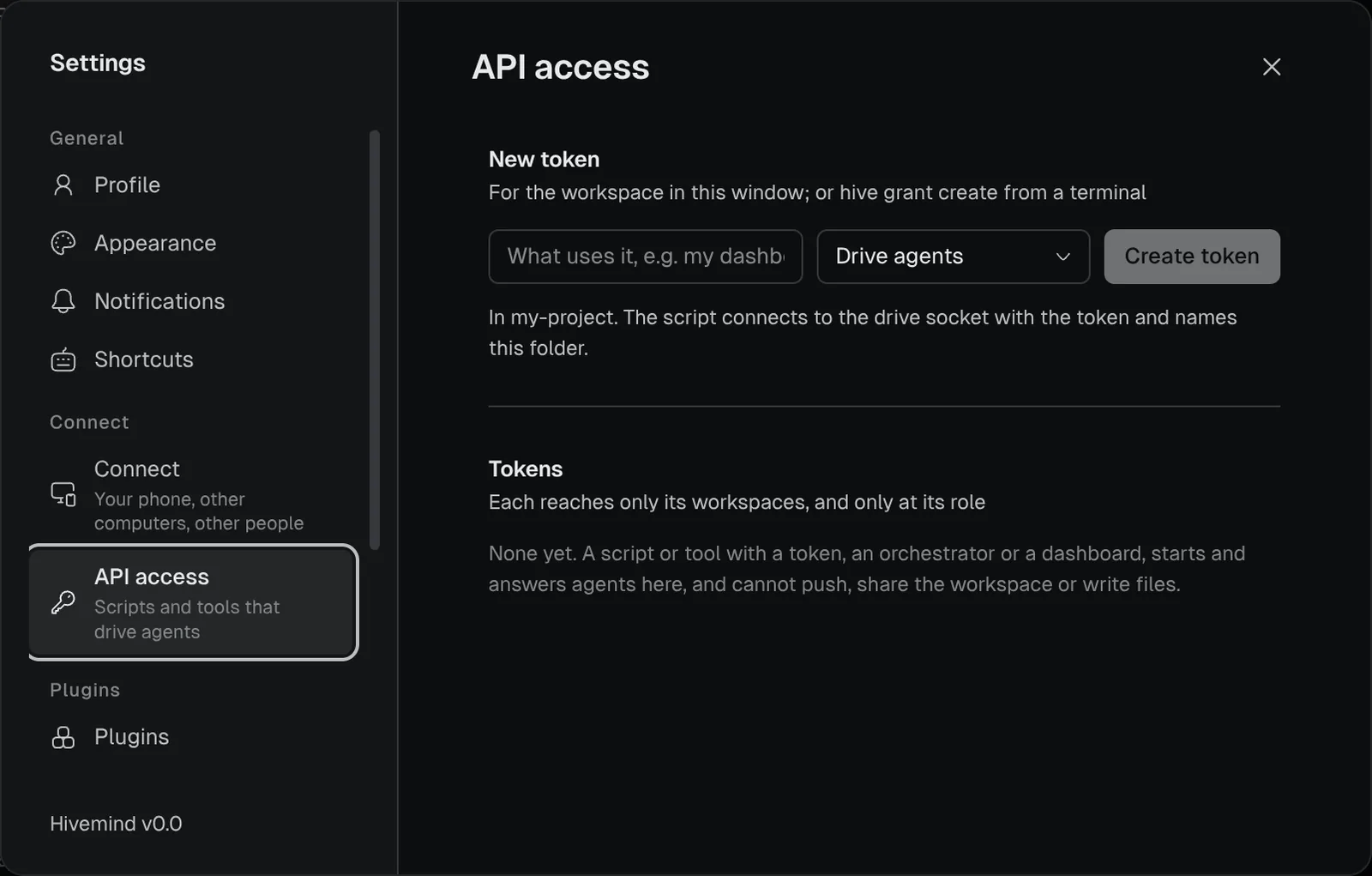 ## Choose a role [#choose-a-role]
Each role can do everything the roles above it can. People and programs get the same four roles.
| Role | For a person, the app says | For a token, **API access** says | Can |
|---|---|---|---|
| `view` | **Can view** | **View** | see the canvas, terminals, agents and their replies, files, diffs, issues and review comments |
| `edit` | **Can edit board** | **Edit** | also move, add and close tiles, press widgets, open a tool's tile |
| `terminals` | **Can use terminals** | **Use terminals** | also type into terminals (a person once given the keyboard) |
| `agents` | **Can drive agents** | **Drive agents** | also start, answer, message, put to sleep and close agents, which means running commands on your computer. A person gets it only while they are here, after a warning. |
A dashboard needs `view`; an orchestrator that starts agents needs `agents`. A call the role does not allow is answered `FORBIDDEN` and never runs. The full list is on [Methods by role](https://hivemind.griiken.com/guide/api-methods/).
## Check it worked [#check-it-worked]
To see your tokens, run:
```bash
hive grant list
```
```text
1a2b3c4d5e6f dashboard view /home/you/work/api expires 2026-11-17T09:00:00Z last used never
```
**Settings → API access** shows the same list, with when each token was last used.
## Revoke a token [#revoke-a-token]
Press **Revoke** in **Settings → API access**, or run it with the id from `hive grant list`:
```bash
hive grant revoke 1a2b3c4d5e6f
```
Revoking closes the program's connections at once. An expired token closes them at that moment too.
## If it didn't work [#if-it-didnt-work]
| What you see | Fix |
|---|---|
| `hive ctl` exits 3 | Neither the app nor `hive host` is running. Open the workspace with `hivemind
## Choose a role [#choose-a-role]
Each role can do everything the roles above it can. People and programs get the same four roles.
| Role | For a person, the app says | For a token, **API access** says | Can |
|---|---|---|---|
| `view` | **Can view** | **View** | see the canvas, terminals, agents and their replies, files, diffs, issues and review comments |
| `edit` | **Can edit board** | **Edit** | also move, add and close tiles, press widgets, open a tool's tile |
| `terminals` | **Can use terminals** | **Use terminals** | also type into terminals (a person once given the keyboard) |
| `agents` | **Can drive agents** | **Drive agents** | also start, answer, message, put to sleep and close agents, which means running commands on your computer. A person gets it only while they are here, after a warning. |
A dashboard needs `view`; an orchestrator that starts agents needs `agents`. A call the role does not allow is answered `FORBIDDEN` and never runs. The full list is on [Methods by role](https://hivemind.griiken.com/guide/api-methods/).
## Check it worked [#check-it-worked]
To see your tokens, run:
```bash
hive grant list
```
```text
1a2b3c4d5e6f dashboard view /home/you/work/api expires 2026-11-17T09:00:00Z last used never
```
**Settings → API access** shows the same list, with when each token was last used.
## Revoke a token [#revoke-a-token]
Press **Revoke** in **Settings → API access**, or run it with the id from `hive grant list`:
```bash
hive grant revoke 1a2b3c4d5e6f
```
Revoking closes the program's connections at once. An expired token closes them at that moment too.
## If it didn't work [#if-it-didnt-work]
| What you see | Fix |
|---|---|
| `hive ctl` exits 3 | Neither the app nor `hive host` is running. Open the workspace with `hivemind 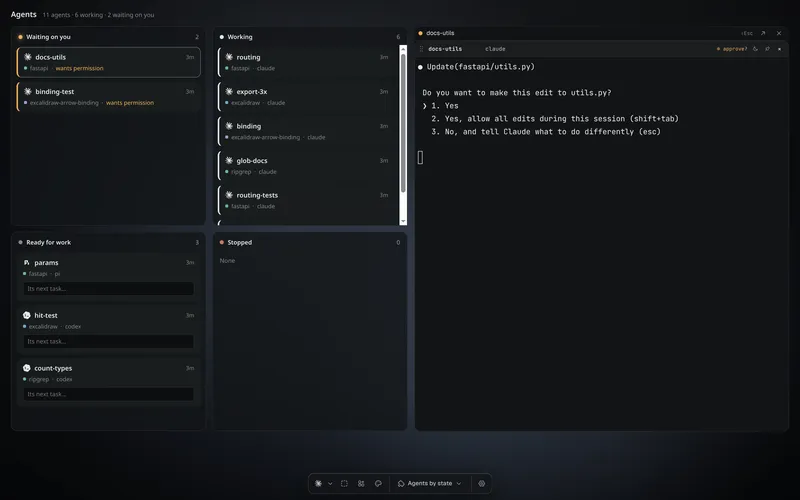 ## The states [#the-states]
| State | Colour | Means |
|---|---|---|
| **working** | white | busy on its task |
| **needs you** | amber | waiting for a person: a permission question or a question with options |
| **blocked** | amber | waiting on a person for another reason |
| **review?** | amber | waiting for you to approve its plan |
| **approval?** | amber | a supervised worker, waiting for its lead to approve a tool. Its lead answers, so the app does not tell you |
| **idle** | grey | at its prompt, ready for a task |
| **exited** | grey, red if it failed | its program has stopped |
| asleep | — | put to sleep: its program stopped, its conversation kept, with **Resume** |
A dot on a row means the agent finished since you last looked. **Mark as read** in the row's ⋮
menu clears it.
Amber always means a person is being waited on. When a frame is collapsed, its dot shows the most
urgent state inside it, so needs you wins.

- Start → **idle**.
- idle → **working**: a turn starts. working → idle: the turn ends, and a dot shows until you look.
- working → **needs you**: it asks you. needs you → working: you answer.
- idle → **asleep**: **Sleep**. asleep → idle: **Resume**.
- Any state → **exited**: its program stops.
## How it works [#how-it-works]

- **Hooks** → **background process**: the agent tells Hivemind when it starts working, stops to ask, or finishes replying. Exact and immediate.
- **Screen rules** → background process: for an agent that sends nothing, rules in its agent file read its screen for its prompt, its questions and its spinner.
- The screen decides until the agent's first hook arrives. From then on, the hooks do.
- Background process → **everywhere it shows**: the tile, the Layers panel, notifications and your phone.
- The computer that runs an agent works out its state. Other devices show what it says.
Which of the two an agent uses is in its agent file. See [Add your own agent](https://hivemind.griiken.com/guide/agent-providers/).
## Why it works this way [#why-it-works-this-way]
An agent's own messages are the only exact source, but not every agent sends them. Reading the
screen covers the rest, so every agent shows a state. Only agents that tell Hivemind when they
finish replying can work for another agent: the lead needs to know when a reply is complete.
## What to do with it [#what-to-do-with-it]
- [Know who is waiting](https://hivemind.griiken.com/guide/know-who-is-waiting/): the bell, notifications and push.
- [Run agents](https://hivemind.griiken.com/guide/agents/): sleep and resume.
- [Coordinate agents](https://hivemind.griiken.com/guide/agent-workflows/): which agents can be workers.
## The states [#the-states]
| State | Colour | Means |
|---|---|---|
| **working** | white | busy on its task |
| **needs you** | amber | waiting for a person: a permission question or a question with options |
| **blocked** | amber | waiting on a person for another reason |
| **review?** | amber | waiting for you to approve its plan |
| **approval?** | amber | a supervised worker, waiting for its lead to approve a tool. Its lead answers, so the app does not tell you |
| **idle** | grey | at its prompt, ready for a task |
| **exited** | grey, red if it failed | its program has stopped |
| asleep | — | put to sleep: its program stopped, its conversation kept, with **Resume** |
A dot on a row means the agent finished since you last looked. **Mark as read** in the row's ⋮
menu clears it.
Amber always means a person is being waited on. When a frame is collapsed, its dot shows the most
urgent state inside it, so needs you wins.

- Start → **idle**.
- idle → **working**: a turn starts. working → idle: the turn ends, and a dot shows until you look.
- working → **needs you**: it asks you. needs you → working: you answer.
- idle → **asleep**: **Sleep**. asleep → idle: **Resume**.
- Any state → **exited**: its program stops.
## How it works [#how-it-works]

- **Hooks** → **background process**: the agent tells Hivemind when it starts working, stops to ask, or finishes replying. Exact and immediate.
- **Screen rules** → background process: for an agent that sends nothing, rules in its agent file read its screen for its prompt, its questions and its spinner.
- The screen decides until the agent's first hook arrives. From then on, the hooks do.
- Background process → **everywhere it shows**: the tile, the Layers panel, notifications and your phone.
- The computer that runs an agent works out its state. Other devices show what it says.
Which of the two an agent uses is in its agent file. See [Add your own agent](https://hivemind.griiken.com/guide/agent-providers/).
## Why it works this way [#why-it-works-this-way]
An agent's own messages are the only exact source, but not every agent sends them. Reading the
screen covers the rest, so every agent shows a state. Only agents that tell Hivemind when they
finish replying can work for another agent: the lead needs to know when a reply is complete.
## What to do with it [#what-to-do-with-it]
- [Know who is waiting](https://hivemind.griiken.com/guide/know-who-is-waiting/): the bell, notifications and push.
- [Run agents](https://hivemind.griiken.com/guide/agents/): sleep and resume.
- [Coordinate agents](https://hivemind.griiken.com/guide/agent-workflows/): which agents can be workers.
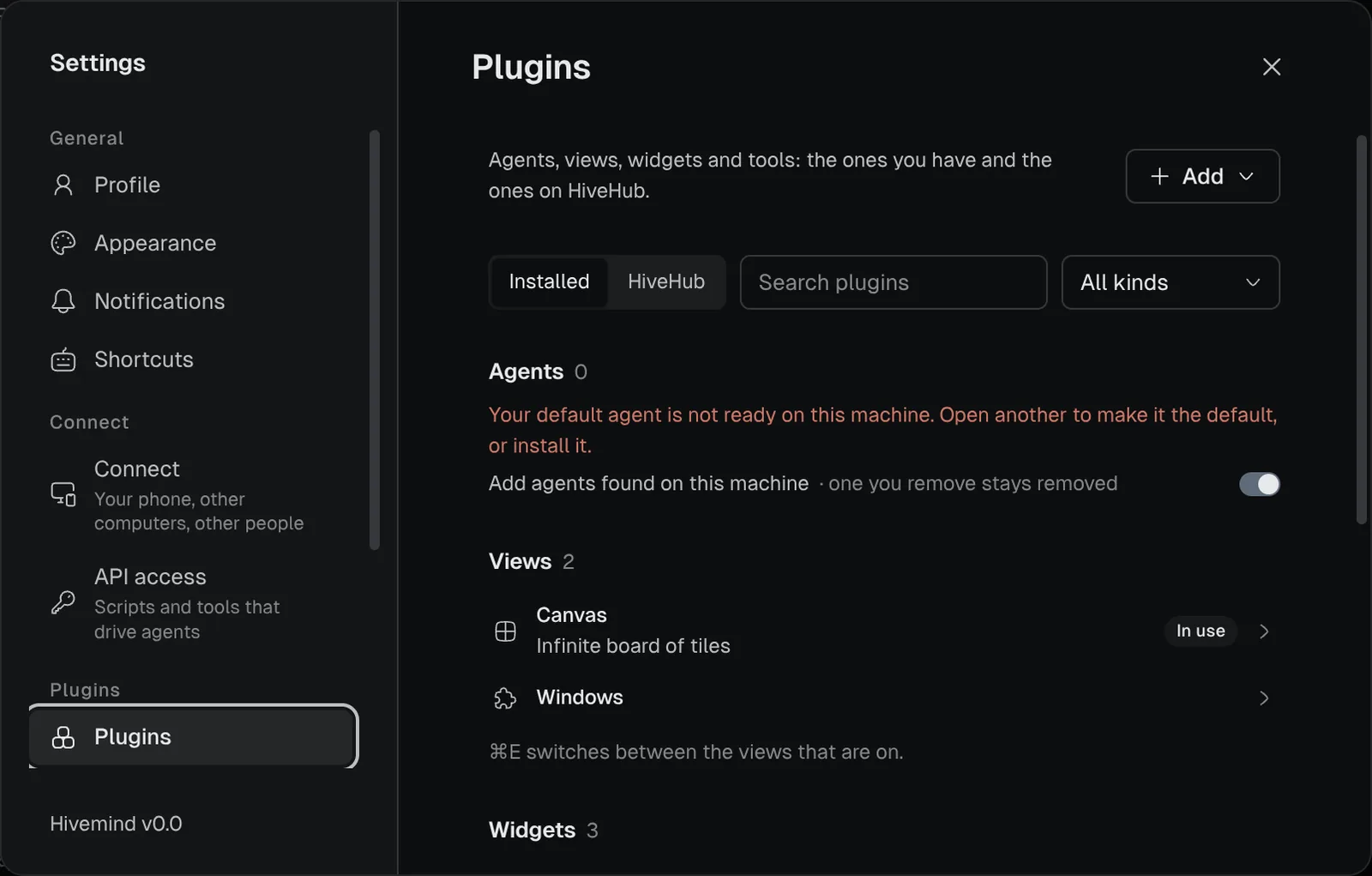 ## Make one [#make-one]
To make your own, use **Add → Make your own…** in the toolbar, or **Add → Make your own** in
**Settings → Plugins**. Both write a prompt you hand to a coding agent.
From a terminal, start one of any kind:
```bash
hive plugins new widget my-widget # or: tool, view
```
Each starter includes `PROMPT.md`: the whole contract for that kind in one file. Write what you
want at the top, then hand the file to a coding agent.
## Agents can run a plugin's commands [#agents-can-run-a-plugins-commands]
A view, widget or tool can declare `"commands"` in its file and answer them in its code. An agent
lists and runs them while the plugin is open:
```bash
hive ctl plugin commands
hive ctl plugin call @dip497/worktrees list
```
## What to do next [#what-to-do-next]
- [Build a widget](https://hivemind.griiken.com/guide/widgets/), the quickest way to start.
- [Write a view](https://hivemind.griiken.com/guide/extension-authoring/) or [Write a tool](https://hivemind.griiken.com/guide/tool-plugins/).
- [Add your own agent](https://hivemind.griiken.com/guide/agent-providers/).
- [Publish a plugin](https://hivemind.griiken.com/guide/publish-to-hivehub/) on HiveHub, so others can install it.
- What a plugin can reach: [Trust, permissions and privacy](https://hivemind.griiken.com/guide/security-and-privacy/).
## Make one [#make-one]
To make your own, use **Add → Make your own…** in the toolbar, or **Add → Make your own** in
**Settings → Plugins**. Both write a prompt you hand to a coding agent.
From a terminal, start one of any kind:
```bash
hive plugins new widget my-widget # or: tool, view
```
Each starter includes `PROMPT.md`: the whole contract for that kind in one file. Write what you
want at the top, then hand the file to a coding agent.
## Agents can run a plugin's commands [#agents-can-run-a-plugins-commands]
A view, widget or tool can declare `"commands"` in its file and answer them in its code. An agent
lists and runs them while the plugin is open:
```bash
hive ctl plugin commands
hive ctl plugin call @dip497/worktrees list
```
## What to do next [#what-to-do-next]
- [Build a widget](https://hivemind.griiken.com/guide/widgets/), the quickest way to start.
- [Write a view](https://hivemind.griiken.com/guide/extension-authoring/) or [Write a tool](https://hivemind.griiken.com/guide/tool-plugins/).
- [Add your own agent](https://hivemind.griiken.com/guide/agent-providers/).
- [Publish a plugin](https://hivemind.griiken.com/guide/publish-to-hivehub/) on HiveHub, so others can install it.
- What a plugin can reach: [Trust, permissions and privacy](https://hivemind.griiken.com/guide/security-and-privacy/).
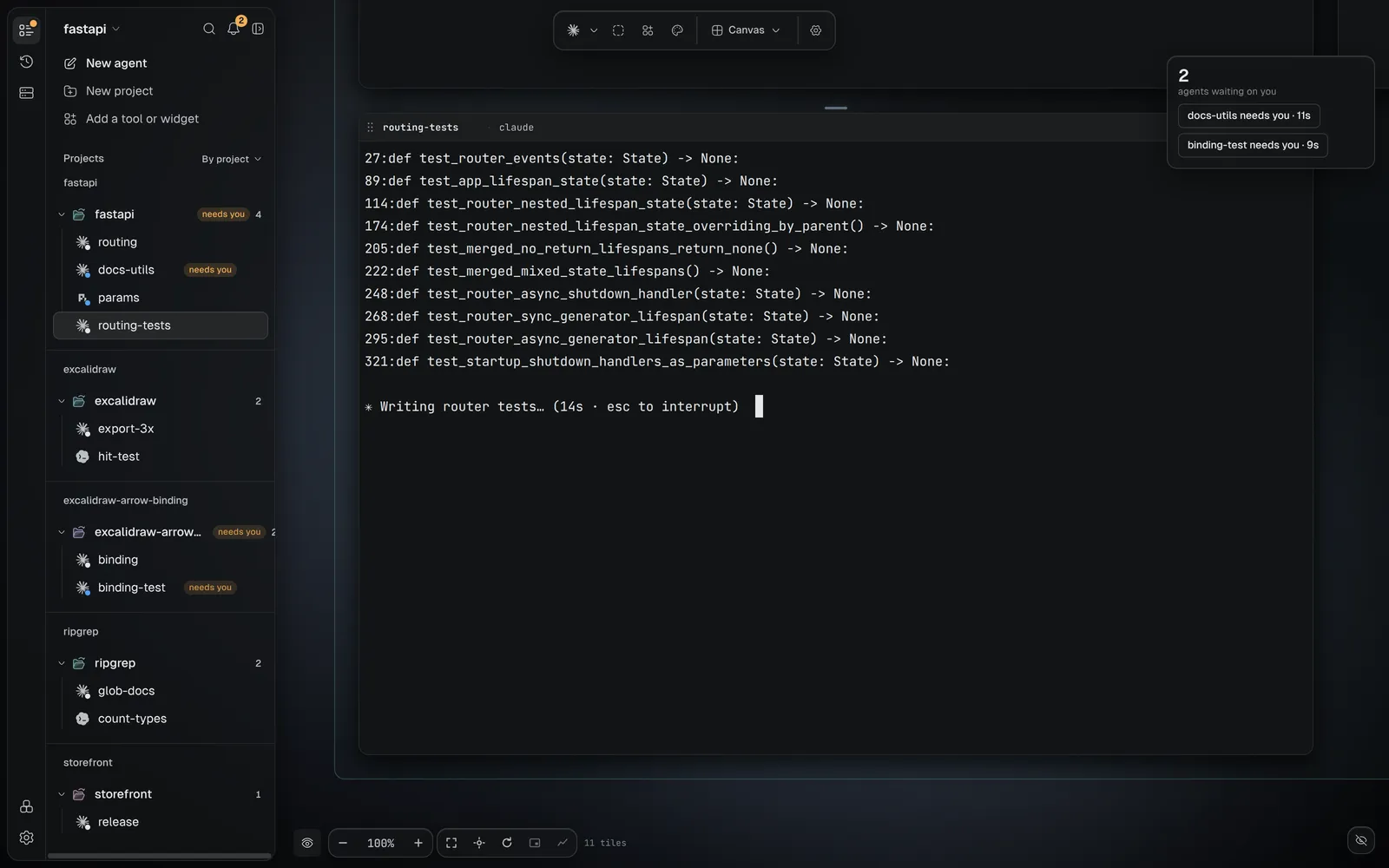 ## How it works [#how-it-works]

- **Workspace**: one project folder. It holds
## How it works [#how-it-works]

- **Workspace**: one project folder. It holds 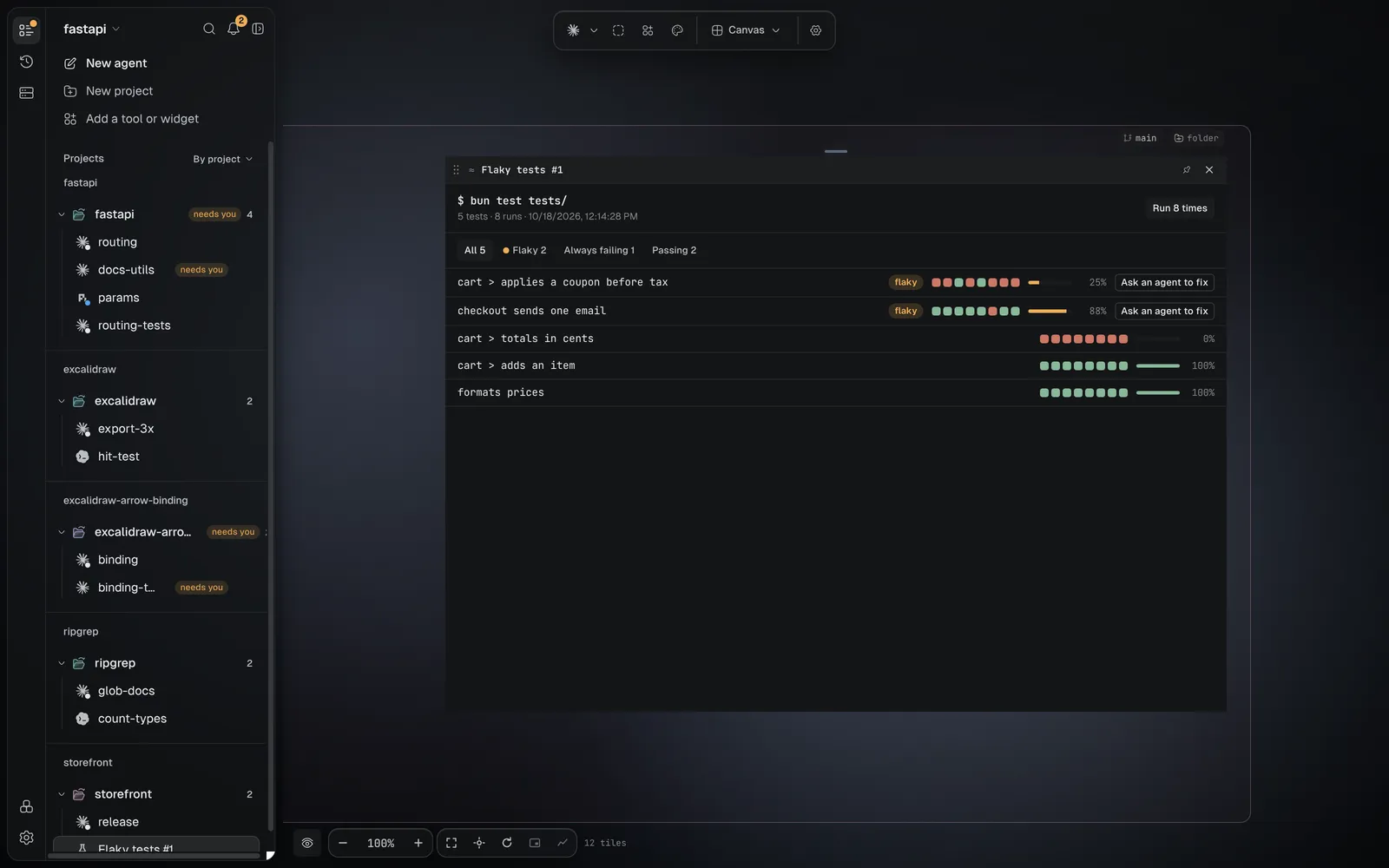 The Browser, Issues and the Code tile are tools that come with the app.