# Know who is waiting
> See at a glance which agent needs you, jump to it, and get told on your desktop or phone when one does.
Source: https://hivemind.griiken.com/guide/know-who-is-waiting/
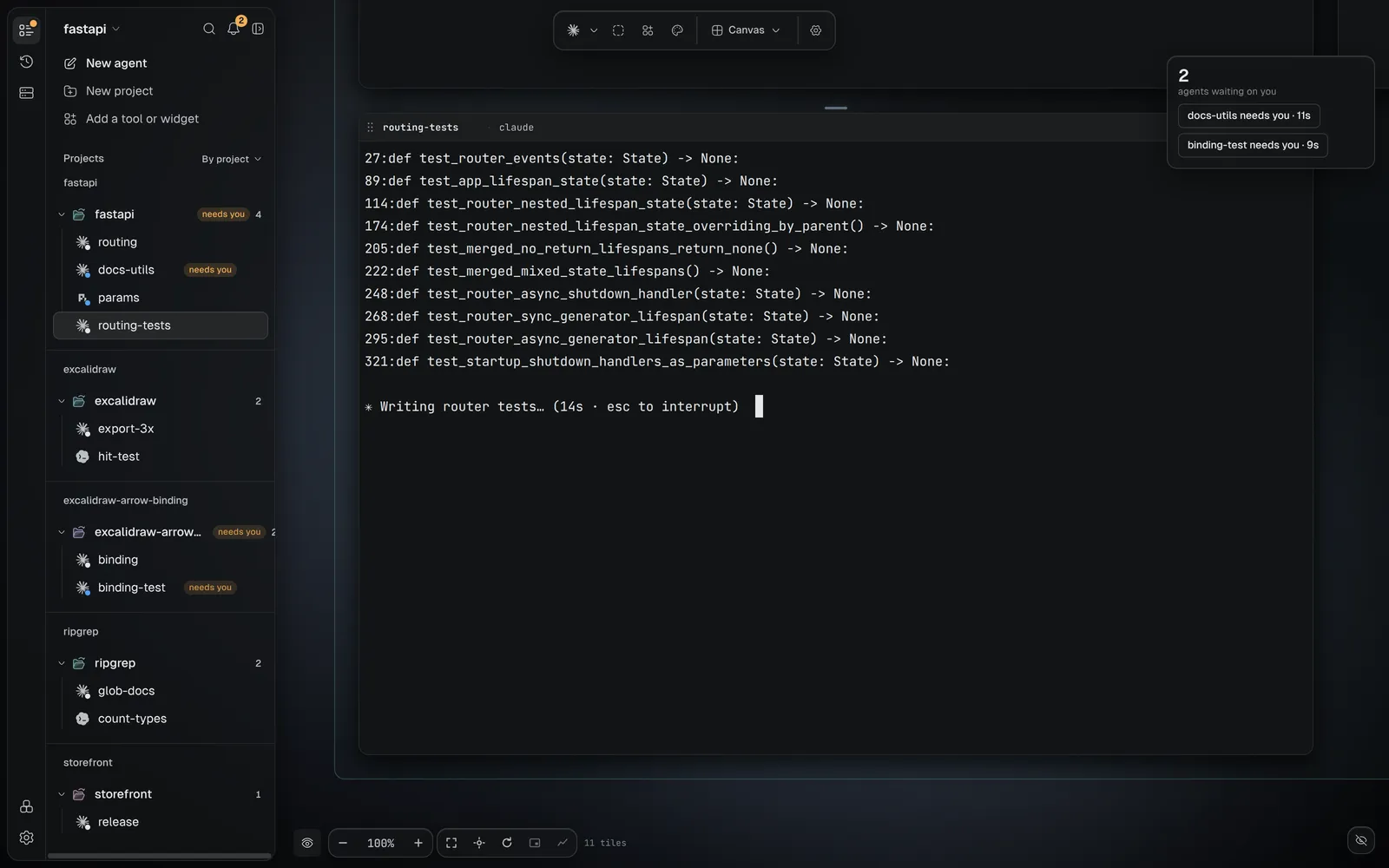
When an agent stops to ask you something, Hivemind turns its tile amber, counts it on the bell
and can notify you. This page shows each signal and how to tune it.
{`
Set up Hivemind on this computer so my phone gets a push notification whenever an agent needs me.
1. Check Hivemind is installed: \`hive --version\` prints a version.
2. Ask me whether I use ntfy (the free app at \`https://ntfy.sh\`) or another service that takes a plain-text POST. For ntfy, suggest a long random topic name and tell me to subscribe to it in the ntfy app on my phone. Wait until I say I have.
3. Run \`hive push set https://ntfy.sh/\`. To also hear when an agent finishes replying, add \`--events input.requested,turn.ended\`.
4. Run \`hive push test\`. Ask me whether the phone showed "test push from hivemind".
5. Run \`hive push status\` and show me where pushes go.
At the end, tell me the topic, which events push, and that \`hive push off\` stops it.
`}
 ## The signals [#the-signals]
| Signal | Where | What it tells you |
|---|---|---|
| Amber | an agent's tile, its row in the Layers panel, its frame | this agent needs you |
| A second line | an agent's or a terminal's row in the Layers panel | what it waits for, or what its screen last showed |
| The bell | top of the Layers panel | how many agents need you |
| A toast | inside the app | an agent needs you, finished, or failed |
| An OS popup | your desktop | the same, when the app window is not in front |
| A spoken line | your screen reader | the same as a toast, also for the tile you are in |
| [A sound](#hear-it) | the window you are at | needs you, and finished or failed if you choose |
| A push | your phone | an agent needs you, even when you are away |
Amber always means a person is being waited on. The other colours are on [Agent states](https://hivemind.griiken.com/guide/agent-states/).
## Read what each row says [#read-what-each-row-says]
Under the name of each agent and terminal in the Layers panel, a second line says what its screen
last showed, such as `214 tests passed`. When an agent needs you, the line says what for, in amber:
| The line | What the agent waits for |
|---|---|
| a tool and its command, such as `Bash: npm test` | your permission to run it; only the command's first line shows |
| **Asks:** and a question | your answer |
| **Plan ready for review** | your review of its plan |
| **Permission**, **Question**, **Approval** or **Blocked** | that, in a word: its agent tells no more |
For an agent that keeps its own conversation, such as Claude, the line is the first line of what
it last said, or the tool it last used and what about, as your phone's Home shows it. For an agent
that runs on another computer, the line is what its screen last showed.
A terminal's line leaves out its prompt and what you type there, so it shows what the last command
printed. A few rows are the exception:
- A question a command waits on, such as `Overwrite b? [y/N]` or a password prompt, is the line on
Linux and macOS. On Windows it is left out with the prompt.
- A prompt that takes two rows is left out whole when its second row starts with `❯` or a corner
such as `╰─`, as starship's and powerlevel10k's do. Another prompt of two rows shows its top row,
unless your shell marks where its prompt starts, as shell integration does (the OSC 133 marks).
- A question your shell asks itself, such as `read -p`, is left out with the prompt.
Someone who joined your workspace sees the same lines under your agents and terminals in their
own Layers panel. `hive ctl agents` prints each agent's line too.
To choose which rows show a line, open the Layers panel's **View** menu, then **Lines**:
**All** (every agent and terminal), **Needs you** or **Off**.
## Allow or deny from the row [#allow-or-deny-from-the-row]
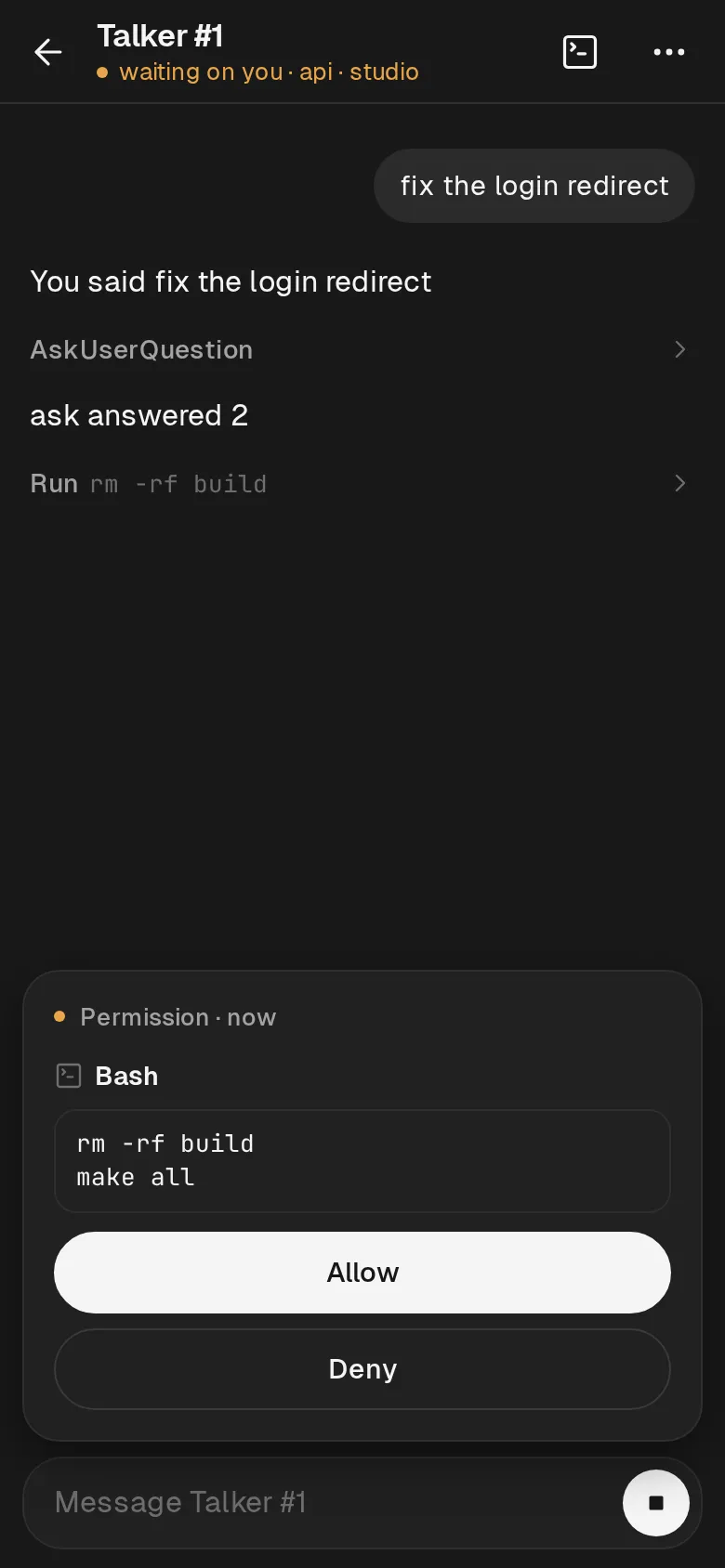
When an agent asks your permission to run a short command of one line, its row and its toast show
**Deny** and **Allow** under the line. Press one to answer, as you would in its tile.
- When you might not see all of the command there, the row shows **Review** instead: the command
is longer than the row or than 160 characters, has more than one line, or holds a tab, a control
or invisible character, or a run of spaces. Press **Review** to read the whole command, its
lines as the agent wrote them, then **Deny** or **Allow**. A review shows up to 4,000
characters, and says when the command may be longer: read the rest in its tile.
- When a new request takes the place of the one you were reading, its buttons take no press for
half a second, and an open review closes and says the request changed.
- A custom view that shows agents' lines offers only **Review**, which names the tile.
- Hover over a row to read its whole line, or the whole command it waits on.
- If someone answered first, or the agent stopped waiting, your answer does nothing and a notice
says it was answered already.
- An agent that tells Hivemind no more than "Permission" shows no buttons: answer it in its tile.
A toast for an agent that finished says its line, such as what Claude last said.
## Jump to the next one [#jump-to-the-next-one]
1. Press the bell at the top of the Layers panel.
2. Check: the next agent that needs you is selected and shown.
3. Answer it in its tile: choose an option, type a reply, or press **Approve plan** for a plan.
Press the bell again for the next one. Its tooltip says how many are left.
## Choose what notifies you [#choose-what-notifies-you]
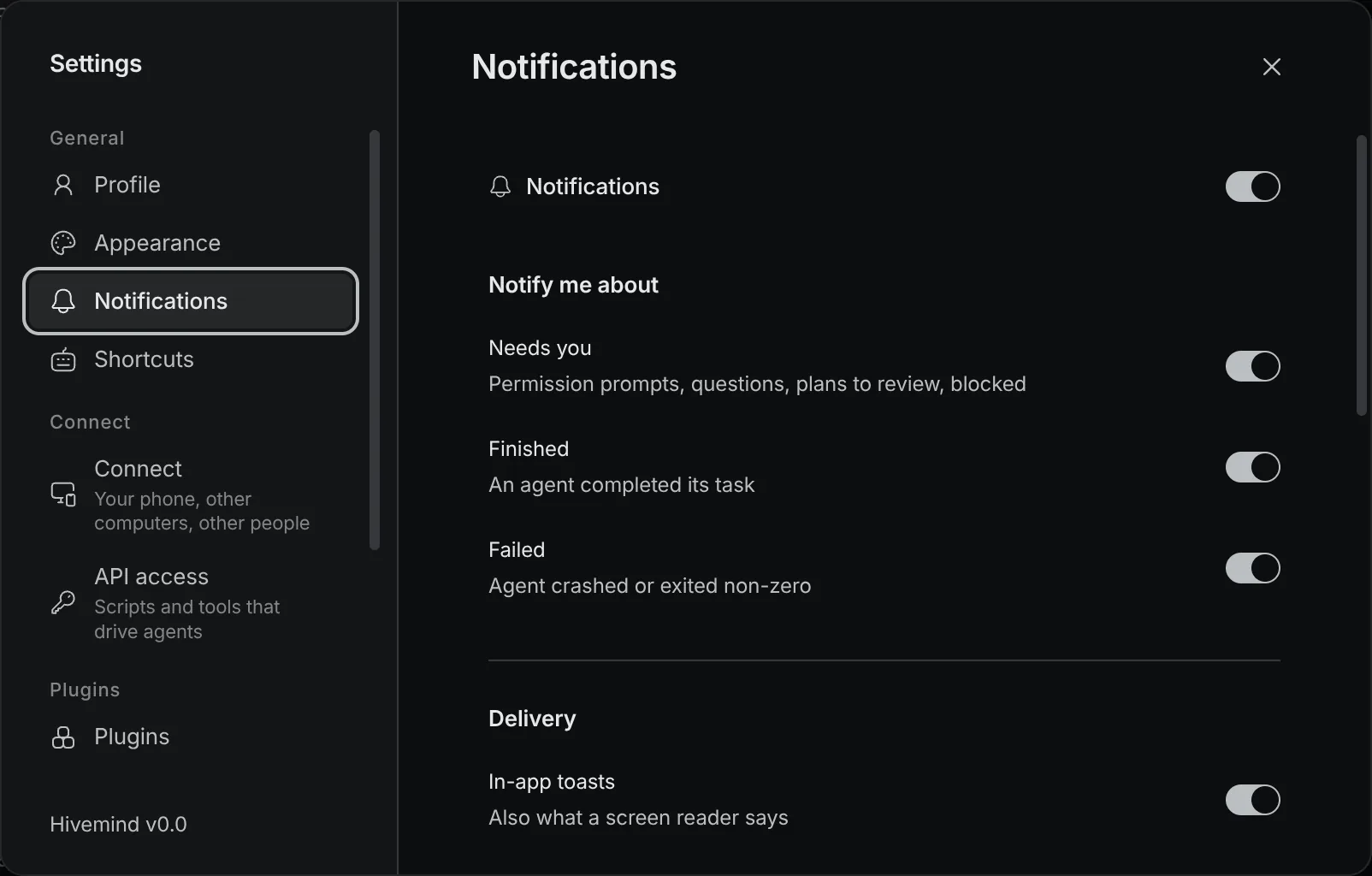
1. Open **Settings → Notifications**.
2. Under **Notify me about**, switch on what you want: **Needs you**, **Finished** or **Failed**.
3. Under **Delivery**, choose **In-app toasts**, **Native OS popups**, or both. **In-app toasts**
also covers what a screen reader says.
4. Check: the next agent that needs you shows a toast.
With several windows open you get one popup per agent, not one per window. When several agents
finish or need you at once, the first shows its own popup and the rest within a second and a half
gather into one, such as **9 more agents finished**. Clicking it opens the first of them.
**Show commands and questions** makes a popup say what the agent waits on (`Bash: npm test`) or
the last line its terminal showed. It is off by default: a command on screen may hold a password,
and a popup can show on a locked screen. A push to your phone never carries it.
**Do Not Disturb** mutes **Finished** and **Failed** (toasts, popups, sounds and the spoken line)
between two times you set. **Needs you** still reaches you.
## The signals [#the-signals]
| Signal | Where | What it tells you |
|---|---|---|
| Amber | an agent's tile, its row in the Layers panel, its frame | this agent needs you |
| A second line | an agent's or a terminal's row in the Layers panel | what it waits for, or what its screen last showed |
| The bell | top of the Layers panel | how many agents need you |
| A toast | inside the app | an agent needs you, finished, or failed |
| An OS popup | your desktop | the same, when the app window is not in front |
| A spoken line | your screen reader | the same as a toast, also for the tile you are in |
| [A sound](#hear-it) | the window you are at | needs you, and finished or failed if you choose |
| A push | your phone | an agent needs you, even when you are away |
Amber always means a person is being waited on. The other colours are on [Agent states](https://hivemind.griiken.com/guide/agent-states/).
## Read what each row says [#read-what-each-row-says]
Under the name of each agent and terminal in the Layers panel, a second line says what its screen
last showed, such as `214 tests passed`. When an agent needs you, the line says what for, in amber:
| The line | What the agent waits for |
|---|---|
| a tool and its command, such as `Bash: npm test` | your permission to run it; only the command's first line shows |
| **Asks:** and a question | your answer |
| **Plan ready for review** | your review of its plan |
| **Permission**, **Question**, **Approval** or **Blocked** | that, in a word: its agent tells no more |
For an agent that keeps its own conversation, such as Claude, the line is the first line of what
it last said, or the tool it last used and what about, as your phone's Home shows it. For an agent
that runs on another computer, the line is what its screen last showed.
A terminal's line leaves out its prompt and what you type there, so it shows what the last command
printed. A few rows are the exception:
- A question a command waits on, such as `Overwrite b? [y/N]` or a password prompt, is the line on
Linux and macOS. On Windows it is left out with the prompt.
- A prompt that takes two rows is left out whole when its second row starts with `❯` or a corner
such as `╰─`, as starship's and powerlevel10k's do. Another prompt of two rows shows its top row,
unless your shell marks where its prompt starts, as shell integration does (the OSC 133 marks).
- A question your shell asks itself, such as `read -p`, is left out with the prompt.
Someone who joined your workspace sees the same lines under your agents and terminals in their
own Layers panel. `hive ctl agents` prints each agent's line too.
To choose which rows show a line, open the Layers panel's **View** menu, then **Lines**:
**All** (every agent and terminal), **Needs you** or **Off**.
## Allow or deny from the row [#allow-or-deny-from-the-row]
When an agent asks your permission to run a short command of one line, its row and its toast show
**Deny** and **Allow** under the line. Press one to answer, as you would in its tile.
- When you might not see all of the command there, the row shows **Review** instead: the command
is longer than the row or than 160 characters, has more than one line, or holds a tab, a control
or invisible character, or a run of spaces. Press **Review** to read the whole command, its
lines as the agent wrote them, then **Deny** or **Allow**. A review shows up to 4,000
characters, and says when the command may be longer: read the rest in its tile.
- When a new request takes the place of the one you were reading, its buttons take no press for
half a second, and an open review closes and says the request changed.
- A custom view that shows agents' lines offers only **Review**, which names the tile.
- Hover over a row to read its whole line, or the whole command it waits on.
- If someone answered first, or the agent stopped waiting, your answer does nothing and a notice
says it was answered already.
- An agent that tells Hivemind no more than "Permission" shows no buttons: answer it in its tile.
A toast for an agent that finished says its line, such as what Claude last said.
## Jump to the next one [#jump-to-the-next-one]
1. Press the bell at the top of the Layers panel.
2. Check: the next agent that needs you is selected and shown.
3. Answer it in its tile: choose an option, type a reply, or press **Approve plan** for a plan.
Press the bell again for the next one. Its tooltip says how many are left.
## Choose what notifies you [#choose-what-notifies-you]
1. Open **Settings → Notifications**.
2. Under **Notify me about**, switch on what you want: **Needs you**, **Finished** or **Failed**.
3. Under **Delivery**, choose **In-app toasts**, **Native OS popups**, or both. **In-app toasts**
also covers what a screen reader says.
4. Check: the next agent that needs you shows a toast.
With several windows open you get one popup per agent, not one per window. When several agents
finish or need you at once, the first shows its own popup and the rest within a second and a half
gather into one, such as **9 more agents finished**. Clicking it opens the first of them.
**Show commands and questions** makes a popup say what the agent waits on (`Bash: npm test`) or
the last line its terminal showed. It is off by default: a command on screen may hold a password,
and a popup can show on a locked screen. A push to your phone never carries it.
**Do Not Disturb** mutes **Finished** and **Failed** (toasts, popups, sounds and the spoken line)
between two times you set. **Needs you** still reaches you.
 ## Hear it [#hear-it]
1. Open **Settings → Notifications** and, under **Sounds**, switch on **Play a sound**.
2. Choose the moments that play one: **Needs you** is on, **Finished** and **Failed** are off
until you switch them on. **Play** beside each lets you hear it.
3. Set the **Volume**.
4. Check: **Play** beside **Needs you** adds a line to **Recent** that says **played**.
Agents that change together play one sound, the most urgent of them: needs you, then failed, then
finished. At most one sound plays every 1.2 seconds, in the window you are at. A finished agent
you are looking at plays nothing. An applied theme with its own sounds plays them instead, never
louder than the app's own sounds and cut to 3 seconds, and **Recent** names the theme. When a
theme's sound cannot be played, the app's own plays, and **Recent** says why.
**Recent** lists the last ten moments: how many agents (**asked for** for a sound you played
yourself), whether a sound played (or why not) and how many popups showed. If it says **blocked: suspended**, click or type in the window once: a
window may not start a sound before you have used it.
From a terminal, `hive notifications show`, `set`, `play` and `recent` do the same
([CLI reference](https://hivemind.griiken.com/guide/cli/#hive-notifications)). Only you can change or play sounds: an agent that runs
`hive notifications set` or `play` is refused.
## Snooze a row [#snooze-a-row]
To hide an agent from the Layers panel for a while, open its row's ⋮ menu and choose **Snooze**:
**30 minutes**, **1 hour**, **2 hours** or **Tomorrow at 9:00**.
A snoozed row waits under **Snoozed**. It comes back early as soon as its agent needs you.
**Wake now** in the same menu brings it back at once.
## Get a push on your phone [#get-a-push-on-your-phone]
1. Install ntfy on your phone and subscribe to a topic only you know.
2. On the computer the agents run on, run `hive push set https://ntfy.sh/`.
3. Run `hive push test`.
4. Check: your phone shows **test push from hivemind**.
By default a push goes out when an agent needs you. To also hear when an agent finishes
replying, add `--events input.requested,turn.ended`. `hive push off` stops it.
The phone page lists what needs you first, and you answer there. It needs your own network
server. See [Answer agents from your phone](https://hivemind.griiken.com/guide/phone/).
## Hear it [#hear-it]
1. Open **Settings → Notifications** and, under **Sounds**, switch on **Play a sound**.
2. Choose the moments that play one: **Needs you** is on, **Finished** and **Failed** are off
until you switch them on. **Play** beside each lets you hear it.
3. Set the **Volume**.
4. Check: **Play** beside **Needs you** adds a line to **Recent** that says **played**.
Agents that change together play one sound, the most urgent of them: needs you, then failed, then
finished. At most one sound plays every 1.2 seconds, in the window you are at. A finished agent
you are looking at plays nothing. An applied theme with its own sounds plays them instead, never
louder than the app's own sounds and cut to 3 seconds, and **Recent** names the theme. When a
theme's sound cannot be played, the app's own plays, and **Recent** says why.
**Recent** lists the last ten moments: how many agents (**asked for** for a sound you played
yourself), whether a sound played (or why not) and how many popups showed. If it says **blocked: suspended**, click or type in the window once: a
window may not start a sound before you have used it.
From a terminal, `hive notifications show`, `set`, `play` and `recent` do the same
([CLI reference](https://hivemind.griiken.com/guide/cli/#hive-notifications)). Only you can change or play sounds: an agent that runs
`hive notifications set` or `play` is refused.
## Snooze a row [#snooze-a-row]
To hide an agent from the Layers panel for a while, open its row's ⋮ menu and choose **Snooze**:
**30 minutes**, **1 hour**, **2 hours** or **Tomorrow at 9:00**.
A snoozed row waits under **Snoozed**. It comes back early as soon as its agent needs you.
**Wake now** in the same menu brings it back at once.
## Get a push on your phone [#get-a-push-on-your-phone]
1. Install ntfy on your phone and subscribe to a topic only you know.
2. On the computer the agents run on, run `hive push set https://ntfy.sh/`.
3. Run `hive push test`.
4. Check: your phone shows **test push from hivemind**.
By default a push goes out when an agent needs you. To also hear when an agent finishes
replying, add `--events input.requested,turn.ended`. `hive push off` stops it.
The phone page lists what needs you first, and you answer there. It needs your own network
server. See [Answer agents from your phone](https://hivemind.griiken.com/guide/phone/).
 ## Check it worked [#check-it-worked]
- Start an agent and ask it to do something that needs permission.
- Its tile turns amber and the bell shows **1**.
- With notifications on, a toast or popup names the agent.
## If it didn't [#if-it-didnt]
| You see | Do |
|---|---|
| An agent asks something but its tile never turns amber | See [Troubleshooting](https://hivemind.griiken.com/guide/troubleshooting/). |
| No toast or popup | Check **Settings → Notifications** is on, and **Needs you** with it. |
| No sound | Check **Play a sound** and the moment are on. **Recent** says why a sound was blocked or skipped. |
| `hive push test` fails | The URL is wrong, or the computer cannot reach it. Run `hive push status`. |
## Related [#related]
- [Agent states](https://hivemind.griiken.com/guide/agent-states/)
- [Answer agents from your phone](https://hivemind.griiken.com/guide/phone/)
- [Keyboard shortcuts](https://hivemind.griiken.com/guide/keyboard-shortcuts/)
## Check it worked [#check-it-worked]
- Start an agent and ask it to do something that needs permission.
- Its tile turns amber and the bell shows **1**.
- With notifications on, a toast or popup names the agent.
## If it didn't [#if-it-didnt]
| You see | Do |
|---|---|
| An agent asks something but its tile never turns amber | See [Troubleshooting](https://hivemind.griiken.com/guide/troubleshooting/). |
| No toast or popup | Check **Settings → Notifications** is on, and **Needs you** with it. |
| No sound | Check **Play a sound** and the moment are on. **Recent** says why a sound was blocked or skipped. |
| `hive push test` fails | The URL is wrong, or the computer cannot reach it. Run `hive push status`. |
## Related [#related]
- [Agent states](https://hivemind.griiken.com/guide/agent-states/)
- [Answer agents from your phone](https://hivemind.griiken.com/guide/phone/)
- [Keyboard shortcuts](https://hivemind.griiken.com/guide/keyboard-shortcuts/)